# Review and Edit Classification Results (/docs/classification/classification-categories/review-edit-classification-results)
### Finding datapoint classifications [#finding-datapoint-classifications]
Classification results are available in the [_Classifications > Browse Data Systems_](https://app.transcend.io/classification/data-systems) area of the platform after clicking into a particular system. The **_Datapoints_** tab lists out all datapoints in this data system alongside their respective Data Category. You can add notes and more information by clicking in the Description field and editing directly in line.
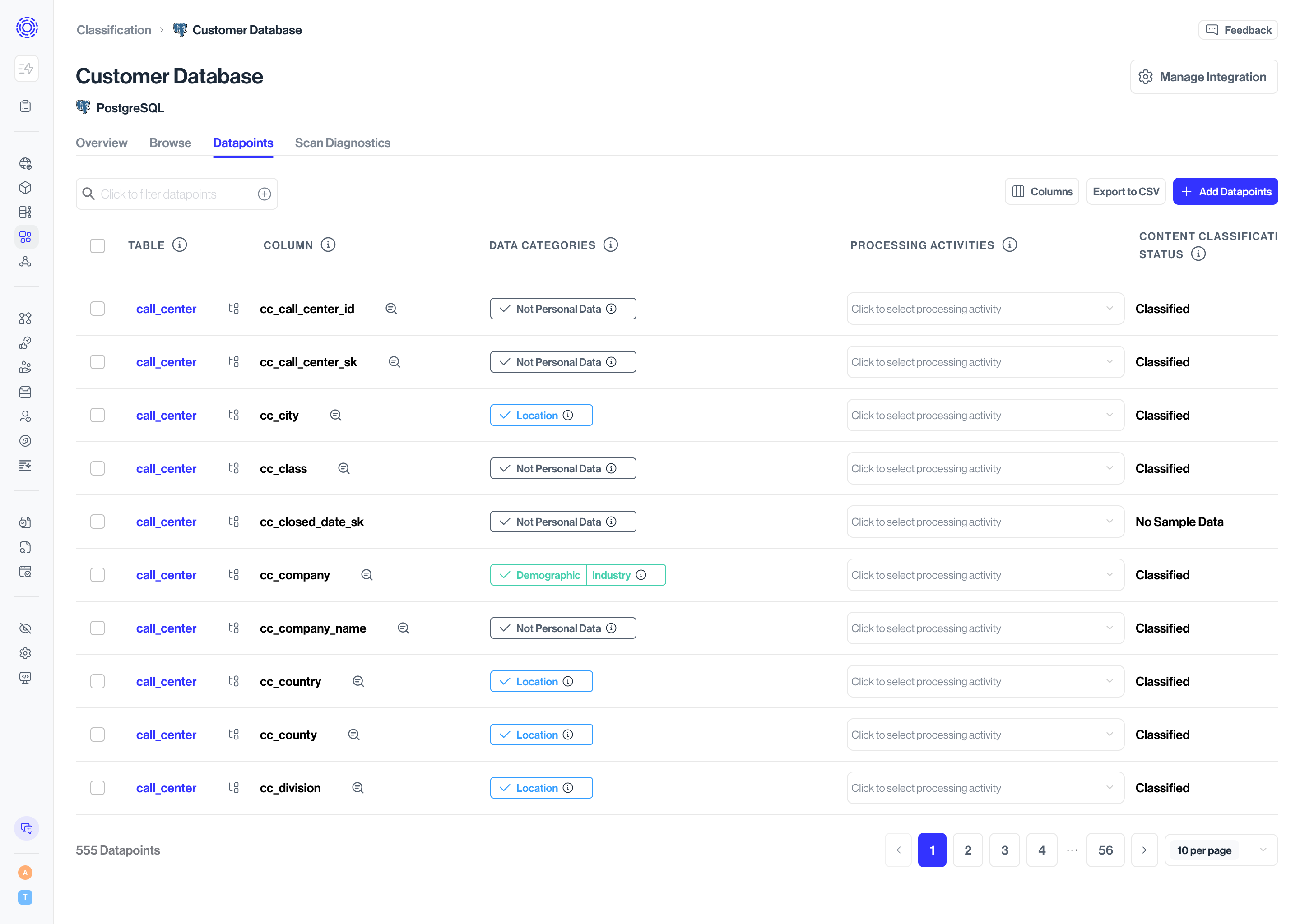
You will see classification categories for each row. We also include sample data below each column for you to reference.
Hover over each column to directly delete, add and edit categories.
Select “Filter” in the top left to filter datapoints by Data Category, Purpose of Processing or classification status.
### Understanding classification statuses [#understanding-classification-statuses]
When Structured Discovery scans a data system, each datapoint moves through a classification progression, from an automated prediction to a human-confirmed decision. Two status fields describe where a datapoint sits in that progression. They're closely related: **Content Classification Status** tracks the detailed state of the scan and review, while **Status** gives you the higher-level Pending vs. Approved view of the same progression.
#### Content Classification Status [#content-classification-status]
This is the detailed state of a datapoint's classification.
- **Classified** — Structured Discovery sampled the datapoint and its machine-learning model assigned a _predicted_ Data Category. This is a recommendation from Transcend, not yet a human decision. Datapoints in this state have sample data and are ready for a team member to review and confirm.
- **Confirmed** — A team member has reviewed the datapoint and confirmed its Data Category (or corrected it and confirmed the corrected value). Confirming a datapoint also marks it as **Approved** — the two describe the same action.
- **No Sample Data** — The scan reached the datapoint but found no sample data to classify against (for example, an empty column). Without sample data, the model can't generate a prediction, so these datapoints typically need to be classified manually or revisited once the column is populated.
#### Status (Pending vs. Approved) [#status-pending-vs-approved]
This is the higher-level view of the same progression, useful for quickly separating what still needs attention from what's done.
- **Pending** — The datapoint's classification has not yet been confirmed. This covers datapoints that Structured Discovery has classified with a prediction but that no team member has confirmed, as well as datapoints with no sample data. Filtering on **Pending** is the fastest way to find everything still awaiting review.
- **Approved** — A team member has confirmed the datapoint's Data Category. Approved and Confirmed refer to the same event: once you confirm a classification, its Status becomes Approved. Approved datapoints are treated as reviewed and reflected as such in your Data Inventory, reports, and ROPAs.
#### How the two statuses relate [#how-the-two-statuses-relate]
Because **Status** is a higher-level view of **Content Classification Status**, they always line up in predictable ways:
| **Status** | **Content Classification Status** | **What it means** | **Typical action** |
| ---------- | --------------------------------- | --------------------------------------------------------------------------------------- | ------------------------------------------------------------------------------------------------------------------------------------------------------------------- |
| Pending | No sample data | No sample data was available to generate a prediction | Classify manually, or revisit once the column has data |
| Pending | Classified | Structured Discovery has predicted a Data Category, but no team member has confirmed it | Review the prediction, then confirm or correct it. You can also leave these as unconfirmed if your intent is to rely on the guessed categorizations for datapoints. |
| Approved | Confirmed | A team member has confirmed the Data Category — fully reviewed | No action needed |
#### Recommended review workflow [#recommended-review-workflow]
To work through a large scan efficiently, filter down to the highest-priority, unreviewed datapoints first:
1. Open the **Datapoints** tab and select **Filter** in the top left.
2. **Focus on classified-but-unconfirmed datapoints.** Filter on **Status: Pending** plus **Content Classification Status: Classified** to surface datapoints that have sample data and a prediction but haven't yet been confirmed. Narrow further by selecting your highest-priority **Data Categories** (for example, Financial or other personal data categories) to tackle the most important datapoints first.
3. **Separate datapoints by sample data.** Use **Content Classification Status: No Sample Data** to isolate columns with nothing to classify against, and **Content Classification Status: Classified** to focus on columns that do have sample data.
4. **Delegate the harder cases.** For datapoints whose category isn't obvious, assign a **Datapoint Owner** (this surfaces automatically as an action item for that person) or apply a review tag so a colleague can weigh in. Save these for last so they don't block the straightforward ones.
**Tip:** A practical division of labor is to have one or two team members do the initial classifying and confirming, then assign owners or a review tag for a second set of eyes.