# Google Consent Mode (/docs/consent-management/configuration/consent-integrations/google-consent-mode)
## Introduction [#introduction]
Our integration with [Google Consent Mode](https://developers.google.com/tag-platform/security/concepts/consent-mode) is enabled by default. We provide a mapping of our tracking purposes (`Functional`, `Analytics` and `Advertising`, `SaleOfInfo`) into Google Consent Mode purposes, and our integration will automatically update Google Consent Mode whenever consent changes.
In addition to our documentation, we also recommend reviewing [Google's Consent Mode Quickstart documentation](https://developers.google.com/tag-platform/security/guides/consent?consentmode=advanced#gtag.js).
### How Transcend uses the `default` and `update` commands [#how-transcend-uses-the-default-and-update-commands]
As of airgap.js 9.166.0:
- On page load, Transcend first calls the `default` command with regime default consent. If the user has made a consent choice, Transcend then calls the `update` command with the user's consent.
- On consent change, Transcend calls the `update` command.
Prior to airgap.js 9.166.0, on page load, Transcend only called the `default` command, with the user’s consent if the user had made a consent choice, else with regime default consent.
## Quick Start [#quick-start]
### Step 1: Load the Consent Manager script [#step-1-load-the-consent-manager-script]
There are a few different ways to load our Consent Manager, but the following are the most straightforward options:
1. (Recommended) Manually load `airgap.js` alongside `gtag.js`
2. Load `airgap.js` via GTM Template
#### (Option 1) Manual Loading [#option-1-manual-loading]
Copy the `airgap.js` code snippet from the [Developer Settings > Installation](https://app.transcend.io/consent-manager/developer-settings/installation) page and paste it in the `` tag section of your site, making sure to place it before any tracker scripts.
**Important:** When manually loading both `gtag.js` and `airgap.js`, you need to set safe consent defaults before `airgap.js` loads to prevent "Read before default" errors. This happens because GTM triggers tags asynchronously, and Google Analytics tags may check for consent state before the Transcend script finishes loading.
Your HTML should look something like this:
```html
```
#### (Option 2) Loading via GTM [#option-2-loading-via-gtm]
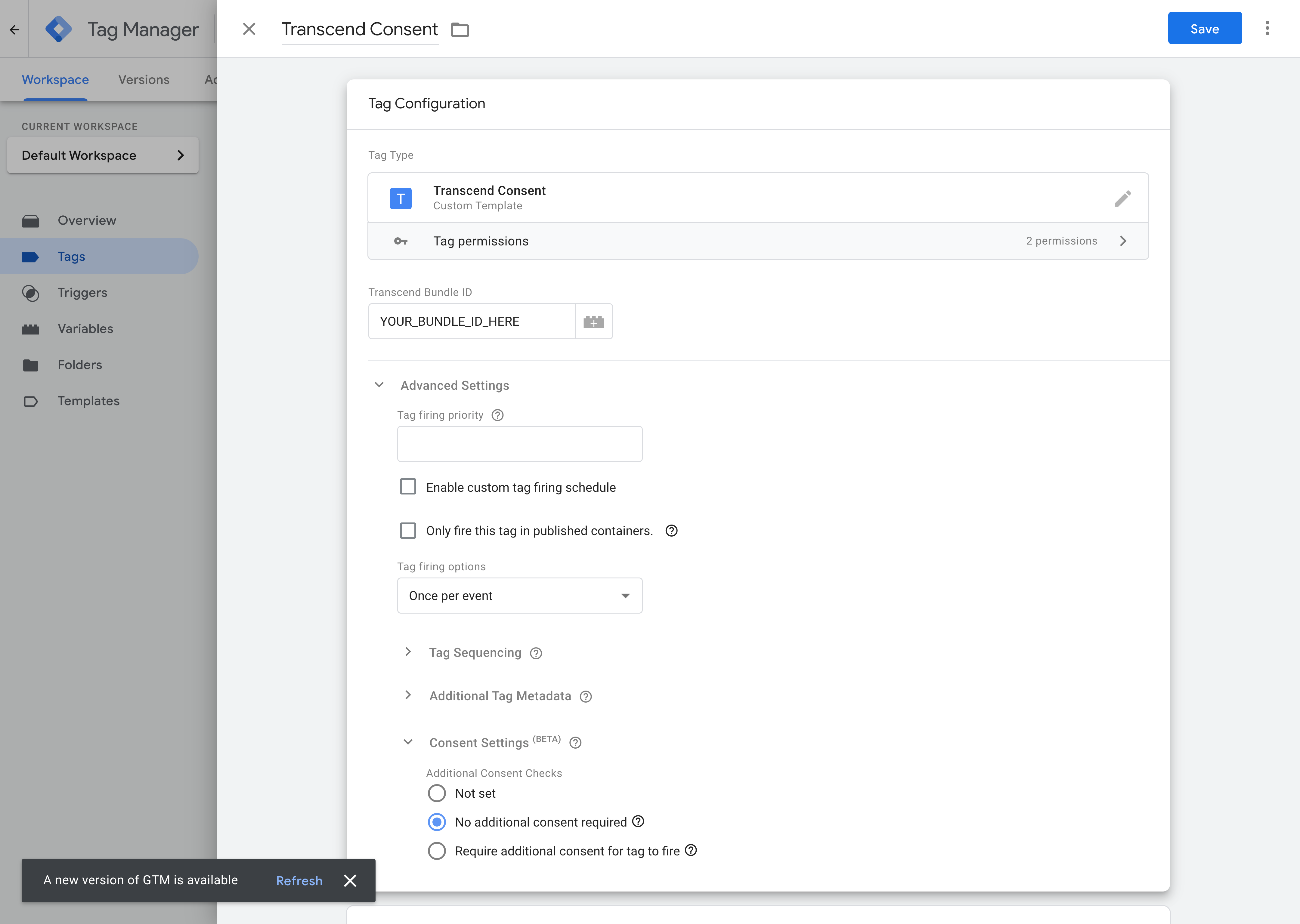
If you can't easily modify your site code, you can also load `airgap.js` via a GTM Template. This template will set safe consent defaults, load the Transcend script, and push a custom event when consent is ready. Don't forget to also include the Transcend Google Developer ID (`gtag('set', 'developer_id.dODQ2Mj', true)`) in a separate Custom HTML tag if you haven't already.
This setup requires creating two GTM tags that work together:
##### Tag 1: Set Safe Consent Defaults (Custom HTML) [#tag-1-set-safe-consent-defaults-custom-html]
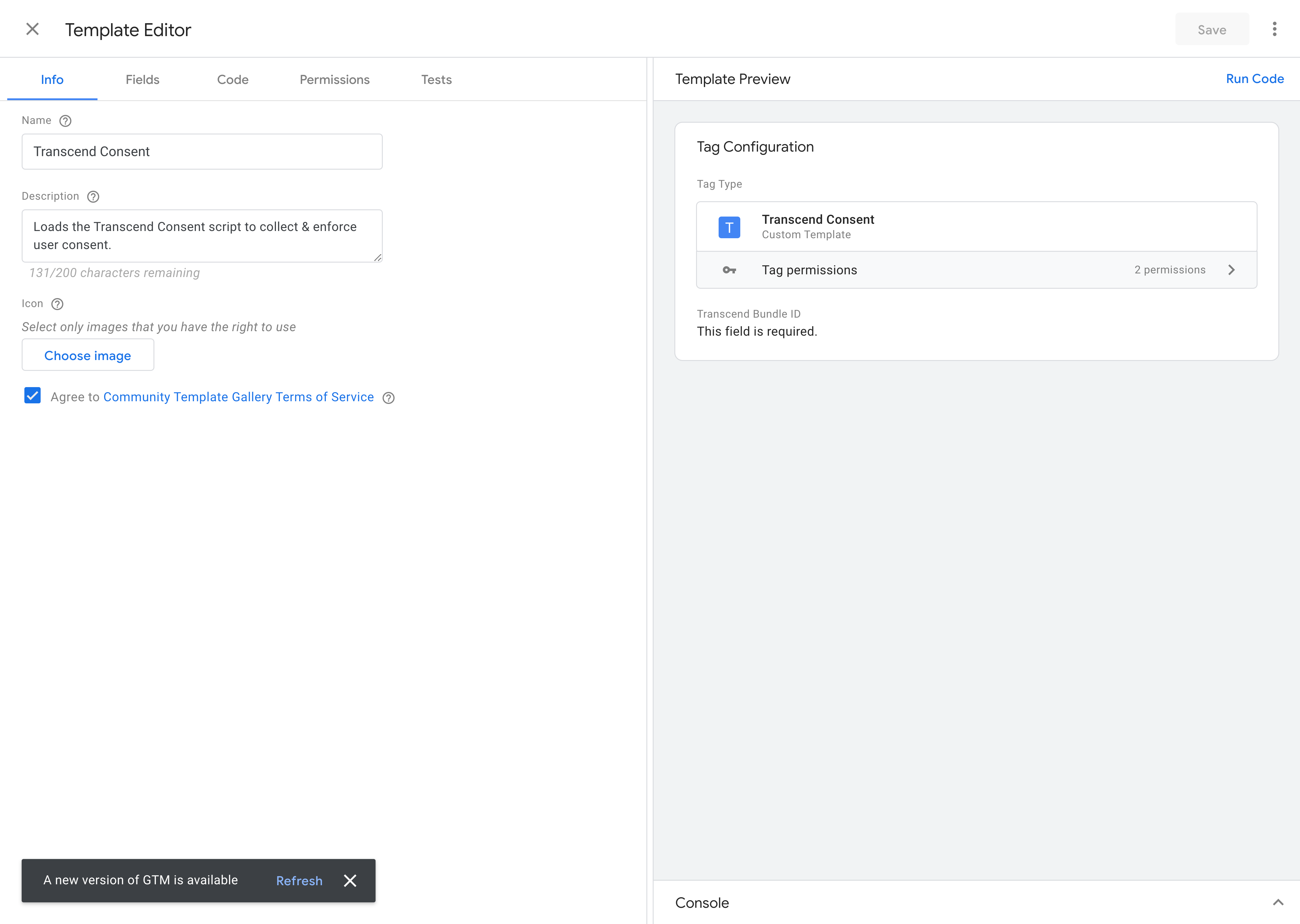
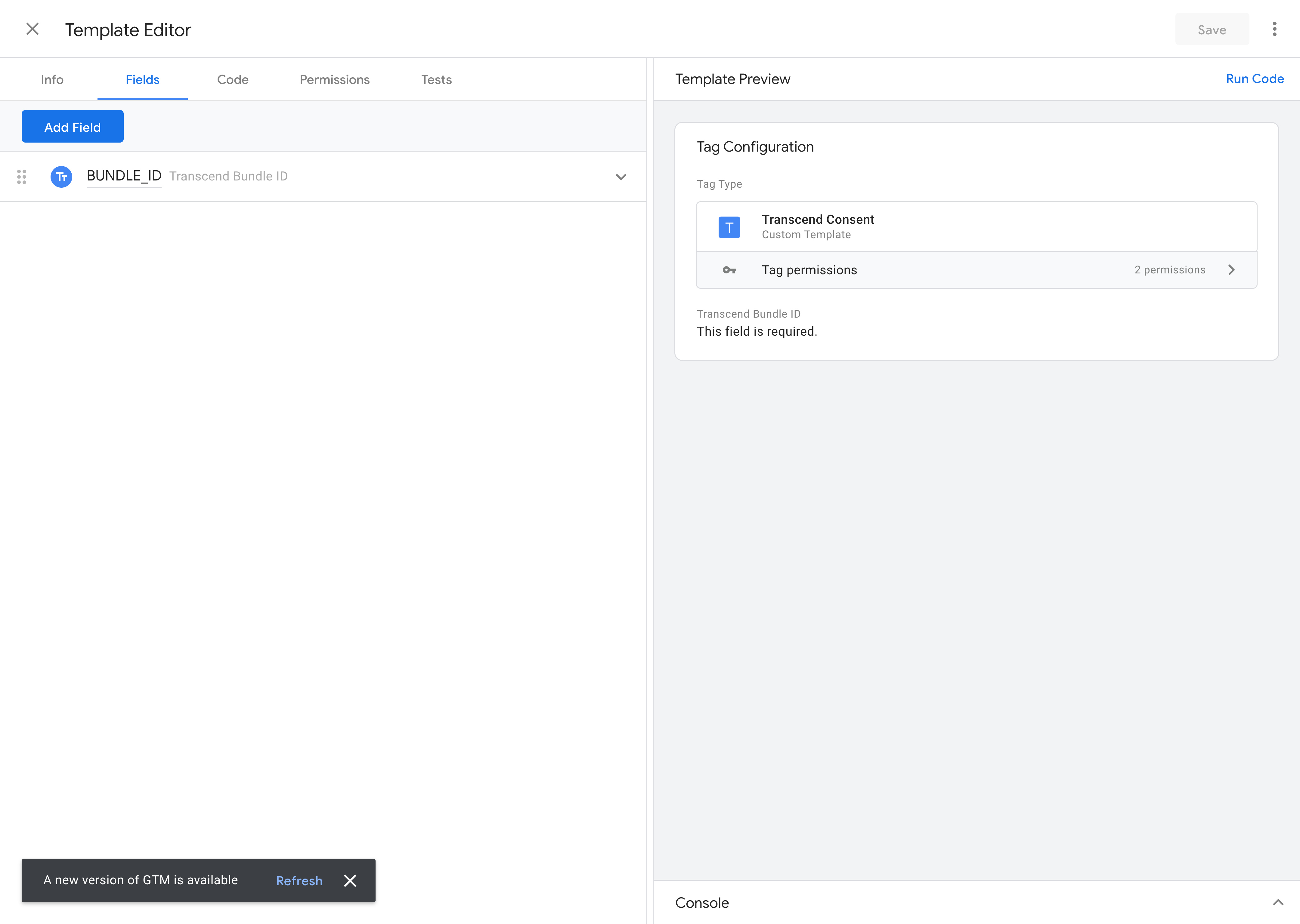
2\. Select the Fields tab, click Add Field > Text Input. Change the name to `BUNDLE_ID`.
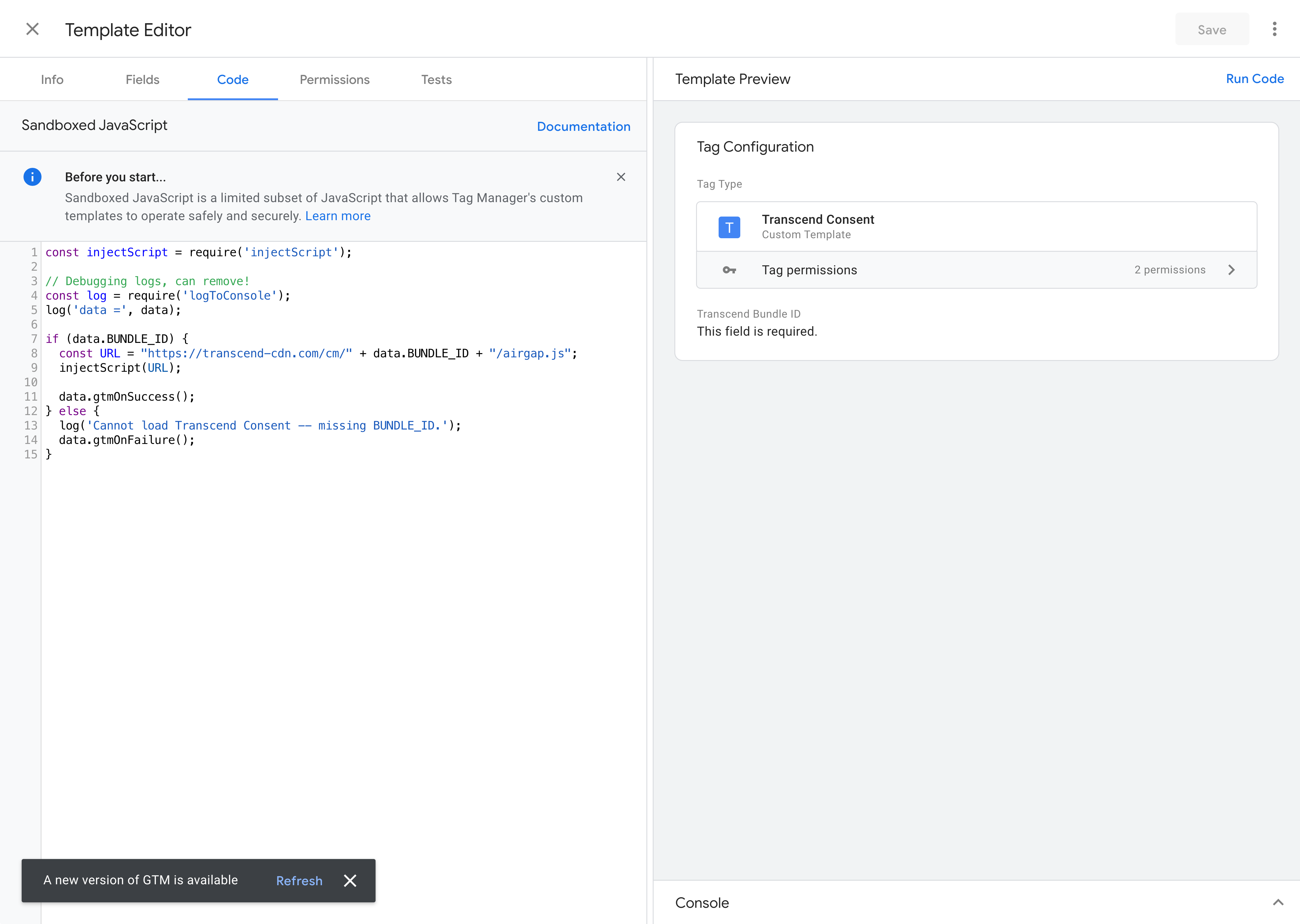
3\. Select the Code tab, and copy the following code snippet. This template:
```javascript
const injectScript = require('injectScript');
const callInWindow = require('callInWindow');
const copyFromWindow = require('copyFromWindow');
const setInWindow = require('setInWindow');
if (data.BUNDLE_ID) {
let airgap = copyFromWindow('airgap');
const onTranscendReady = function() {
// 1. Release GTM to move to the next trigger
callInWindow('dataLayer.push', {
'event': 'transcend_consent_ready'
});
// 2. IMPORTANT: Register a listener for future updates (user clicks accept/reject)
callInWindow('airgap.addEventListener', 'consent-change', function() {
callInWindow('dataLayer.push', { 'event': 'transcend_update_set' });
});
data.gtmOnSuccess();
};
if (airgap && airgap.ready) {
callInWindow('airgap.ready', onTranscendReady);
} else {
const stub = {
readyQueue: [onTranscendReady],
ready: function(cb) { this.readyQueue.push(cb); }
};
setInWindow('airgap', stub, true);
}
injectScript('https://transcend-cdn.com/cm/' + data.BUNDLE_ID + '/airgap.js');
// Safety Timeout (3s)
require('callLater')(onTranscendReady, 3000);
} else {
data.gtmOnFailure();
}
```
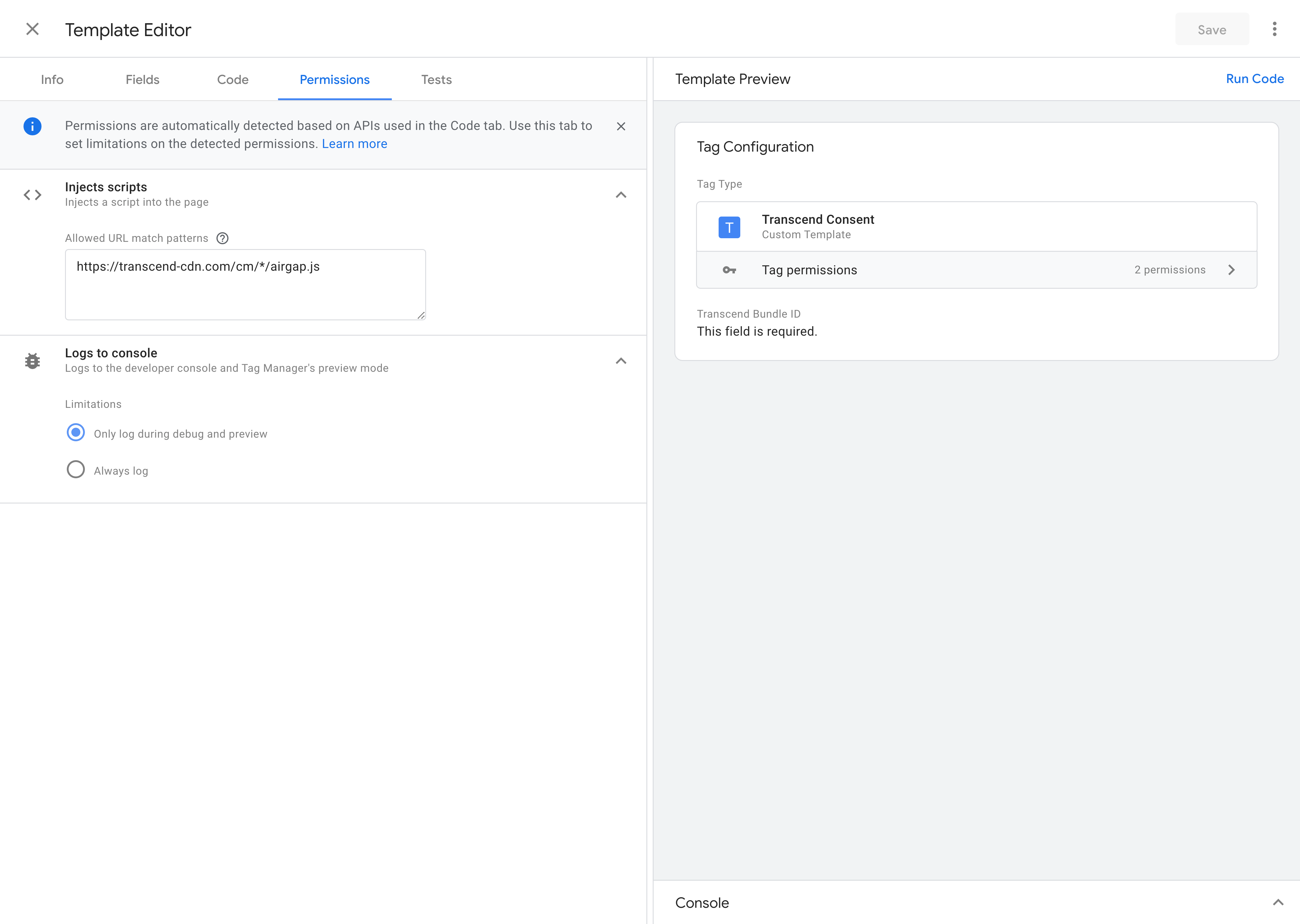
4\. Click on Permissions, you should see an entry for `Inject Scripts`. Paste the following into the text input:
```text
https://transcend-cdn.com/cm/*/airgap.js
```
1. Save the template!
2. Trigger the tag on the `Consent Initialization - All Pages` trigger, and make sure to specify your bundle ID, which you can find in the [Developer Settings](https://app.transcend.io/consent-manager/developer-settings) page.
### Step 2: Confirm Google Data Flows [#step-2-confirm-google-data-flows]
Google Consent Mode can be configured as `Basic` or `Advanced`. For a detailed description of both, please refer to the [official Google documentation.](https://support.google.com/google-ads/answer/10000067?hl=en#)
In Basic mode, Google tags are blocked until user consent is given. When consent is denied or not yet given, no data is transferred to Google at all -- not even the consent status. Google tags are completely blocked from firing.
In Advanced mode, Google tags load when a user opens the website or app. The tags load the Consent Mode API in order to send default consent states and any subsequent updated consent states. When consent is denied or not yet given, the Google tags will send [cookieless pings](https://support.google.com/google-ads/answer/10000067?sjid=16586904904746710862-NA#Pings). Once user grants consent to data collection, Google tag will send the full measurement data.
To implement Basic Google Consent Mode, simply tag all data flows associated with Google services with a non-Essential tracking purpose (e.g. `Analytics` for Google Analytics or `Advertising` for Google Advertising).
To implement Advanced Google Consent Mode, simply tag all data flows associated with Google services with the `Essential` purpose.
Once you have finished tagging all the data flows in your Triage tab, don't forget to click `Review Changes & Publish...` so that those changes can take effect on your site!
### Step 3: Review Purpose Mapping [#step-3-review-purpose-mapping]
Our default consent mapping with Google Consent Mode is as follows:
- `Analytics` → `analytics_storage`
- `Advertising` → \{ `ad_storage`, `ad_user_data`, `ad_personalization` }
- `Functional` → \{ `functionality_storage`, `personalization_storage`, `security_storage` }
In order to configure a specific parameter, set that parameter's associated trigger purposes (or force-enable the parameter) through the `data-integrations` script attribute. Multiple parameters can be separated using semicolons (e.g. `GoogleConsentMode:analytics_storage=SaleOfInfo,Analytics`**;**`ad_storage=SaleOfInfo`) The following `data-tracker-overrides` example configuration sets the trigger purposes for `analytics_storage` to `SaleOfInfo` and `Analytics`: `"GoogleConsentMode:analytics_storage=SaleOfInfo,Analytics"`
In order to force-enable a parameter, set its associated trigger purposes to `on`. The follow example does this for `analytics_storage`: `"GoogleConsentMode:analytics_storage=on"`
In order to disable Google Consent Mode, you can simply leave it out of the list of `data-tracker-overrides`, or specify `"off"` as the value to disable all third party integrations: `data-tracker-overrides="off"`
### Step 4: (Optional) Review TCF Integration [#step-4-optional-review-tcf-integration]
If you use the IAB Transparency and Consent Framework (TCF) to propagate consent, note that it does not integrate with Google Consent Mode. Please see [our TCF setup guide](../iab-frameworks.mdx).
If you wish to disable airgap.js consent rules and only rely on TCF for certain regional experiences, ensure that the Applicable Consent Purposes for the specified regional experiences are left empty. For more integration on how the TCF integration maps TCF Purposes to Google Consent Mode purposes, please review [this documentation.](https://developers.google.com/tag-platform/security/guides/implement-TCF-strings#cmp-api)
### Step 5: Review the Regional Experiences [#step-5-review-the-regional-experiences]
Your Transcend Consent instance will have some default user experiences already configured for different regions. These can be found at the [Regional Experiences](https://app.transcend.io/consent-manager/regional-experiences) page. Please review these with your business partners (e.g. marketing, legal teams) to make sure that it is appropriate for your business and legal needs.
### Step 6: Verify that Consent Mode Works [#step-6-verify-that-consent-mode-works]
To confirm that consent mode is set up correctly, please refer to this [official guide provided by Google](https://developers.google.com/tag-platform/security/guides/consent-debugging#tag-manager). You will need to install the Tag Assistant browser extension.
If you have any questions about this implementation guide, please don't hesitate to contact our Transcend Support team!
Note that the Google Consent Mode integration is not active whenever airgap.js is in report-only mode.