# Block unknown requests (/docs/consent-management/security-controls/block-unknown-requests)
Admin Dashboard pages: /consent-manager/developer-settings/*, /consent-manager/data-flows/*, /consent-manager/cookies/*, /consent-manager/data-flows, /consent-manager/cookies, /consent-manager/developer-settings, /consent-manager/developer-settings/advanced-settings, /consent-manager/developer-settings/deploy-history
After this guide, airgap.js blocks requests and cookies from every host that you have not approved. You can also turn the change off again.
This guide follows [Inventory a site in report-only mode](./inventory-a-site-in-report-only-mode.mdx). For how the pieces fit together, see the [overview](./overview.mdx). To keep these settings in a file that your team reviews, see [Manage consent config as code](./manage-consent-config-as-code.mdx).
Try it: a runnable example lives in the [Airgap security demo](https://github.com/transcend-io/examples/tree/main/airgap-security-demo) in the transcend-io/examples repository.
**Diagram: How airgap.js decides on a request.** A page script makes a request. airgap.js checks it against rules from your data flows, the user's consent and your overrides. It then allows the request, rewrites it, holds it until the user opts in, or blocks it because the host is unknown. airgap.js also generates a Content Security Policy (CSP) from the same rules, so the browser blocks hosts outside your data flows even for loads inside CSS and SVG that airgap.js does not see.
A host that is still in Triage counts as unknown. Block stops it, even when it is a tool that your site needs. Approve every host that you need before you deploy to production, and test on a test bundle first.
## Before you start [#before-you-start]
- You ran the site in report-only mode and reviewed its hosts and cookies. See [Inventory a site in report-only mode](./inventory-a-site-in-report-only-mode.mdx).
- You approved every host and cookie that the site needs. See [Guide to triaging data flows and cookies](../configuration/triaging-and-telemetry/triage-cookies-and-dataflows-guide.mdx).
- If your site sends its own CSP header, you added the Transcend hosts to it. See [Keep an existing header CSP working](#keep-an-existing-header-csp-working).
## Choose the policies [#choose-the-policies]
Two settings decide what happens to something that matches no data flow or cookie rule. Both live in the **Advanced Settings** tab.
| Dashboard option | `transcend.yml` value | What airgap.js does with unknown requests or cookies |
| --------------------------- | ---------------------- | -------------------------------------------------------------------- |
| **Allow through** | `ALLOW` | Always allows them |
| **Allow with full consent** | `REQUIRE_FULL_CONSENT` | Allows them only when the user consented to every applicable purpose |
| **Block** | `BLOCK` | Always blocks them |
- **Unknown Request Policy** covers network requests.
- **Unknown Cookie Policy** covers cookies.
Picking **Block** for the request policy also turns on the generated CSP in lax mode. Picking either other option turns the generated CSP off. The generated CSP and **Allow through** cannot run together: with a CSP on, airgap.js never allows an unknown request.
## Move from report-only to Block [#move-from-report-only-to-block]
1. Open [**Consent Management → Data Flows**](https://app.transcend.io/consent-manager/data-flows) and [**Consent Management → Cookies**](https://app.transcend.io/consent-manager/cookies). Approve what the site needs, or mark the rest as junk.
2. In the site's airgap.js tag, remove `data-report-only="on"`. Leave `data-monitoring="export"` in place if you want to keep checking with `airgap.export()`.
3. Check the **Reporting Only** switch in the **General** tab of [**Consent Management → Developer Settings**](https://app.transcend.io/consent-manager/developer-settings). Turn it off. When it is on, the consent manager allows all web requests on your domain.
4. In [**Consent Management → Developer Settings → Advanced Settings**](https://app.transcend.io/consent-manager/developer-settings/advanced-settings), set **Unknown Request Policy** to **Block**. Set **Unknown Cookie Policy** to **Block**.
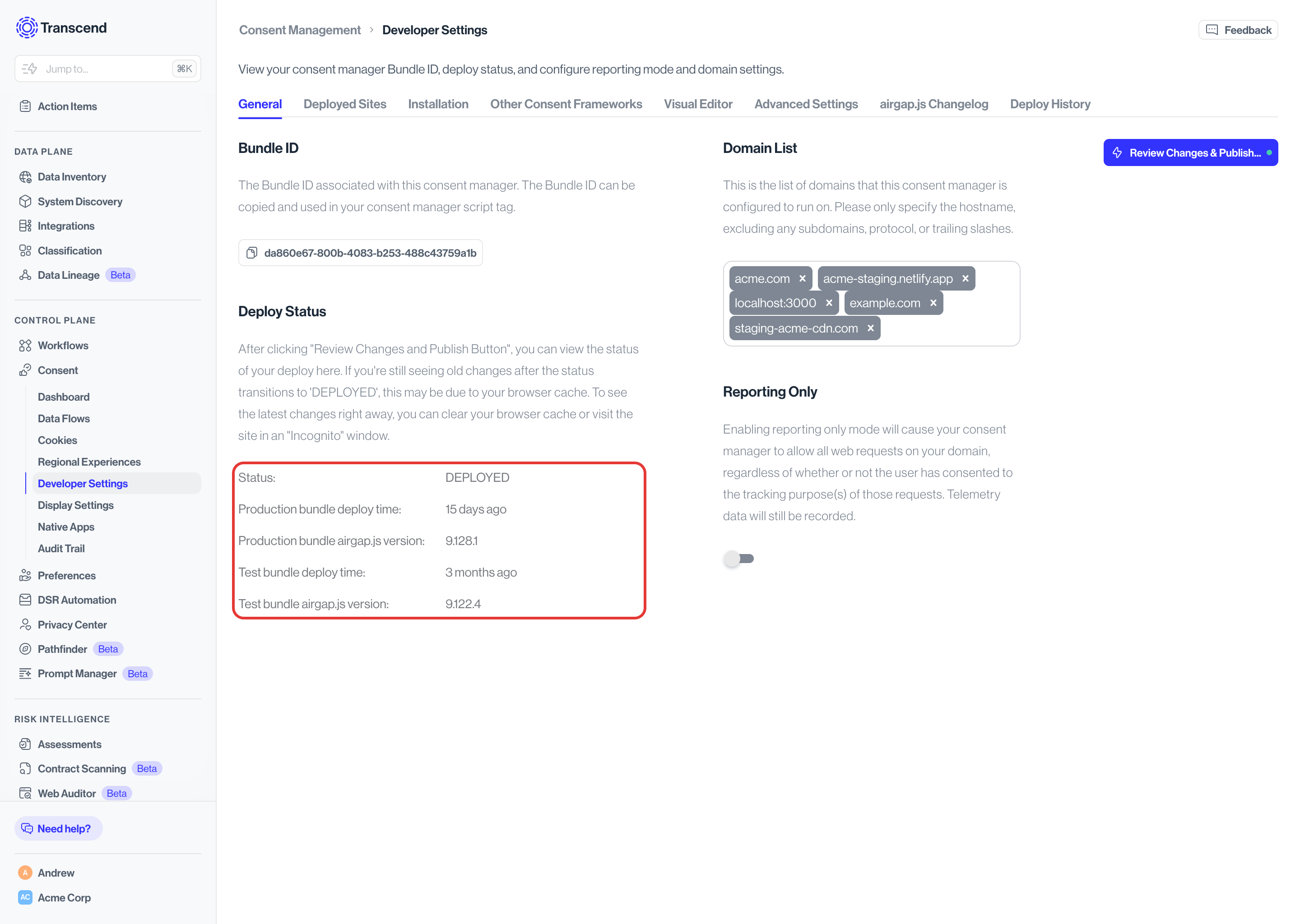
5. Select **Review Changes & Publish...**, pick the **Test** bundle type, and deploy. Load a staging copy of the site with the test bundle and click through the key flows. See [Testing with Test Bundle](../testing-and-troubleshooting/debugging-and-testing.mdx#testing-with-test-bundle).
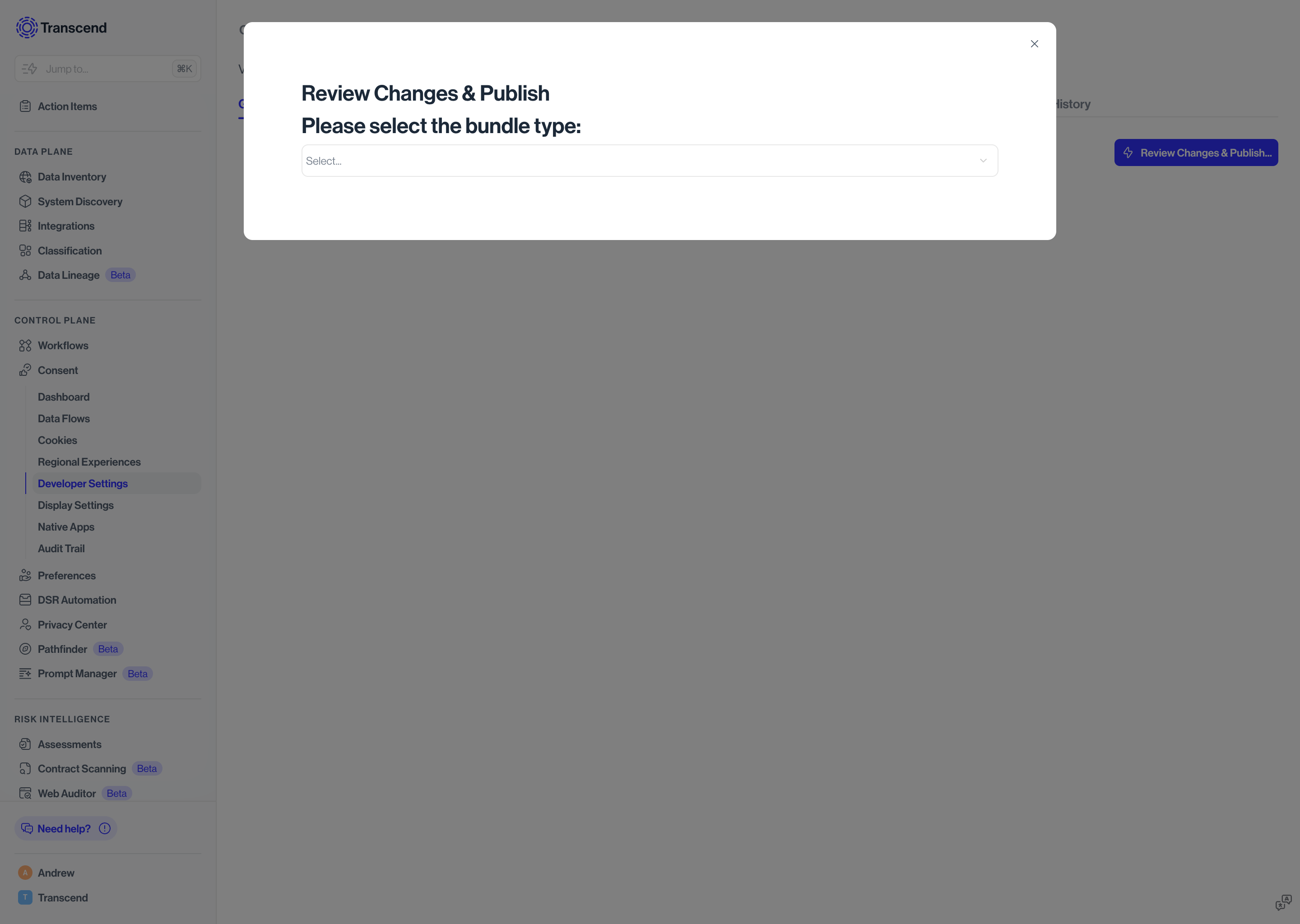
6. Deploy to the **Production** bundle the same way.
To make steps 3 and 4 a reviewed change instead, set both policies in `transcend.yml`:
```yaml
consent-manager:
unknownRequestPolicy: BLOCK
unknownCookiePolicy: BLOCK
```
Then preview, push, and deploy to the test bundle. These commands need an API key. See [Manage consent config as code](./manage-consent-config-as-code.mdx) for the key, its scopes, and the US API URL.
```bash
transcend inventory push --file=./transcend.yml --dryRun
transcend inventory push --file=./transcend.yml
transcend consent update-consent-manager --bundleTypes=TEST --deploy
```
Set both policies together. In CLI 13.4.0, a push applies the cookie policy only when the file also sets the request policy.
## What the generated CSP is [#what-the-generated-csp-is]
When the request policy is **Block**, airgap.js adds one Content Security Policy (CSP) to the page. It is a `` tag in the `` with a single `default-src` directive. It looks like this:
```html
```
The hosts in your tag differ. The list holds:
- `'self'`, `data:`, and `blob:`.
- The hosts of your approved data flows. Lax mode adds each host's subdomains too.
- `'unsafe-inline'` and `'unsafe-eval'`, so existing site code keeps working.
- `airgap://test`, a marker that airgap.js adds so it can tell its own violations from other CSPs.
Because the rule is `default-src`, it covers every request type that falls back to it, such as images, styles, and scripts. airgap.js sees most requests at runtime. The CSP is the backstop for requests it does not see directly, such as CSS and SVG subresources.
The generated CSP has limits:
- It has no rule for navigations or form targets. See [Turn on navigation control](#turn-on-navigation-control).
- It allows inline scripts and `eval`. It does not replace a nonce-based or hash-based `script-src` in your header.
- Browsers ignore some directives in a `` CSP, such as `frame-ancestors` and `report-uri`. Send those in a header.
For the full list of limits, see the [overview](./overview.mdx#limitations).
## Choose lax or strict [#choose-lax-or-strict]
| Mode | Tag attribute | What the CSP allows | When consent changes |
| ------------- | ----------------------------------------------- | ------------------------------------------------- | --------------------------------- |
| Lax (default) | `data-csp="allow-known-hosts allow-subdomains"` | Every host in your data flows, and its subdomains | Takes effect with no page refresh |
| Strict | `data-csp="strict"` | Only the hosts that the user consented to | airgap.js refreshes the page |
Start with lax. It blocks hosts that you have never reviewed, and airgap.js still applies consent at runtime.
Use strict when you need the browser to enforce consent as well, for example for CSS and SVG subresources. The dashboard sets lax when you pick **Block**, so add strict on the tag:
```html
```
## Keep an existing header CSP working [#keep-an-existing-header-csp-working]
A browser enforces every CSP on a page. A request must pass your header CSP and the generated CSP. Add these hosts to your header:
| Host | Why |
| ----------------------------------- | ---------------------------------------------- |
| `https://transcend-cdn.com` | Loads airgap.js and its modules |
| `https://telemetry.transcend.io` | Telemetry for EU-hosted organizations |
| `https://telemetry.us.transcend.io` | Telemetry for US-hosted organizations |
| `https://cdn.transcend.io` | Older CDN host. Add it if your snippet uses it |
For example, a header can name them in `script-src` and `connect-src`:
```text
Content-Security-Policy: script-src 'self' https://transcend-cdn.com; connect-src 'self' https://telemetry.transcend.io
```
Check the **Installation** tab to see which CDN host your snippet uses. See [Integrating with an existing CSP](../concepts/content-security-policies.mdx#integrating-with-an-existing-csp).
If your header blocks the telemetry host, new hosts never reach Triage, and you lose the view of what Block stopped.
## Turn on navigation control [#turn-on-navigation-control]
Navigation control is off by default. Without it, a script on an approved host can still send data away by changing `location` to another site. The generated CSP has no rule for that.
1. Add `data-regulate-navigation="report-only"` to the tag. airgap.js lists navigations in telemetry and changes nothing.
2. Check Triage for the places users go.
3. Change the value to `on`. airgap.js now treats a navigation like a request. It cancels a navigation to an unknown host.
```html
```
Most coverage needs the [Navigation API](https://developer.mozilla.org/en-US/docs/Web/API/Navigation_API). Without it, navigation control covers only form submissions and `window.open()`. See [Navigation control](../reference/navigation-control.mdx).
## See what airgap.js stopped [#see-what-airgapjs-stopped]
airgap.js reports hosts to telemetry, so a new host appears in Triage. See [Find the hosts in Triage](./inventory-a-site-in-report-only-mode.mdx#find-the-hosts-in-triage).
The browser reports CSP violations too. airgap.js listens for the browser's `securitypolicyviolation` event and sends the blocked host to telemetry. It marks the host as a violation only when the generated CSP caused it. A violation from your own header CSP is reported without that mark.
The CSP catches what the runtime does not see, such as a stylesheet that loads an image from an unknown host. In the browser, the **Network** tab shows no request to a blocked host.
To learn more about what telemetry reports, see [Telemetry configuration](../configuration/triaging-and-telemetry/telemetry-configuration.mdx).
## Test that a request is blocked [#test-that-a-request-is-blocked]
When airgap.js blocks a `fetch`, the call returns a promise that stays pending. It does not reject. airgap.js resolves it only if the request is allowed later. Code that waits on it waits forever.
In a test, add a timeout. Treat a timeout as "blocked":
```js
const outcome = await Promise.race([
fetch('https://unapproved.example.com/data').then(() => 'allowed'),
new Promise((resolve) => setTimeout(() => resolve('blocked'), 3000)),
]);
console.log(outcome); // "blocked"
```
## Roll back [#roll-back]
Choose the way that fits how fast you need to act.
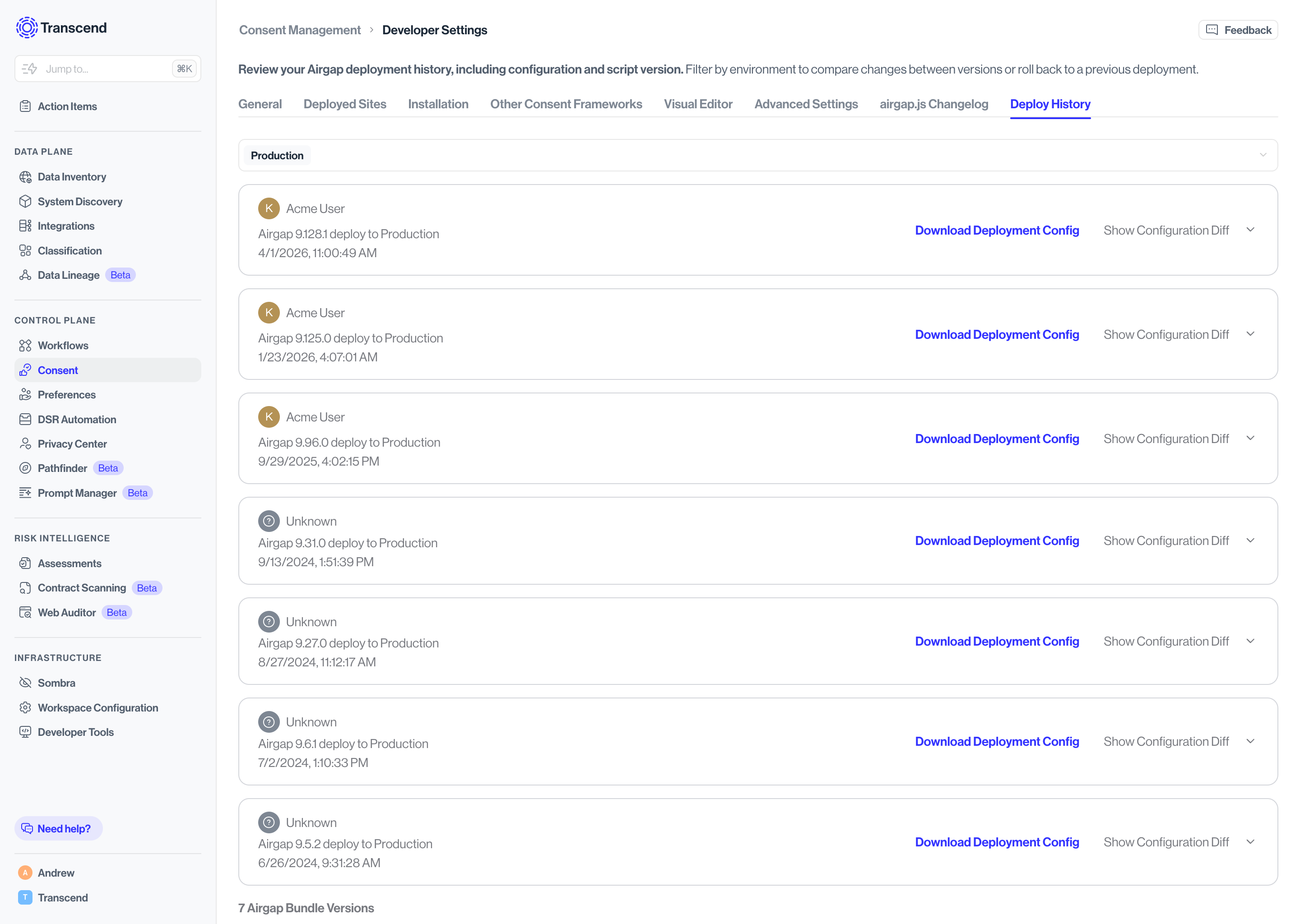
**Roll back the deployed bundle.** Open [**Consent Management → Developer Settings → Deploy History**](https://app.transcend.io/consent-manager/developer-settings/deploy-history). Select **Rollback** under the deployment to restore. Changes that are staged in the Admin Dashboard stay in place. See [Rollback airgap bundle versions](../reference/airgap/rollback-bundle-versions.mdx).
**Set the policies back to Allow.**
1. In `transcend.yml`, set both policies to `ALLOW`. Or set both to **Allow through** in **Advanced Settings**.
```yaml
consent-manager:
unknownRequestPolicy: ALLOW
unknownCookiePolicy: ALLOW
```
2. Push the file. Skip this step if you used the dashboard.
```bash
transcend inventory push --file=./transcend.yml
```
3. Deploy to the test bundle and then to the production bundle.
```bash
transcend consent update-consent-manager --bundleTypes=TEST --deploy
transcend consent update-consent-manager --bundleTypes=PRODUCTION --deploy
```
In the dashboard, select **Review Changes & Publish...** and then **Deploy Changes**.
Setting the request policy to **Allow through** also turns the generated CSP off.
A push stages your change. Visitors see it only after a deploy. Until then, Block stays on.
**Report only on one site.** Add `data-report-only="on"` to that site's tag and ship the page. This turns off blocking for that site only.
## Next steps [#next-steps]
- Keep the policies in a reviewed file. See [Manage consent config as code](./manage-consent-config-as-code.mdx).
- Go back to the first step. See [Inventory a site in report-only mode](./inventory-a-site-in-report-only-mode.mdx).
- Read how the controls fit together. See the [overview](./overview.mdx).