# Manage consent config as code (/docs/consent-management/security-controls/manage-consent-config-as-code)
Admin Dashboard pages: /consent-manager/developer-settings/*, /consent-manager/regional-experiences/*, /infrastructure/api-keys, /consent-manager/regional-experiences/purposes, /consent-manager/developer-settings/deploy-history
After this guide, your Consent Management settings live in a `transcend.yml` file. Your team can review a change, preview it, push it, and deploy it.
Try it: a runnable example lives in the [Airgap security demo](https://github.com/transcend-io/examples/tree/main/airgap-security-demo) in the transcend-io/examples repository.
**Diagram: Managing consent config as code.** You edit transcend.yml in a pull request, and CI dry-runs the push, which shows the planned changes without saving them. After you merge, CI pushes transcend.yml and then deploys the bundle, because a push alone does not go live. Transcend publishes airgap.js to the Transcend content delivery network (CDN), which serves it to visitors. As they browse, airgap.js sends telemetry back, and new hosts show up in Triage in the Admin Dashboard.
The commands on this page match `@transcend-io/cli` 13.4.1, `@transcend-io/mcp-server-config` 0.2.0, and `@transcend-io/mcp-server-consent` 1.6.0.
## Before you start [#before-you-start]
1. Install the Transcend CLI.
```bash
npm install --global @transcend-io/cli
```
2. Create an API key in [**Developer Tools → API Keys**](https://app.transcend.io/infrastructure/api-keys). See [Authentication](../../overview/developer-tools/authentication.mdx) for the steps.
3. Give the key the scopes for the resources in your file.
| Resource in the file | Scope for a push |
| ------------------------------- | ----------------------------------------------------------- |
| `consent-manager`, `partitions` | Manage Consent Manager Developer Settings |
| `data-flows`, `cookies` | Manage Data Flows |
| `purposes` | Manage Consent Manager and Manage Preference Store Settings |
| `consent-sites` | Manage Consent Manager |
| Deploy a bundle | Deploy Consent Manager (or Manage Consent Manager) |
A pull and a dry run need view access to every resource in the file. See [Scopes and permissions](../../security/access-control/scopes-and-permissions.mdx).
4. Set the key and your region in your shell. Never commit the key.
```bash
export TRANSCEND_API_KEY=
# Only if your organization is hosted in the US. The EU API is the default.
export TRANSCEND_API_URL=https://api.us.transcend.io
```
| Hosting | API URL |
| ------- | ----------------------------- |
| EU | `https://api.transcend.io` |
| US | `https://api.us.transcend.io` |
The CLI uses the EU URL when you set nothing. For EU hosting you do not need `TRANSCEND_API_URL` or `--transcendUrl`. For US hosting, set the variable or pass `--transcendUrl=https://api.us.transcend.io` on each command.
## Pull your current settings [#pull-your-current-settings]
Name the consent resources. The default pull does not include them.
```bash
transcend inventory pull \
--resources=consentManager,purposes,dataFlows,cookies,consentSites \
--file=./transcend.yml
```
Commit the file to Git. This gives you a baseline to diff against.
## Edit the file [#edit-the-file]
Add what you want to change. This example sets the unknown request and cookie policies to block, lists the site hosts, approves one data flow, and names the site owner.
```yaml
consent-manager:
unknownRequestPolicy: BLOCK
unknownCookiePolicy: BLOCK
domains:
- example.com
- app.example.com
data-flows:
- value: cdn.example-vendor.com
type: HOST
description: Script host for the example vendor.
trackingPurposes:
- Analytics
status: LIVE
consent-sites:
- host: app.example.com
site: Example app
description: Customer dashboard.
owners:
- owner@example.com
```
Five rules keep the file safe:
- Transcend trims each `domains` entry to its site plus at most one subdomain, and drops a leading `www.`. It saves `www.example.com` as `example.com`. Write the trimmed form so a later pull shows no diff.
- Set `unknownRequestPolicy` and `unknownCookiePolicy` together. In CLI 13.4.0, a push applies the cookie policy only when the file also sets the request policy.
- A field that you leave out is not changed. A field that you include overwrites changes made in the Admin Dashboard.
- A push does not delete or rename resources.
- Do not rely on a push to set `default-consent` on a purpose. See [What a push does not do](#what-a-push-does-not-do).
## Preview the change [#preview-the-change]
```bash
transcend inventory push --file=./transcend.yml --dryRun
```
A dry run reads your current state and compares it with the file. It lists what the push would create, update, and delete. It changes nothing. Add `--json` for output that scripts can read.
In CI, run the dry run on every pull request. Run the real push after merge.
## Push the change [#push-the-change]
```bash
transcend inventory push --file=./transcend.yml
```
### What a push does not do [#what-a-push-does-not-do]
A push stages your changes. Visitors see them only after you deploy a bundle. See [Deploy the bundle](#deploy-the-bundle).
The `domains` list in `consent-manager` replaces the list in your organization. A domain that is missing from the file is removed. The API rejects an empty list. Always start from a fresh pull.
A push never writes `default-consent` on a purpose, and it gives no warning. A pull does read the value. Set the default in [**Consent Management → Regional Experiences → Purposes**](https://app.transcend.io/consent-manager/regional-experiences/purposes).
## Deploy the bundle [#deploy-the-bundle]
Deploy to the test bundle first. Check it. Then deploy to production. See [Testing with Test Bundle](../testing-and-troubleshooting/debugging-and-testing.mdx#testing-with-test-bundle).
In the Admin Dashboard, select **Review Changes & Publish...**, pick the bundle type, and then select **Deploy Changes**.
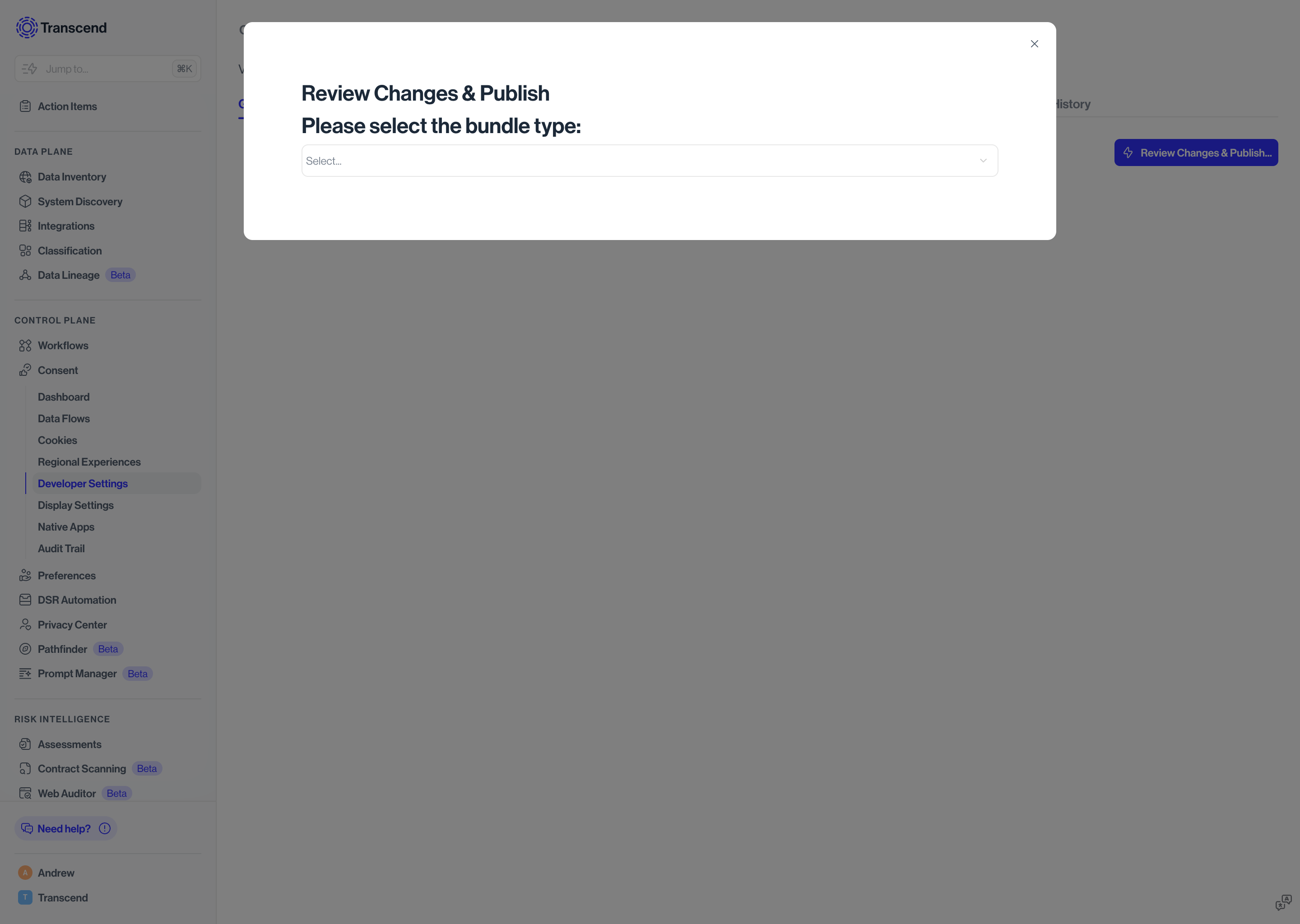
Or use the CLI:
```bash
transcend consent update-consent-manager --bundleTypes=TEST --deploy
transcend consent update-consent-manager --bundleTypes=PRODUCTION --deploy
```
This command always updates the bundle to the latest airgap.js version before it deploys. Plan for that upgrade when you deploy to production.
To confirm the deploy, open [**Consent Management → Developer Settings → Deploy History**](https://app.transcend.io/consent-manager/developer-settings/deploy-history). To undo one, see [Roll back bundle versions](../reference/airgap/rollback-bundle-versions.mdx).
## Use an MCP server instead [#use-an-mcp-server-instead]
Two Model Context Protocol (MCP) servers cover the same steps. Both run on your machine and sign in through OAuth. You can use an API key instead. See [MCP servers](../../artificial-intelligence/mcp/mcp-guide.mdx).
| Server | Tools for this guide |
| ---------------------------------- | ------------------------------------------------------------------------------------------------------------------------------------------------------------------------------------------------ |
| `@transcend-io/mcp-server-config` | `config_pull`, `config_diff`, `config_preview_push`, `config_push`, `config_get_schema` |
| `@transcend-io/mcp-server-consent` | `consent_write_consent_manager`, `consent_write_sites`, `consent_list_data_flows`, `consent_bulk_triage`, `consent_preview_deploy`, `consent_deploy_bundle` (environment `TEST` or `PRODUCTION`) |
`config_diff` and `config_preview_push` are read-only previews, like a dry run. `config_push` asks you to confirm with a change summary. Run a preview first and review the file diff in Git before you approve a push. The push rules above apply to it too.
`consent_preview_deploy` shows what a deploy changes. `consent_deploy_bundle` asks you to confirm before it deploys.
## Next steps [#next-steps]
- Inventory a site first. See [Inventory a site in report-only mode](./inventory-a-site-in-report-only-mode.mdx).
- Turn on blocking. See [Block unknown requests](./block-unknown-requests.mdx).