# Data Lineage (/docs/data-lineage)
Admin Dashboard pages: /data-map/data-lineage, /data-map/data-inventory/data-silos, /admin/early-access
Data Lineage is a visual map of how data moves between the data systems in your inventory. After you map flows, you can filter the view to focus on specific categories of personal data or processing purposes.
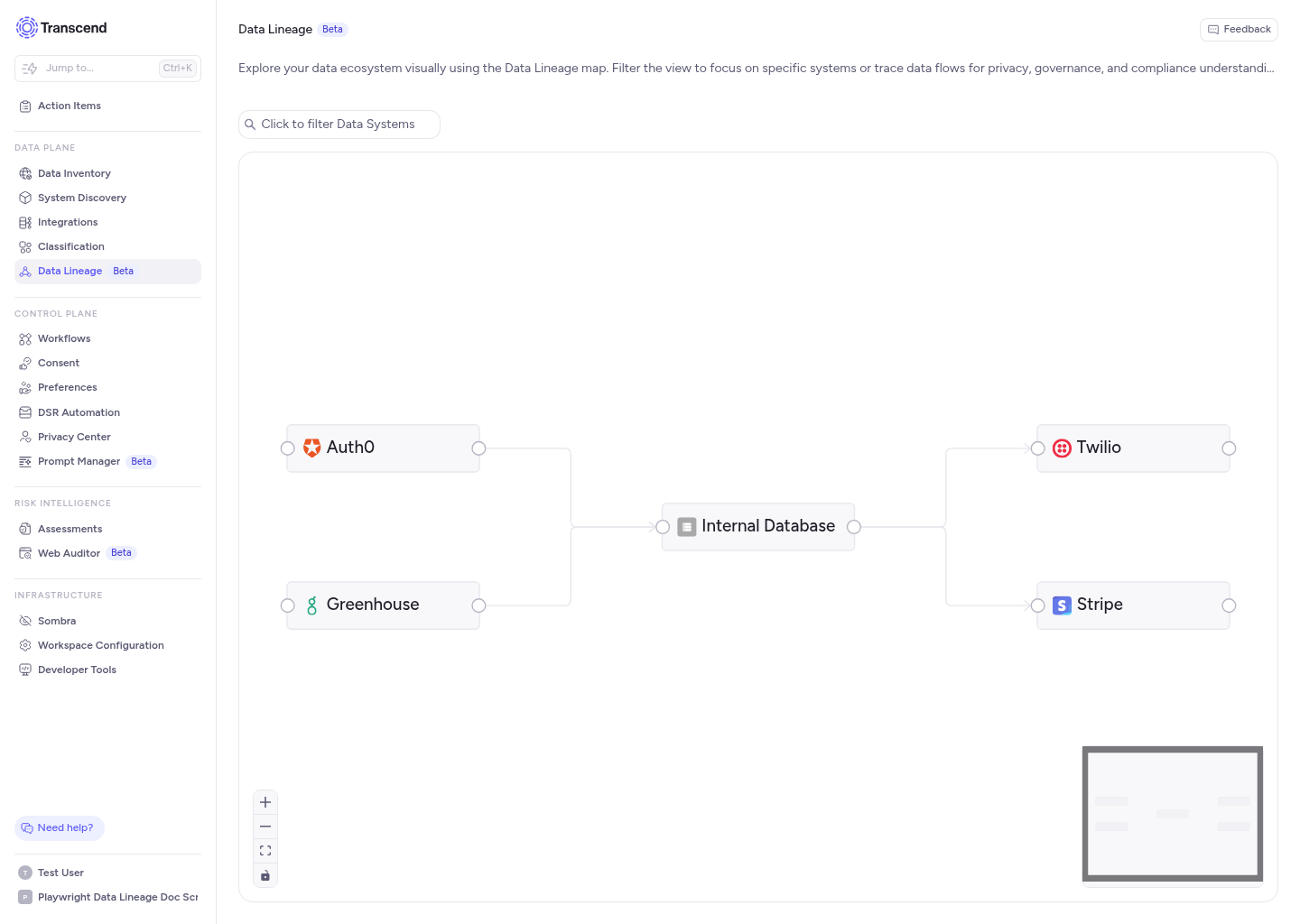
Data Lineage is available as a beta feature through Early Access. To turn it on, go to [**Administration → Early Access**](https://app.transcend.io/admin/early-access) in the Admin Dashboard. Read [Early Access features](../security/access-control/early-access-features.mdx) for more about the program.
## How the map works [#how-the-map-works]
In the Admin Dashboard, open [**Data Inventory → Data Lineage**](https://app.transcend.io/data-map/data-lineage). Each card is a data system from your inventory. Arrows show where data is sent. They read from left to right.
Each arrow matches a row in the **Sends Data To** column on the Data Systems table. A change in the table appears on the map, and the other way around.
By default, the map shows only data systems that have at least one connection. Data systems with no flows stay hidden until you turn on **Include Unconnected Data Systems**.
## How filters match [#how-filters-match]
Use the filter bar above the map to narrow what you see.
- **Categories of Personal Data** and **Purposes for Processing** match a data system when that label is on the system or on any datapoint inside it.
- **Include Unconnected Data Systems** adds data systems that have no flows yet. Use it when you are building the map for the first time.
The map can show up to 200 connected data systems at once.
## Map controls [#map-controls]
The map includes zoom, fit view, and lock controls in the lower-left corner, and a minimap in the lower-right corner.
You can drag cards to rearrange them for easier reading. Positions do not save. Reloading the page restores the automatic layout.
## Who can see the map [#who-can-see-the-map]
Users need permission to view the Data Inventory. Users who can only see data systems assigned to them see only those systems on the map.
Adding or removing flows requires permission to manage data systems.
## When to use it [#when-to-use-it]
Use Data Lineage when you need to:
- Show how personal data moves between vendors, internal tools, and storage.
- Check whether data for a category or purpose flows only to expected systems.
- Prepare data flow diagrams for privacy assessments or audits.
## Discovering data systems [#discovering-data-systems]
Start with [System Discovery](../system-discovery/index.mdx) to find data systems that hold personal data. You can also follow [Connecting to data systems for classification](../classification/scans/connect-data-systems-for-classification.mdx) to onboard systems from scans.
When your inventory is ready, follow [Map and filter data flows](./map-data-flows.mdx) to draw connections and filter the map.