# AWS Integration Connection Guide (/docs/integrations/amazon/aws-integration)
## Overview [#overview]
Transcend can continuously discover and classify your data systems hosted on AWS, as well as the data inside each system. This guide will help you connect your Amazon Web Services account to continuously discover data systems hosted on AWS. Then we will show you how to enable Structured Discovery for each data system to discover and classify the data inside. Finally, we will show you how to configure DSR Automation for each data system.
## Additional Reading on AWS Discovery, Classification, & DSR Automation [#additional-reading-on-aws-discovery-classification--dsr-automation]
- [Connecting multiple AWS services automatically](./connecting-multiple-aws-services.mdx)
- [Connecting AWS Organizations for multiple AWS accounts](./aws-organization-integration.mdx)
- [Scanning for AWS Services with System Discovery](./scanning-for-aws-services-with-system-discovery.mdx)
- [Scanning AWS Data Systems with Structured Discovery](./scanning-aws-data-systems.mdx)
- [Configuring DynamoDB for DSR Automation](./configuring-dynamodb-for-dsr-automation.mdx)
- [Amazon S3 Integrations](./s3-integrations.mdx)
- [Amazon S3 Plugins Configurations](./amazon-s3-plugins-configuration.mdx)
## Connecting the Integration [#connecting-the-integration]
The integration is scoped to a single AWS account. If you have multiple AWS accounts to connect, consider instead using our [AWS Organizations integration](./aws-organization-integration.mdx) or add a data system for each account and follow the steps below. To make sure the rest of AWS discovery is automated end-to-end, read our guide [here](./connecting-multiple-aws-services.mdx) on connecting multiple AWS services automatically.
Authenticating the AWS integration requires a new IAM user to be created in the AWS account to be connected. One of the benefits of using an IAM user to integrate AWS is the ability to designate only the specific permissions Transcends needs and define a custom trust policy. To create a new IAM role, log in to the AWS console and navigate to Roles → Create Role. More information about IAM roles can be found in the [AWS documentation](https://docs.aws.amazon.com/IAM/latest/UserGuide/id_roles_create_for-user.html).
### 1. Add the Integration [#1-add-the-integration]
- You must first add the integration to your Transcend account and visit the connection form.
### 2. Create a new Role in the AWS IAM Console [#2-create-a-new-role-in-the-aws-iam-console]
- In the [AWS IAM Console](https://console.aws.amazon.com/iam/home#/roles), under `Select trusted entity`, select **AWS account** as the trusted entity type. Here you will put:
- **For Multi-tenant Sombra**, include `829095311197` (Transcend's Account ID).
- **For Self-hosted Sombra**, include the account ID of where the self-hosted Sombra is hosted in.
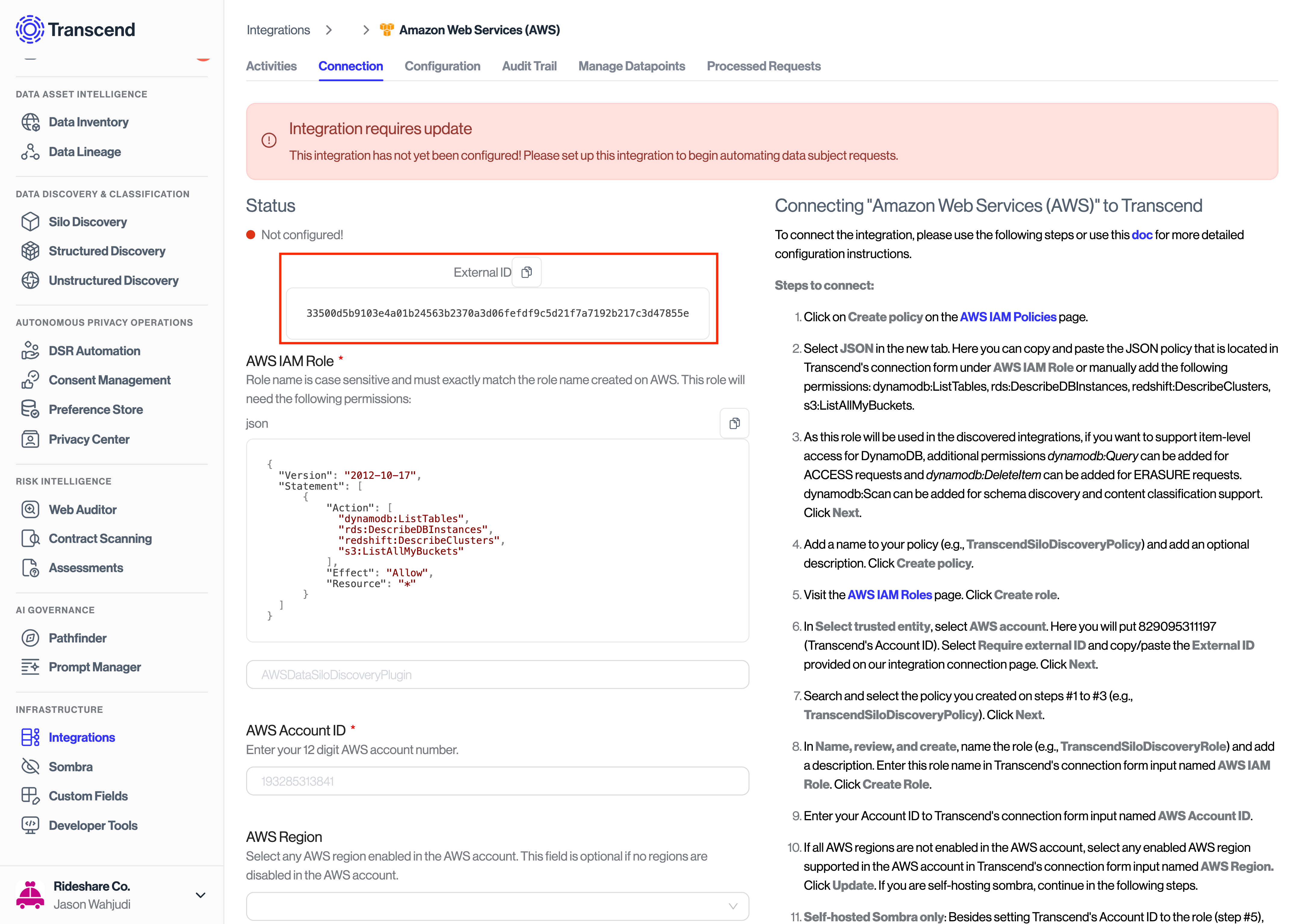
- Select `Require external ID` and copy/paste the External ID provided on our integration connection page (see below).
- Click **Next**.
- Once the role is created, you can navigate to the Trust Relationships tab of the role and the trusted entity should generally look something like this:
```json
{
"Version": "2012-10-17",
"Statement": [
{
"Effect": "Allow",
"Principal": {
"AWS": [
"arn:aws:iam:::root"
]
},
"Action": "sts:AssumeRole",
"Condition": {
"StringEquals": {
"sts:ExternalId": "5ab4defb0bef8e2bf4b9e636c3949f3edff73c5fb2eb0f56d84a913bd38b8445"
}
}
}
]
}
```
### 3. \[Self-Hosted Sombra] Ensuring Sombra Can Assume the Created Role [#3-self-hosted-sombra-ensuring-sombra-can-assume-the-created-role]
- For self-hosted Sombra, make sure that Sombra has the permission to also assume the role.
- If you host Sombra via our [Terraform Module](https://registry.terraform.io/modules/transcend-io/sombra/aws/latest), you may add this by updating the [roles_to_assume](https://github.com/transcend-io/terraform-aws-sombra/blob/cdd331436576ca6c1a344a2887bb9257e4c9ca7b/variables.tf#L452-L456) variable.
- Otherwise, adjust the IAM permissions attached to Sombra to have `sts:AssumeRole` permissions on the IAM Role you created.
- If Sombra is hosted on an ECS cluster, include the role attached to that cluster as well.
- The policy should generally look something like this:
```json
{
"Action": ["sts:AssumeRole"],
"Resource": [
"arn:aws:iam:::role/",
""
],
"Effect": "Allow"
}
```
### 4. Define the Permissions for the Role [#4-define-the-permissions-for-the-role]
- Select **Create Policy** and select the JSON tab.
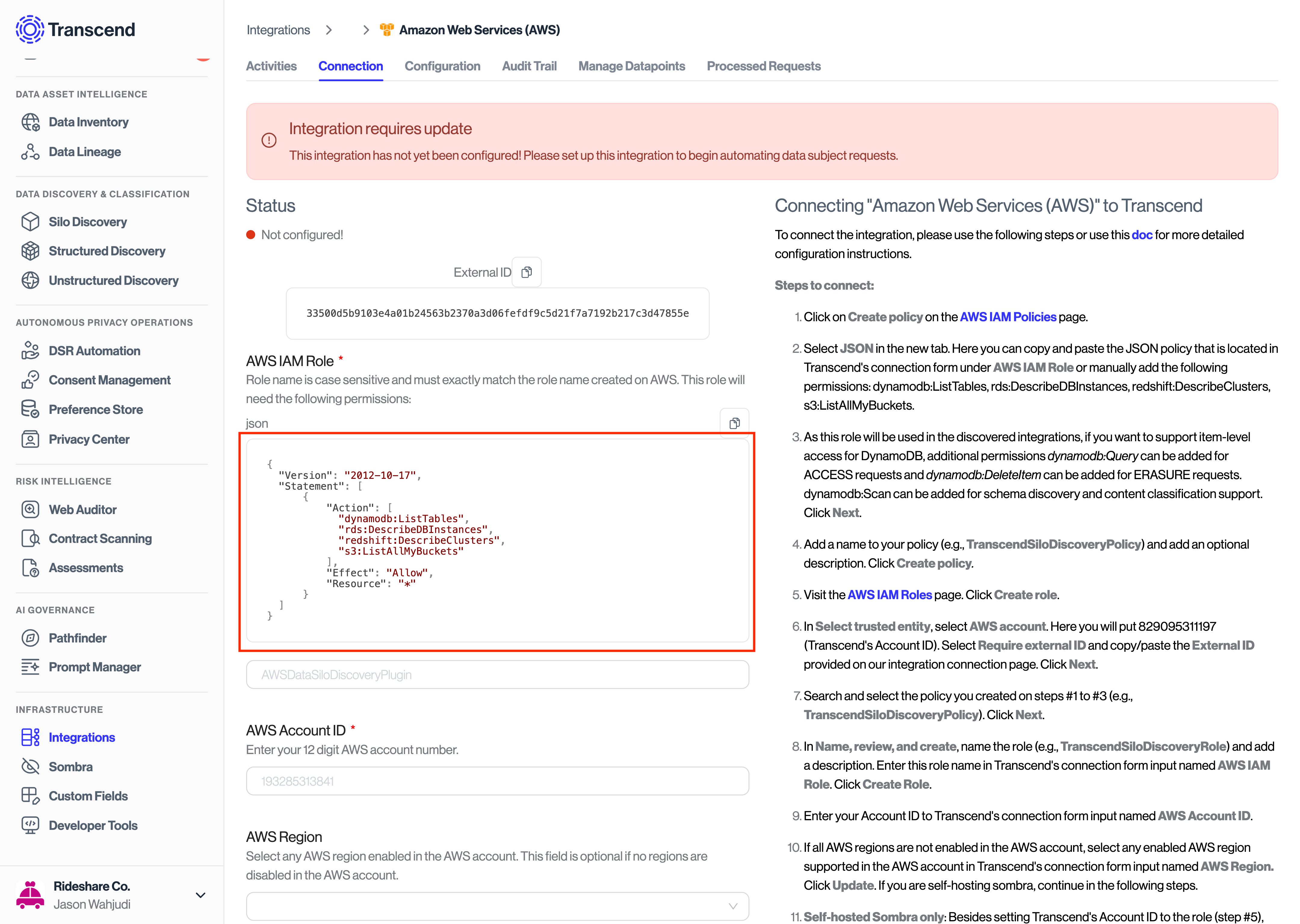
- Transcend has created a JSON policy with the permissions needed for the integration. Copy & paste this policy from Transcend's connection form under AWS IAM Role, or manually add the following permissions: `dynamodb:ListTables`, `rds:DescribeDBInstances`, `s3:ListAllMyBuckets`, `s3:GetBucketLocation`.

- If your organization would like to use Structured Discovery for a DynamoDB database, please also include the additional permission `dynamodb:DescribeTable`.
- If your organization would like to fulfill DynamoDB DSRs through custom [PartiQL](https://docs.aws.amazon.com/amazondynamodb/latest/developerguide/ql-reference.html) queries, please also include some of the following permissions according to which PartiQL query you use. Likely, the mapping from action type to required permissions will be the following:
- **Access requests**: `dynamodb:PartiQLSelect`
- **Erasure requests**: `dynamodb:PartiQLDelete`
- **All other requests**: `dynamodb:PartiQLUpdate`, and/or `dynamodb:PartiQLInsert`
- If your organization would like to connect to Amazon Aurora integration with IAM role authentication, please also include the additional permission `rds-db:connect` to instantly connect to Aurora databases when adding suggested Aurora databases from System Discovery.
- In addition, if you want to control all the different AWS integrations using a single policy, then the policy should include all the required permissions from all the integrations and look like this:
```json
{
"Version": "2012-10-17",
"Statement": [
{
"Sid": "VisualEditor0",
"Effect": "Allow",
"Action": [
"s3:GetObject",
"s3:ListAllMyBuckets",
"s3:GetBucketLocation",
"s3:ListBucket",
"dynamodb:PartiQLSelect",
"dynamodb:ListTables",
"dynamodb:DescribeTable",
"dynamodb:GetItem",
"dynamodb:Scan",
"dynamodb:Query",
"rds:DescribeDBInstances",
"rds-db:connect",
"redshift:GetClusterCredentialsWithIAM",
"redshift:DescribeClusters",
"redshift-data:ListDatabases"
],
"Resource": "*"
}
]
}
```
- Here is a brief explanation of the IAM scopes and how Transcend uses them:
- Required for AWS System Discovery to discover AWS services
- `rds:DescribeDBInstances`
- `redshift:DescribeClusters`
- `redshift-data:ListDatabases`
- `dynamodb:ListTables`
- `dynamodb:DescribeTable`
- `s3:ListAllMyBuckets`
- `s3:GetBucketLocation`
- `s3:ListBucket`
- Required for S3 discovery plugins
- `s3:GetBucketLocation`
- `s3:ListBucket`
- `s3:GetObject`
- `KMS:Decrypt`
- Required for DynamoDB discovery plugins
- `dynamodb:DescribeTable`
- `dynamodb:Scan`
- Required for RDS & Aurora discovery plugins (if IAM authentication applies)
- `rds-db:connect`
- Required for Redshift discovery plugins
- `redshift:GetClusterCredentialsWithIAM`
- Click **Next.**
### 5. Add Tags (Optional) [#5-add-tags-optional]
- Adding tags is not required for the integration, but it won’t interfere either if tagging roles is part of an internal business process.
- Click **Next**.
### 6. Name, Review, and Create the Role [#6-name-review-and-create-the-role]
- In the next page, pick a name for your Role (e.g., "TranscendS3Role") and add a description.
- Review the selected trusted entities and permissions, and create the role.
### 7. Enter Your Account ID [#7-enter-your-account-id]
Enter your Account ID to Transcend's connection form input named AWS Account ID.
### 8. Enter AWS Regions to be Scanned [#8-enter-aws-regions-to-be-scanned]
Choose AWS regions available in your account. To scan all regions, leave this field blank.
### 8. Enter Username for IAM Role Authentication for Aurora Databases (Optional) [#8-enter-username-for-iam-role-authentication-for-aurora-databases-optional]
Provide the username used across all Aurora (MySQL and PostgreSQL) instances to be passed to the recommended data system for easier connectivity.
### 9. Connect the Integration [#9-connect-the-integration]