# Access Control Overview (/docs/security/access-control/access-control)
## Overview [#overview]
Transcend allows for granular role-based access control to restrict what your organization `members` can or cannot do on your organization's Transcend account. Every route that we expose has the ability to be managed from the [Users →](https://app.transcend.io/admin/users), [Teams →](https://app.transcend.io/admin/teams), [Scopes →](https://app.transcend.io/admin/scopes), and [Early Access →](https://app.transcend.io/admin/early-access) pages. This means the administrator of your account can dictate which views the users in your Transcend account can see, as well as which changes they can make. We call these access controls `scopes`.
### Scope Tip: "This is a configurable scope!" [#scope-tip-this-is-a-configurable-scope]
Throughout our docs, we will indicate when a section is referring to some set of scopes. Look for messages like this to determine how you can configure access control for certain features.
## Scopes [#scopes]
We break down every view we show, and action we allow into `scopes`. An administrator of your Transcend account can assign these `scopes` to individual `members`, or to `teams` of members within your organization. You can see the set of scopes and which users have access to those scopes on the [Scopes →](https://app.transcend.io/admin/scopes) tab under "Administration" settings.
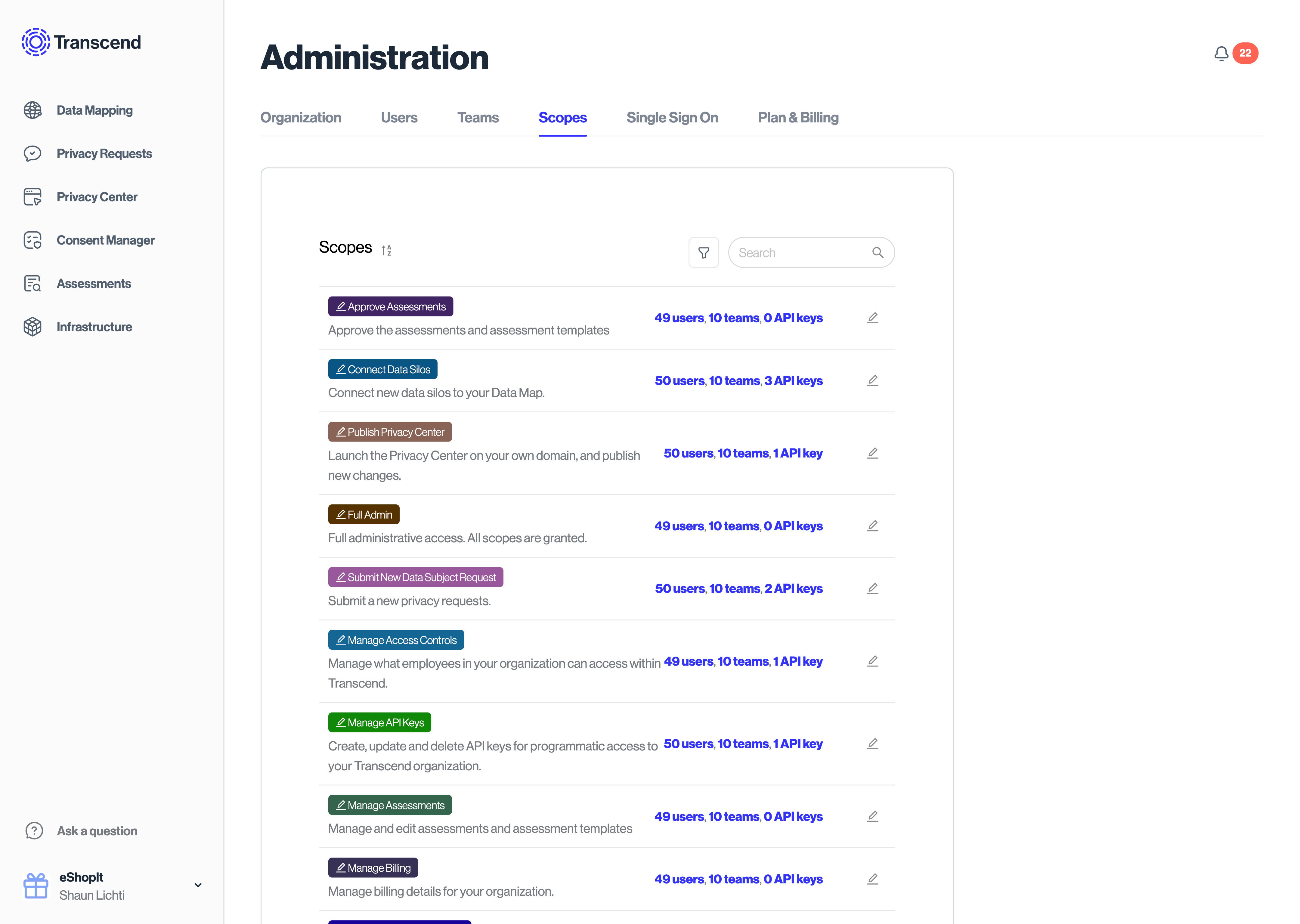
Scopes can also be assigned to [API keys](../../overview/developer-tools/authentication.mdx). The API keys can be given that same privileges as any `member` in your organization.
You can manage the assignment of `scopes` under individual users in the [Users →](https://app.transcend.io/admin/users) section within Administration. You can manage the assignment of `scopes` to `teams` by going to the [Teams →](https://app.transcend.io/admin/teams) section within Administration.
To see a list of all available scopes in the Transcend platform, check out our [Scopes & Permissions article](./scopes-and-permissions.mdx).
## Users [#users]
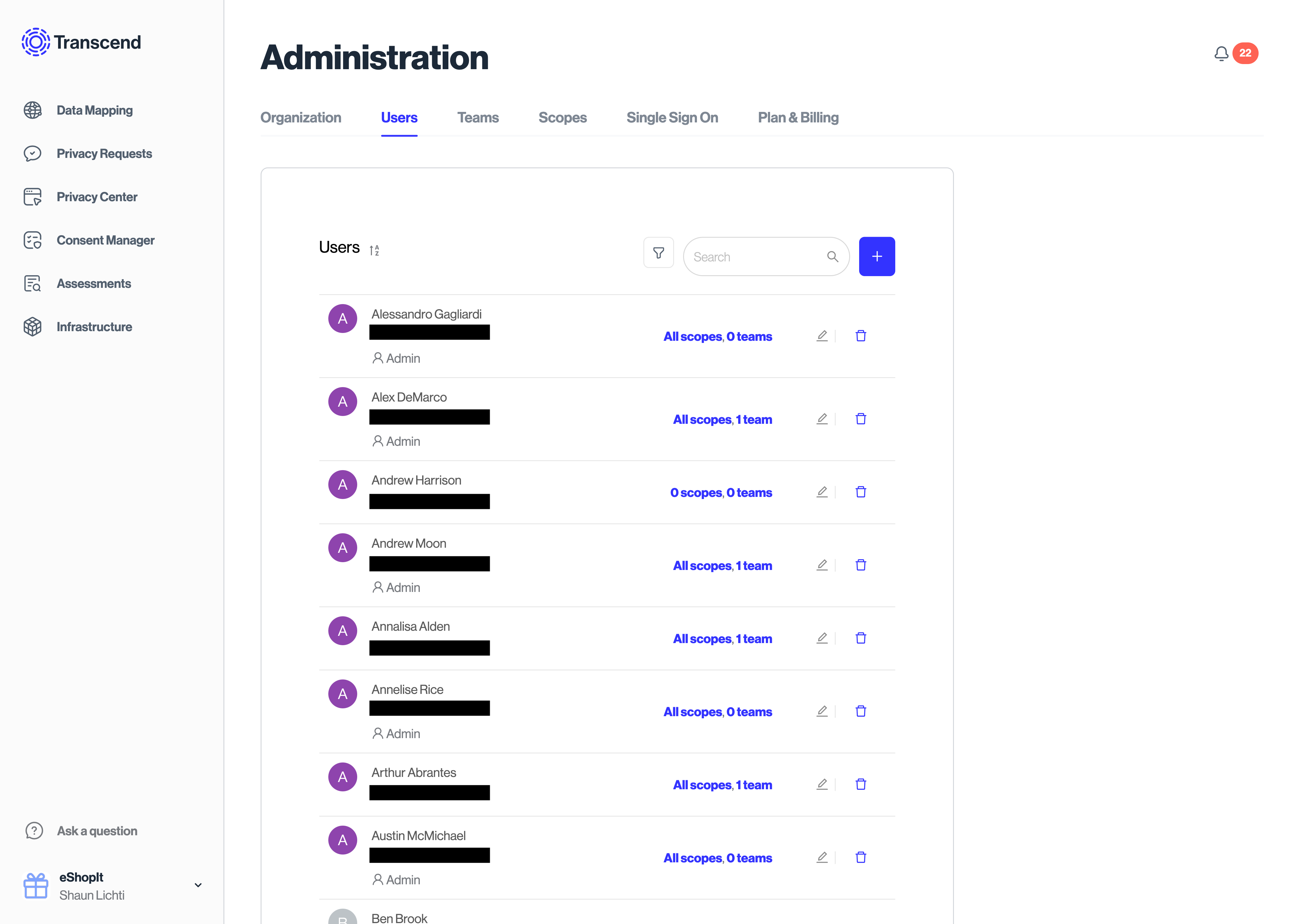
Every employee, partner, or person that should have a log in to your Transcend account is known as a `member`. By default, each `member` has no `scopes`. They cannot see any incoming Requests or private configurations for your organization. The only changes they can make are to their personal account settings.
In order for your members to start doing things like configuring your [Privacy Center](../../privacy-center/configuration-and-publishing/privacy-center.mdx) or [Integrations](../../dsr-automation/quickstarts/dsr-quickstart.mdx) or responding to [Data Subject Requests](../../dsr-automation/configuring-requests/data-subject-requests.mdx) you must assign them `scopes`.
Learn more about managing user access in our [Adding, Revoking, & Auto-Provisioning Access article](./adding-revoking-and-auto-provisioning-access.mdx).
## Teams [#teams]
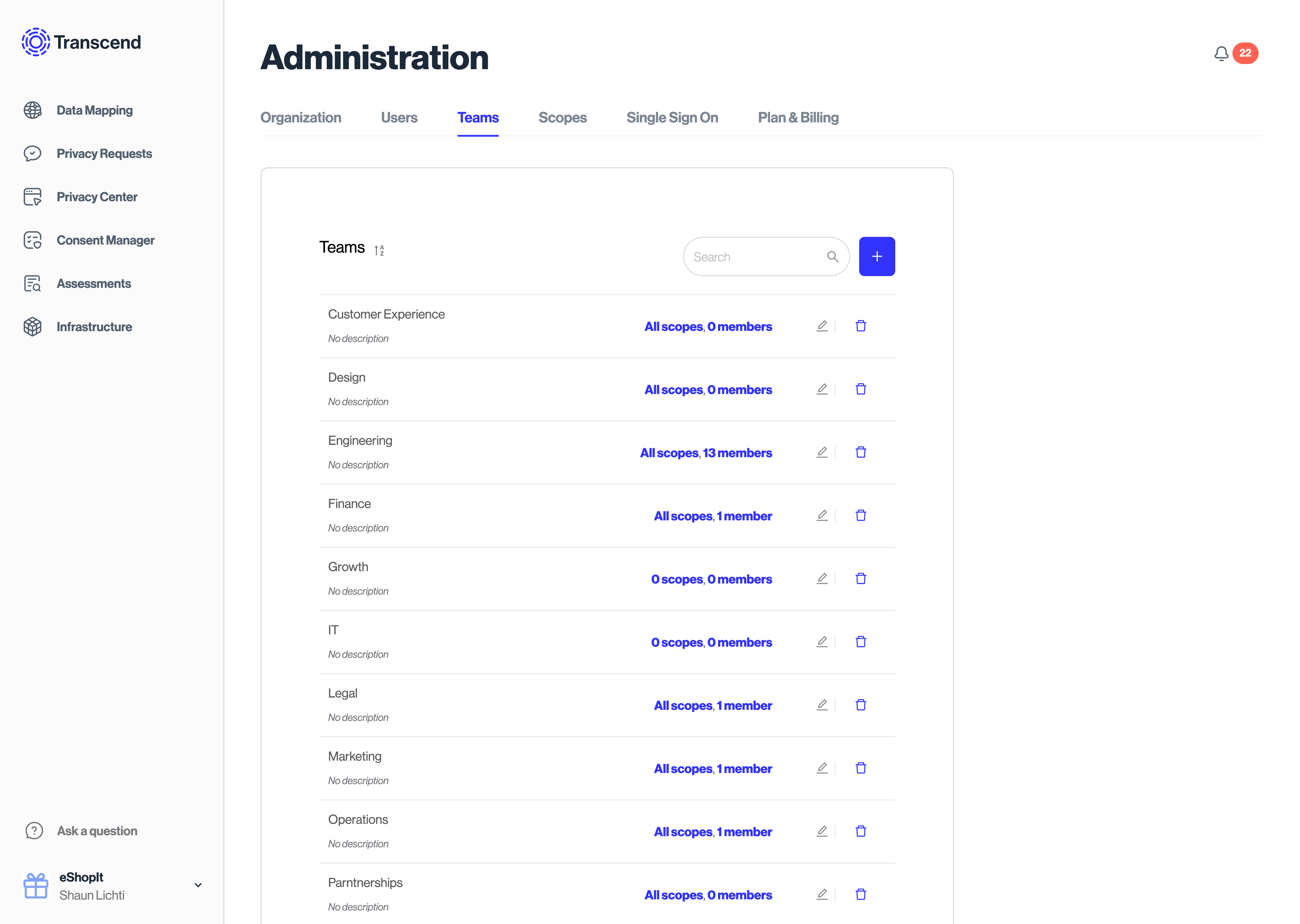
It's common for similar groups of `members` to be assigned the same set of `scopes`. For this reason, we allow you to create `teams` of members, and assign scopes to everyone in that team. If you remove a member from a team, that member will lose the scopes it had from that team unless the member was also individually assigned those scopes. You can create, edit, and modify membership to teams in the "Administration" section under [Teams →](https://app.transcend.io/admin/teams).
You can manage and invite new "Users" on from your profile icon in the bottom left, then "Administration", then [Users →](https://app.transcend.io/admin/users) tab, and you can add the user to a specific team when they are invited, or retroactively.
## Early Access Features [#early-access-features]
Organization administrators can also manage access to experimental and beta features through the [Early Access →](https://app.transcend.io/admin/early-access) tab. This allows your organization to opt-in to new Transcend features before they become generally available.
Learn more about enabling and managing beta features in our [Early Access Features article](./early-access-features.mdx).
## Email and password (LOCAL) authentication [#email-and-password-local-authentication]
Some members of your Transcend organization may sign in with email and password instead of SSO. This applies when a user account has already been created for the user in your Transcend instance and at least one of the following is applicable:
1. The member's email domain is not covered by your organization's SSO configuration
2. SSO is not enabled for your organization
Note: Transcend does not offer native multi-factor authentication (MFA) for LOCAL accounts. If your organization requires MFA, provision users through your identity provider and have them sign in via SSO. Learn more in our [Setting up SSO article](../sso/setting-up-sso.mdx).
### Password requirements [#password-requirements]
When a LOCAL user sets or resets a password, Transcend enforces an OWASP-aligned password policy (length, complexity, and passphrase rules). You cannot reuse any of your last 8 passwords, and passwords that do not meet the policy show Password strength is too weak.