# Rotating Sombra Keys (/docs/sombra/deploying/customizing-sombra/key-rotation)
Transcend allows you to rotate all the keys used by Sombra, granting you greater control over your security practices when using Transcend.
**Rotating keys is a security best practice**
[NIST recommends](https://www.keylength.com/en/4/) rotating keys once a year.
Sombra remembers the four (4) most recent sets of keys. Older keys are "forgotten" and can no longer decrypt data.
## Hosted Sombra [#hosted-sombra]
If Transcend hosts your Sombra cluster, you can rotate the keys by following these steps:
1. Navigate to the [Rotate Keys](https://app.transcend.io/infrastructure/sombra/rotate-keys) in the Sombra settings
2. Under "Hosted Sombra Keys", click "Rotate Sombra Keys"
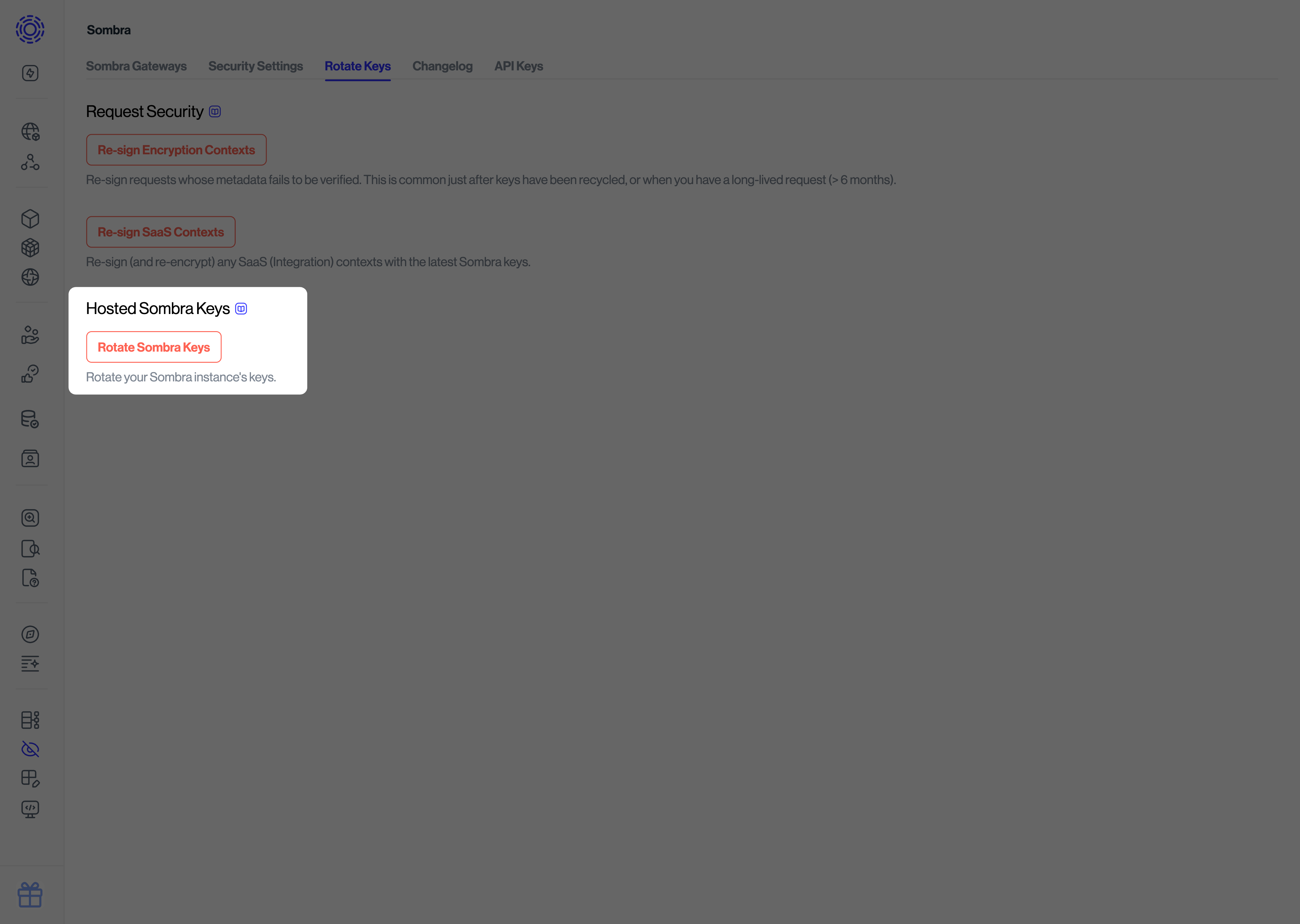
3. Once the keys have finished rotating, you will be presented with your new `INTERNAL_KEY`. **Make sure to copy it down, as it will be lost once the modal is closed.**
4. After the modal closes, you will be redirected to the login page for the new keys to take effect.
## Self-hosted Sombra [#self-hosted-sombra]
In the key rotation process, we rotate three types of keys: the `INTERNAL_KEY`, the `JWT_ECDSA_KEY`, and any cloud KMS keys you may use.
### `INTERNAL_KEY` [#internal_key]
The `INTERNAL_KEY` is a symmetric key that allows your internal application to authenticate with Sombra's internal API. This key is sent as a Bearer token in the `x-sombra-authentication` header.
Follow [these instructions](./networking.mdx#bearer-authentication) to generate a new `INTERNAL_KEY` and `INTERNAL_KEY_HASH`.
Provide the hash of the internal key in the Sombra environment:
```shellscript
INTERNAL_KEY_HASH="wm/mZTcSALaEibJXmhdq8g7lUN19kgXQ4hWgjt3woE8="
```
You can also provide a comma-separated list of internal key hashes to gracefully migrate from an old value to a new value:
```shellscript
INTERNAL_KEY_HASH="old-key,new-key"
```
For example:
```shellscript
INTERNAL_KEY_HASH="wm/mZTcSALaEibJXmhdq8g7lUN19kgXQ4hWgjt3woE8=,YOed1MK2eLVVqW3fqMtLadCKGFecz1liN96tXMDxDn0="
```
It is safe to replace the `INTERNAL_KEY_HASH` in the environment without needing to update any data in your Transcend dashboard.
If you're using bearer authentication (`INTERNAL_KEY_HASH`), rotating this values means you also need to update your clients' credentials. Clients calling the Sombra API present the bearer token (`INTERNAL_KEY`) to authenticate to Sombra.
### `TRUSTED_CLIENT_CA_CERT_ENCODED` [#trusted_client_ca_cert_encoded]
If you are using [Mutual TLS Authentication](./networking.mdx#mutual-tls-authentication), you may also rotate your certificate (stored under the environment variable, `TRUSTED_CLIENT_CA_CERT_ENCODED`).
Whether you're using mutual TLS (`TRUSTED_CLIENT_CA_CERT_ENCODED`), rotating these values means you also need to update your clients' credentials. Clients calling the Sombra API present their client certificate to authenticate to Sombra.
### `JWT_ECDSA_KEY` [#jwt_ecdsa_key]
The `JWT_ECDSA_KEY` is an asymmetric JSON web token key used for signing Sombra payloads using the Elliptic Curve Digital Signature Algorithm. This key is also used to derive other encryption keys used in Sombra.
This key is critical for decrypting data stored in the Transcend cloud. Other data in the Transcend database must be migrated before you can remove an old key.
To generate a new key:
```shellscript
JWT_ECDSA_KEY=$(openssl ecparam -genkey -name secp384r1 -noout | (base64 --wrap=0 2>/dev/null || base64 -b 0))
echo "set gateway environment: JWT_ECDSA_KEY: ${JWT_ECDSA_KEY}"
```
Set the new key in the environment alongside the old key:
```shellscript
JWT_ECDSA_KEY="new-key,old-key"
```
For example:
```shellscript
JWT_ECDSA_KEY="LS0tLS1CRUdJTiBFQyBQUklWQVRFIEtFWS0tLS0tCk1JR2tBZ0VCQkRCT0JkNExXVzNaTkJXOWhyTUJ4YlJUemx0SjZjWitIMm5GM3FybDgwdnpLbG1yMnFkRzU5YTUKOU1vWTJhWTJYWVNnQndZRks0RUVBQ0toWkFOaUFBUTBQOUI5Nm9FaVZhWmo3RnhRWThtM1JaMnRRRkVNaUhaWgpKTXk0NjdBcEJiRFRJZkpHRWh3MjAvcnljS3gxY25CUzRqYk5rdTVLNHh0TlpSMDcwVHNFWkREVmh3Y3kxNWRkCktWaDJGcVZvczkxVjVCSVUyK0xENUpYUGUweUVtM1U9Ci0tLS0tRU5EIEVDIFBSSVZBVEUgS0VZLS0tLS0K,LS0tLS1CRUdJTiBFQyBQUklWQVRFIEtFWS0tLS0tCk1JR2tBZ0VCQkREYkZjZEZMemNEU0JXbkVrN1Q0TGZOY1cxMEJWdEVnKzczcDkyU1ZuRDlaaW5JUCs0bklneCsKYXV0WEpINlkwK3FnQndZRks0RUVBQ0toWkFOaUFBVEF3blpBcGx6ZmxHaFhmRkp6YVFKVkVnZFdWZ2NjZmhDRgpsOWVQQUZmMUxDd2Z6UzhSSFl0b3huQ2dUN0RSMWE0K1FOaXh5bWUvM3ZXSkRZU2JyQlZ5eU9NRVFvODEwRkRKCjZLTVBaWG90VEtSRU14c0FxS1pKS0UwNjVjZEpGckk9Ci0tLS0tRU5EIEVDIFBSSVZBVEUgS0VZLS0tLS0K"
```
It is recommended to keep the old key available to decrypt data that was encrypted with that key. The first key in the comma-separated list will be used to encrypt all data going forward. For urgent key rotations, please contact [support@transcend.io](mailto:support@transcend.io?subject=Help%20with%20key%20rotation) to ensure no data is corrupted or lost during the process.
### Cloud KMS Keys [#cloud-kms-keys]
Each cloud provider has its own guide for performing key rotations. For example, the [AWS Guide](https://docs.aws.amazon.com/kms/latest/developerguide/rotate-keys.html) covers how to rotate a key manually as well as how to enable automatic key rotation.
## Post-Rotation Actions [#post-rotation-actions]
After rotating keys, you may need to update existing requests and integrations to ensure they continue to function properly.
### Update Requests [#update-requests]
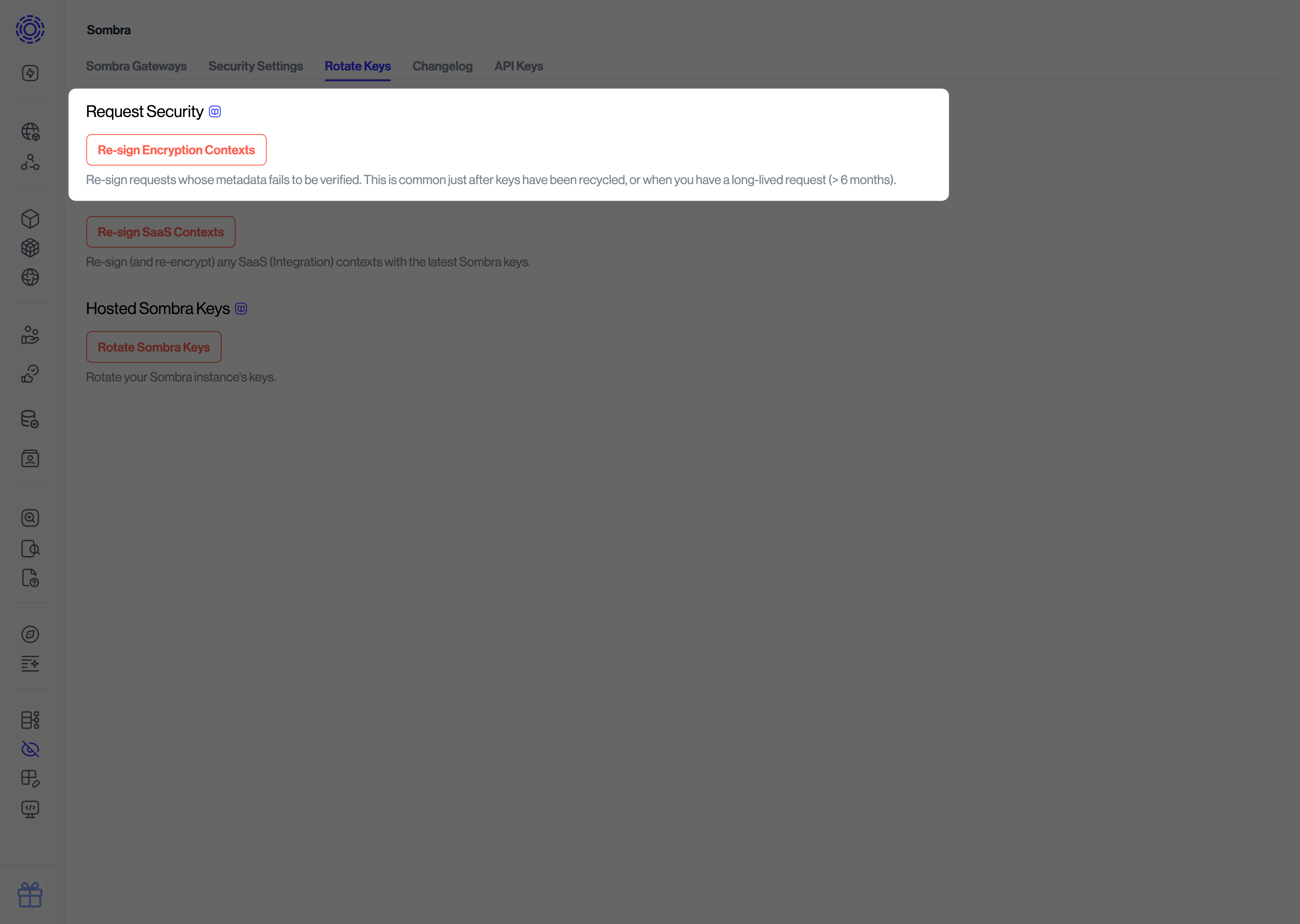
After a key-rotation, active data subject requests may fail with the error `Request's encryption context has expired...`. You need to update the signatures with your new key:
1. Navigate to the [Rotate Keys](https://app.transcend.io/infrastructure/sombra/rotate-keys) in the Sombra settings
2. Under "Hosted Sombra Keys", click on the "Re-Sign Encryption Contexts" button.
### Update Integrations [#update-integrations]
You also need to update signatures associated with your connected integrations:
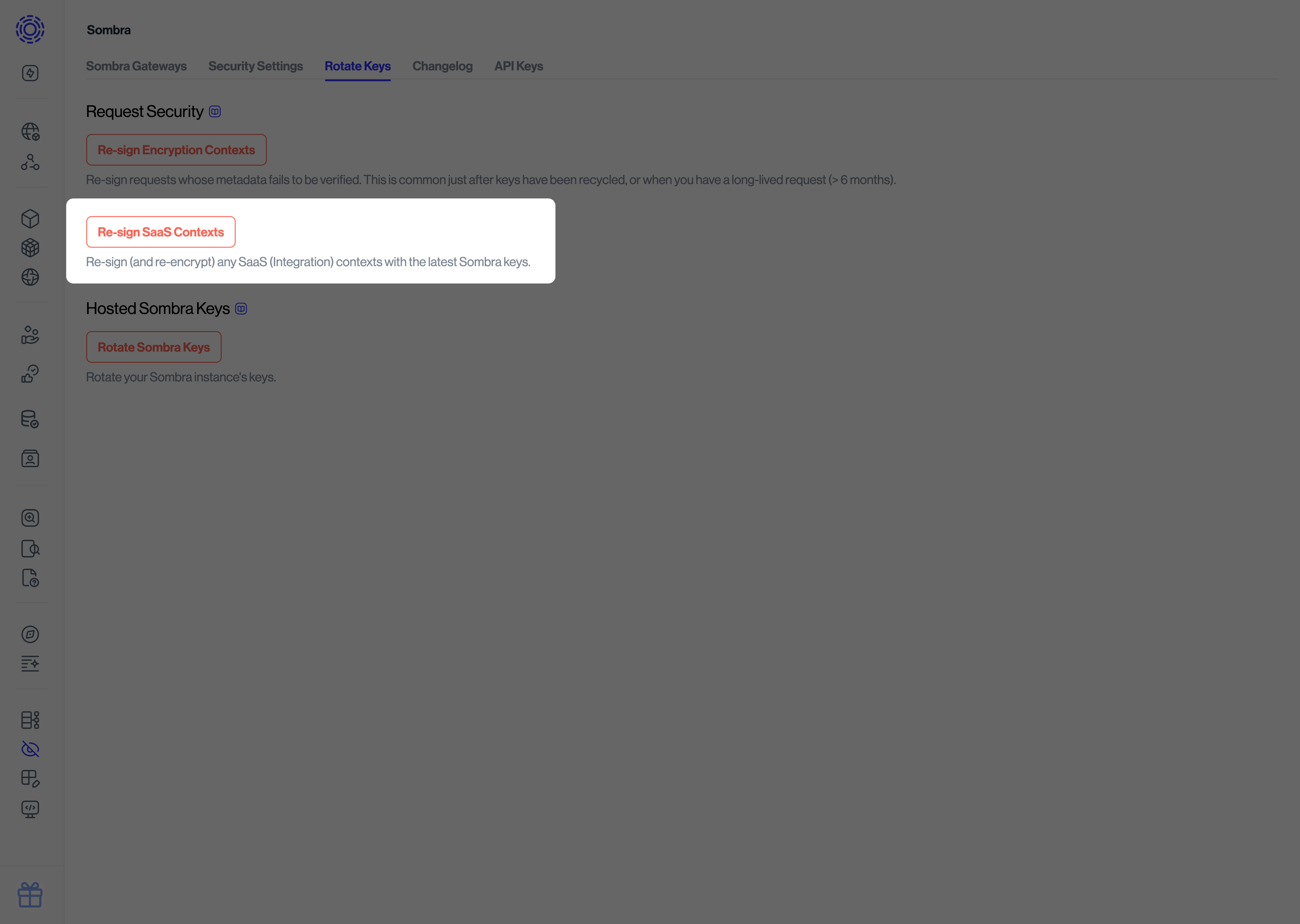
1. Navigate to "Settings > Sombra" on your Admin Dashboard
2. Scroll down to the "Request Security" section of the page
3. Click on the "Re-Sign SaaS Contexts" button to update all integrations in your organization