# Docker Run (/docs/sombra/deploying/deployment-options/docker)
This guide covers using basic `docker run` commands to run the Sombra server. This is not recommended for production environments, as `docker run` commands lack automatic container restart capabilities if connections are lost, memory issues occur, or other failures happen.
We recommend using this approach for testing and evaluation only. For production deployments, refer to the [Helm deployment option](./helm.mdx).
**Prerequisites**
Follow our [Getting Started guide](../getting-started.mdx#step-1-create-a-transcend-api-key) to get access to our container registry, and get all the environment variables you'll need when configuring Sombra.
## Step 1: Run a Sombra Cluster [#step-1-run-a-sombra-cluster]
Use the following `docker run` command to deploy Sombra:
```shellscript
# Authenticate to the Docker registry using your API key from Getting Started Step 1
docker login docker.transcend.io -u Transcend -p
# Pull the latest Sombra image
docker pull docker.transcend.io/sombra:latest
# Values from the copyable snippet from Getting Started Step 2
SOMBRA_ID=
SOMBRA_REVERSE_TUNNEL_API_KEY=
ORGANIZATION_URI=
TRANSCEND_URL=
# Values generated from Getting Started Step 3
JWT_ECDSA_KEY=
INTERNAL_KEY_HASH=
docker run \
-p 5039:5039 \
-e SOMBRA_ID="$SOMBRA_ID" \
-e SOMBRA_REVERSE_TUNNEL_API_KEY="$SOMBRA_REVERSE_TUNNEL_API_KEY" \
-e ORGANIZATION_URI="$ORGANIZATION_URI" \
-e TRANSCEND_URL="$TRANSCEND_URL" \
-e JWT_ECDSA_KEY="$JWT_ECDSA_KEY" \
-e INTERNAL_KEY_HASH="$INTERNAL_KEY_HASH" \
docker.transcend.io/sombra:latest
```
If you are migrating from an existing Transcend-hosted Sombra, it is critical that you migrate the existing `JWT_ECDSA_KEY` to your self-hosted Sombra. If you do not properly migrate your multi-tenant `JWT_ECDSA_KEY`, you will need to re-connect all integrations from scratch, and restart all DSRs!
Please follow this [migration guide](../customizing-sombra/migrating-from-transcend-hosted-sombra.mdx).
## Step 2: Verify Successful Connection [#step-2-verify-successful-connection]
After the container has been running for a minute or so, look for a log message containing `Successfully synced configuration with transcend backend.` This confirms that:
1. Your Sombra cluster can communicate with the Transcend backend
2. Your API key is valid
3. The Transcend backend can communicate with your Sombra cluster
## Step 3: Test the Transcend Ingress [#step-3-test-the-transcend-ingress]
Go to the [Sombra Gateways](https://app.transcend.io/infrastructure/sombra/sombras) page and click the "Test" button under "Test Gateway Connection" to make a GET request to the `/test` endpoint of the Sombra Gateway.
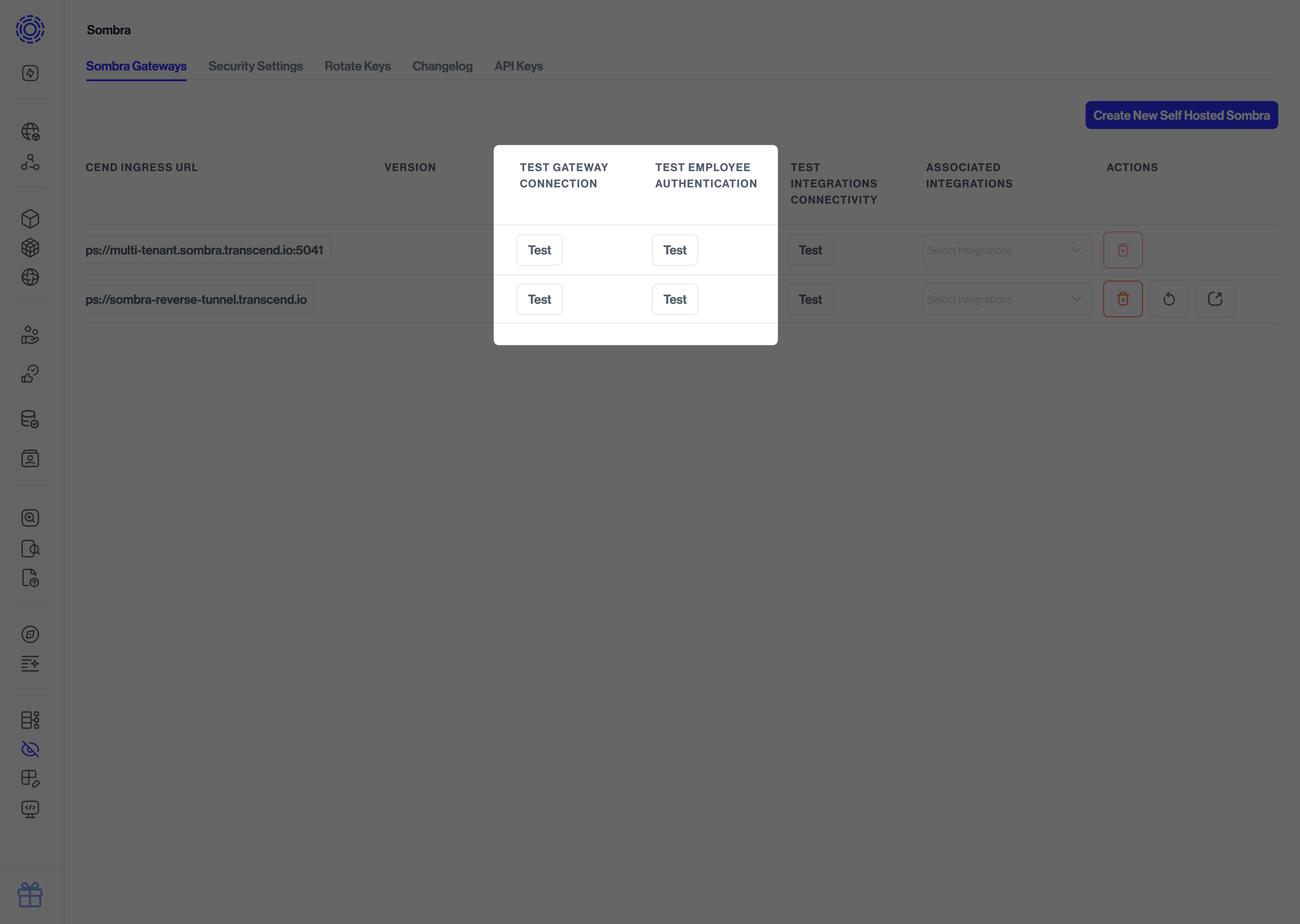
You should see a successful message if the connection is working. Congratulations on successfully deploying Sombra!
## Step 4: Test the Customer Ingress [#step-4-test-the-customer-ingress]
Go to [http://localhost:5039/health](http://localhost:5039/health) to see that the HTTP API is accessible from port 5039.