# Getting Started (/docs/sombra/deploying/getting-started)
In this guide, we'll get all the prerequisite values for deploying Sombra.
To keep track of the values you'll need for Sombra, we recommend first creating a template file with the following values. Be sure to move these secrets to a secure storage location once you're finished setting up Sombra.
```markdown
# API Keys used outside of Sombra
TRANSCEND_API_KEY=xxxx
INTERNAL_KEY=xxxx
# Sombra's Environment Variables
SOMBRA_ID=xxxx
SOMBRA_REVERSE_TUNNEL_API_KEY=xxxx
ORGANIZATION_URI=xxxx
TRANSCEND_URL=xxxx
JWT_ECDSA_KEY=xxxx
INTERNAL_KEY_HASH=xxxx
# Additional keys (only if using Preference Management)
CONSENT_IDENTIFIER_ENCRYPTION_KEY=xxxx
```
## Step 1: Create a Transcend API Key [#step-1-create-a-transcend-api-key]
Create a Transcend API Key in the Admin Dashboard under [Infrastructure → API Keys](https://app.transcend.io/infrastructure/api-keys). No specific scope is required for this API key.
Save this under the `TRANSCEND_API_KEY` value in your template file. It will only be displayed once in the Admin Dashboard. If you lose it, you can always create a new one. This is used to authenticate to Transcend's Docker Registry.
## Step 2: Register a New Sombra Cluster in the Admin Dashboard [#step-2-register-a-new-sombra-cluster-in-the-admin-dashboard]
1. Go to the [Sombra Gateways](https://app.transcend.io/infrastructure/sombra/sombras) page
2. Click "Create New Self Hosted Sombra"
3. Select "Self-Hosted Sombra - Reverse Tunnel" from the dropdown
4. Leave the "Existing Sombra ID" field blank, unless you're re-using a Sombra deployment currently registered with another organization
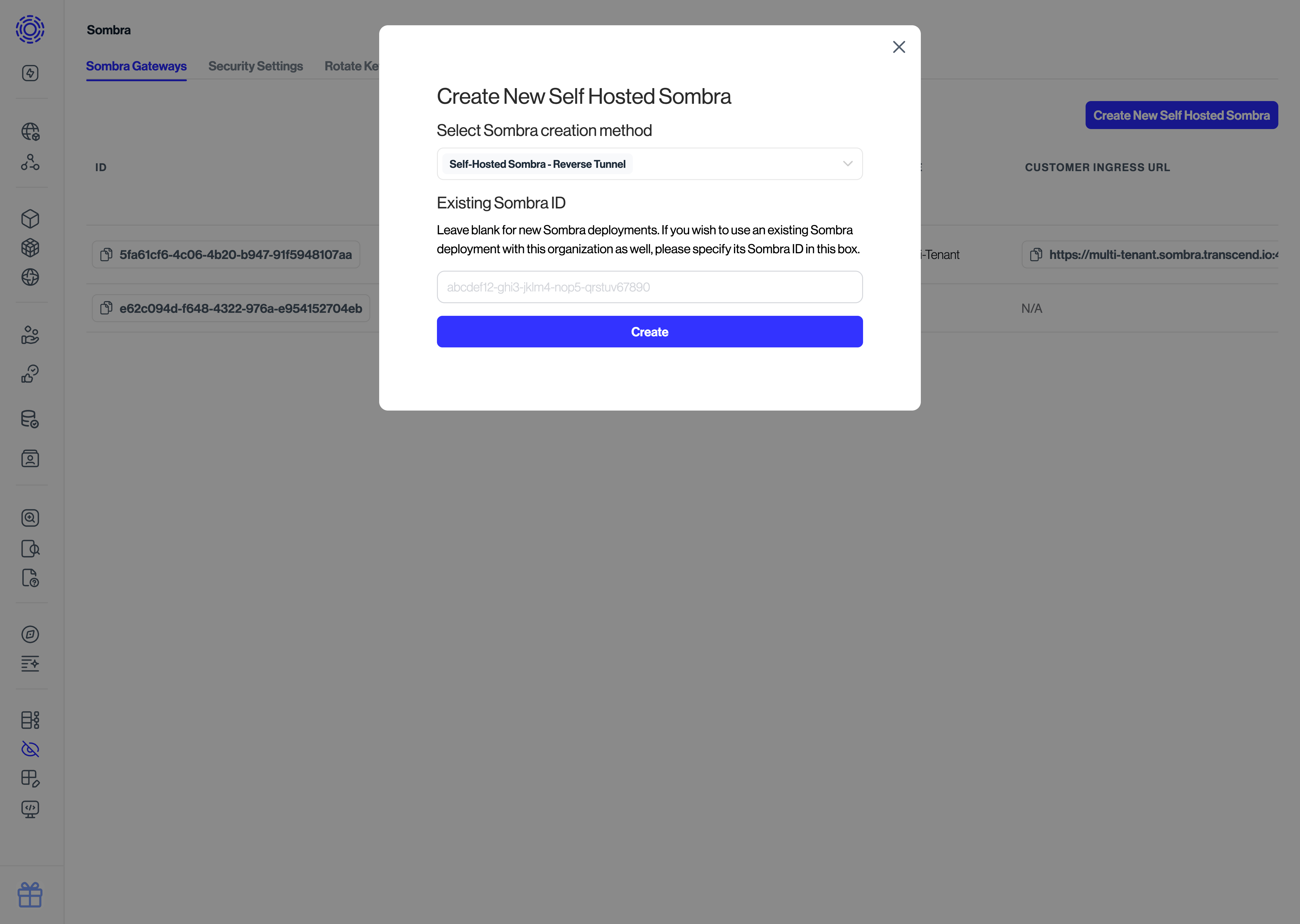
Click the "Create" button to generate a configuration snippet that will look similar to:
```shellscript
SOMBRA_ID=xxxx
SOMBRA_REVERSE_TUNNEL_API_KEY=xxxx
ORGANIZATION_URI=xxxx
TRANSCEND_URL=xxxx
```
Save these values under their corresponding keys in your template file.
## Step 3: Generate keys [#step-3-generate-keys]
If you are migrating from an existing Transcend-hosted Sombra, it is critical that you migrate the existing `JWT_ECDSA_KEY` to your self-hosted Sombra. If you do not properly migrate your multi-tenant `JWT_ECDSA_KEY`, you will need to re-connect all integrations from scratch, and restart all DSRs!
Please follow this [migration guide](./customizing-sombra/migrating-from-transcend-hosted-sombra.mdx).
### JWT ECDSA Key [#jwt-ecdsa-key]
Generate the `JWT_ECDSA_KEY` using OpenSSL (recommended method):
```text
JWT_ECDSA_KEY=$(openssl ecparam -genkey -name secp384r1 -noout | (base64 --wrap=0 2>/dev/null || base64 -b 0))
echo "Set this in your Sombra environment: JWT_ECDSA_KEY: $JWT_ECDSA_KEY"
```
Save this under the `JWT_ECDSA_KEY` value in your template file.
### INTERNAL_KEY_HASH [#internal_key_hash]
Generate your Sombra API key (`INTERNAL_KEY`) and a corresponding SHA-256 hash (`INTERNAL_KEY_HASH`) using OpenSSL (recommended method):
```shellscript
INTERNAL_KEY_BIN=$(openssl rand 32)
INTERNAL_KEY=$(echo -n "$INTERNAL_KEY_BIN" | base64)
INTERNAL_KEY_HASH=$(echo -n "$INTERNAL_KEY_BIN" | openssl dgst -binary -sha256 | openssl base64)
echo "Save this Sombra API key for your internal services: INTERNAL_KEY: $INTERNAL_KEY"
echo "Set this Sombra API key hash in your Sombra environment: INTERNAL_KEY_HASH: $INTERNAL_KEY_HASH"
```
The internal key is a bearer token used to authenticate your internal services to Sombra. The `INTERNAL_KEY_HASH` will be added to your Sombra environment variables, and is used to verify the bearer token.
Save these values in your template file, under the `INTERNAL_KEY` and `INTERNAL_KEY_HASH` values.
### CONSENT_IDENTIFIER_ENCRYPTION_KEY (Optional) [#consent_identifier_encryption_key-optional]
This step is only required if you're using Transcend's Preference Management product. If you're only using Data Inventory, DSR Automation, or Discovery products, you can skip this step.
If you're using Preference Management, you need to generate a consent identifier encryption key:
Generate the `CONSENT_IDENTIFIER_ENCRYPTION_KEY` using OpenSSL (recommended method):
```shellscript
CONSENT_IDENTIFIER_ENCRYPTION_KEY=$(openssl rand -base64 32)
echo "Set this in your Sombra environment: CONSENT_IDENTIFIER_ENCRYPTION_KEY: $CONSENT_IDENTIFIER_ENCRYPTION_KEY"
```
Save this value under the `CONSENT_IDENTIFIER_ENCRYPTION_KEY` in your template file.
This key is used to encrypt and decrypt user identifiers in consent preferences. Keep it secure and backed up, as losing this key will make existing consent preferences unreadable.
## Next Steps [#next-steps]
You can now proceed to a deployment guide. We recommend deploying with [Kubernetes via Helm](./deployment-options/helm.mdx). You can view all deployment options [here](./deployment-options/index.mdx).