Multi-brand Privacy Center Implementation
Display and update user preferences across multiple organizations in your Privacy Center.
Overview
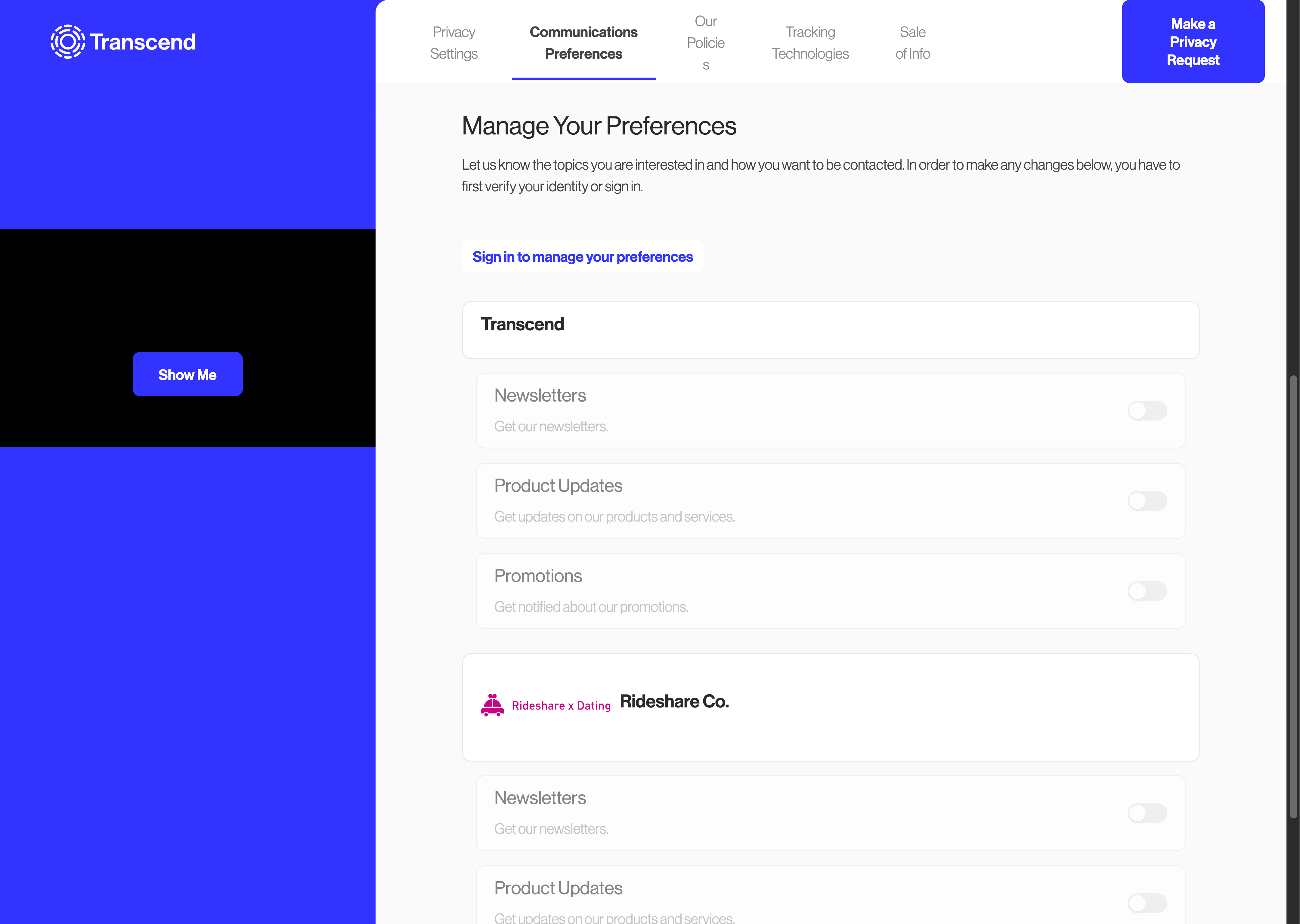
With Transcend's Preference Management and Multi-brand Privacy Center, you can create a unified Privacy Center that allows users to manage their preferences across multiple brands or organizations. This is particularly useful for companies with multiple subsidiaries or brands that want to provide a consistent user experience while respecting individual brand identities. To learn what data subjects see and where each brand's preferences are saved, see How the Multi-brand Privacy Center Works.
Requirements
To implement a Multi-brand Privacy Center, you need to have:
- A Transcend account with access to the Preference Management and Privacy Center features that is set up as a parent organization.
- Child organizations (brands) that are set up as children to the parent organization. Each child organization should have its own Privacy Center and Preference Management settings.
- The organizations must be configured to use Transcend Authentication for user identity verification.
Setting up Multi-brand Privacy Center involves the following main steps:
- Configure Preference Management for Your Parent and Children Organizations: Establish a centralized repository for managing user preferences per organization.
- Set up Multi-brand Privacy Center: Set up a Privacy Center that aggregates preferences from multiple brands.
Set up Multi-brand Privacy Center
To set up a Multi-brand Privacy Center, follow these steps:
-
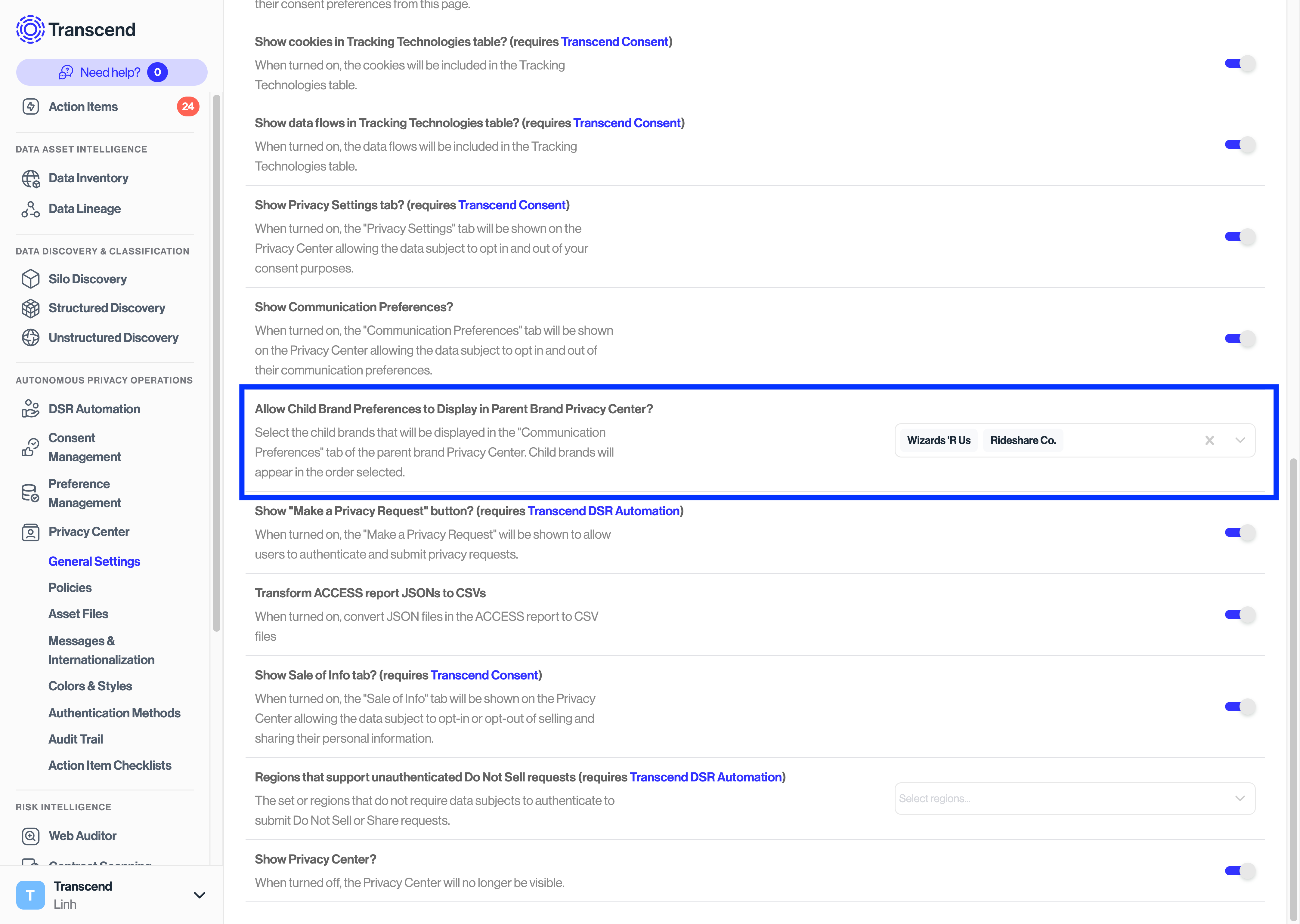
Show Communication Preferences: In the parent organization, go to the Privacy Center → Communication Preferences page in the Admin Dashboard and turn on the Show Communication Preferences? option. This makes the Privacy Center the centralized location for managing user preferences across all brands.
-
Select Child Organizations: In the same settings page, select the child organizations (brands) that you want to include in the Multi-brand Privacy Center. Child brands will appear in the order selected.
-
Save Changes: Click Review & Publish on the same page to save your changes, then click Set Privacy Center Live to publish them to your Privacy Center. To see your changes, go to Privacy Center → General Settings and click View Live Privacy Center. Changes appear in the Communications Preferences tab of the Privacy Center.