Partition Keys
Partitioning preference data with partition keys
Understanding Preference Store Partitions
Partitions allow you to divide your preference data into separate containers, creating multiple isolated preference datasets within a single Transcend instance. Think of partitions as separate preference databases, each serving a specific purpose but managed through the same interface.
Common Uses for Partitions
Organizations typically use partitions for:
- Environment Separation: Keeping development, staging, and production environments separate
- Multi-Brand Management: Maintaining separate preference datasets for different brands under your organization
- Regional Compliance: Managing preferences differently across geographic regions with distinct regulatory requirements
- Business Unit Isolation: Separating preference data across different business units or product lines
How Partitions Work
Each partition has a unique partition key that identifies it within your Transcend instance. When you first set up Preference Management, you'll have one default partition with a key matching your Consent Manager bundle ID.
When users update preferences, the changes are stored in the specific partition they're interacting with. This means a user could have different preference settings across your different partitions (for example, different marketing preferences for each of your brands).
Managing Partition Keys
Viewing Your Partitions
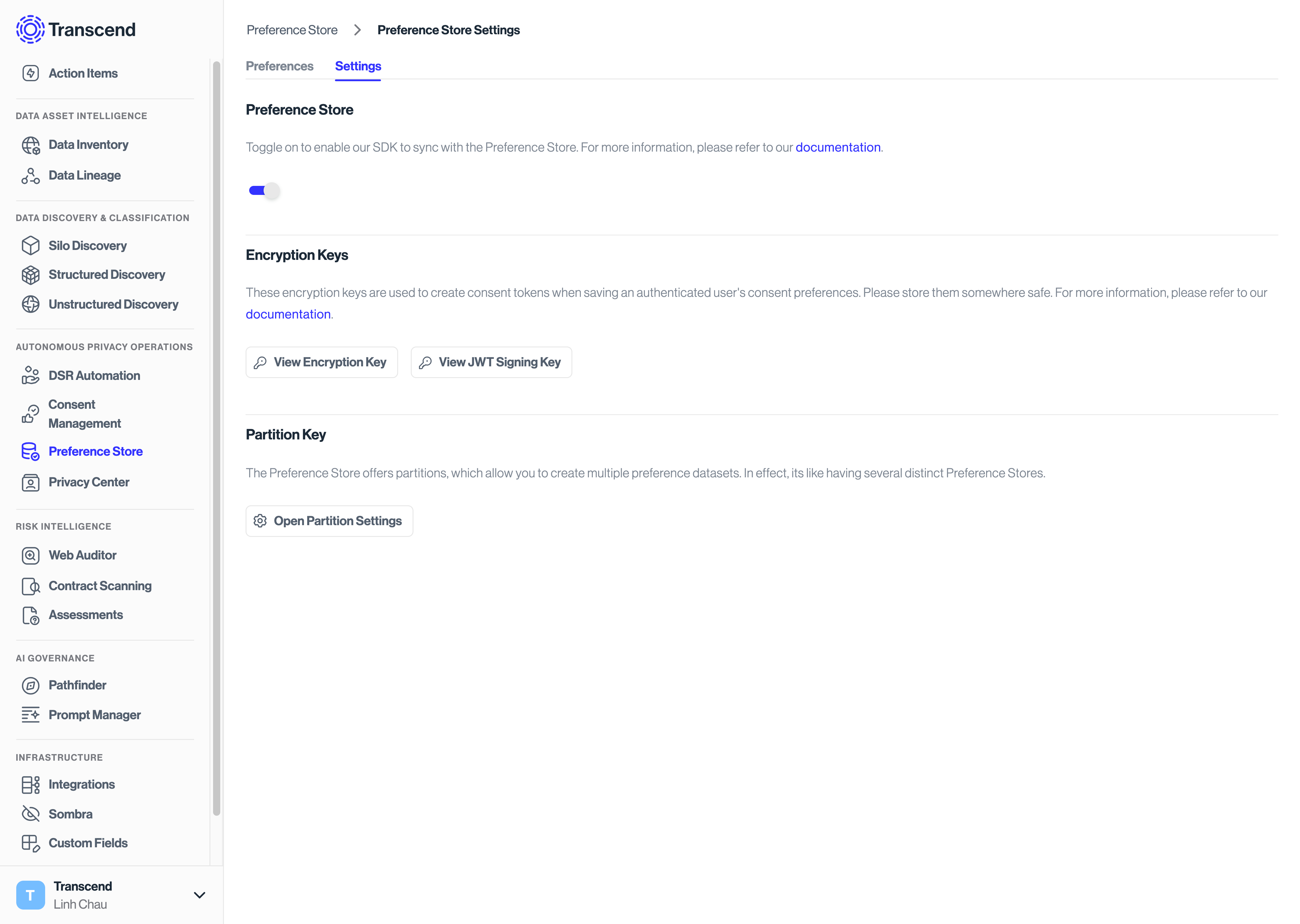
To view and manage your partitions:
- Go to the Preferences > Developer Settings page in the Admin Dashboard
- Click the Open Partition Settings button
Adding New Partitions
To create a new partition:
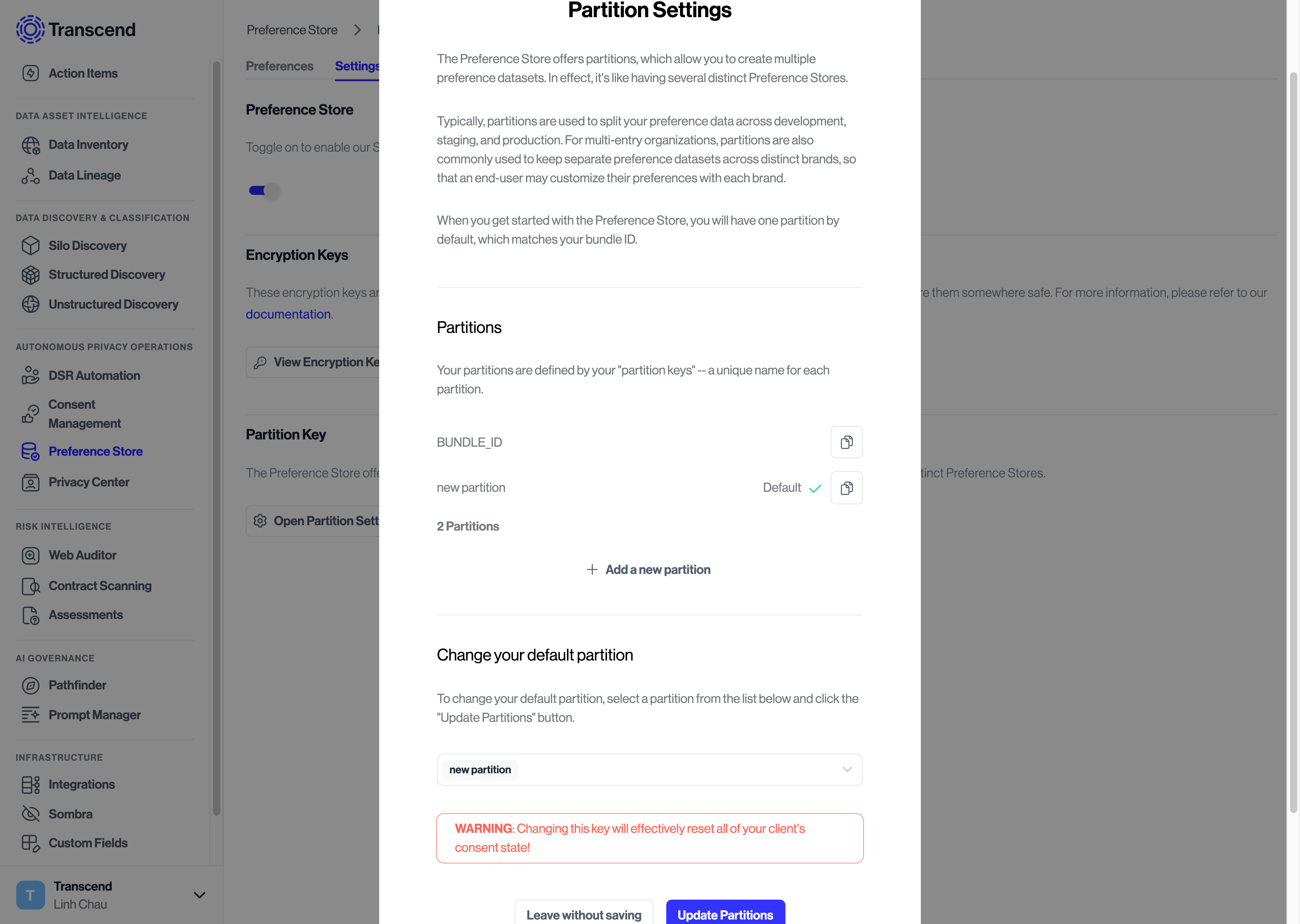
- In the Partition Settings modal, locate the Partitions section
- Click Add a new partition
- Enter a unique preference key for your new partition
- Click Save
You can also copy an existing partition key by clicking the Copy button next to it.
Setting the Default Partition
To change which partition is used by default:
- Go to the Change your default partition section
- Select the partition you want to set as default
- Click Update Partitions
Note: Only users with access to the parent organization in Transcend can create new partition keys.