Set Up Privacy Center Login
Configure email verification, JWT account login, or OAuth 2 account login for your Privacy Center, then turn the method on for each data subject.
After you finish this guide, data subjects can sign in to your Privacy Center with email verification, a JSON Web Token (JWT) from your own login, or OAuth 2. To choose a method, read End-User Identity Verification.
Step 1: Configure the method
Configure JWT and OAuth settings on the Privacy Center > Authentication Methods page in the Admin Dashboard.
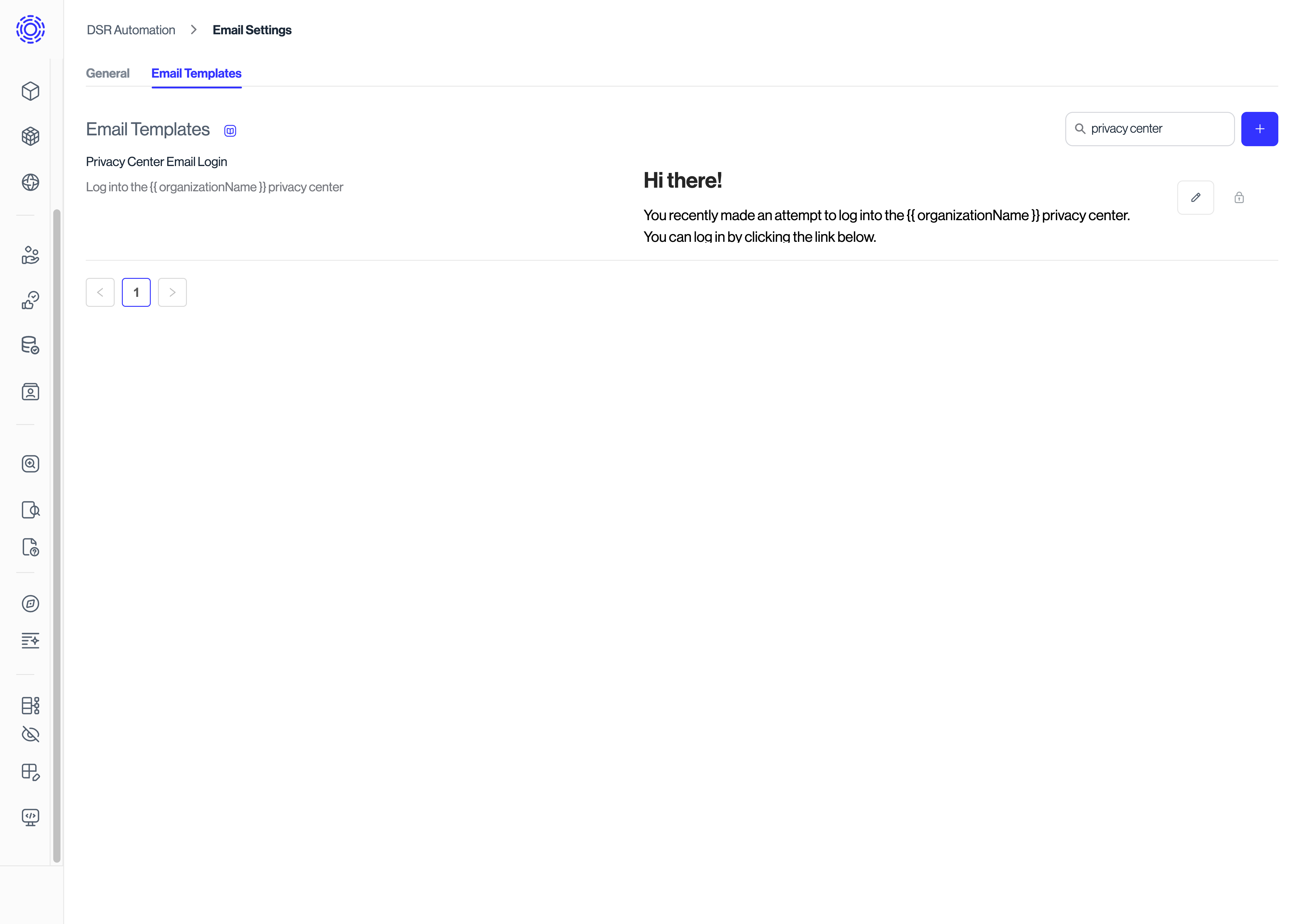
Email verification
Email verification comes pre-configured. To customize the email sent in this verification flow, modify the Email Template with the title Privacy Center Email Login.
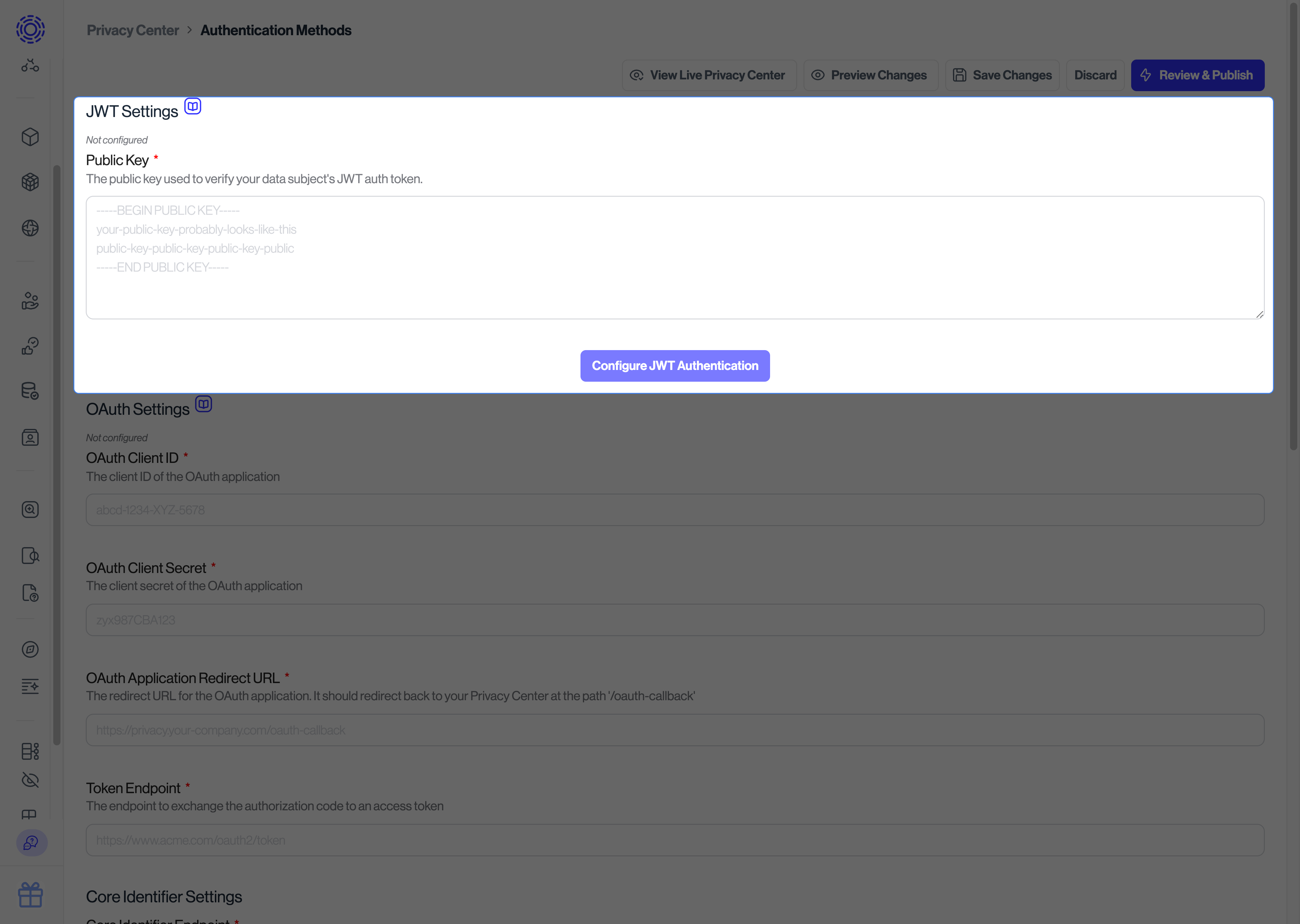
JWT account login
- Host an endpoint on your authentication service that checks a user's session and redirects back to your Privacy Center. See how to write the endpoint on your backend.
- Go to the Privacy Center > Authentication Methods page.
- In the JWT Settings section, set the public key that Sombra uses to validate the session JWT.
Self-Hosted Sombra
If you are self-hosting Sombra, provide this public key in the environment variables for your Sombra gateway as described in Sombra authentication.
OAuth 2 account login
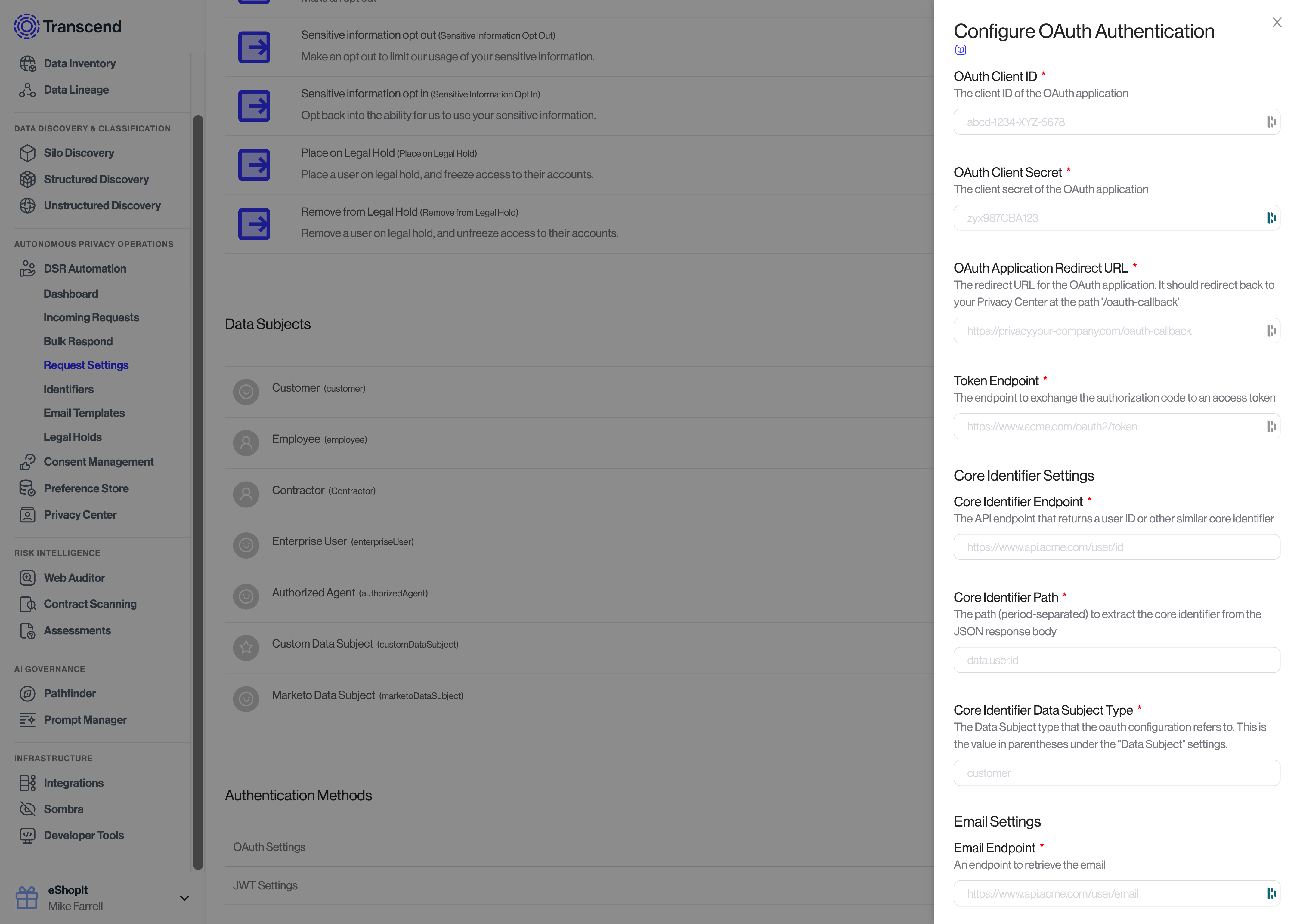
- Register a new application with your OAuth 2 provider. You can call it "Transcend Privacy Center". The application needs permission to return the user's email address.
- Go to the Privacy Center > Authentication Methods page.
- In the OAuth Settings section, enter the Client ID, scopes, and the other values for your application.
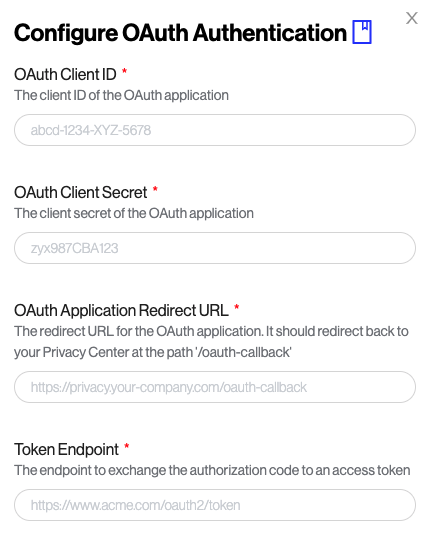
The same userinfo response can also include additional attested identifiers (name and value pairs). On a self-hosted Sombra, set OAUTH_GET_EXTRA_IDENTIFIERS_URL and OAUTH_GET_EXTRA_IDENTIFIERS_PATH. On Transcend-hosted Sombra, use Extra Identifier Settings under Privacy Center > Authentication Methods.
Self-Hosted Sombra
If you are self-hosting Sombra, provide the OAuth configuration settings in the environment variables for your Sombra gateway as described in Sombra authentication.
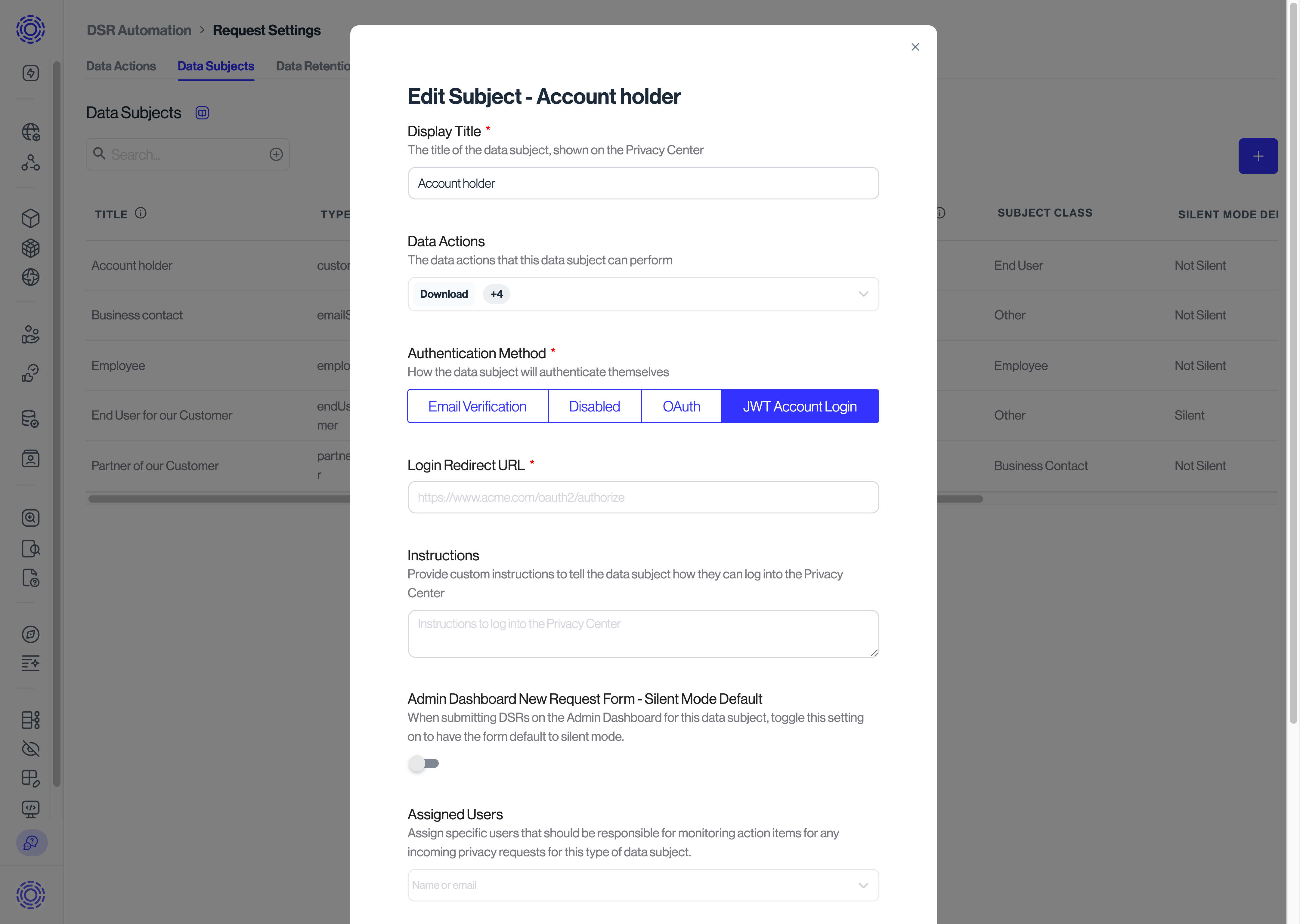
Step 2: Turn on the method for a data subject
- Go to Infrastructure > Workspace Configuration > Data Subjects.
- Click the pencil icon next to the data subject.
- Set Sign-in Method.
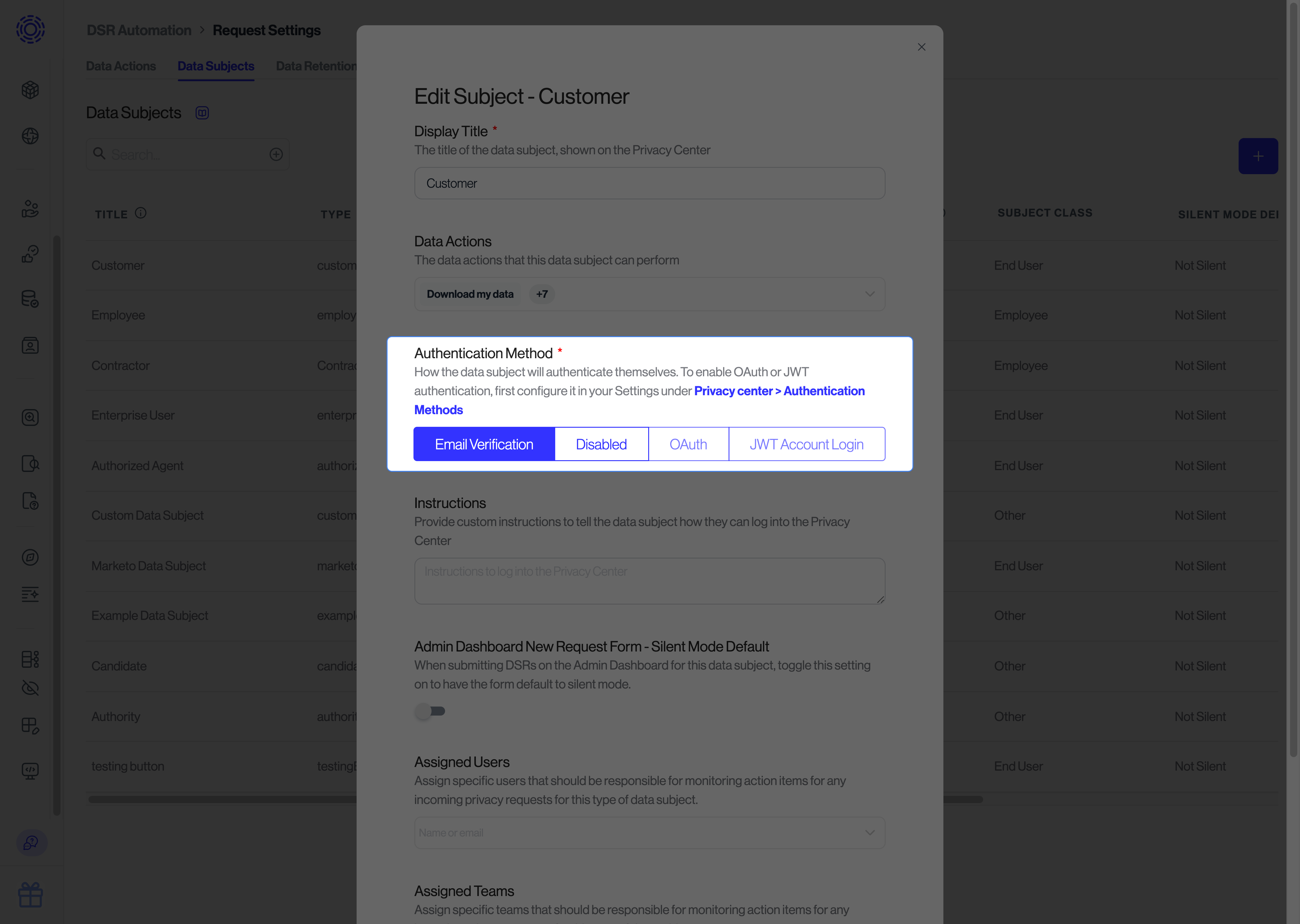
Read more about configuring data subjects.