MCP: Claude Desktop Setup
Before getting started, ensure you have the following:
- Node ≥ 22.12 must be installed to use Transcend's MCP.
- Claude Desktop.
- OAuth Client configured here.
- The redirect URI must be http://127.0.0.1:{port}/callback.
Claude Desktop reads from:
- macOS:
~/Library/Application Support/Claude/claude_desktop_config.json - Windows:
%APPDATA%\\Claude\\claude_desktop_config.json
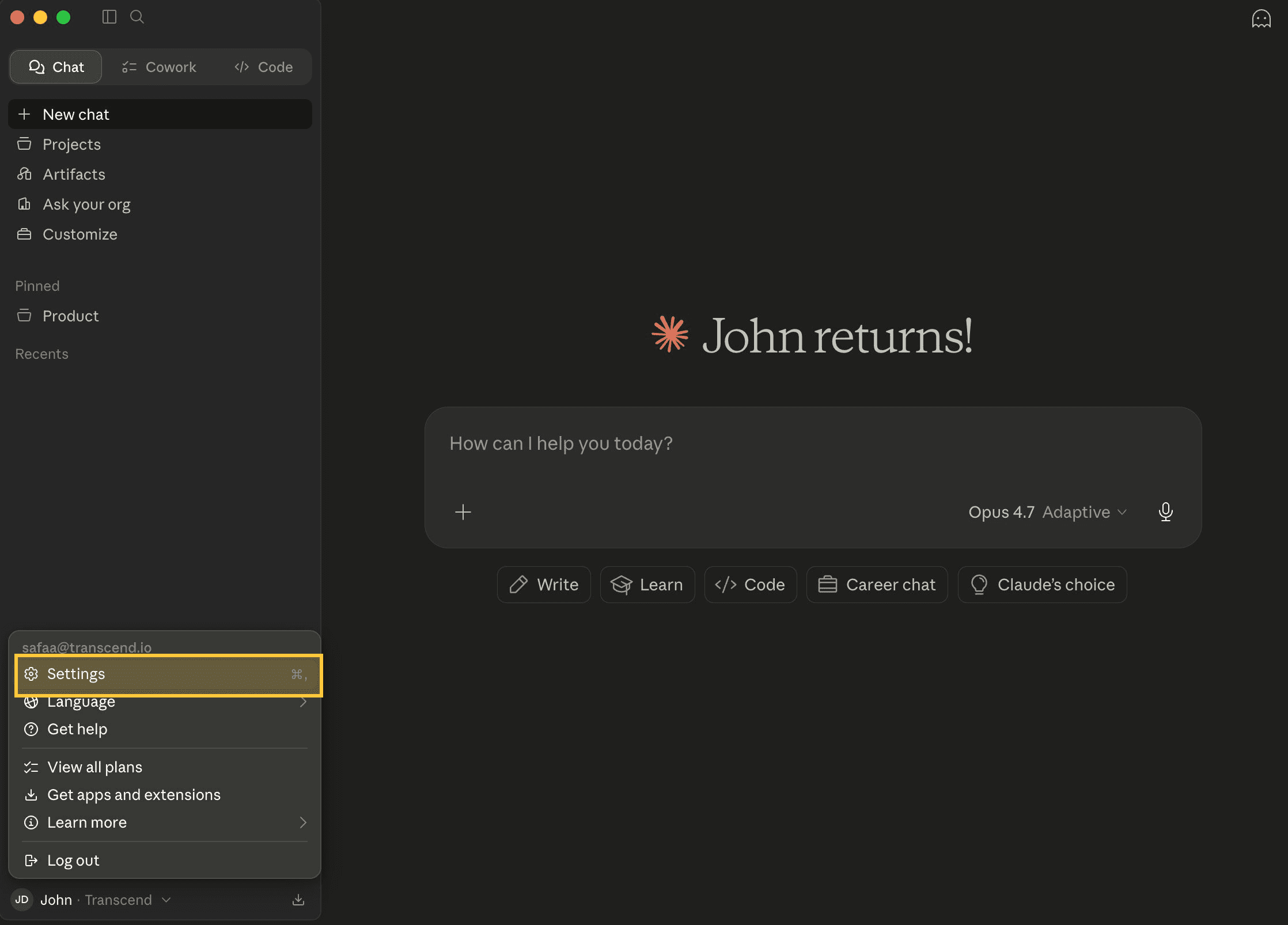
In Claude Desktop, select Settings
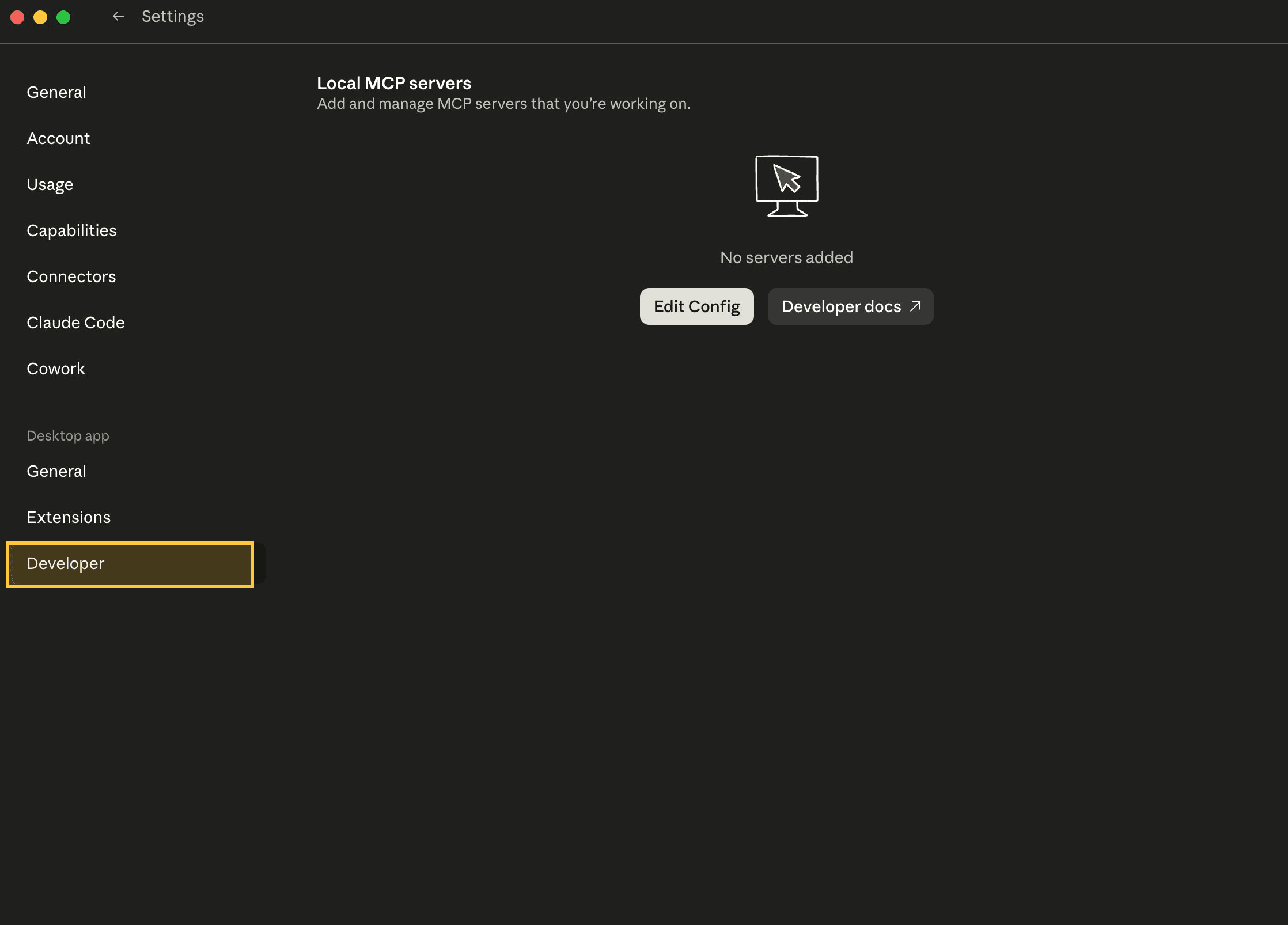
Select Developer
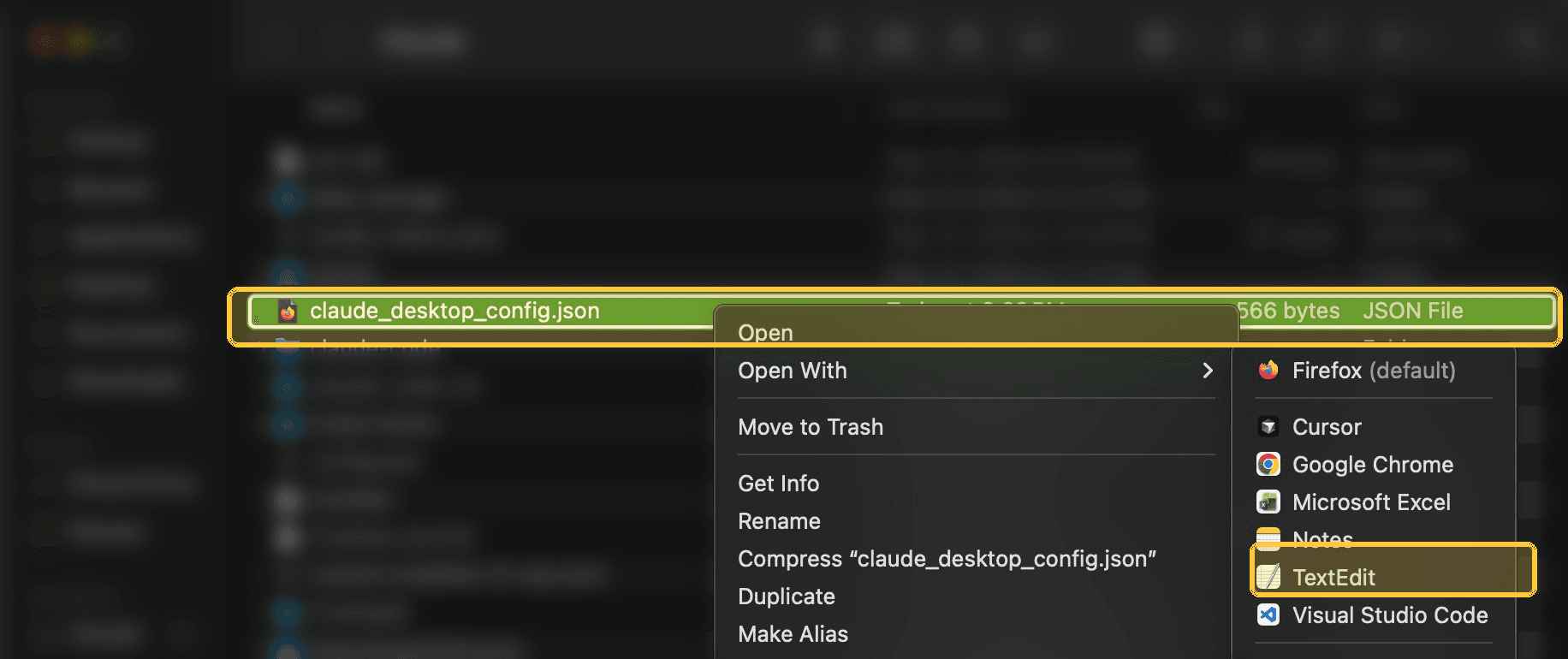
Right click claude_desktop_config.JSON and select a text editor (in the case of Mac, select TextEdit).
In the text editor, paste the definition from the package’s readme to the JSON found here (or copy the below snippet)
JSON
{
  "mcpServers": {
    "transcend": {
      "command": "npx",
      "args": ["-y", "@transcend-io/mcp"],
      "env": {
        "TRANSCEND_OAUTH_CLIENT_ID": "your-client-id",
        "TRANSCEND_OAUTH_CLIENT_SECRET": "your-client-secret",
        "TRANSCEND_OAUTH_REDIRECT_PORT": "your-client-redirect-port"
      }
    }
  }
}
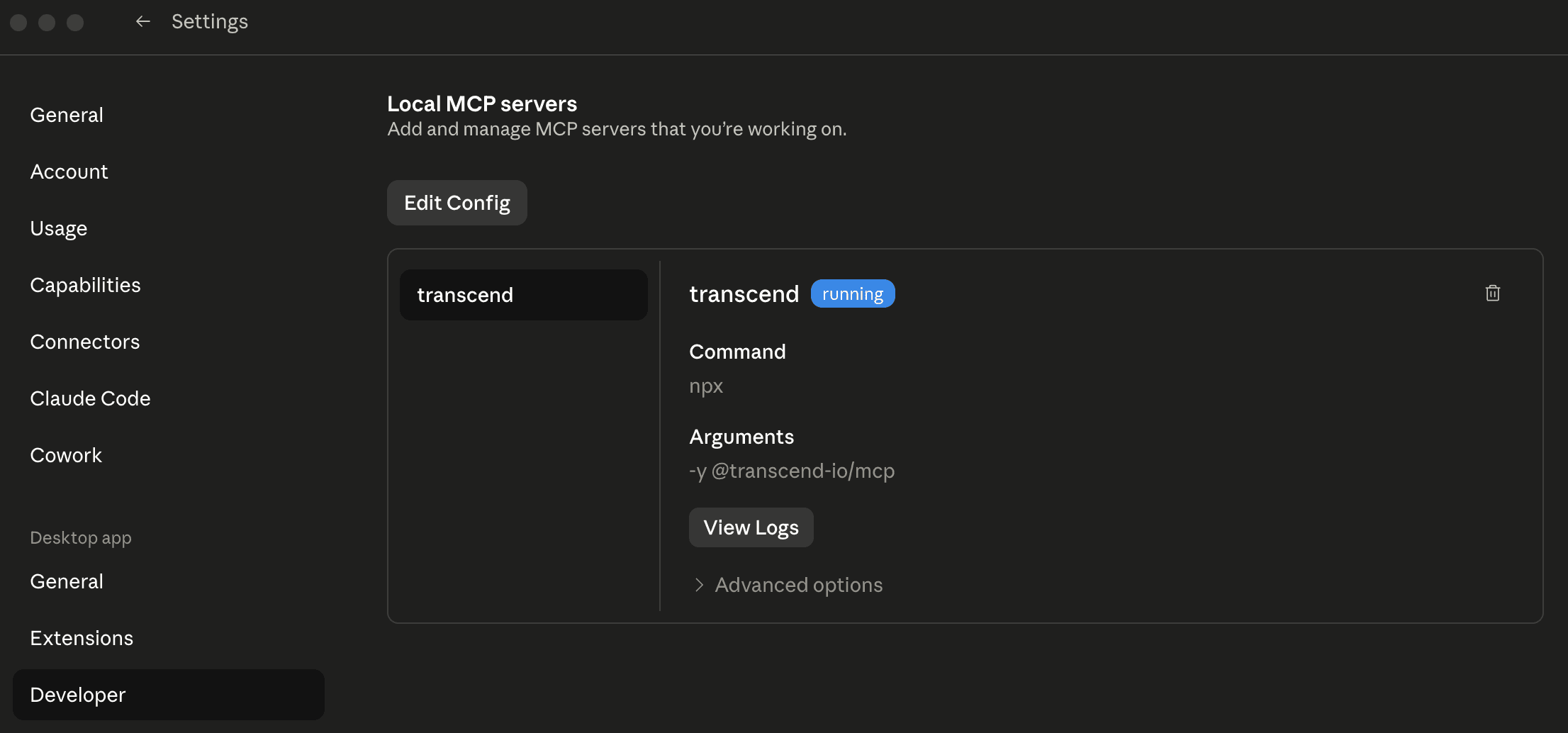
Your config should show a successful run when ready. You must fully quit Claud Desktop and re-open in order to use the Transcend MCP.
Shell
# macOS
open -a "TextEdit" ~/Library/Application\ Support/Claude/claude_desktop_config.json
If the file doesn't exist, create it with the contents below.
JSON
{
  "mcpServers": {
    "transcend": {
      "command": "npx",
      "args": ["-y", "@transcend-io/mcp"],
      "env": {
        "TRANSCEND_OAUTH_CLIENT_ID": "your-client-id",
        "TRANSCEND_OAUTH_CLIENT_SECRET": "your-client-secret",
        "TRANSCEND_OAUTH_REDIRECT_PORT": "your-client-redirect-port"
      }
    }
  }
}Fully quit (cmd+Q on Mac) and reopen. Confirm the connection in Settings → Developer — transcend should appear with 81 tools.