Saving and Publishing to the Privacy Center
Push your drafted updates to your live Privacy Center
Overview
Any time you make a change related to the Privacy Center, you can save a draft before publishing updates via the toolbar at the top:
- Save Changes saves the current changes you have made
- Preview Changes shows your Privacy Center saved with the recent changes you made, or if no changes are made, shows the currently published Privacy Center
- View Live Privacy Center shows the currently live and public version of your Privacy Center that is accessible to end-users
- Review & Publish starts the process of setting your changes live
You need the Manage Privacy Center Layout scope to save and publish changes.
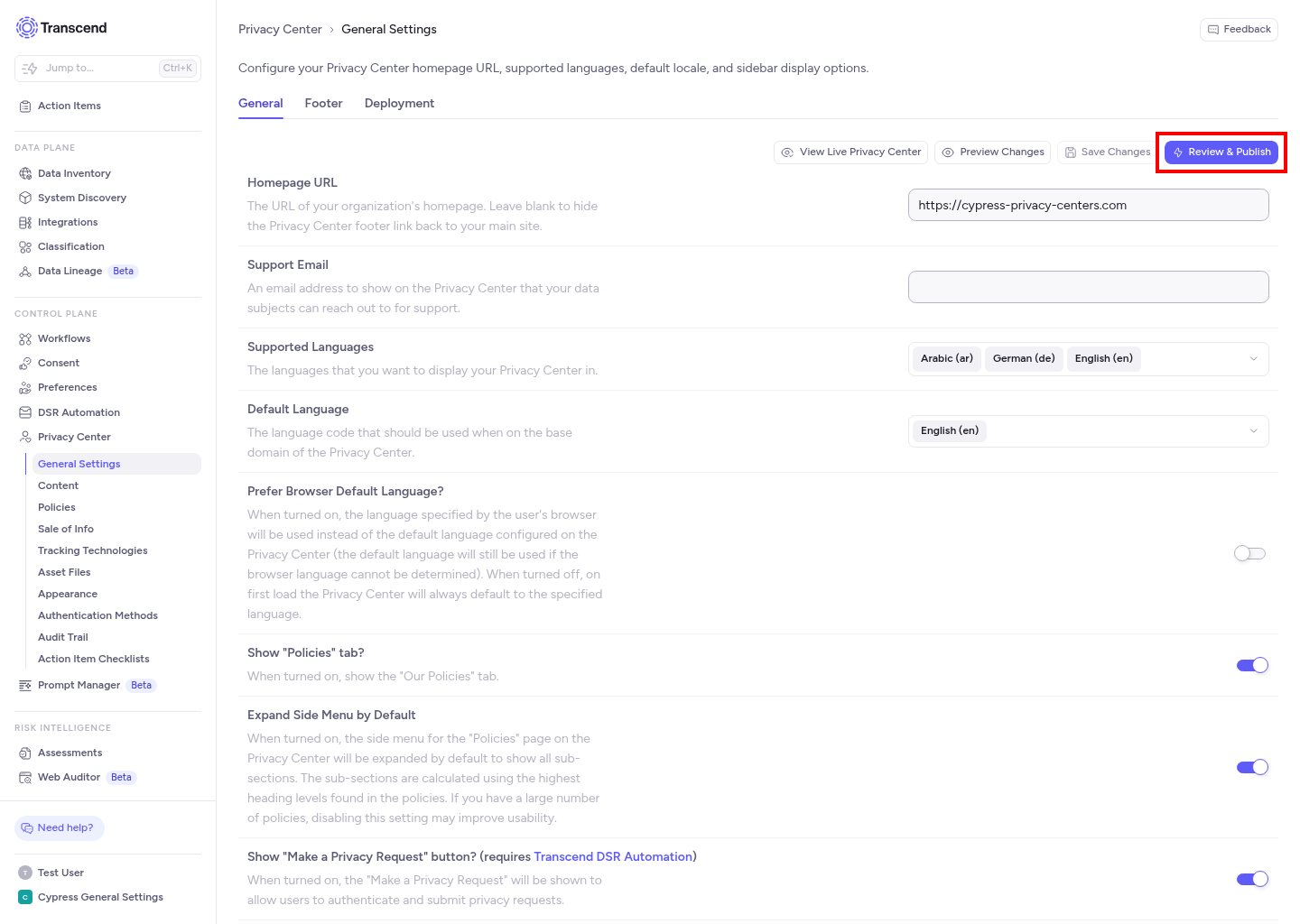
Review & Publish Your Changes
Click Review & Publish to open a modal displaying the detected changes you have made, organized into the following tabs: Privacy Center, Policies, Messages, Subjects, Requests Processed Stats, Purposes, Workflow Configs, and Tracking Technologies. The Workflow Configs tab is hidden when Workflows is not enabled for your organization. The tabs where changes have been made show a red dot next to their title.
When the modal detects changes that have not been deployed live yet, there will be a green notification dot on the Review & Publish button to alert you. The dot does not show before you open the modal.
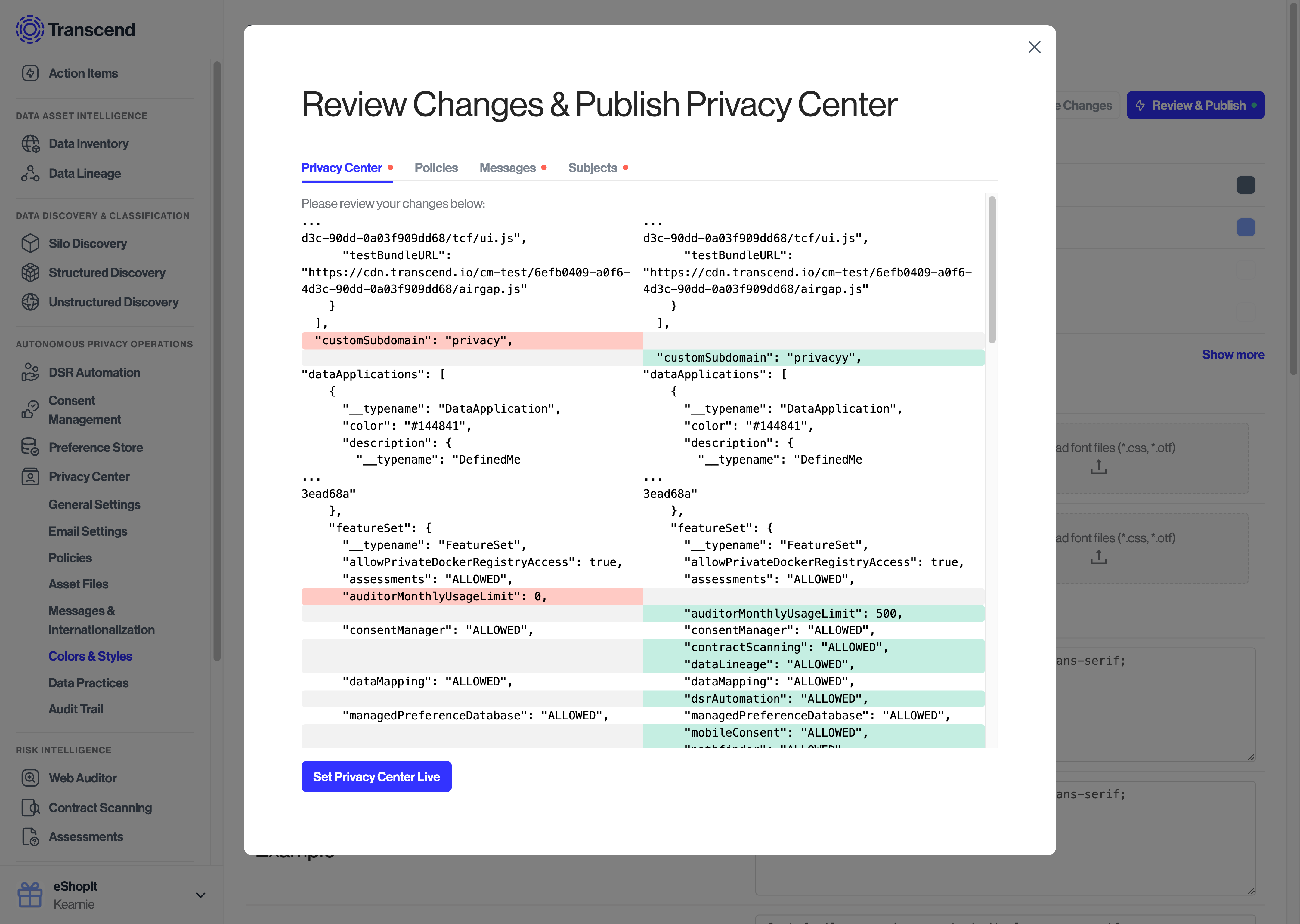
Once you have reviewed and confirmed the changes in the previews, click the Set Privacy Center Live button at the bottom of the modal to deploy your updates. Inspect your changes before you set them live to make sure all customizations were intended. After you publish, the Admin Dashboard confirms with "Changes to your Privacy Center should be live soon!". A background job then delivers the changes to your live site. You can view the updated version before and immediately after publishing via the Preview Changes button.
When the Messages tab has changes, the modal also shows a Publish Messages Only button. It publishes your message changes and leaves the other draft changes unpublished. It works only after you have published your full Privacy Center at least once. See Publish only messages.
A Note for DSR Automation updates
You may make updates under DSR Automation that you need to persist to your Privacy Center. In these situations, after you make your DSR Automation updates, go to one of the Privacy Center pages in the Admin Dashboard, such as Privacy Center → General Settings, and follow the steps in the Review & Publish Your Changes section.
Related pages
- How Privacy Center Publishing Works: what a draft is, and what each publish includes.
- Troubleshooting Privacy Center Publishing and Custom Domains: what to check when a publish is not live.