Setting up DSR Automation Forms
This guide walks through how to configure Data Subject Request (DSR) automation forms in Transcend. It covers data subjects, data actions, identifiers, and best‑practice patterns—especially for authorized agent flows.
Start by defining who can make which types of requests.
👉 Admin Dashboard → Privacy Requests → Settings → Data Subjects
https://app.transcend.io/privacy-requests/settings/data-subjects
Data Subjects determine:
- Who is allowed to submit a request
- Which request types (data actions) they can submit
- Whether those requests appear in the Privacy Center form, or are restricted to Admin Dashboard / API only
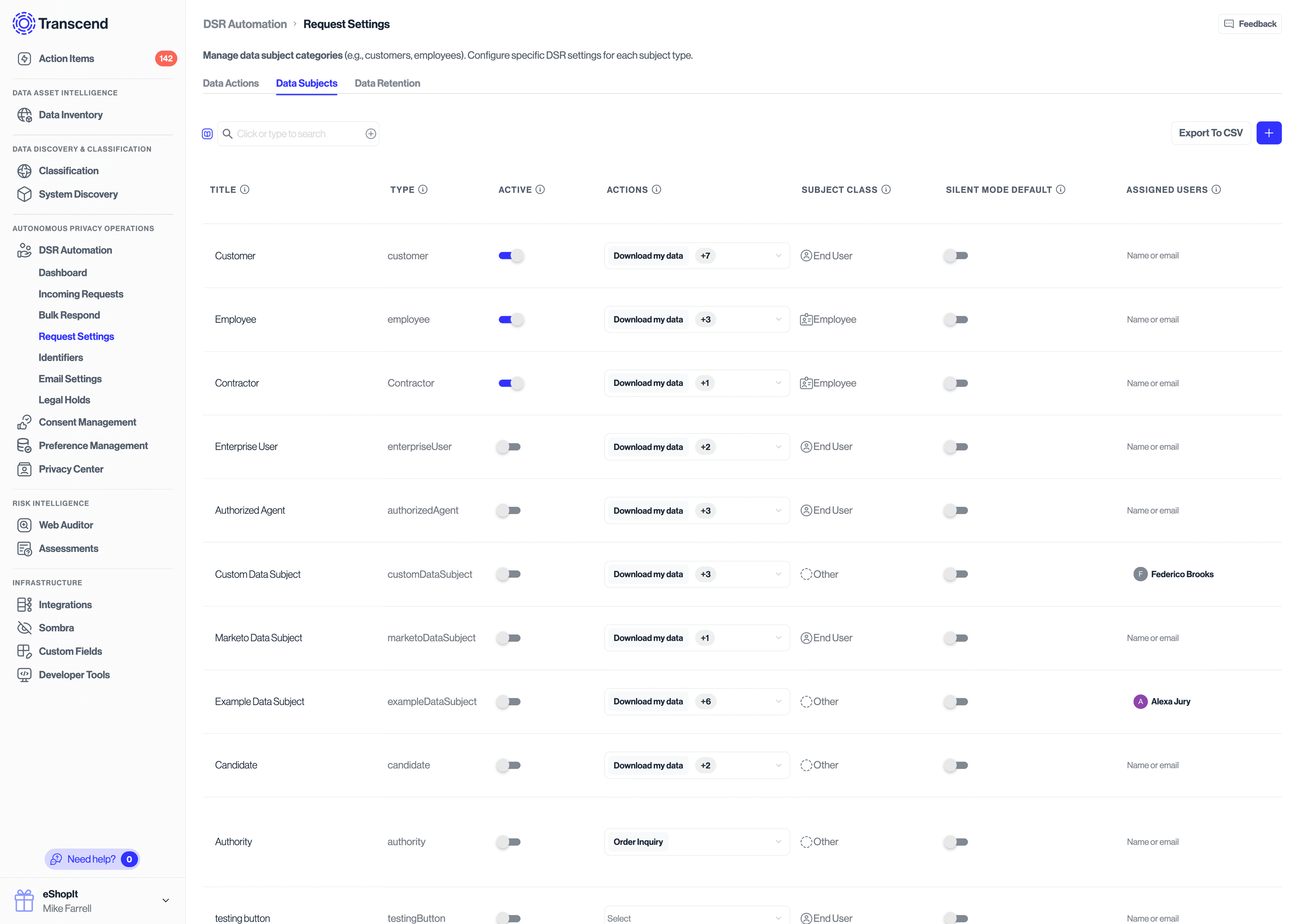
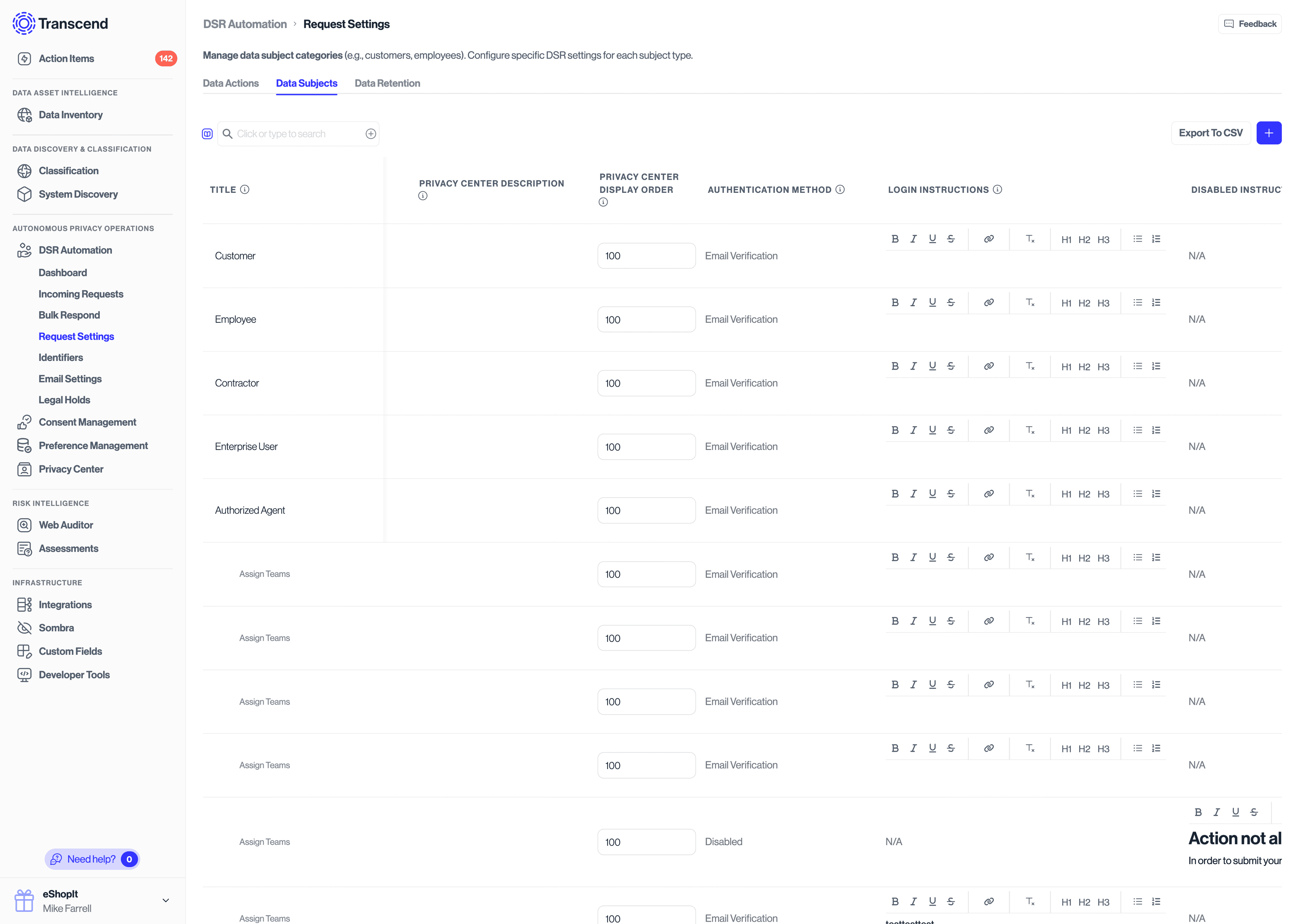
For each Data Subject:
- Active
- Only active data subjects appear in the Privacy Center form
- Inactive subjects are still available for admin/API‑submitted requests
- Request Type Access
- Define which data actions (e.g. Access, Delete, Opt‑out) this data subject is allowed to submit
- Description (Optional)
- Displayed in the Privacy Center to help users understand who this option applies to
- Authentication Method Instructions
- When using the Disabled authentication method, you can add:
- Custom login instructions
- Disabled instructions explaining why self‑serve is unavailable
- This is useful for Authorized Agents
- When using the Disabled authentication method, you can add:
Next, configure what types of requests can be made and how they behave.
👉 Admin Dashboard → Privacy Requests → Settings → Data Actions
https://app.transcend.io/privacy-requests/settings/data-actions
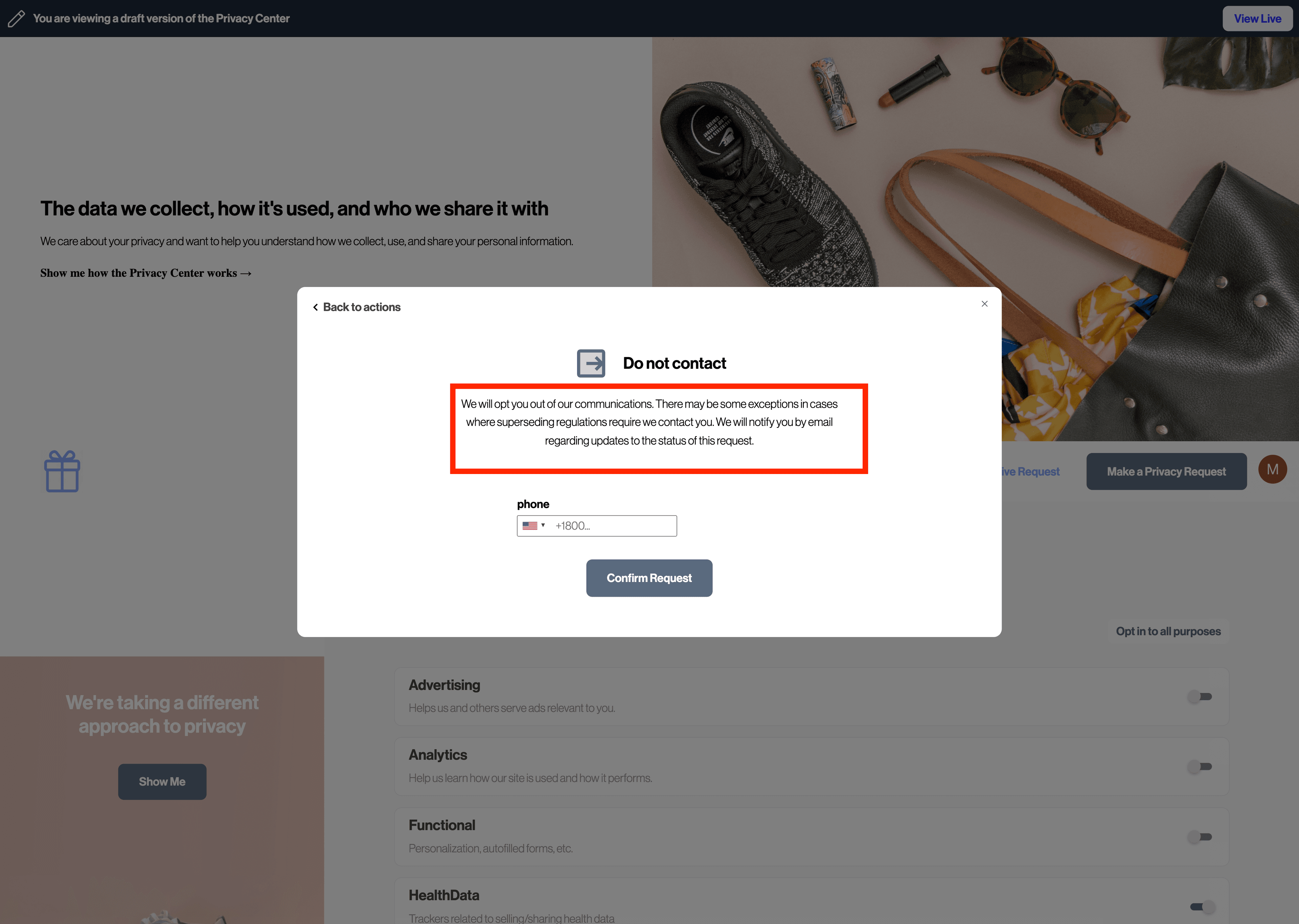
For each Data Action (e.g. Access, Delete, Opt‑Out), set the following fields:
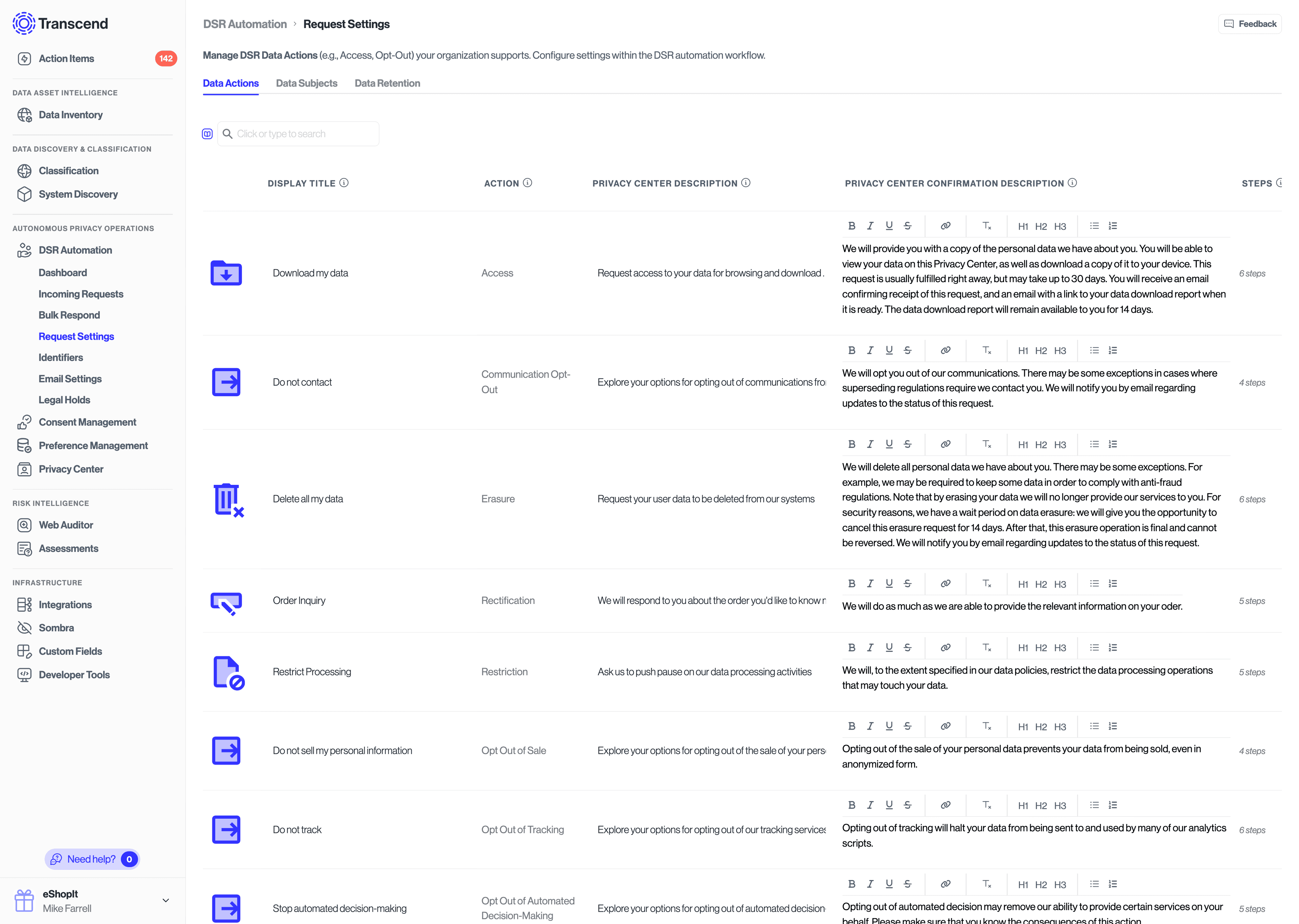
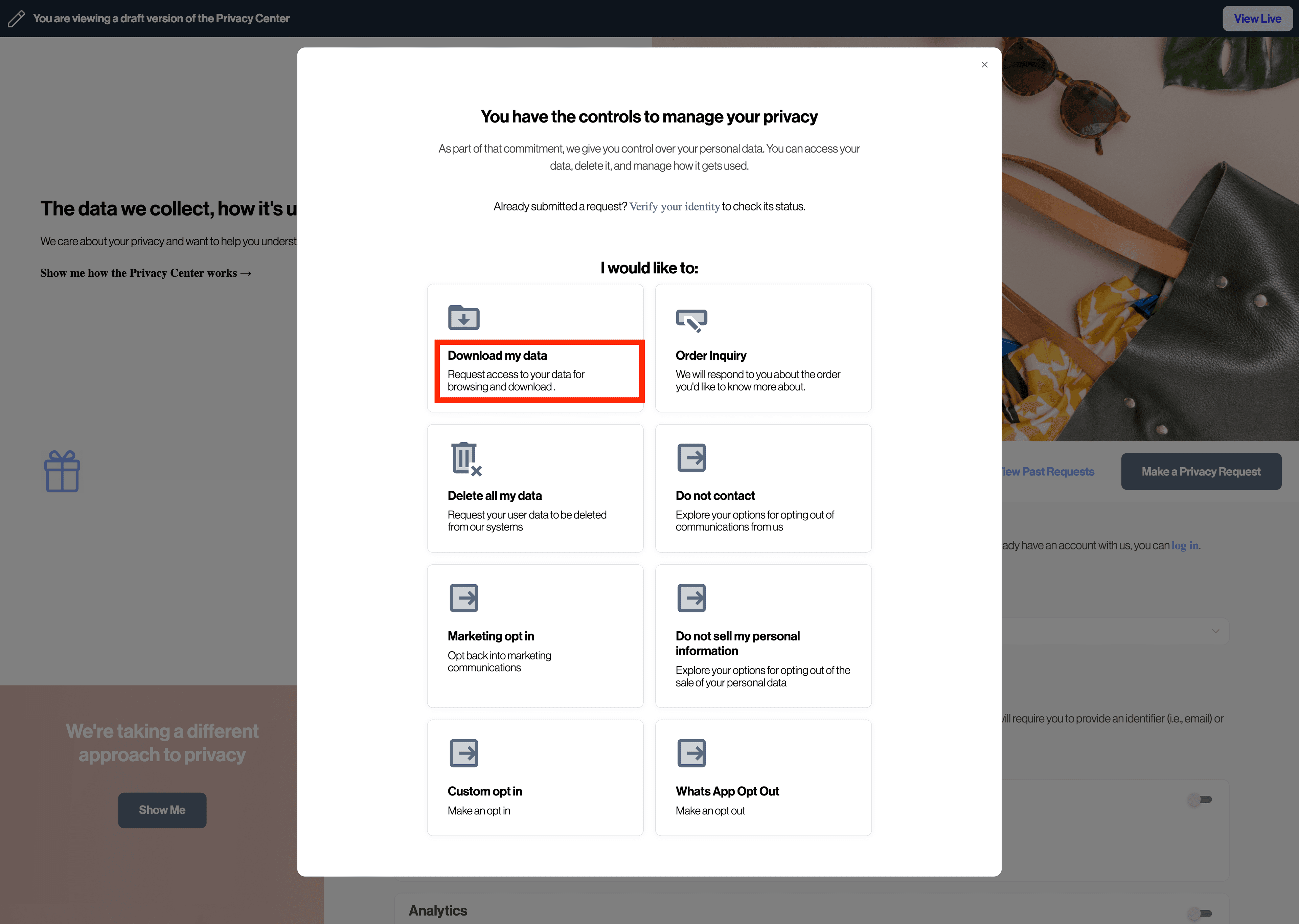
- Title
- Title of the request type - shown in initial selection screen
- Description
- Shown when the user selects the request type
- Secondary Description
- Displayed on the final review screen before submission
- This can be rich text to include callouts, links, etc.
- Email Templates
- Used throughout the request workflow (confirmation, progress updates, completion)
- Fully customizable
These descriptions and templates help set expectations and reduce support volume.
Identifiers define what information a data subject must provide to submit a request.
👉 Admin Dashboard → Privacy Requests → Identifiers
https://app.transcend.io/privacy-requests/identifiers
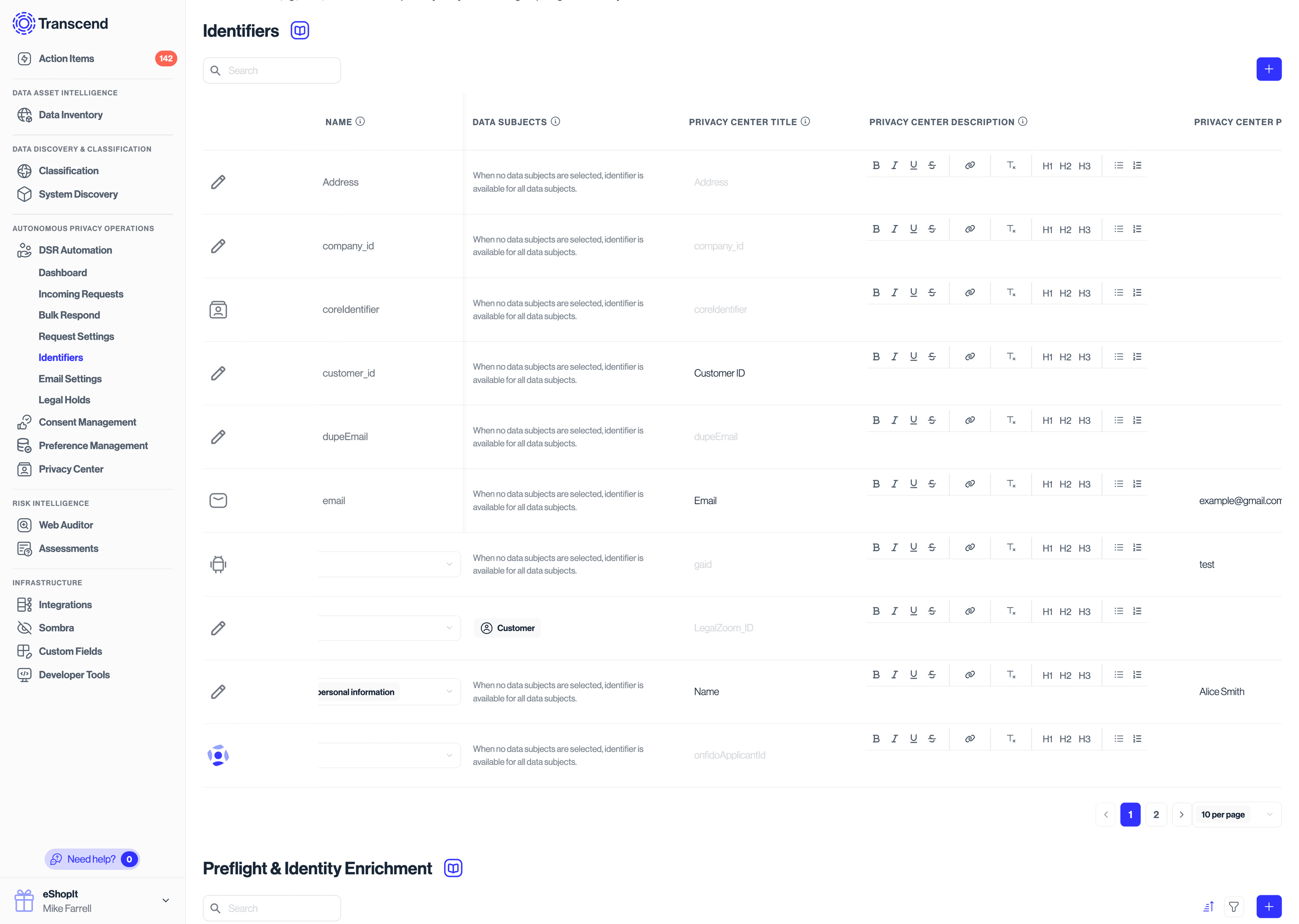
- Enable “Actions Enabled in Privacy Center Form”
- By default, identifiers apply to all data subjects
- You can restrict identifiers to specific data subjects if needed
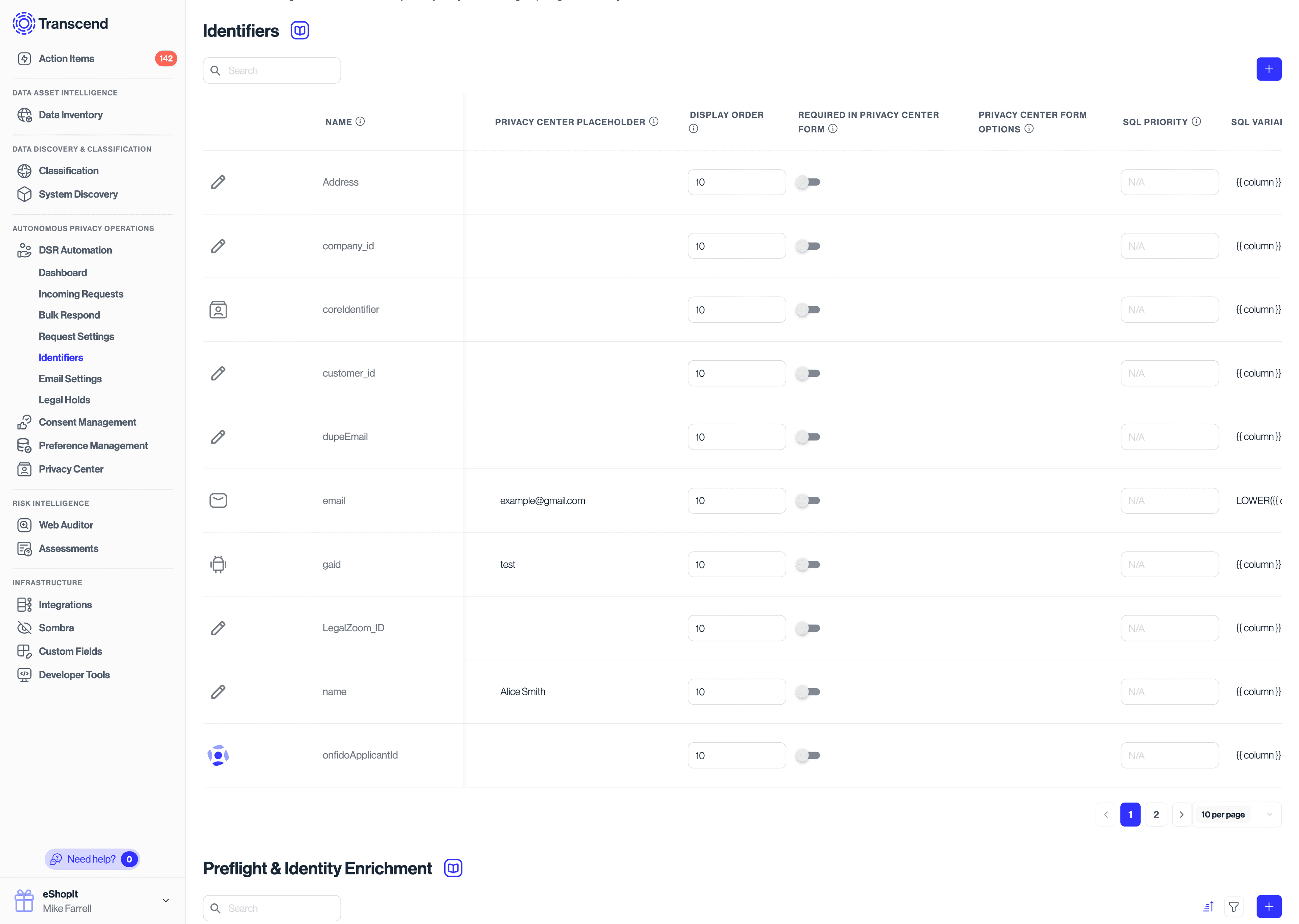
For each identifier:
- Title – Label shown to the user
- Description – Helper text explaining what to enter
- Placeholder – Example input text
- Display Order – Controls form layout
- Required – Whether the field is mandatory
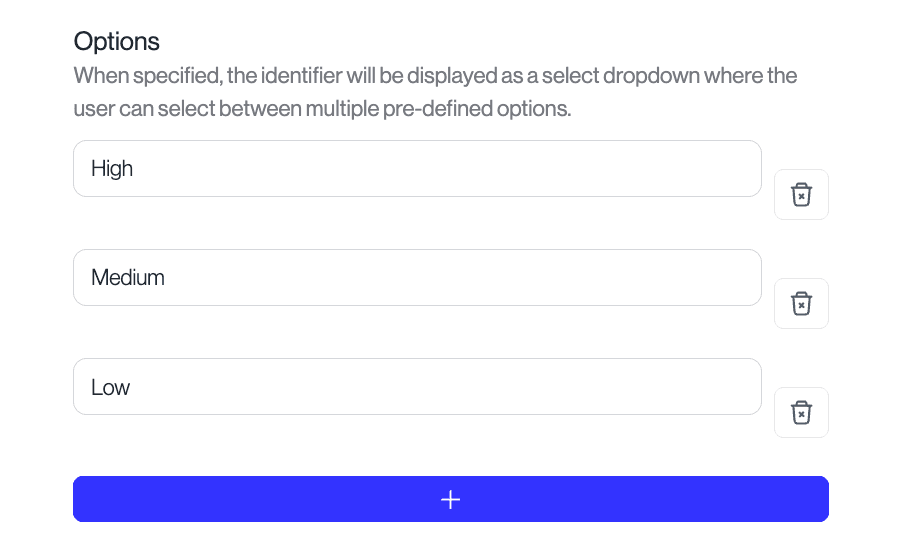
Identifiers can also be configured as single‑select inputs (e.g. country, account type) when structured input is required.
- Data subjects receive a confirmation email upon submission
- Optional transactional emails can be sent as the request progresses
Read more here.