Introduction to Rules Automation
Rules Automation enables compliance teams to configure trigger-based rules that automatically execute workflows across your data systems. From vendor re-assessments to updating preference records to inserting new rows in the data inventory. Set the rule once, define the trigger, and Transcend handles the rest. Set it and forget it, no manual tracking, no dropped balls.
A rule has three parts:
- Rule details — a name, an optional description, and one or more owners.
- A trigger — the event that starts the rule. v2 supports two trigger types:
- Inbound Webhook — an external system sends an authenticated POST request to a unique webhook URL. Transcend's rule-automation service receives the POST, verifies authentication (this guide focuses on HMAC), then queues the work so your action runs asynchronously. A 200 response means the request was accepted — not that the action has finished.
- Trigger on a schedule (Cron) — Transcend fires the rule on a wall-clock schedule (daily, weekly, monthly, yearly, or a custom interval). Transcend fires the rule automatically at the times you configure; there is no inbound request and no webhook URL.
- Each webhook trigger has a unique webhook ID embedded in its public URL
(…/api/v1/webhooks/<webhook-id>).
- An action — what runs when the trigger fires:
- Custom Function — your TypeScript/JavaScript code, executed in a Deno sandbox on your Self-Hosted Sombra.
- Send Assessment — create and send a new assessment from a template, or resend an existing assessment with previous answers pre-filled.
- Sign in to the Transcend app with access to Infrastructure (your org must have the Rules Automation capability enabled, and you need the Manage Rules scope to create or edit).
- Go to Infrastructure → Rules Automation → Rules.
- Click Create (top-right) to open the full-page rule builder, or use a row's actions to edit, duplicate, activate, deactivate, or archive an existing rule.
This tab shows how "runs" of rules -every time a rule has executed and what the outcome has been.
| Status | Meaning | Available row actions |
|---|---|---|
| Draft | Rule created but has never been set live. | Activate, Duplicate, Archive |
| Active | Live and ready to use. | Duplicate, Deactivate, Archive |
| Inactive | Paused. Webhooks return 404; schedules do not fire. | Activate, Duplicate, Archive |
| Archived | Retired rule | Restore |
Only Active rules run. You must activate your rule in order for it to run.
Please note that only archiving of rules is allowed -NOT deletion.
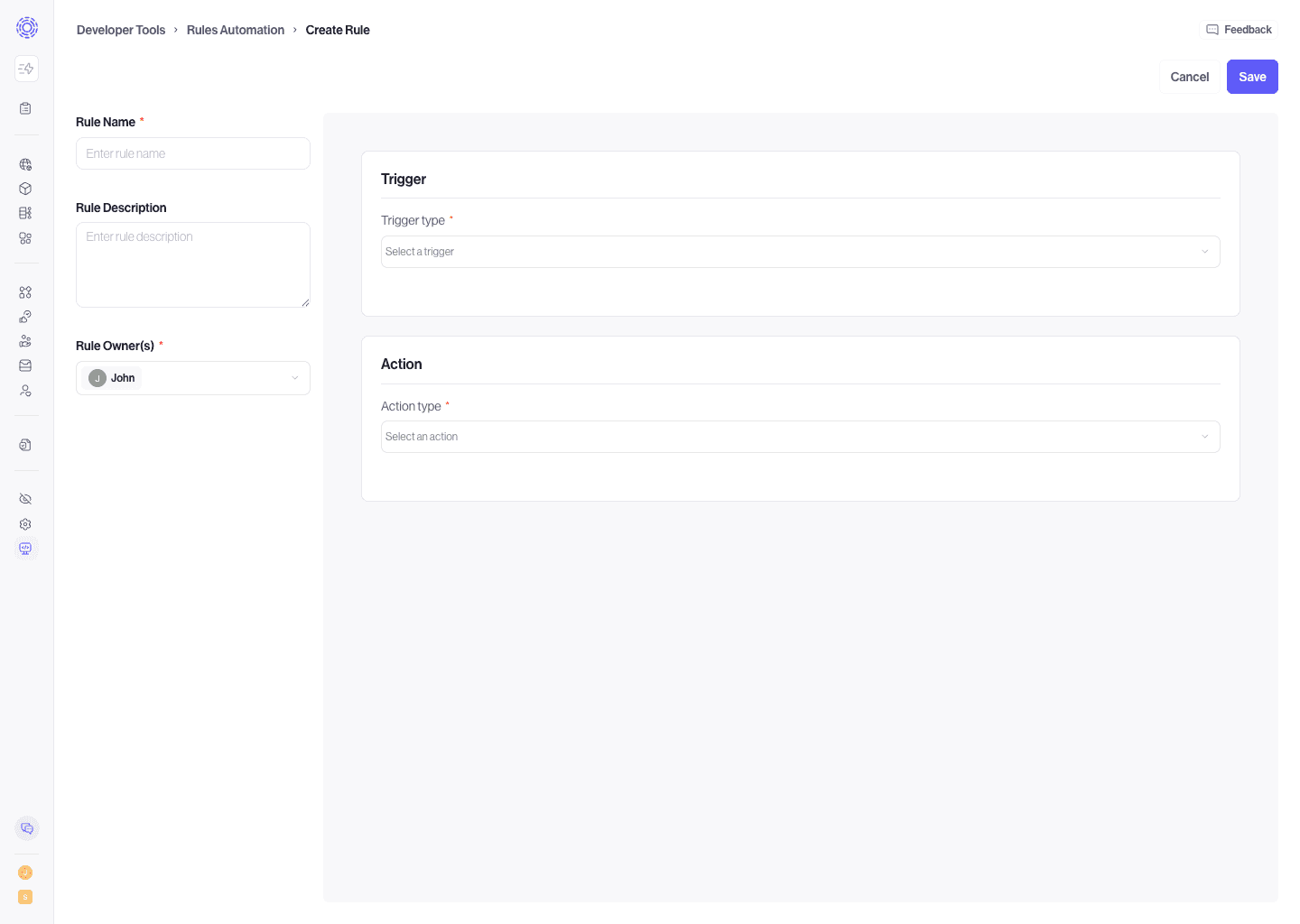
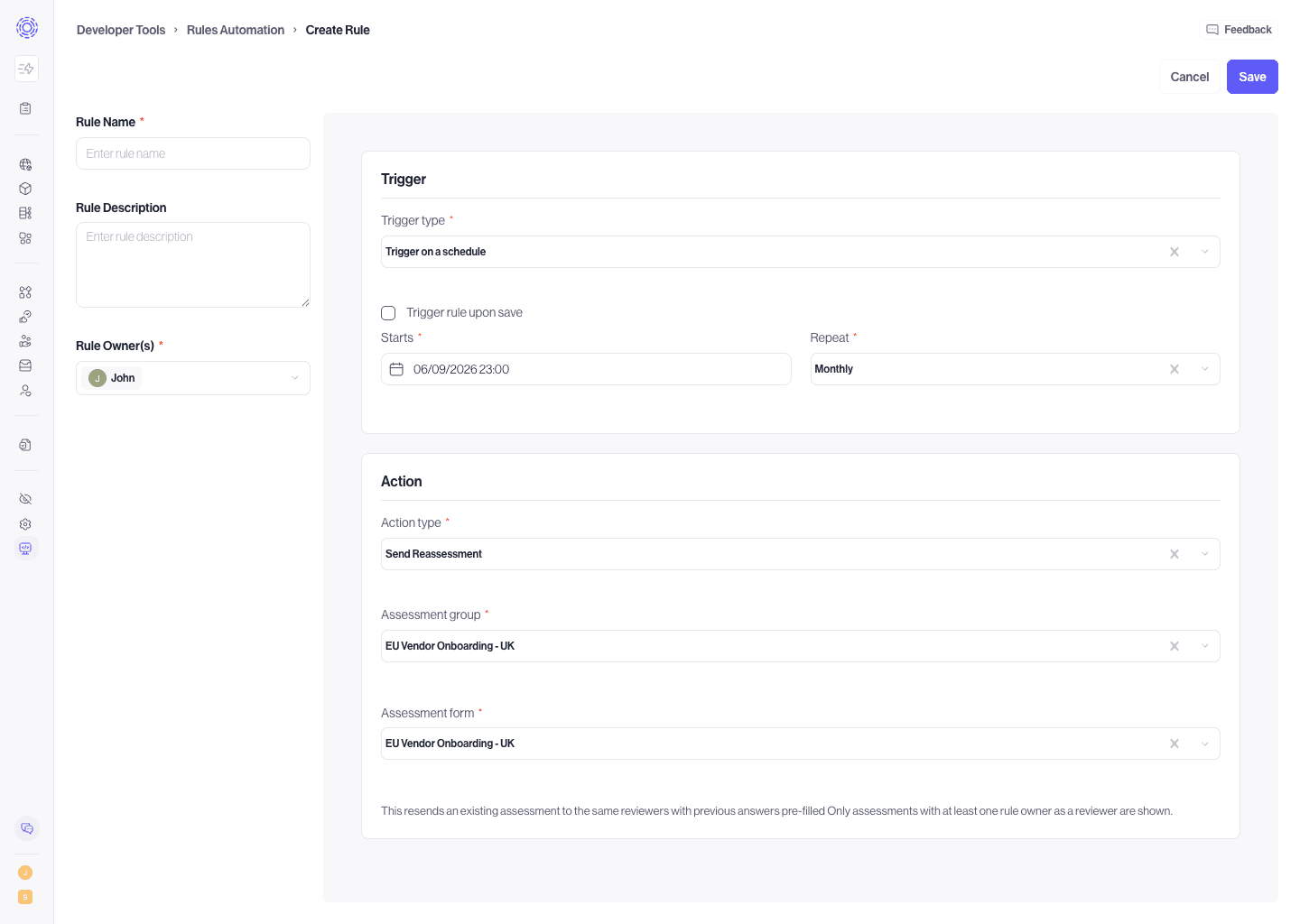
From the Rules tab in Rules Automation, open the rule builder with + New Rule in the upper right hand corner. The page that opens has a metadata panel and a details panel (Trigger + Action). Fill in each section, then Save.
Example, sending a reassessment on a schedule:
| Field | Required | Notes |
|---|---|---|
| Starts | Yes | Date and time of the first run. Must be at least 10 minutes in the future. |
| Repeat | Yes | Daily, Weekly, Monthly, Yearly, or Custom (every N days/weeks/months, up to 3 years). |
| Trigger rule upon save | No | This Activates AND Triggers the rule. The time the rule is executed is at the time of save, and the rule will trigger at this same time for any future recurring runs. |
| Field | Required | Notes |
|---|---|---|
| Assessment name | Yes | Title for the assessment that will be created |
| Template | Yes | Must be a Published assessment form template. |
| Respondents | Yes | One or more users with or without seats in Transcend. If without, input the user's email. |
This creates and sends a new assessment to the selected respondents.