Inventory a site in report-only mode
Add one airgap.js tag in report-only mode to list every host and cookie a site uses, without blocking anything.
After this guide, you can list every host and cookie that a site uses. airgap.js blocks nothing while you do this. Use the list to decide what to approve before you block unknown requests.
For how report-only mode fits next to a Content Security Policy (CSP), see the overview.
Before you start
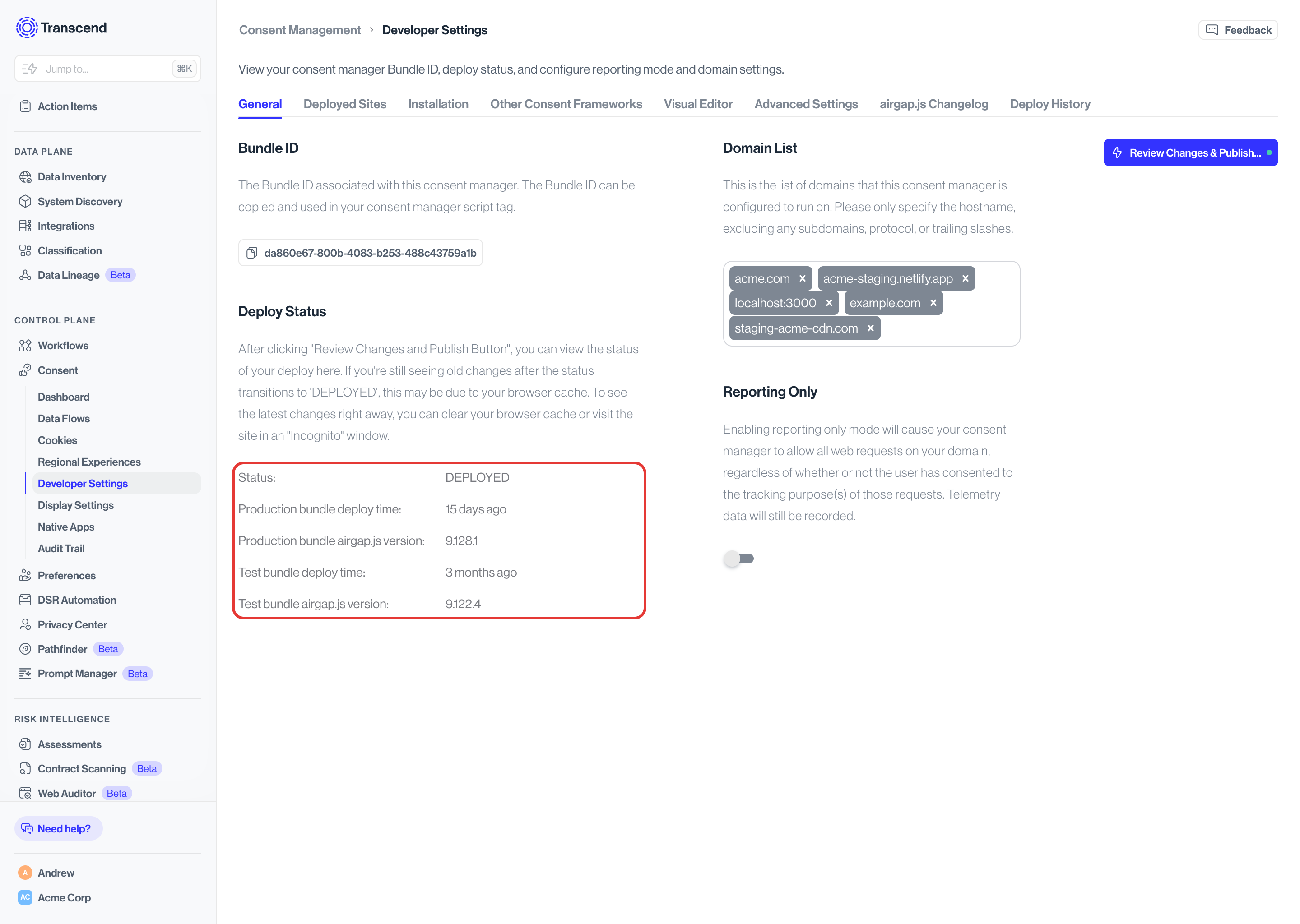
- Your site host is in your domain list. airgap.js throws an error on a host that is not on the list. You manage the list in Consent Management → Developer Settings, in the Domain List field of the General tab.
- You have your bundle ID. Copy it from the Bundle ID field of the same tab. The HTML snippet on the Installation tab already contains it.
Add the report-only tag
-
Add the tag as the first script in the
<head>of the site. It must load before every other script. The Installation tab shows the base snippet.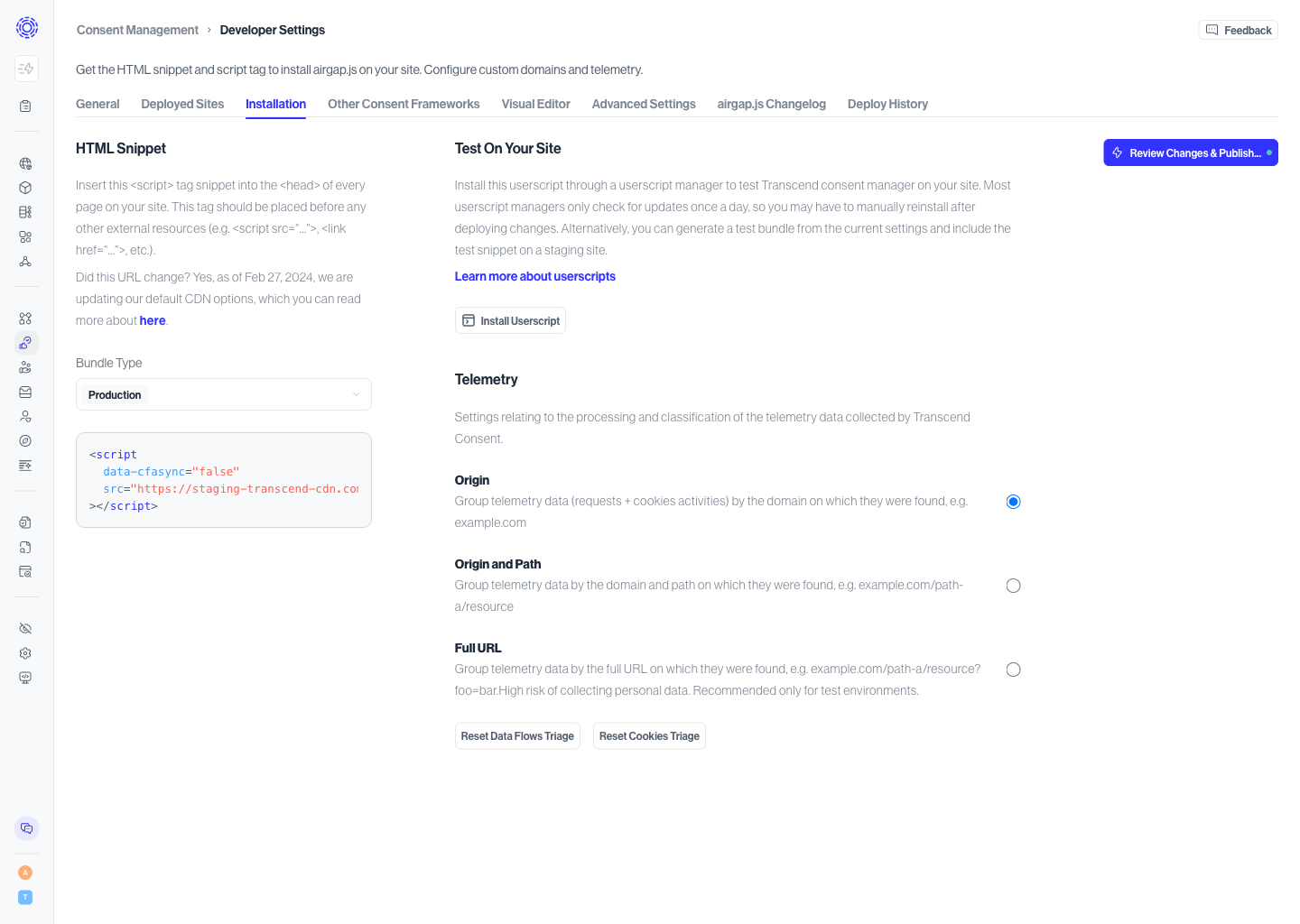
Add the three extra attributes below to that snippet.
<script data-cfasync="false" src="https://transcend-cdn.com/cm/<your-bundle-id>/airgap.js" data-report-only="on" data-monitoring="export" data-tfpf="off" ></script> -
Deploy the page.
Each attribute does one job:
| Attribute | What it does |
|---|---|
data-report-only="on" | Turns off request and cookie regulation and the generated CSP. airgap.js records what it sees and blocks nothing. |
data-monitoring="export" | Keeps a list of sent requests and set cookies that you can read with airgap.export(). |
data-tfpf="off" | Turns off telemetry false positive filtering. That filter hides requests that look like they come from browser extensions. See Telemetry configuration. |
Turn data-tfpf="off" on for internal tools that you test yourself. On public sites, leave the filter on so visitor extensions do not add noise.
Report-only is not protection
In report-only mode, airgap.js does not block requests, cookies, or navigations, and it does not generate a CSP. To also list navigations in telemetry, add data-regulate-navigation="report-only" to the tag. See Navigation control.
Confirm airgap.js is running
-
Load the site and open the browser console.
-
Run these commands:
airgap.version; airgap.loadOptions.reportOnly;airgap.versionreturns the airgap.js version.airgap.loadOptions.reportOnlyreturns"on".
airgap lives in the frame that loaded it
airgap.js defines airgap in the frame where its script tag runs. If the site loads the tag inside an iframe, a console that points at the top frame shows airgap is not defined. Use the JavaScript context selector at the top of the console to pick the iframe.
Sandboxed iframes
Cookie regulation and cookie-based sync need both allow-scripts and allow-same-origin in the iframe sandbox attribute. In airgap.js 9.183.1 and later, a frame with only allow-scripts still starts, but consent does not persist there. See the FAQ.
Browse the site
- Open the pages that matter, including pages behind a login. airgap.js runs in each visitor's browser, so it sees pages that an external scanner cannot reach.
- Walk through the main flows, such as sign in, checkout, and settings.
airgap.js sends the hosts it sees to Transcend telemetry. If your site sends its own CSP header, allow the telemetry host first. See Integrating with an existing CSP.
Read the list in your browser
Run this in the console of the frame that loaded the tag:
const { version, sentRequests, setCookies } = airgap.export();
console.table(sentRequests.map(({ type, url }) => ({ type, url })));
console.log([...new Set(sentRequests.map(({ url }) => new URL(url).host))]);
console.log(setCookies);sentRequestslists requests that the browser sent. Each entry has atypeand aurl.- The first
console.logprints each unique host once. setCookieslists cookies that scripts set.
To save the list as a JSON file, run airgap.export({ save: true }). See Useful commands for more console commands.
Find the hosts in Triage
- In the Admin Dashboard, go to Consent Management → Data Flows → Triage.
- Find each host that you saw in the console.
- For cookies, go to Consent Management → Cookies → Triage.
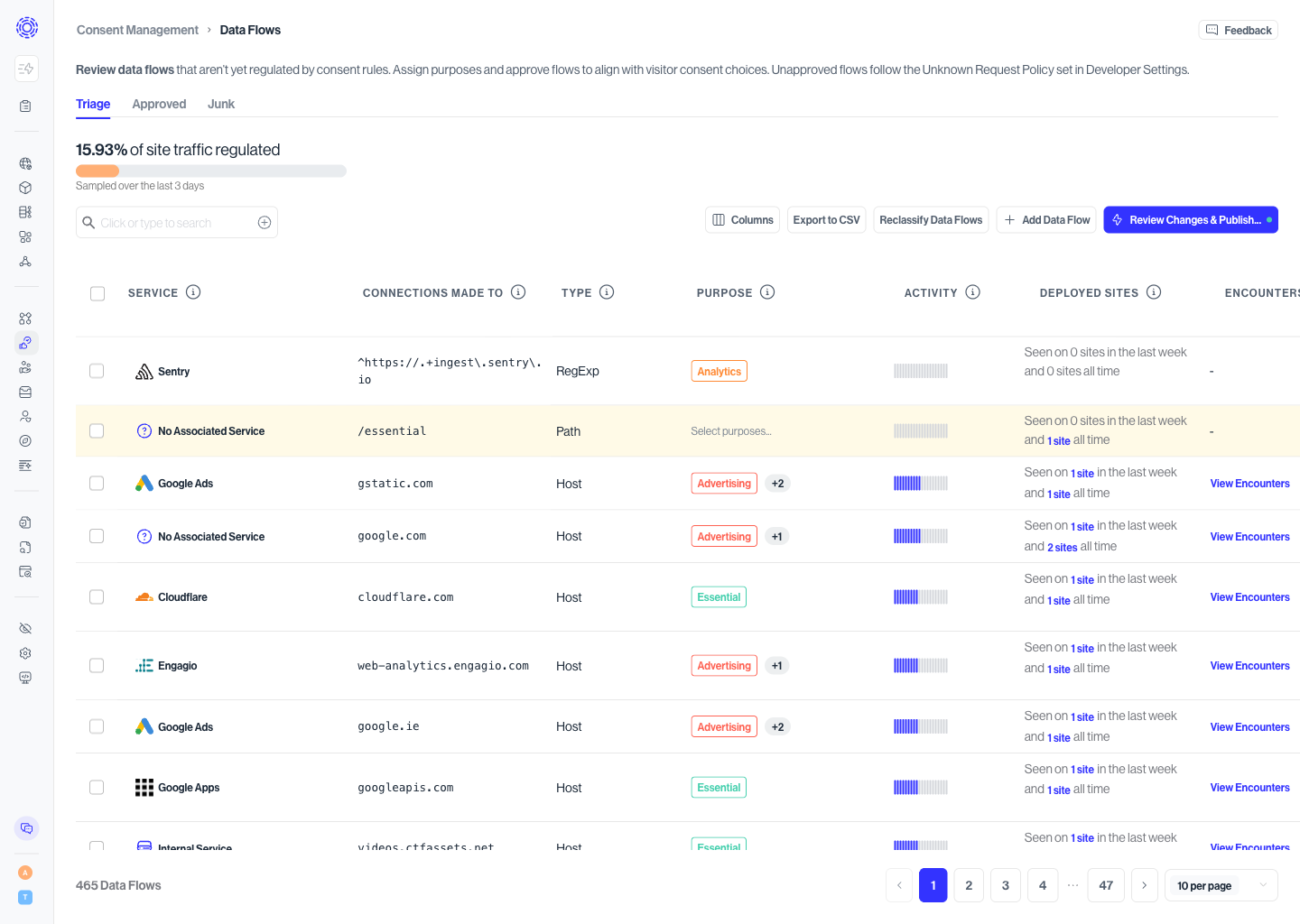
If a host is missing from Triage, check two things:
- The tag does not set
data-telemetry="off". - Your CSP header allows the telemetry host.
To learn more about what telemetry reports, see Telemetry configuration.
Next steps
- Classify each host. See Guide to triaging data flows and cookies.
- Keep your settings in a file that your team reviews. See Manage consent config as code.
- Move the site to Block. See Block unknown requests.