Integration Owner Approval
Integration owner approval holds a request at one integration until an owner of that integration approves or rejects it. Use it when system owners must sign off before Transcend accesses, changes, or erases data in their system.
Each decision is recorded on the request, with who decided, when, and the note they left.
Approval Before Removing Data pauses an entire erasure request for one review by your privacy team. Owner approval is set per integration, and the owners of each integration decide only for their own system. You can use both. See Configuring Data Actions.
- Assign owners to the integration. Owners can be users or teams. See Assigning Data System / Integration Owners.
- Give owners the Approve Requests for Assigned Integrations scope. It also requires the View Assigned Integrations scope.
- Users with the Manage Request Compilation scope can approve or reject for any integration. Use this to unblock a request when no owner is available.
- Go to Integrations and select the integration.
- Open the DSR Automation tab.
- In Require Owner Approval Before Processing, select the request types that need approval, such as Erasure or Rectification. The change saves as soon as you select a type.
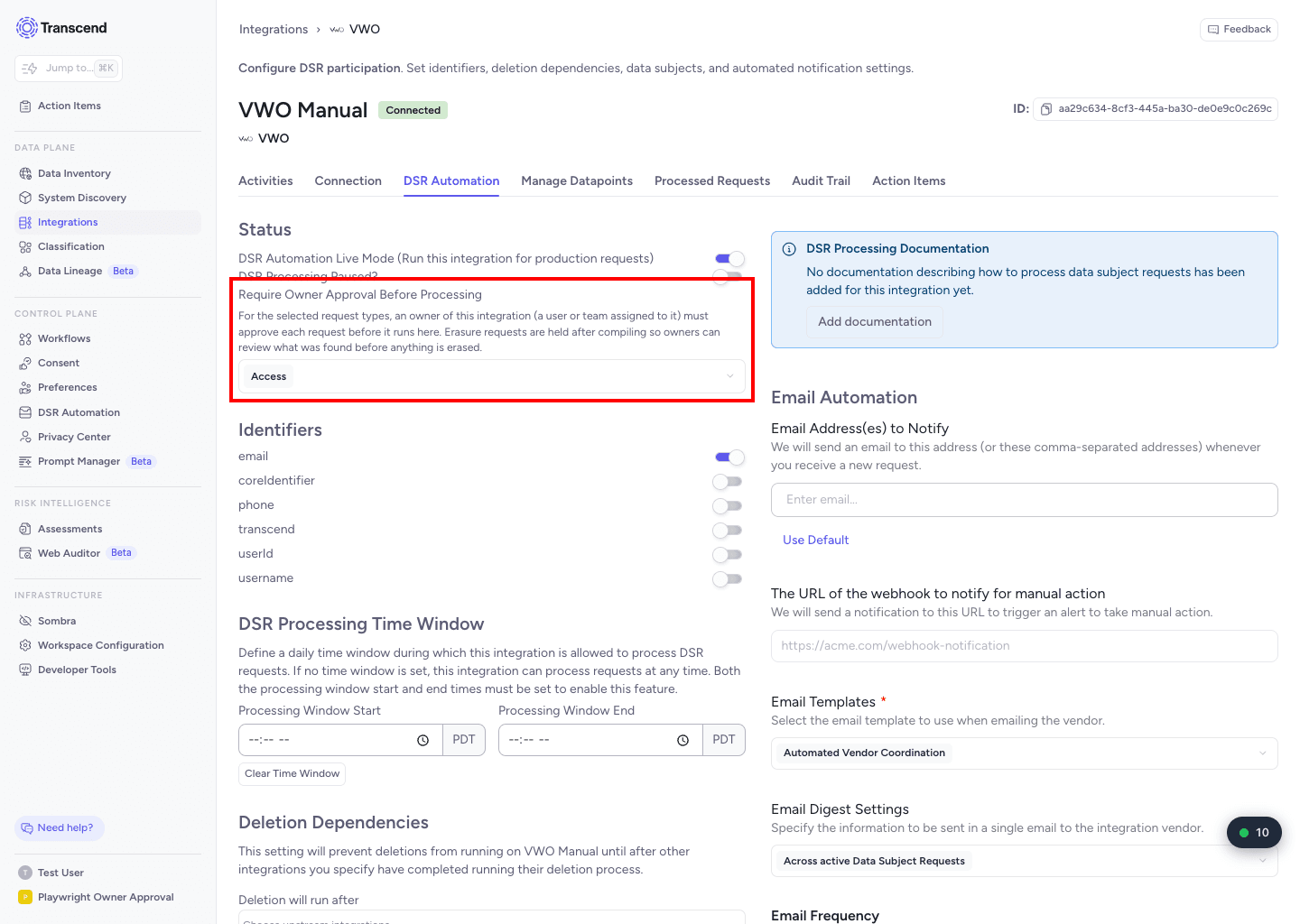
To turn the requirement off, remove all request types. The field then shows No approval required.
Decide on any waiting requests before you remove a request type. After you remove it, owners can no longer approve or reject requests of that type.
- Transcend holds the request at this integration. Other integrations keep processing.
- The integration shows Waiting on Owner Approval on the request.
- For erasure requests, Transcend still compiles first. It holds only the erasure step, so owners can review what was found before anything is erased.
- Owners of the integration receive an action item. If the integration has no owners, the action item goes to the request's assignees.
- To get email, subscribe to the action items DSR Integration Job Needs Approval (With Owner) and DSR Integration Job Needs Approval (Without Owner). See Action Items. These arrive in your action item digest. There is no immediate email for them yet.
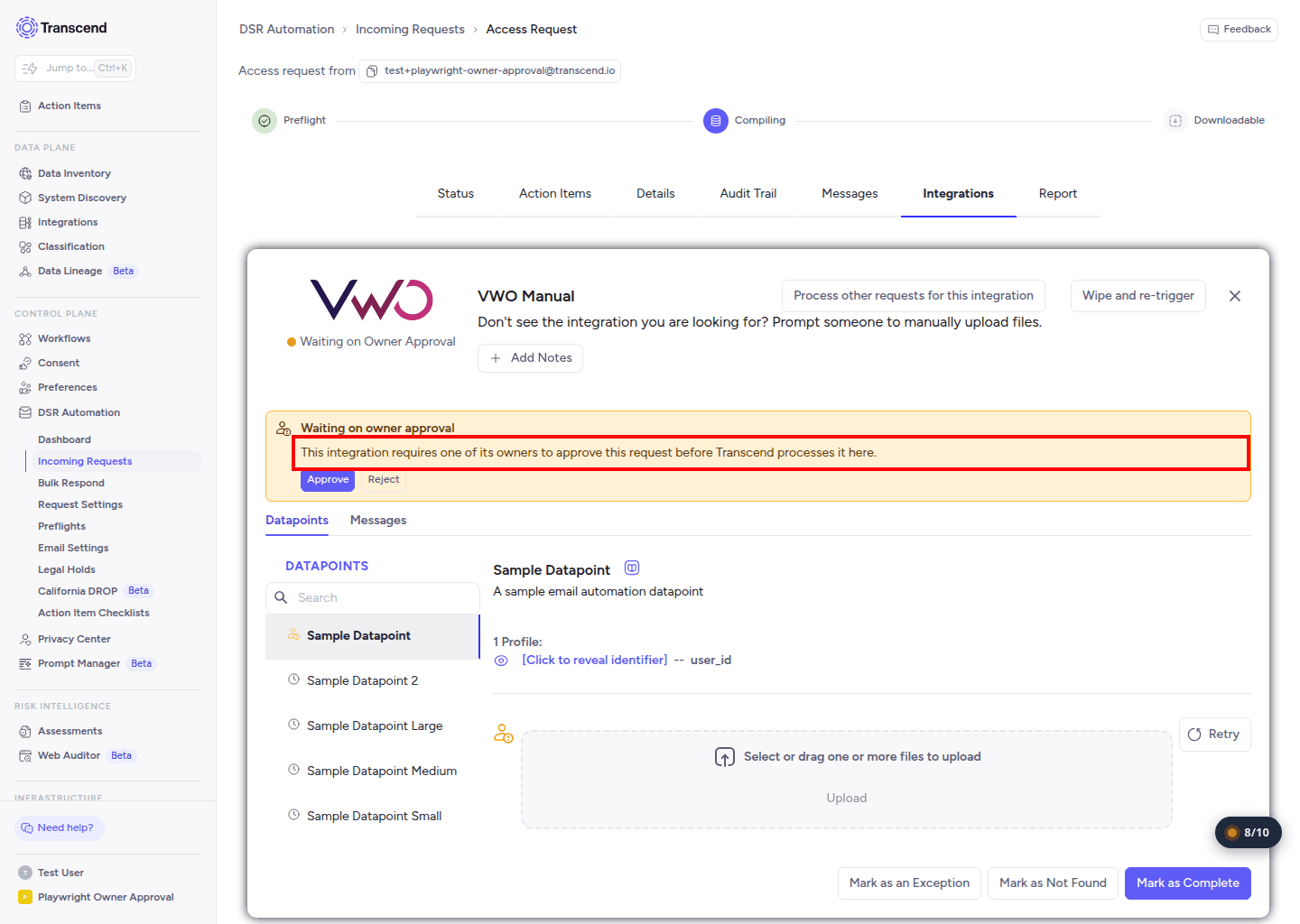
- Open the action item. Or open the request, go to the Integrations tab, and select the integration.
- In the Waiting on owner approval panel, click Approve or Reject.
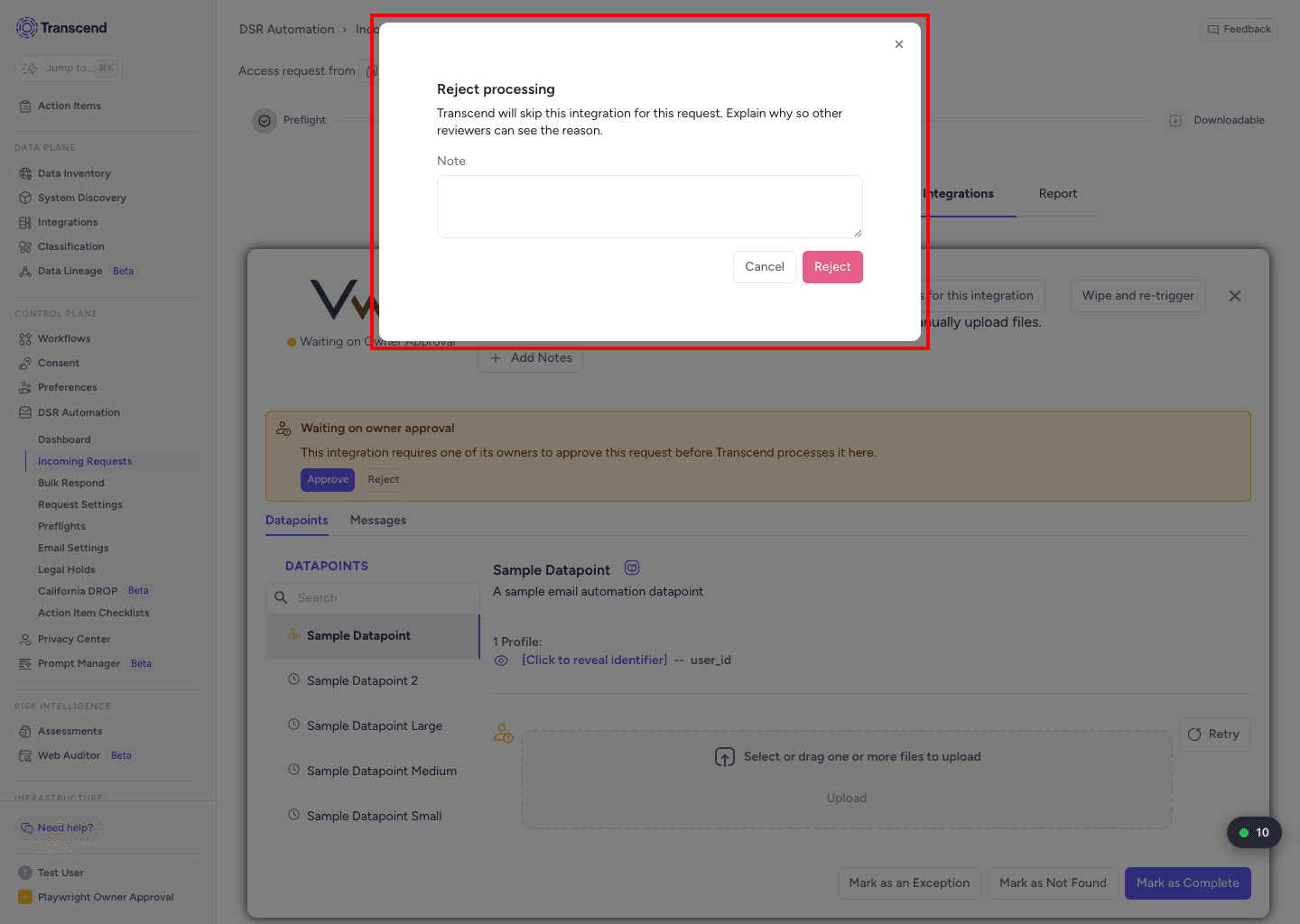
- Add a note. A note is optional when you approve. A note is required when you reject.
- Confirm your decision.
- Approve: Transcend processes the request in this integration.
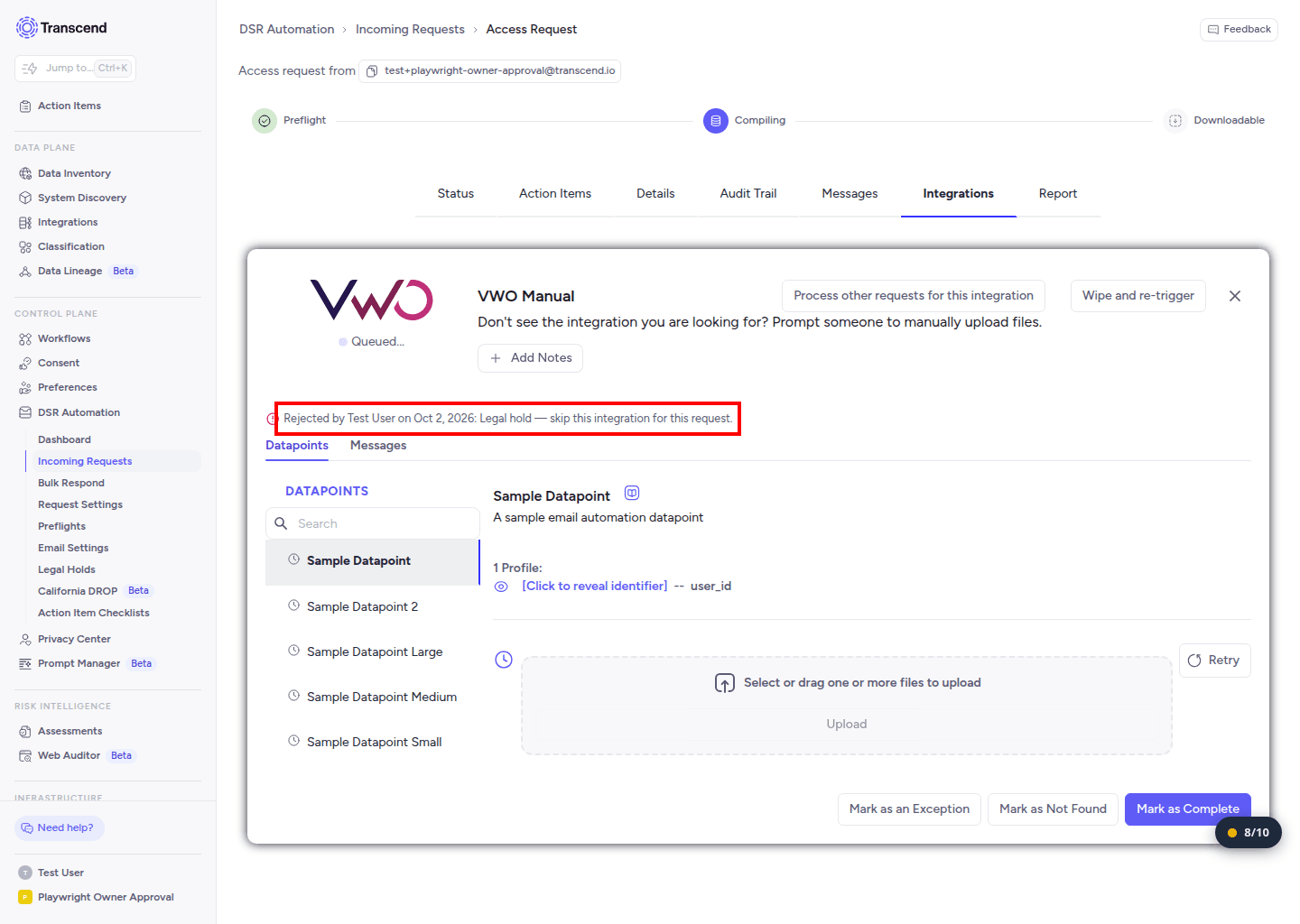
- Reject: Transcend skips this integration for this request. Your note is saved as the reason.
After a decision, the panel shows who decided, when, and the note.
If you do not own the integration and lack the Manage Request Compilation scope, you can see the panel but cannot decide. Ask an owner to approve or reject.
- One decision covers the whole request for that integration.
- A decision is final. You cannot change it after you confirm.
- You can decide only while the request is open.
- For integrations that report results through the API, Transcend rejects the callback while the request waits on owner approval. Respond after it is approved.