Launch or Move Your Privacy Center Domain
Use the Deployment tab to launch your Privacy Center on your own domain, such as privacy.your-company.com. You can also move a live Privacy Center to a new domain later. Your current domain keeps working during a move, so visitors see no downtime.
- You need permission to deploy the Privacy Center.
- You need access to the DNS provider for your domain, or a DNS admin who can add records for you.
- In the Admin Dashboard, go to Privacy Center > General Settings > Deployment.
A badge on the Domain card shows where you are. Select Check status to refresh it. The page also checks again every minute while it waits for DNS.
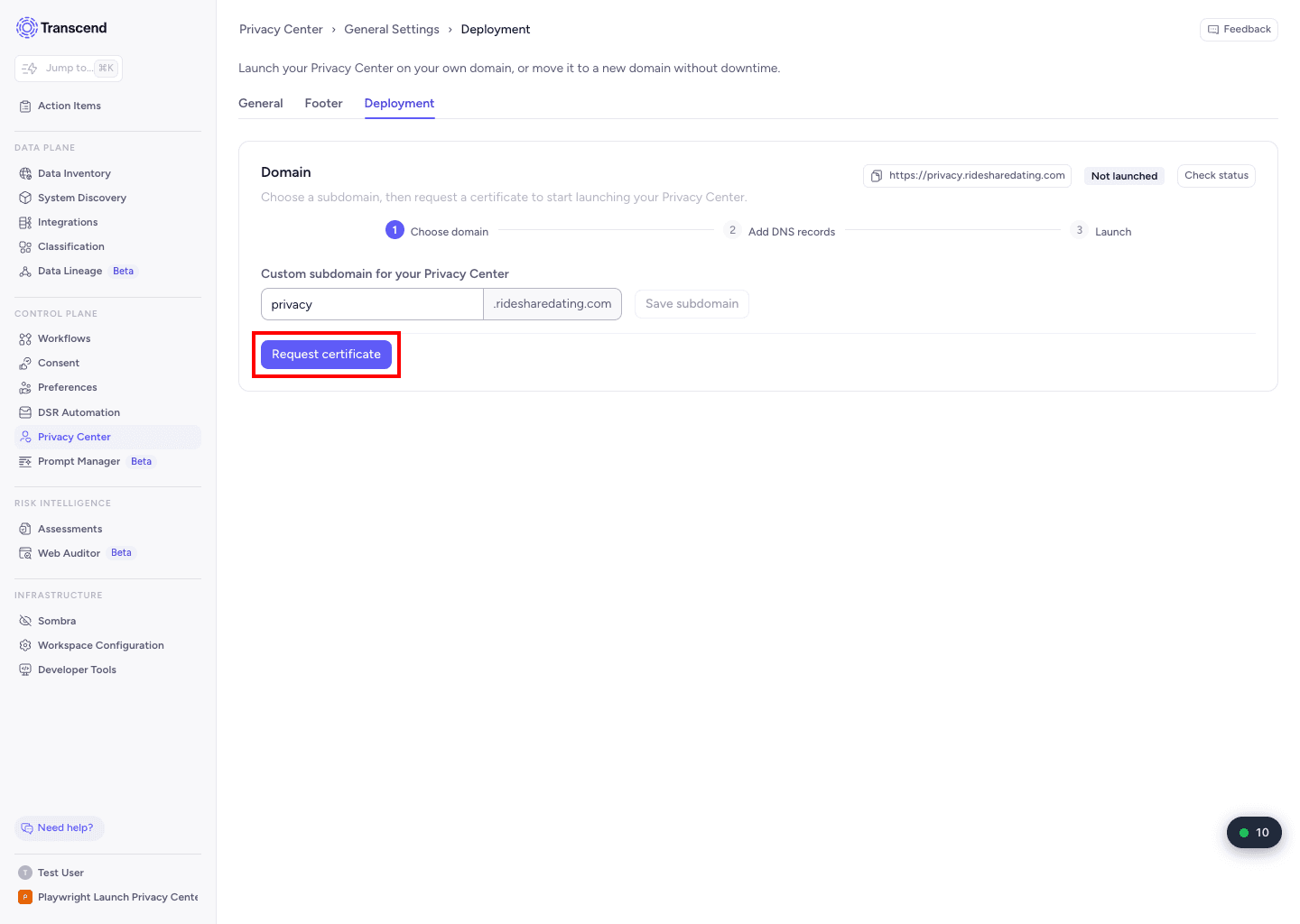
- Not launched: no domain is set up yet.
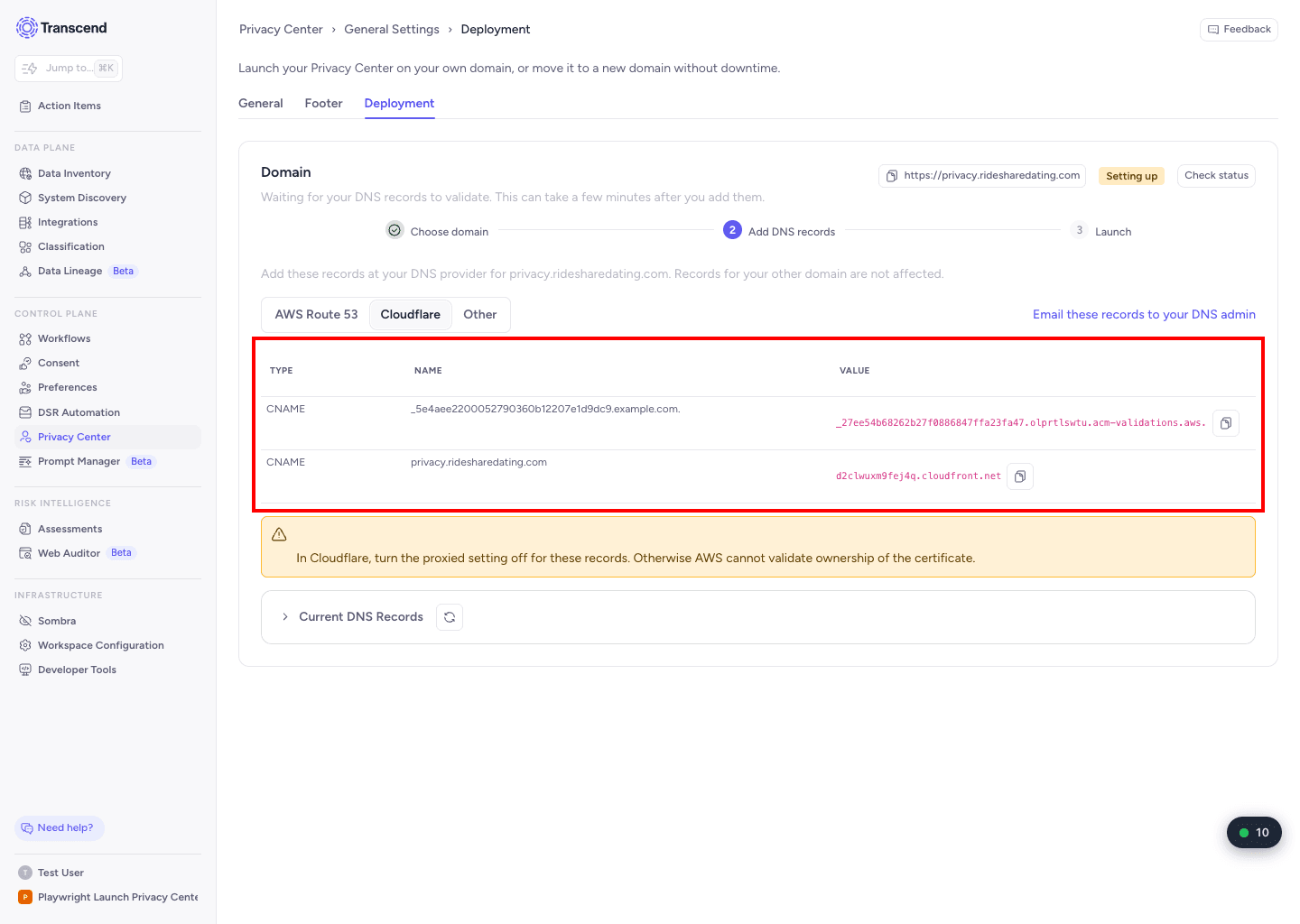
- Setting up: Transcend is waiting for your DNS records to validate.
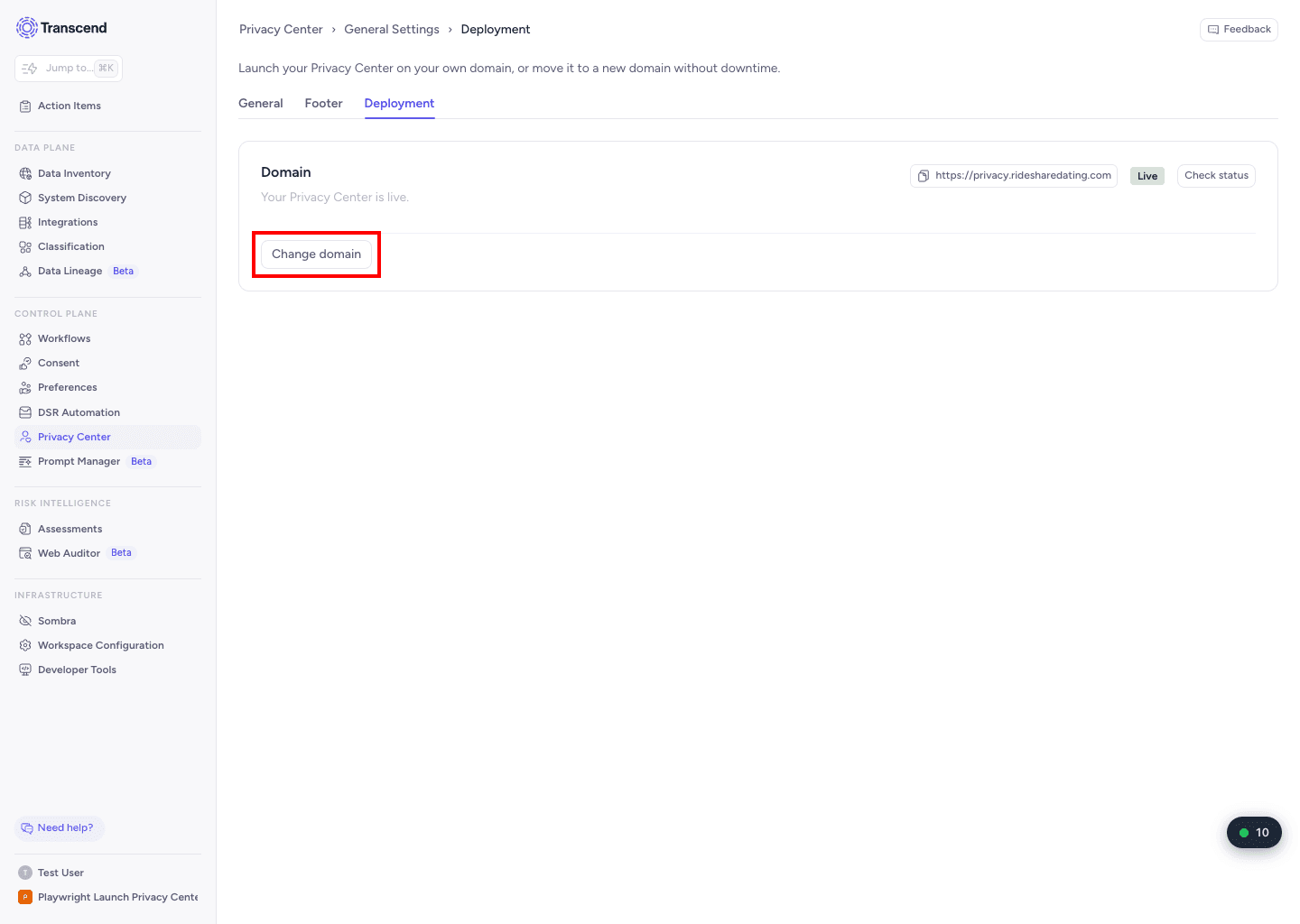
- Live: your Privacy Center is live on your domain.
- Moving: a move to a new domain is in progress.
- Failed: a move did not finish. See Undo a move.
Until you launch, your Privacy Center runs on a Transcend subdomain. It looks and works the same as it will on your own domain.
- Enter your subdomain, for example privacy, and select Save subdomain.
- Select Request certificate. Transcend uses the certificate to prove you own the domain and to keep traffic secure.
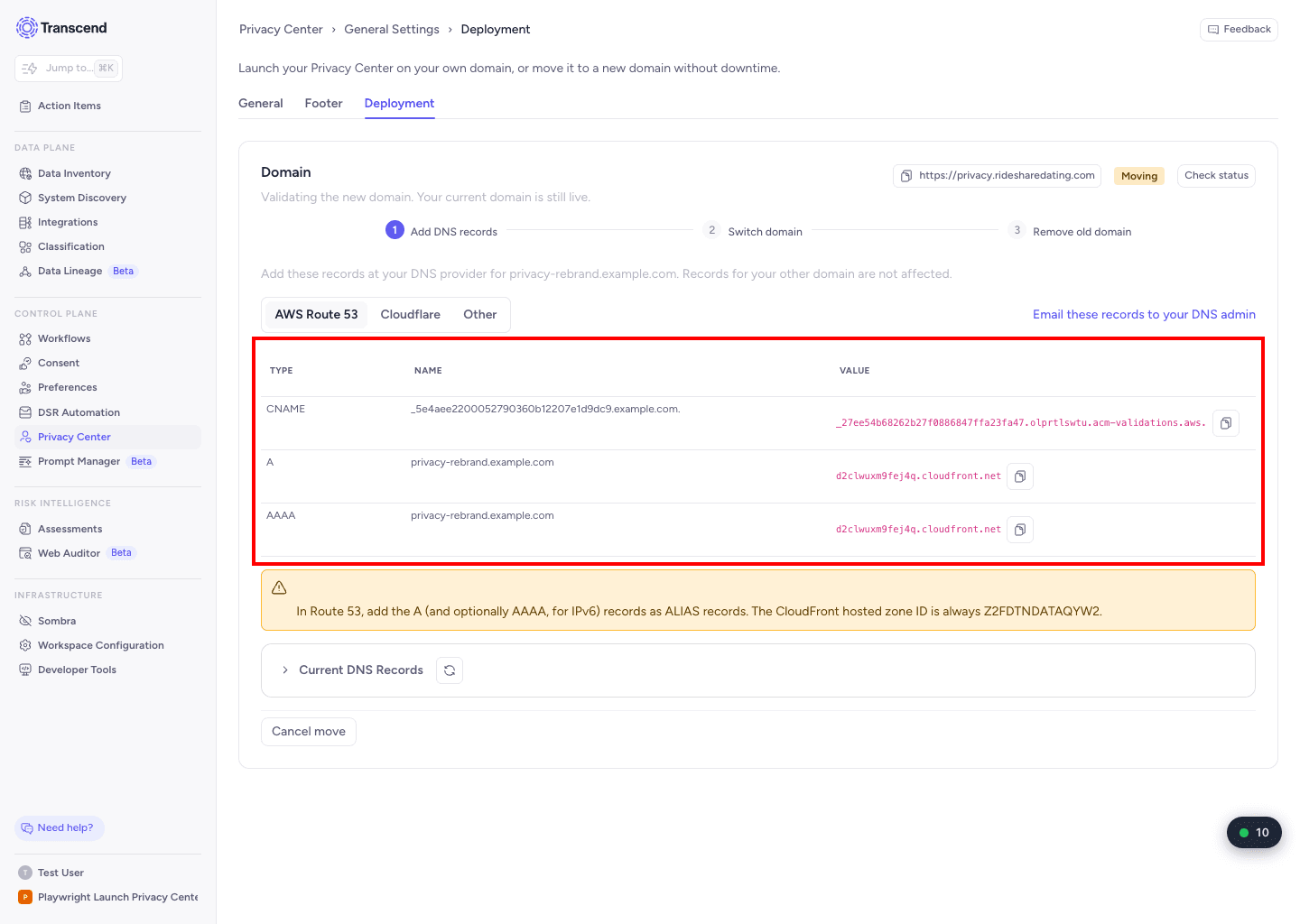
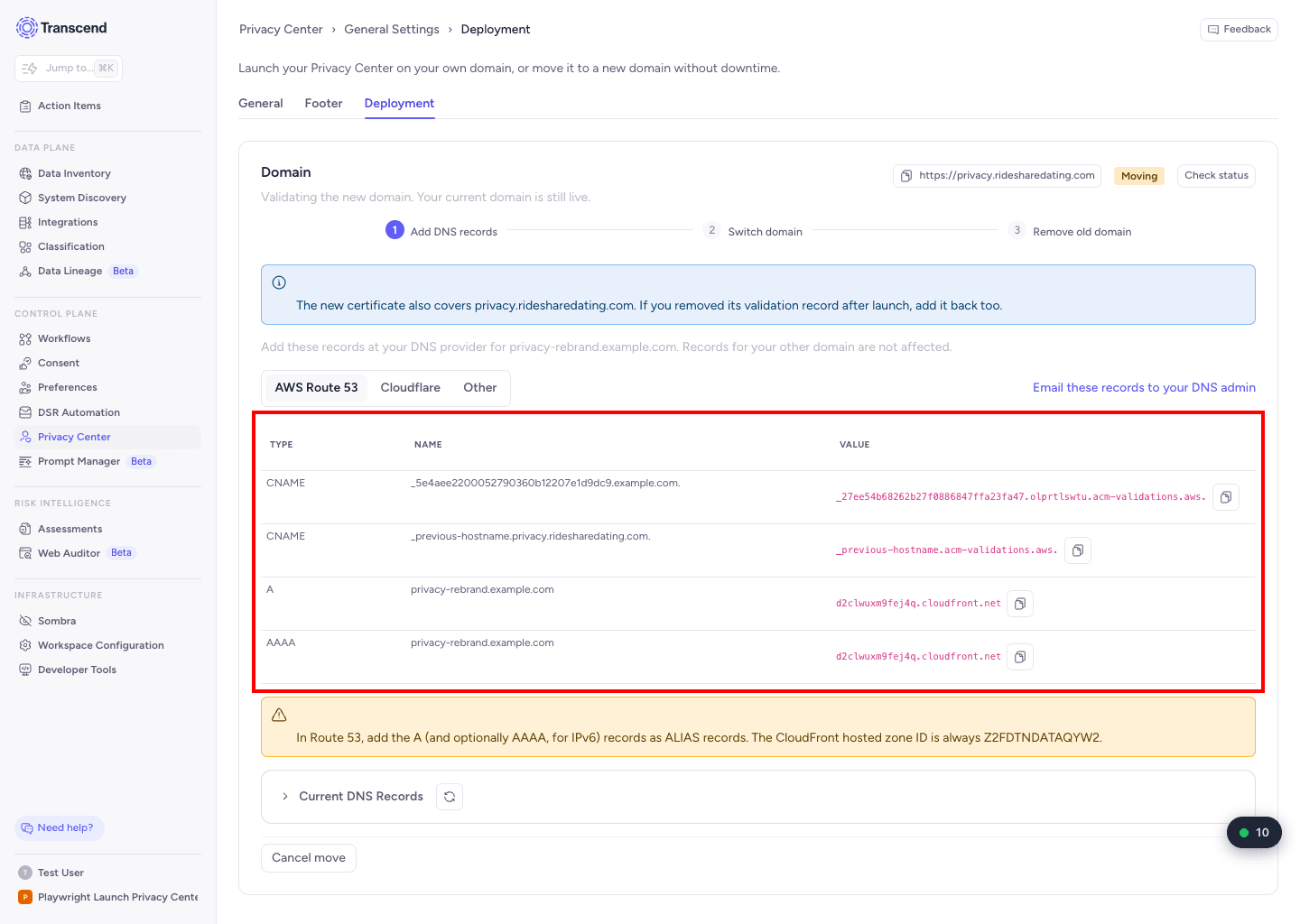
- Add the DNS records shown on the page at your DNS provider. Pick the AWS Route 53, Cloudflare or Other tab for instructions. Select Email these records to your DNS admin to send them to someone else.
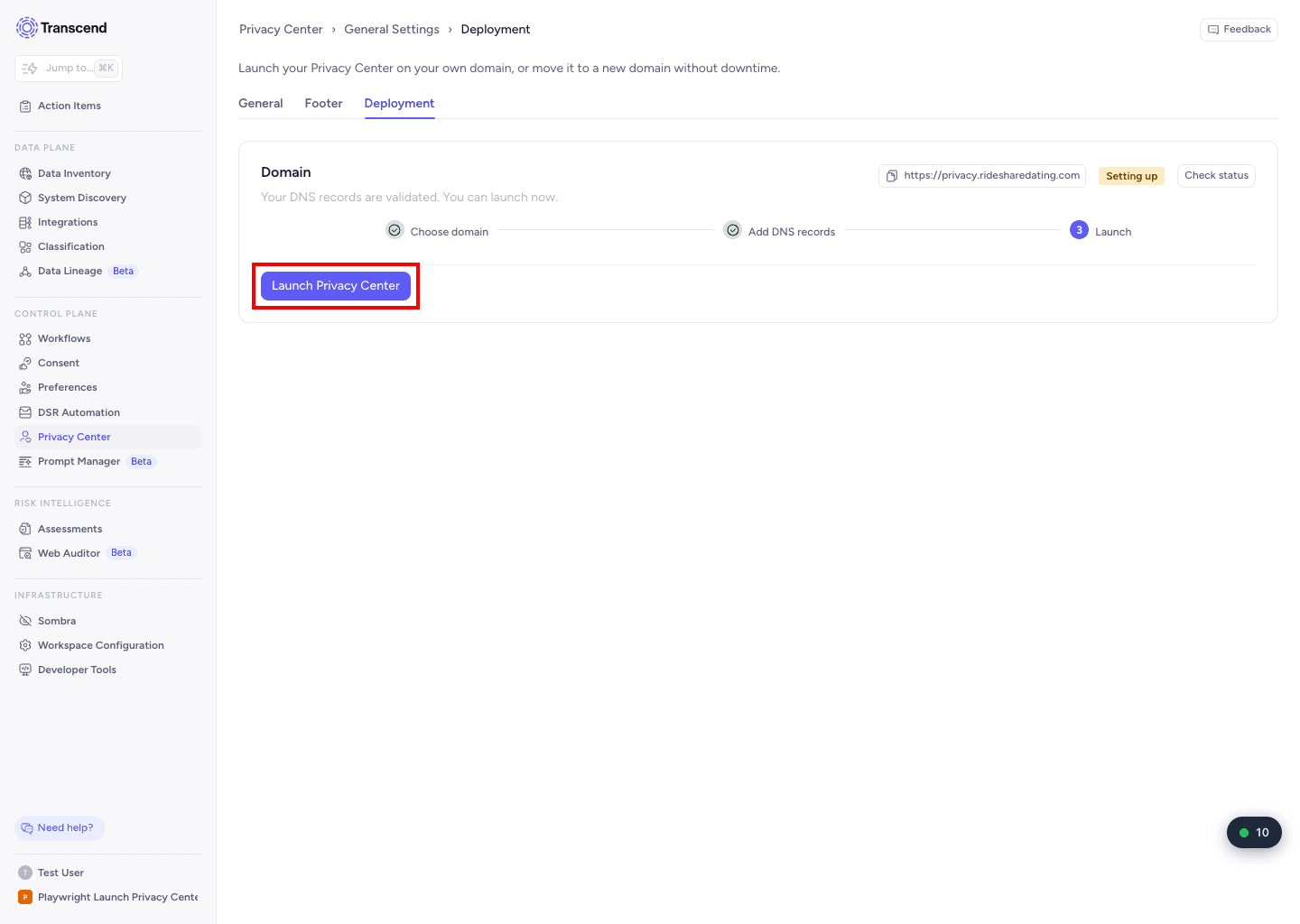
- Wait for validation. This can take a few minutes after you add the records. The page says when your DNS records are validated.
- Select Launch Privacy Center.
In Route 53, add the A record, and the AAAA record if you use IPv6, as ALIAS records. The CloudFront hosted zone ID is always Z2FDTNDATAQYW2.
In Cloudflare, turn the proxied setting off for these records. Otherwise AWS cannot validate ownership of the certificate.
You can move to any new domain, including one with a different root domain. For example, you can move from privacy.old-brand.com to privacy.new-brand.com. Your current domain stays live until you remove it.
- On the Deployment tab, select Change domain.
- Enter the full new hostname, for example privacy.new-brand.com, and select Start moving.
- Add the DNS records shown at your DNS provider. The new certificate also covers your current domain. If you removed that domain's validation record after launch, add it back too.
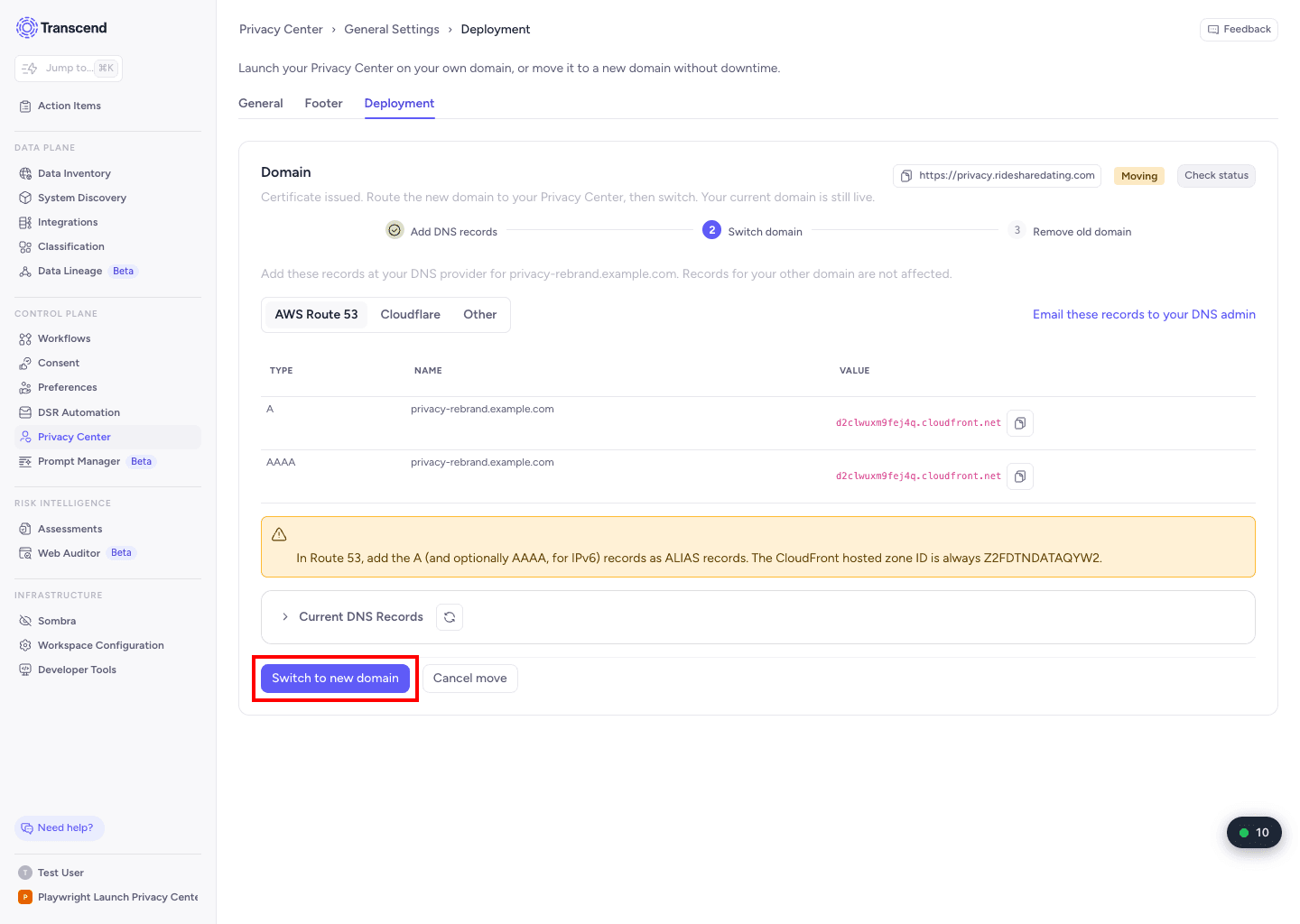
- Wait until the page says the certificate is issued. Select Check status to refresh.
- Select Switch to new domain, then confirm. This button unlocks only when the new domain routes to your Privacy Center.
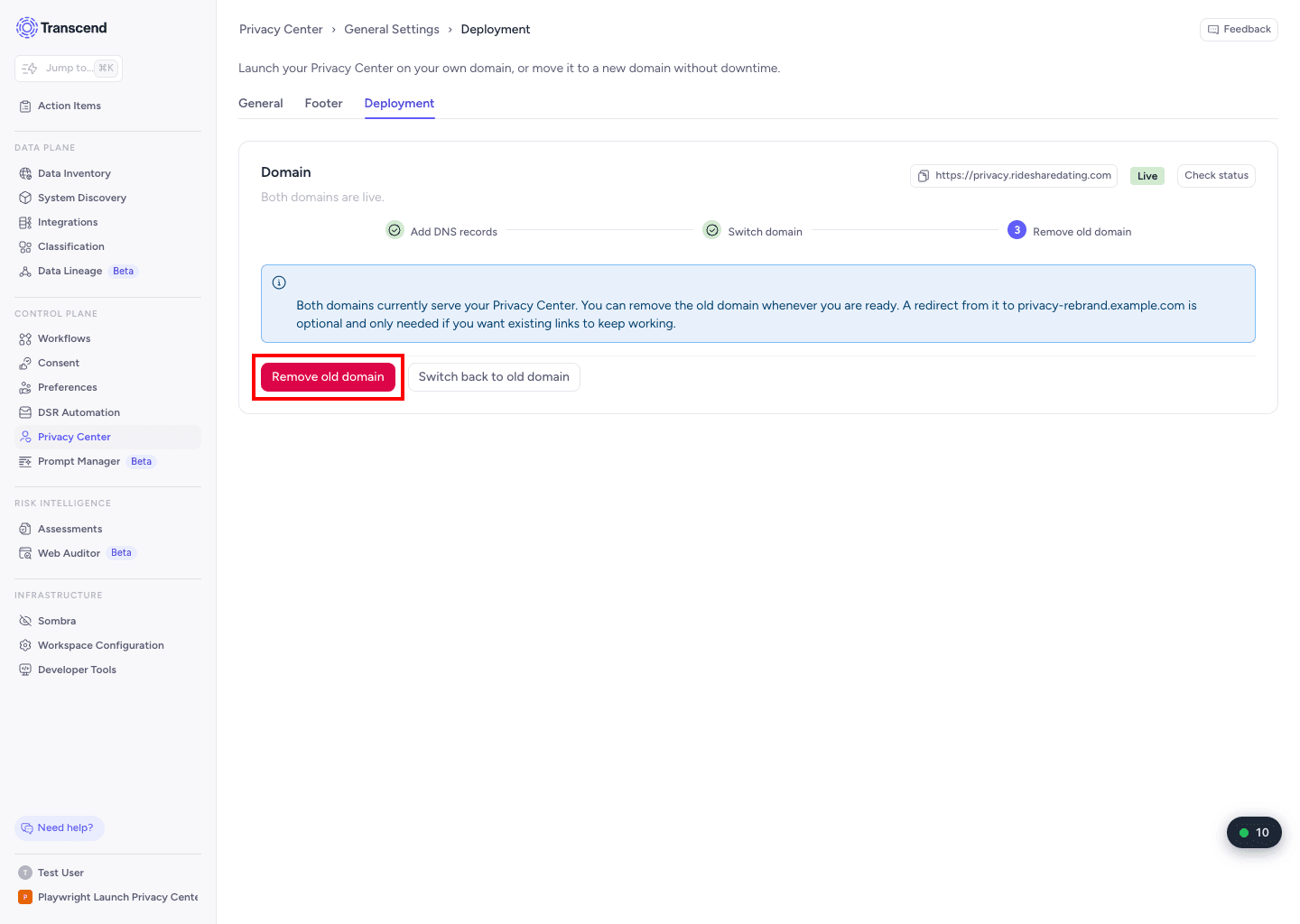
- When both domains are live and you are ready, select Remove old domain and confirm.
Switching to the new domain republishes your Privacy Center. Publish or discard any pending Privacy Center changes before you switch if you do not want them to go live.
After you remove the old domain, links to it stop working. A redirect from the old domain to the new one is optional. Set it up on your side if you want existing links to keep working.
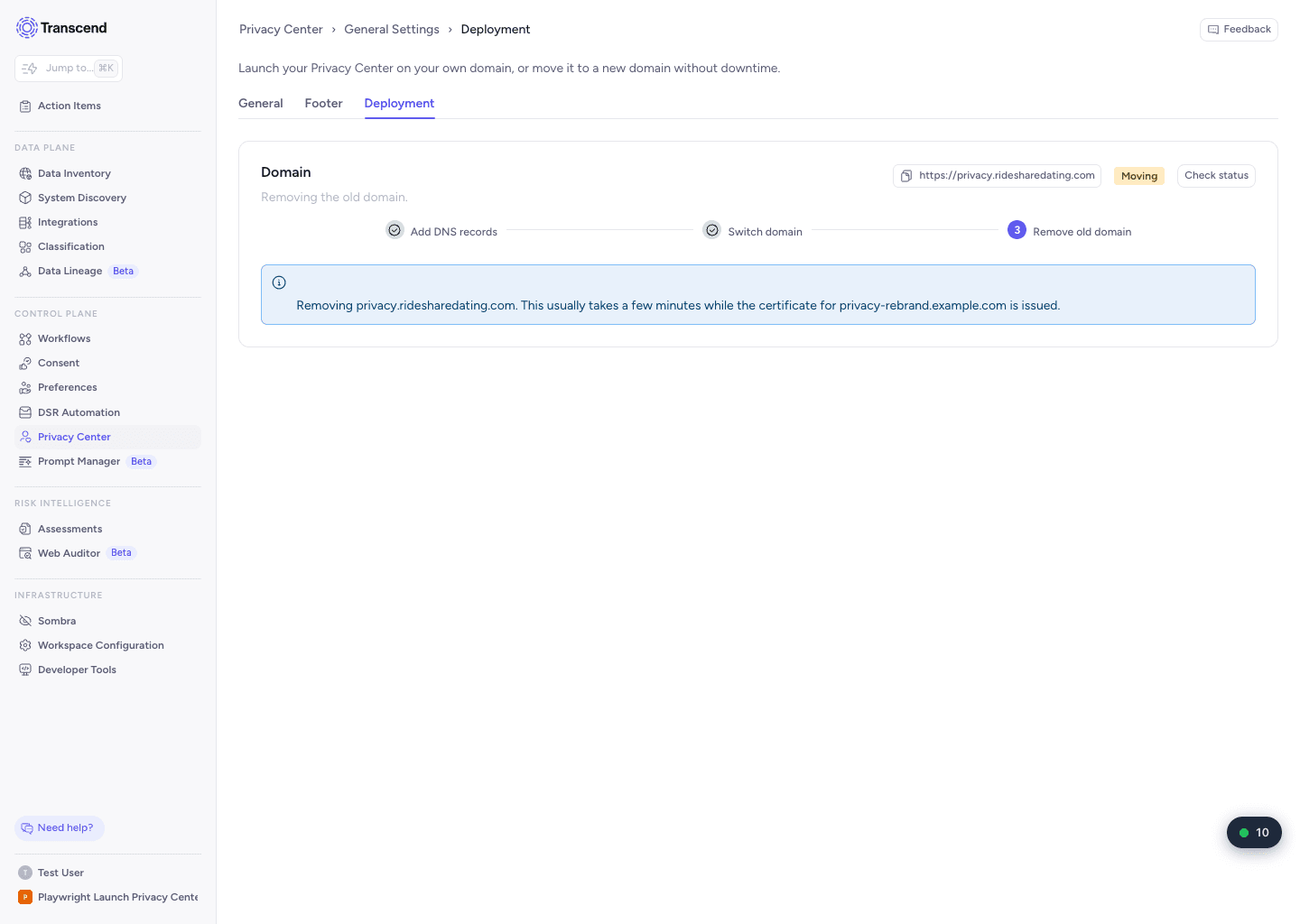
- Before you switch, select Cancel move. Your current domain is unchanged.
- After you switch, and until you remove the old domain, select Switch back to old domain.
- If a move fails, your current domain is still live. Check the DNS records, then select Start over.
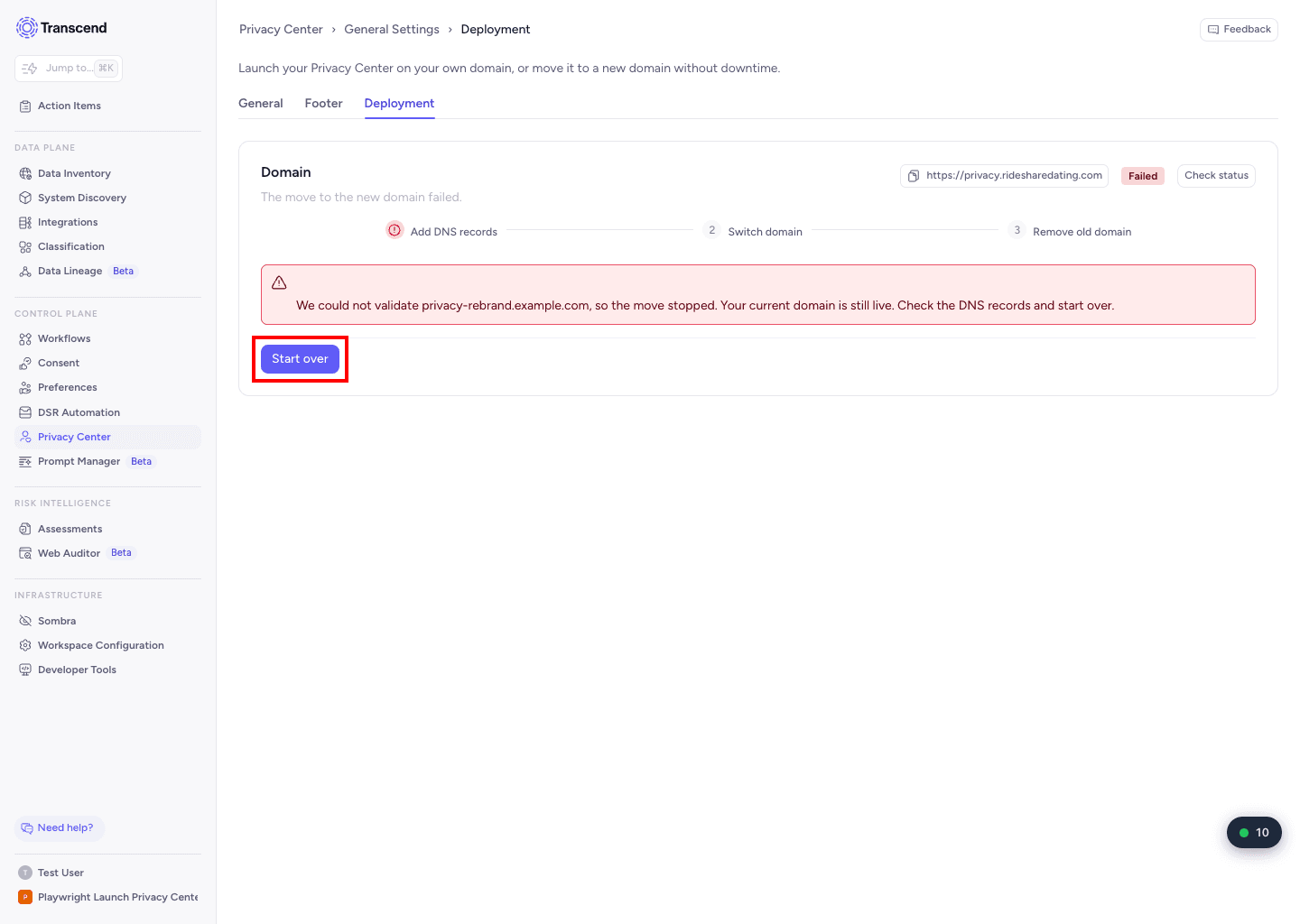
- DNS validation failed: request a new certificate, then add the new records at your DNS provider.
- The switch stays locked: the new domain does not route to your Privacy Center yet. Wait for DNS to propagate. In Cloudflare, check that the proxy is off.
- You cannot use a hostname: another organization already uses it, or has a move in progress to it.
- Too many attempts: each action allows 5 attempts per hour. Wait and try again.
- The root domain is wrong before your first launch: the first launch form only edits the subdomain. Contact Transcend support to change the root domain.
Emails from Transcend use a separate domain. See DNS Record Configurations to set it up.