Getting Started with Custom Functions
Custom Functions let you run your own TypeScript on the selected single-tenant Sombra as part of a workflow. Environment-variable values are encrypted by Sombra before storage. Repository-authored functions can reach external hosts explicitly allowed in their manifest.
This guide orients you to the Custom Functions section of the dashboard. It covers what the four surfaces do:
- Functions list
- Activity log
- New function
- Push from your code
and which one to use for what. For the runtime itself (the function arguments, environment variables, the key-value store, and OAuth information) see Custom Functions Technical Overview.
A Custom Function is a serverless TypeScript function that Transcend triggers as part of a workflow. It runs in a Deno sandbox on your Sombra gateway, not in Transcend's cloud. See technical details in Custom Functions Technical Overview.
Custom Functions do what a webhook integration does, without the infrastructure. There is no service to stand up, no endpoint to expose, no retry logic to write, and no monitoring to wire up. You write the code, test it, and publish it.
Two things trigger a Custom Function today:
- A Rules Automation rule. The rule fires (on a webhook or on a schedule) and runs your function as its action.
- A DSR workflow. Transcend resolves a data point against a system that has no prebuilt integration, or runs a preflight check to enrich an incoming request.
| Type | What it's for |
|---|---|
| General | Rules Automation actions, preference syncs, webhook handling: everything that isn't a DSR data system. |
| DSR | Connecting a system to DSR workflows. Use a default export for data-point processing, an enricher export for preflight checks, or both. |
A General function is reusable across Rules Automation rules. When you publish an update, every rule that references it picks up the active version.
Warning: Function type is immutable after creation. Create a replacement function to change between General and DSR.
You need two things.
A dedicated Sombra gateway. Custom Functions run on single-tenant or self-hosted Sombra only. If your organization is on a multi-tenant gateway, function execution is rejected.
API key scopes. Two scopes govern access:
- View Custom Functions: see function definitions, versions, and run history
- Manage Custom Functions: create, edit, test, publish, and archive functions
Rules Automation keys that hold Execute Rules keep the execution access they already had.
Go to Developer Tools → Custom Functions.
The section has two tabs, Functions and Activity, and two buttons that create functions, New function and Push from your code.
The Functions tab is the list of custom functions for your organization. The Activity tab shows all the runs of individual custom functions for your organization.
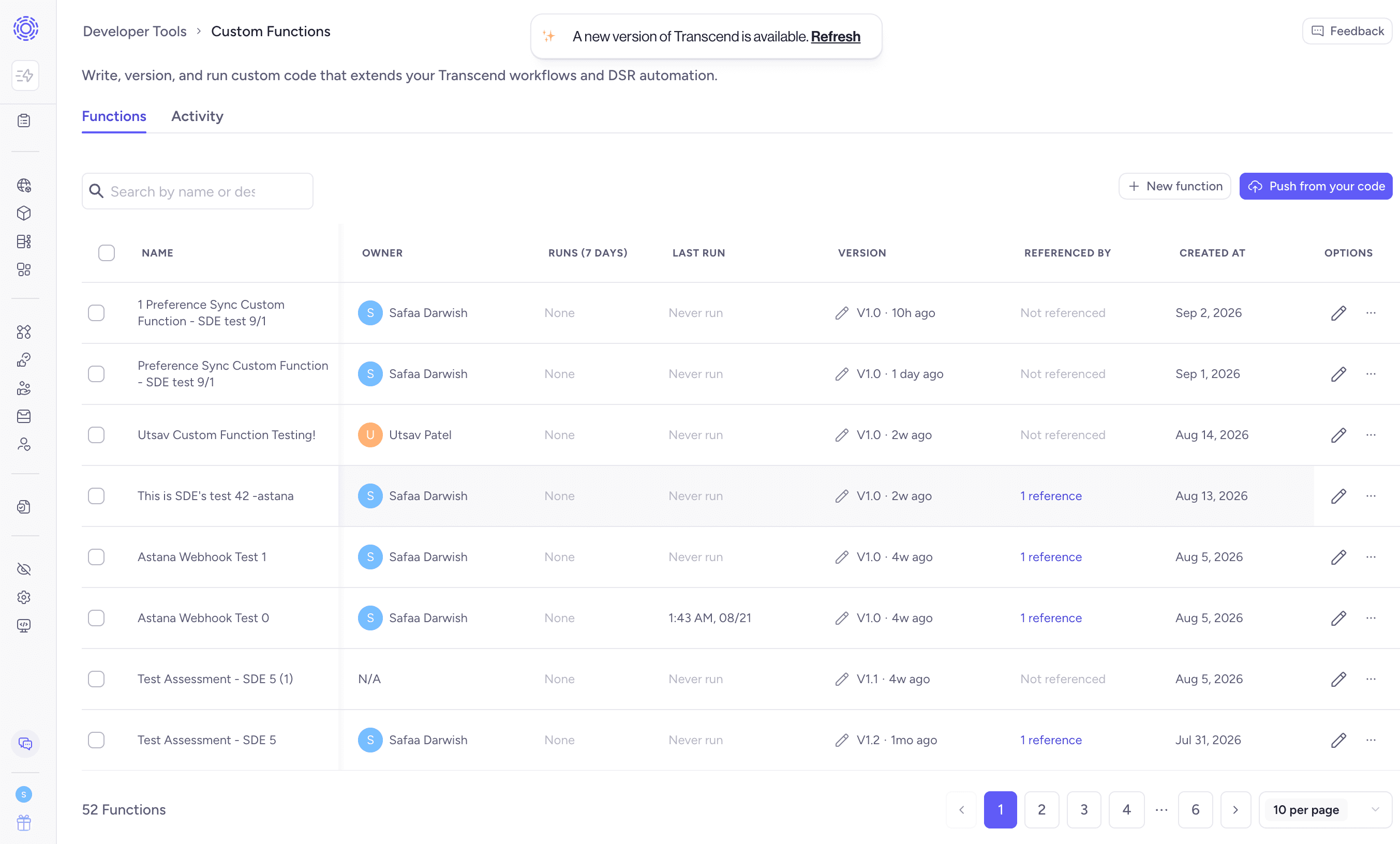
The Referenced by column lists the Rules Automation rules or data-system integrations that use a function.
This is your Custom Functions inventory. Every Custom Function in your organization, regardless of who wrote it or how it got here.
Search by name or description in the search bar.
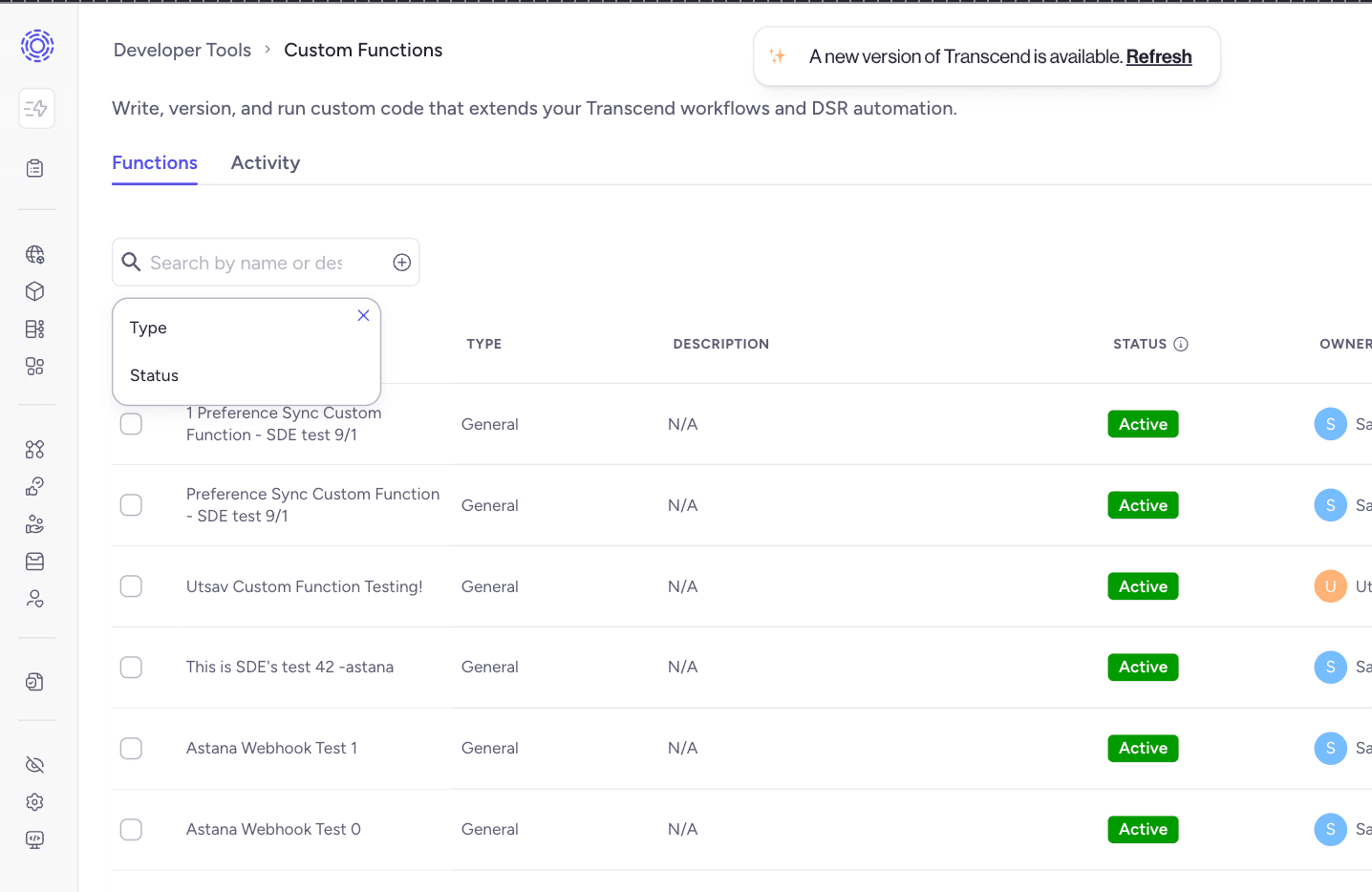
Use the checkboxes to select multiple functions for a bulk action.
| Column | What it tells you |
|---|---|
| Name | The function's display name |
| Type | General or DSR |
| Description | Free text you set; N/A when empty |
| Status | Active, Inactive, or Archived |
| Owner | The people responsible for the function |
| Runs (7 days) | Execution count for the last week. Click through to Activity, filtered to this function |
| Last run | Timestamp of the most recent execution, or Never run |
| Version | The active version number, with an indicator when an unpublished draft exists |
| Referenced by | The rules and data systems using this function, or Not referenced |
| Created at | Creation date |
Status is the function's lifecycle, and it is separate from version state.
- Active — appears in the function picker for rules and integrations, and executes when triggered
- Inactive — still appears in the picker, but does not execute even when its trigger conditions are met
- Archived — hidden from the picker. Queued runs are cancelled and in-progress runs finish. Restoration currently requires a surviving active or draft version.
Select a non-archived row to open the function. Depending on its state, the row menu offers:
- Publish or Restore: activate an eligible draft or restore an eligible archived function
- Archive: soft-delete the function
Warning: A function that is referenced by a data system or by an active or paused rule cannot be archived. The archive dialog lists what is blocking it. Remove the references first. DSR functions cannot be archived at all, because doing so would break the connection strategy of the data system they serve.
Activity is the run log for every Custom Function in your organization — where you go when something failed and you need to know why, and what it was.
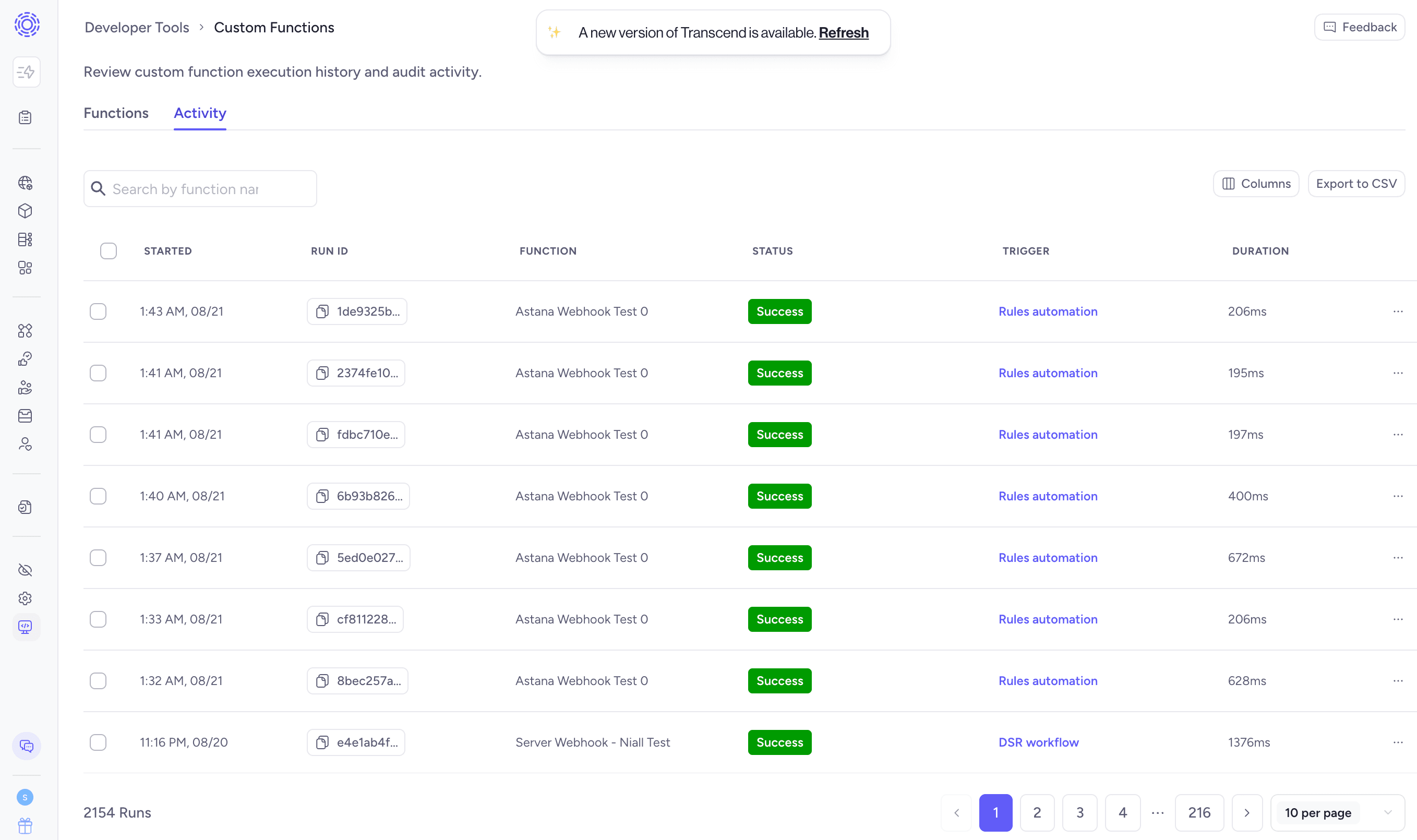
| Column | What it tells you |
|---|---|
| Started | When the run began |
| Run ID | Unique identifier for the run |
| Function | Which function executed |
| Status | Queued, In Progress, Success, or a failure state |
| Trigger | What caused the run — Testing, Rules automation (links to the rule), or DSR workflow (links to the request) |
| Duration | Execution time in milliseconds. Shows — while the run is queued or in progress |
Filter by function or text. Export to CSV downloads the filtered view.
Failed runs are attributed as one of the following:
- Customer execution error: the function, its permissions, runtime configuration, or customer Sombra caused the run to fail
- Transcend error: Transcend could not queue, route, or complete the run because of a Transcend-managed service failure
The row menu offers two things on a failed run:
- Download log: the full console output for that run, including everything your function wrote with
console.log. Previously this required Sombra access to retrieve. - Open audit trail: jumps to the audit trail filtered to this function, showing who changed what and when
Info: Run history is retained for 30 days. Export to CSV if you need a longer record.
When creating or editing a function, use the Testing step in the editor. Enter a test payload, then select Run test. The function runs in a new sandboxed process, and its log output appears in the console. Use console.log to emit non-sensitive test output.
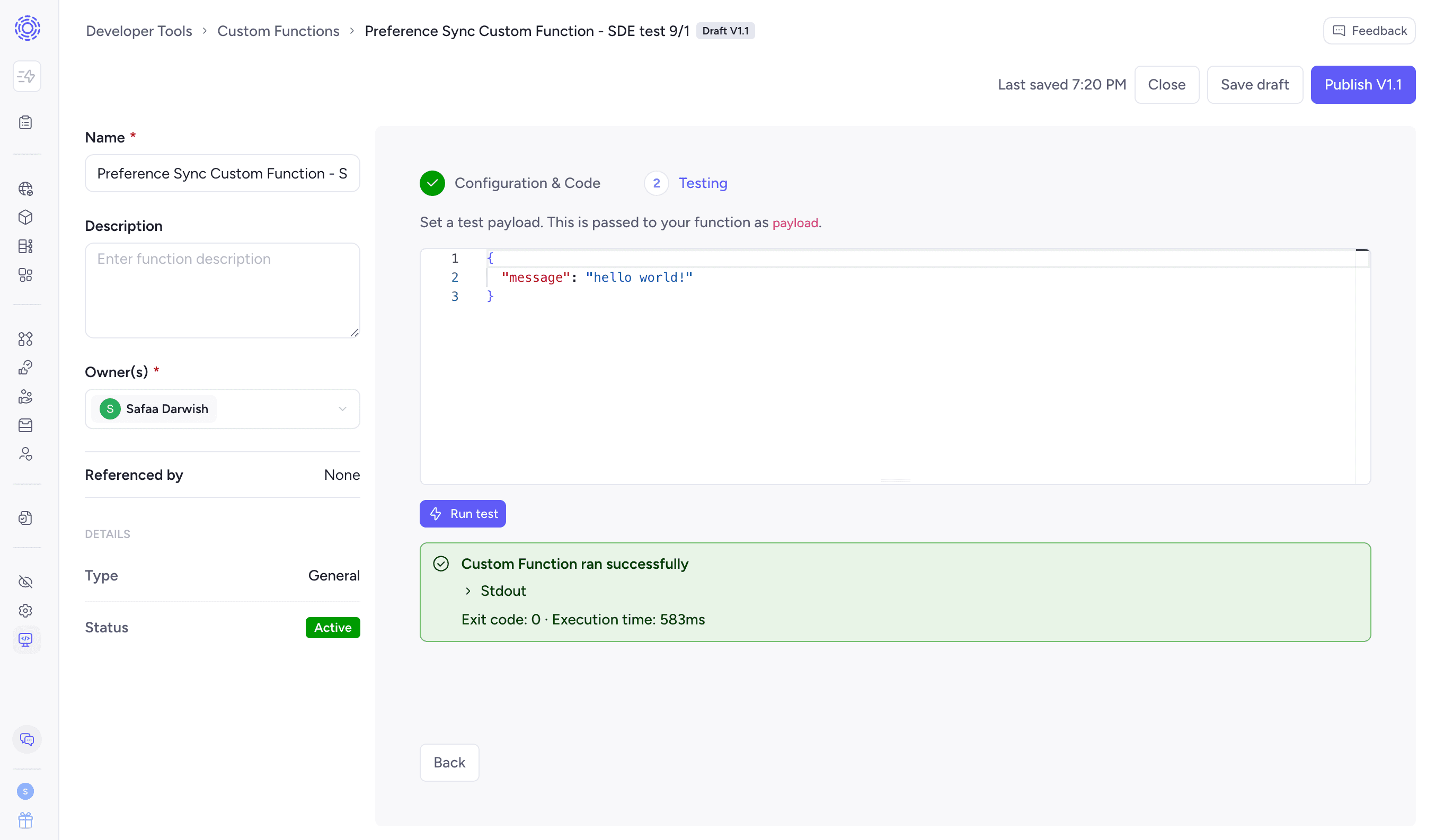
You can override the JSON payload in the Testing step before selecting Run test. General test payloads are free-form JSON objects plus fields Transcend injects. DSR processing and preflight tests use their respective webhook payload shapes.
Use New function when you want to author in the dashboard: prototyping, a one-off, or a function whose code does not belong in a Git repository.
New function opens a type picker. This is the choice described in Types of Custom Function above, and the dialog restates the constraint: it cannot be changed once the function is linked to a data system.
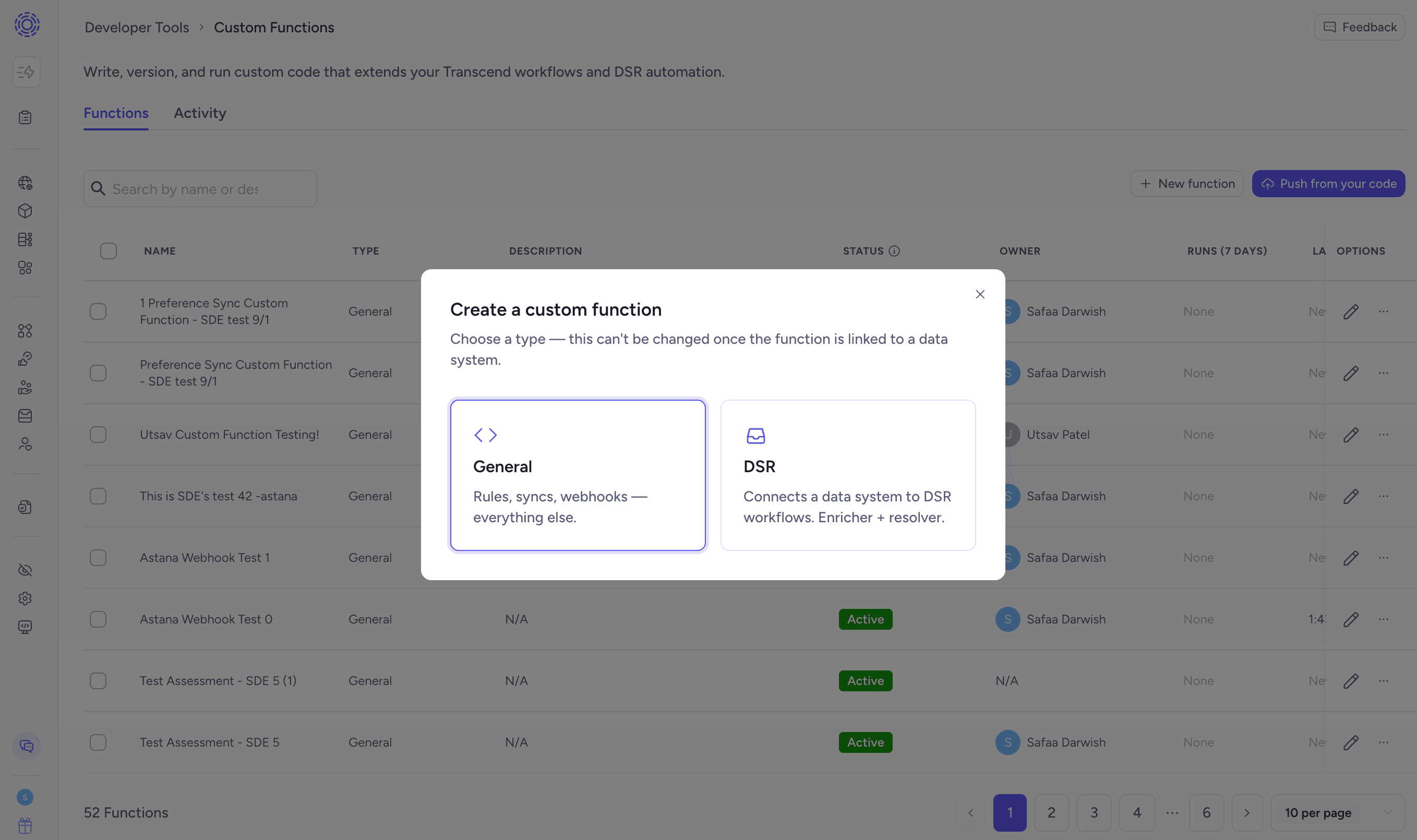
Choosing DSR takes you into the Integrations catalog to create a Custom Function integration first, since a DSR function has to be attached to a data system. Give the integration a title, assign an owner, choose the Sombra gateway, and click Add.
Choosing General opens the function editor directly.
If you selected General, the editor has a details panel on the left and two steps on the right.
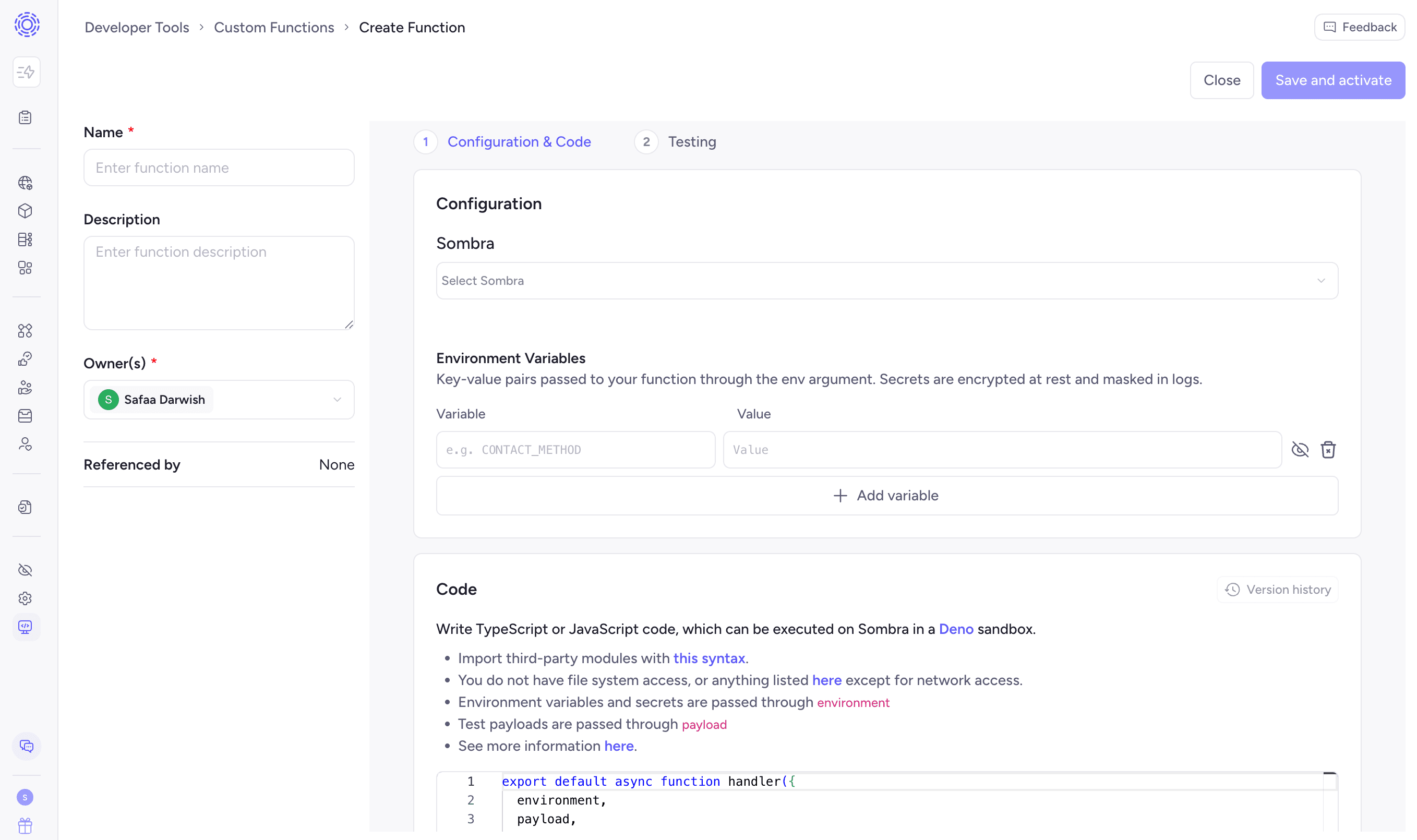
On the left, set:
- Name (required)
- Description worth filling in, since it is a column on the list
- Owner(s) (required) — defaults to you
- Referenced by — read-only, and populates once a rule or data system points at this function
Under Configuration & Code:
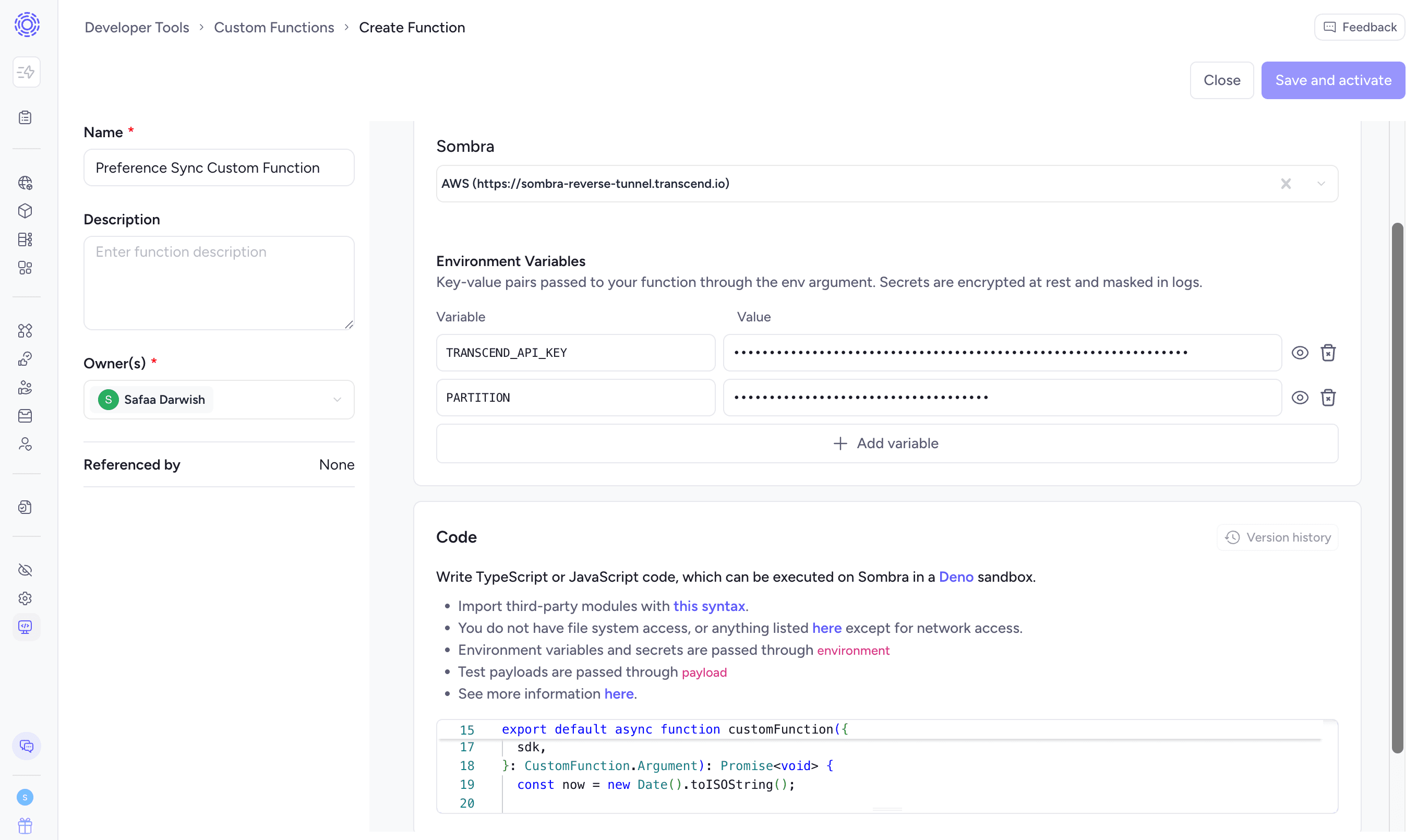
Sombra. Select the gateway this function runs on. The dropdown lists your available gateways by name and URL, and you can type to filter.
Environment Variables. Key-value pairs passed through the environment argument. Put credentials here rather than in code. Names may start with a letter or underscore and may otherwise contain letters, digits, and underscores. CONSTANT_CASE is the convention. Reserved names include DENO_*, HTTP_PROXY, HTTPS_PROXY, NPM_CONFIG_REGISTRY, NO_COLOR, NO_PROXY, and NODE_EXTRA_CA_CERTS.
Each row has two icons. The eye hides the value in the form. The trash icon removes the row. Add variable adds another.
Code. A TypeScript editor with IntelliSense for the argument types and Deno globals.
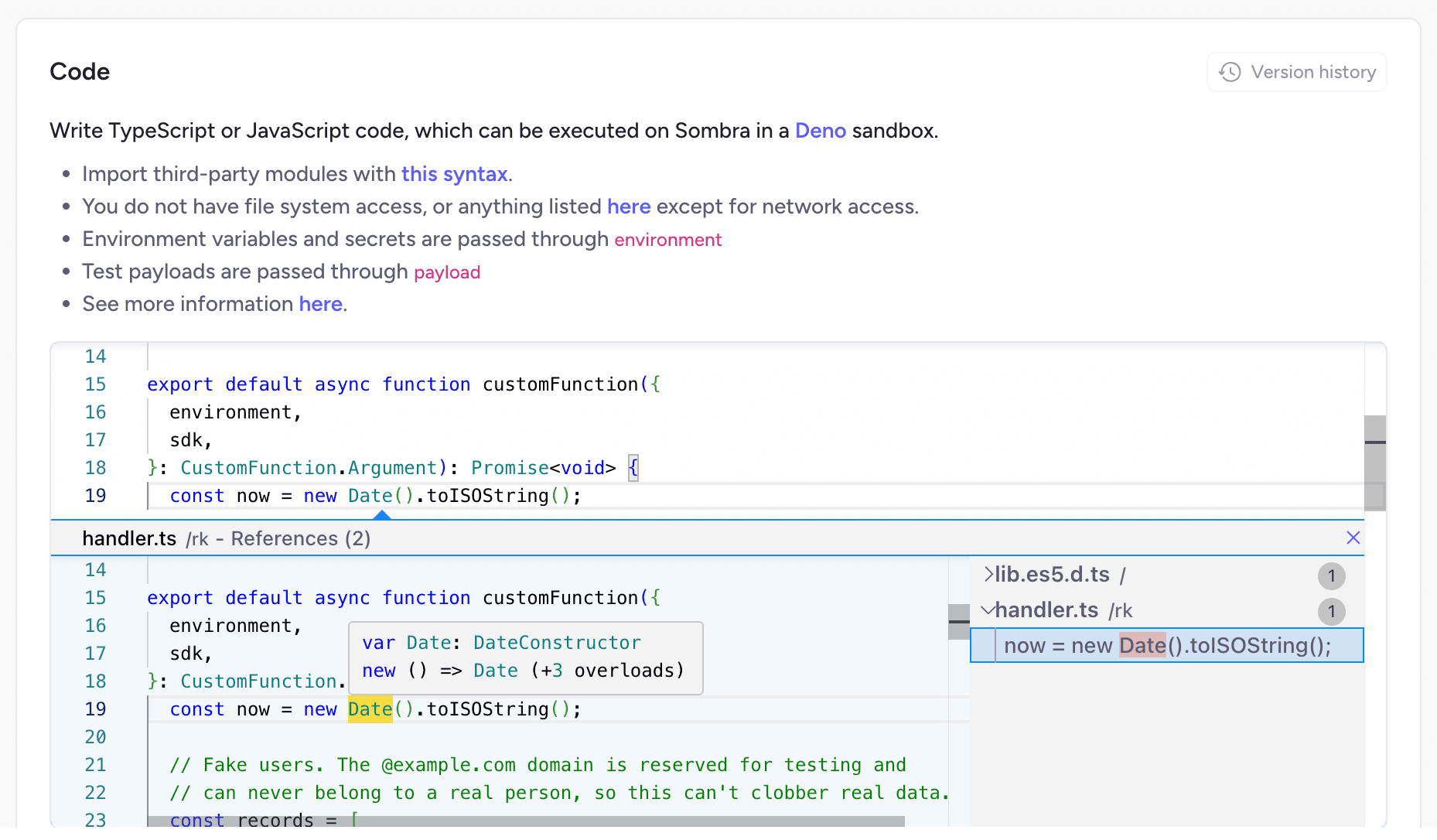
A General function starts from this template:
// deno-lint-ignore require-await
export default async function handler({
  payload,
}: CustomFunction.GeneralArgument): Promise<void> {
  console.info('Payload keys:', Object.keys(payload));
}
New functions do not autosave before their initial activation. Autosave begins when editing an existing function; the header shows the most recent save time.
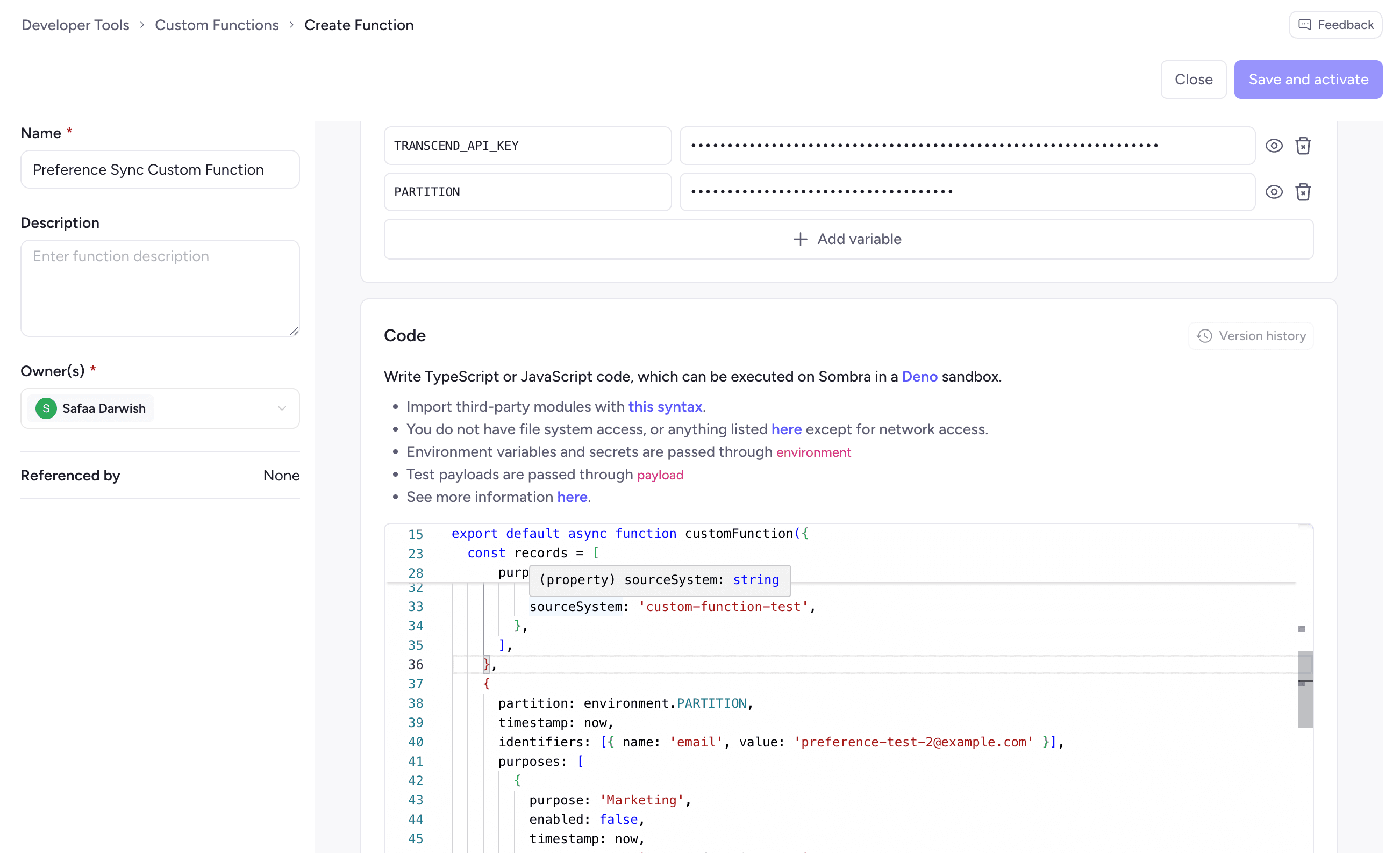
Click Next to move to Testing.
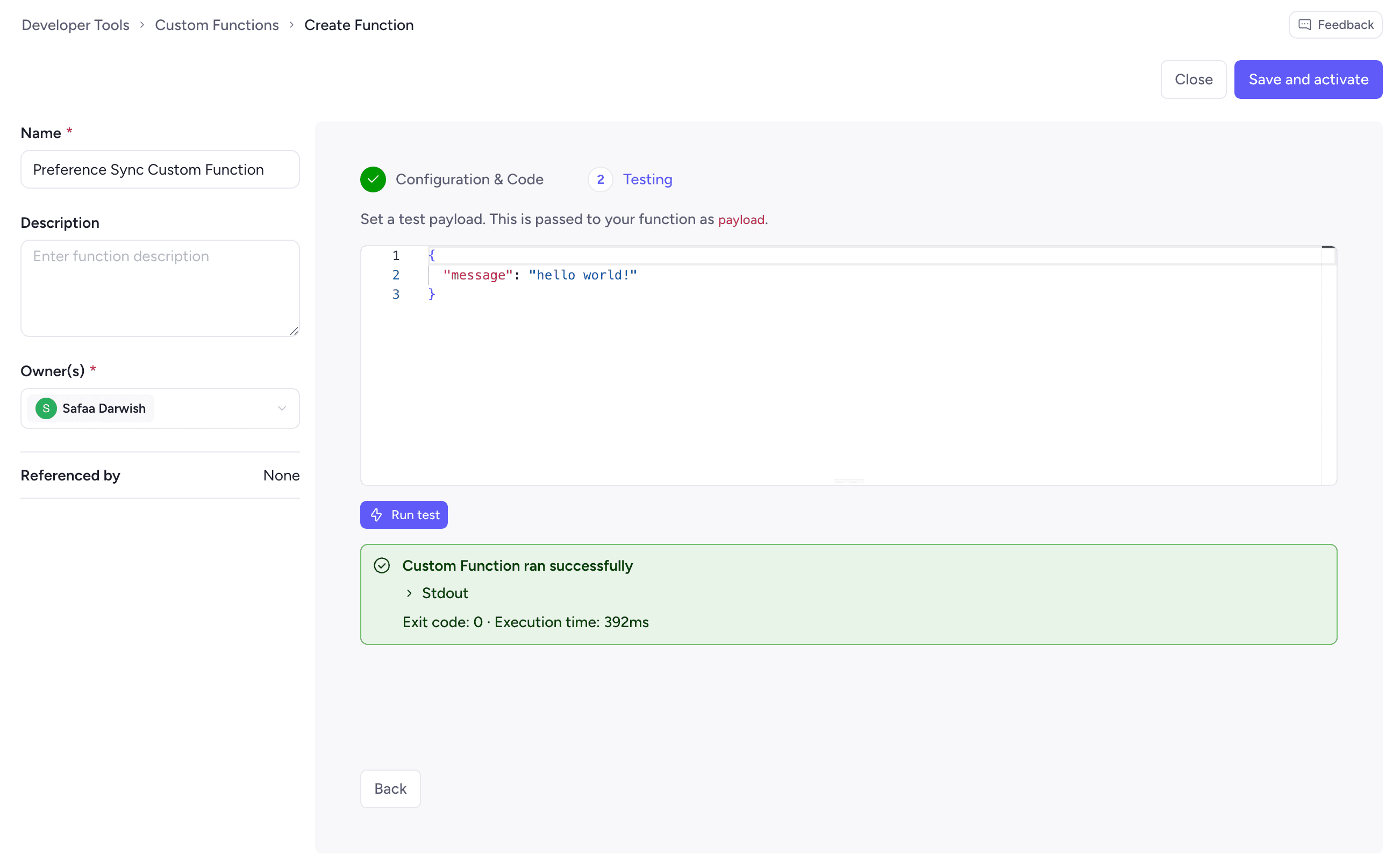
Set a test payload. The JSON object your function receives as payload — and click Run test. The run executes on your gateway in a fresh sandboxed process using the environment variables you configured in the previous step.
A successful run returns a green panel with a collapsible Stdout section containing everything your function logged, plus the exit code and execution time:
Custom Function ran successfully
  Stdout
    Environment variables: { CRM_API_TOKEN: "********" }

    Payload: {
      message: "hello world!",
      coreIdentifier: { value: "example-identifier" }
    }
  Exit code: 0 · Execution time: 65ms
Do not log secrets. Log redaction is defense in depth, not a guarantee. Never log the environment object, credentials, or personal data.
Transcend adds fields to your payload. The test above supplied only message, but the function received coreIdentifier as well. Your test payload is merged with the context Transcend supplies, so write your function against what actually arrives rather than against your test JSON alone.
Test runs are logged on the Activity tab with a Testing trigger.
Warning: You cannot publish until a test passes. Until then the editor shows Testing required. Run a successful test in the Testing step before you can publish, and the publish button stays disabled. A passing test enables it.
Click Save and activate.
Every function carries a version number, and Transcend manages it for you.
- New functions start at V1.0. Each published change increments by 0.1 — V1.0, V1.1, V1.2.
- The number is system-assigned. You cannot set it.
- Renaming a function, editing its description, or changing owners does not create a version.
- An active function has exactly one active version. Publishing a draft makes it active and marks the previous version inactive. Inactive and archived functions may have no active version.
- Draft versions never fire on a trigger. They run only when you run them from the Testing step.
Open Version history from the Code section to see every version, when it was last modified, and whether it came from the dashboard or was pushed via the API. Select any version to view its code read-only.
Restore copies a version's code into a new draft. It does not roll the version number backward. Restoring V1.0 while V1.3 is active creates V1.4 as a draft with V1.0's code; V1.0 stays inactive and keeps its run history intact. Review the draft, test it, and publish it like any other change.
Push from your code is the path for functions that live in a repository. Transcend never reads your repo — you push to Transcend, from your own CI.
Use it when function code should be reviewed, versioned in git, and deployed like the rest of your software.
Repository synchronization is one-way: code is pushed into Transcend. Dashboard edits are not written back to your repository.
You define your functions in a transcend-functions.yml manifest and push them with the Transcend CLI, either locally or from a CI job.
Source code is signed by Sombra and stored in a signed token; signing does not encrypt the source. Environment-variable values are encrypted separately. Transcend does not access your repository.
When custom-functions push runs, new, changed, or forced functions execute their configured test payloads before the function revision is saved. Unchanged and metadata-only functions are skipped; test-payload-only changes require --force. --skipTests bypasses tests, while --dryRun never runs them. Functions without test payloads are pushed with a warning. A failed test prevents that function revision from being saved, but external side effects cannot be rolled back.
- Create an API key with Manage Custom Functions, which includes view access, and store it as
TRANSCEND_API_KEY. If your self-hosted Sombra requires additional authentication, store its internal key asSOMBRA_INTERNAL_KEY. - Install the CLI globally:
npm install --global @transcend-io/cli. - Write a
transcend-functions.ymlmanifest and push. The function appears on the Custom Functions page.
transcend custom-functions push \
  --auth="$TRANSCEND_API_KEY" \
  --variables="TRANSCEND_API_KEY:$TRANSCEND_API_KEY"
For the manifest schema, test-before-promote, DSR auto-create, and the GitHub Action, see Author Custom Functions from your repository.
Pushed functions appear in the Functions list like any other, with their version history labeled Pushed via API.
Warning: A function is tied to the channel that last updated it. Once you push to a function via the CLI, its code becomes read-only in the dashboard, and further changes have to come from your codebase.
Two behaviors surprise people:
- Rotating only an environment variable's value looks like no change. Values are encrypted at sign time and cannot be diffed, so the CLI reports nothing to do. Push with
--force. - Renaming a function without a pinned
idcreates a second function. Run--updateManifestonce to write IDs into your manifest, and renames match correctly from then on.
| Constraint | Detail |
|---|---|
| Gateway | Dedicated single-tenant or self-hosted Sombra only |
| Runtime | 30 seconds per run by default. Configurable when self-hosting Sombra |
| Sandbox | Network access is restricted by the configured allowed hosts; an empty list allows localhost only. No general filesystem, child process, system information, FFI, or system environment access. |
| Isolation | Each invocation runs in a new sandboxed process on the selected Sombra gateway. A gateway may run multiple subprocesses on its configured infrastructure. |
| Key-value store | Strings only: 128 keys, 128 characters per key, and 2048 characters per value. Persistent updates are supported for DSR functions; Rules Automation runs do not persist KV changes. |
| Run history | 30 days |
| Not supported | Data discovery and classification |
A Custom Function reports back to Transcend by calling one of the custom integration API endpoints through the sdk. Branch on payload.type to handle each request type.
For an ACCESS request, upload the data subject's profile data with one of the DSR Access request endpoints (e.g., POST to /v1/data-silo). Put the retrieved data in the profileData object of each entry in the profiles array, and set status to "READY" once the data is ready for Transcend to collect.
These external API examples require api.example.com in allowed-hosts. The current Admin Dashboard does not expose that setting, so use these examples with repository or CLI-authored functions.
export default async function customFunction({
  environment,
  payload,
  sdk,
}: CustomFunction.Argument): Promise<void> {
  if (payload.type !== 'ACCESS') return;

  const lookupResponse = await fetch(
    `https://api.example.com/v1/users/${payload.extras.profile.identifier}`,
    {
      headers: { Authorization: `Bearer ${environment.API_KEY}` },
    },
  );
  if (!lookupResponse.ok) {
    throw new Error(
      `Lookup failed (${lookupResponse.status}): ${await lookupResponse.text()}`,
    );
  }
  const dataSubject = await lookupResponse.json();

  const response = await sdk.fetch('/v1/data-silo', {
    method: 'POST',
    headers: {
      'Content-Type': 'application/json',
      Authorization: `Bearer ${environment.TRANSCEND_API_KEY}`,
    },
    body: JSON.stringify({
      profiles: [
        {
          profileModelId: payload.extras.profile.id,
          profileData: {
            email: dataSubject.email,
            fullName: dataSubject.fullName,
            createdAt: dataSubject.createdAt,
          },
        },
      ],
      status: 'READY',
    }),
  });
  if (!response.ok) {
    throw new Error(
      `Failed to report access results (${response.status}): ${await response.text()}`,
    );
  }
}
If your system has no matching data subject, still report back so the profile resolves. Send an empty profiles array with a status of SKIPPED to indicate there is no data to return.
For an ERASURE request, perform the deletion in your system, then mark the work complete with a PUT to /v1/data-silo. Only report success after the deletion has actually completed. If the deletion call fails, throw an error so the request isn't marked complete prematurely.
export default async function customFunction({
  environment,
  payload,
  sdk,
}: CustomFunction.Argument): Promise<void> {
  if (payload.type !== 'ERASURE') return;

  const eraseResponse = await fetch(
    `https://api.example.com/v1/users/${payload.extras.profile.identifier}`,
    {
      method: 'DELETE',
      headers: { Authorization: `Bearer ${environment.API_KEY}` },
    },
  );
  if (!eraseResponse.ok) {
    throw new Error(
      `Erasure failed (${eraseResponse.status}): ${await eraseResponse.text()}`,
    );
  }

  const response = await sdk.fetch('/v1/data-silo', {
    method: 'PUT',
    headers: {
      'Content-Type': 'application/json',
      Authorization: `Bearer ${environment.TRANSCEND_API_KEY}`,
    },
    body: JSON.stringify({
      profiles: [
        {
          profileModelId: payload.extras.profile.id,
        },
      ],
      status: 'RESOLVED',
    }),
  });
  if (!response.ok) {
    throw new Error(
      `Failed to report erasure (${response.status}): ${await response.text()}`,
    );
  }
}Not all Custom Functions will apply to a single Data Action type. In these cases, you can use logic statements to determine which code to run for each relevant Data Action type using the payload.type variable.
// deno-lint-ignore require-await
export default async function customFunction({
  payload,
}: CustomFunction.Argument): Promise<void> {
  if (payload.type === 'ACCESS') {
    // ACCESS request code, including response
  } else if (payload.type === 'ERASURE') {
    // ERASURE request code, including response
  }
}For information on how to configure your Custom Function to perform Preflight checks, check out the Custom Function Enricher guide.