Custom Function Creation Methods
This guide walks through several ways to create custom functions.
This article covers dashboard creation. Repository authoring supports additional runtime options such as allowed hosts and third-party imports.
You will need:
- Access to Custom Functions in the Admin Dashboard
- A single-tenant Sombra gateway
- Credentials for anything your function calls, ready to paste in as environment variables
There are three ways to add a new custom function: from the Integrations UI (recommended for DSR functions), the Custom Functions UI, and remotely from your repo.
From Integrations
Note: This path is for creating DSR custom functions. If you are creating a non-DSR related custom function, syncing inbound to Preference Store, for example, use the instructions for creating from Custom Functions UI or remote.
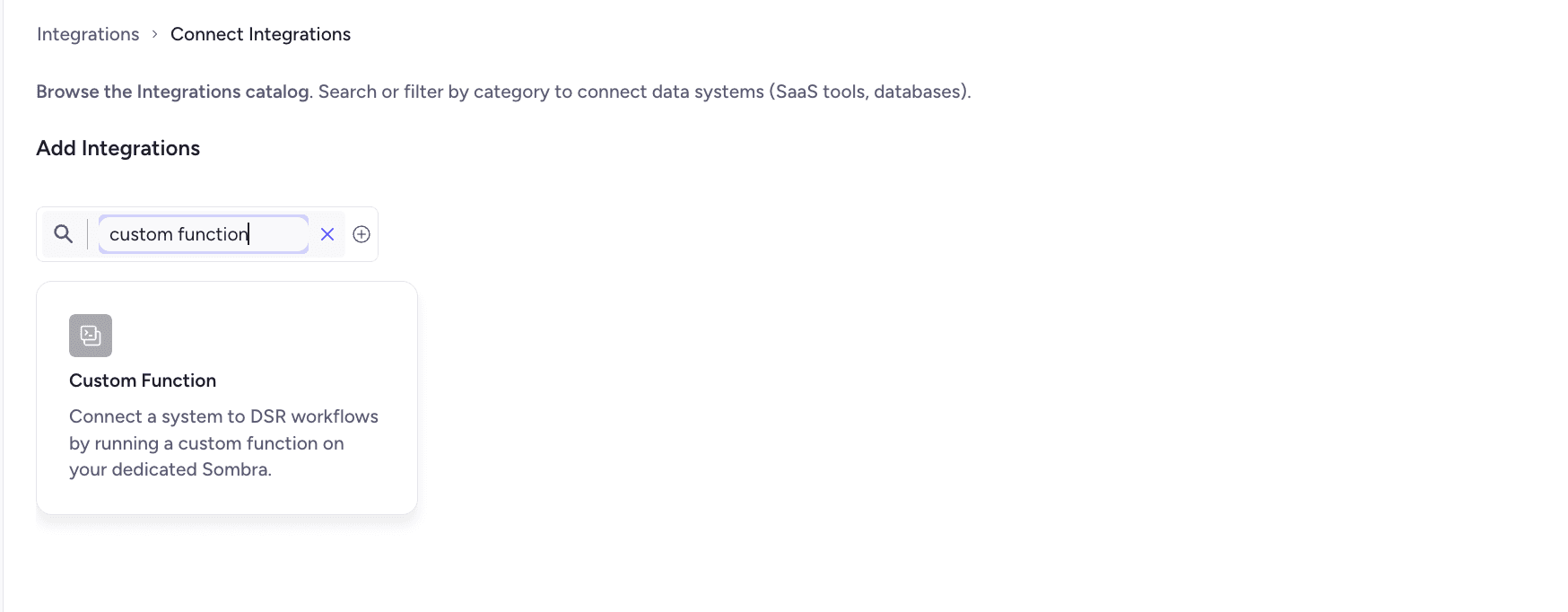
- Navigate to Add Integrations
- Search for "Custom Function" integration, and select.
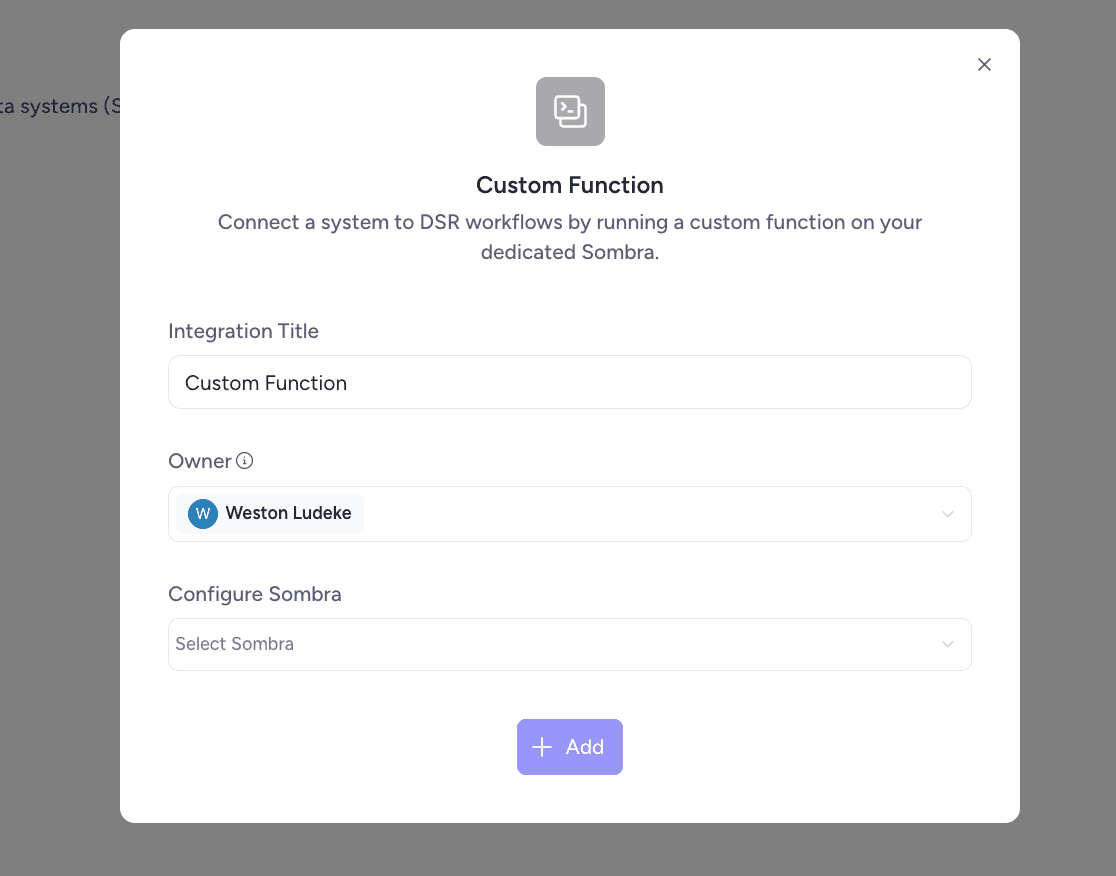
- On the modal, select a title, owner, and Sombra. Note: Custom Functions are only available for customers with Single Tenant Sombra. Click Add
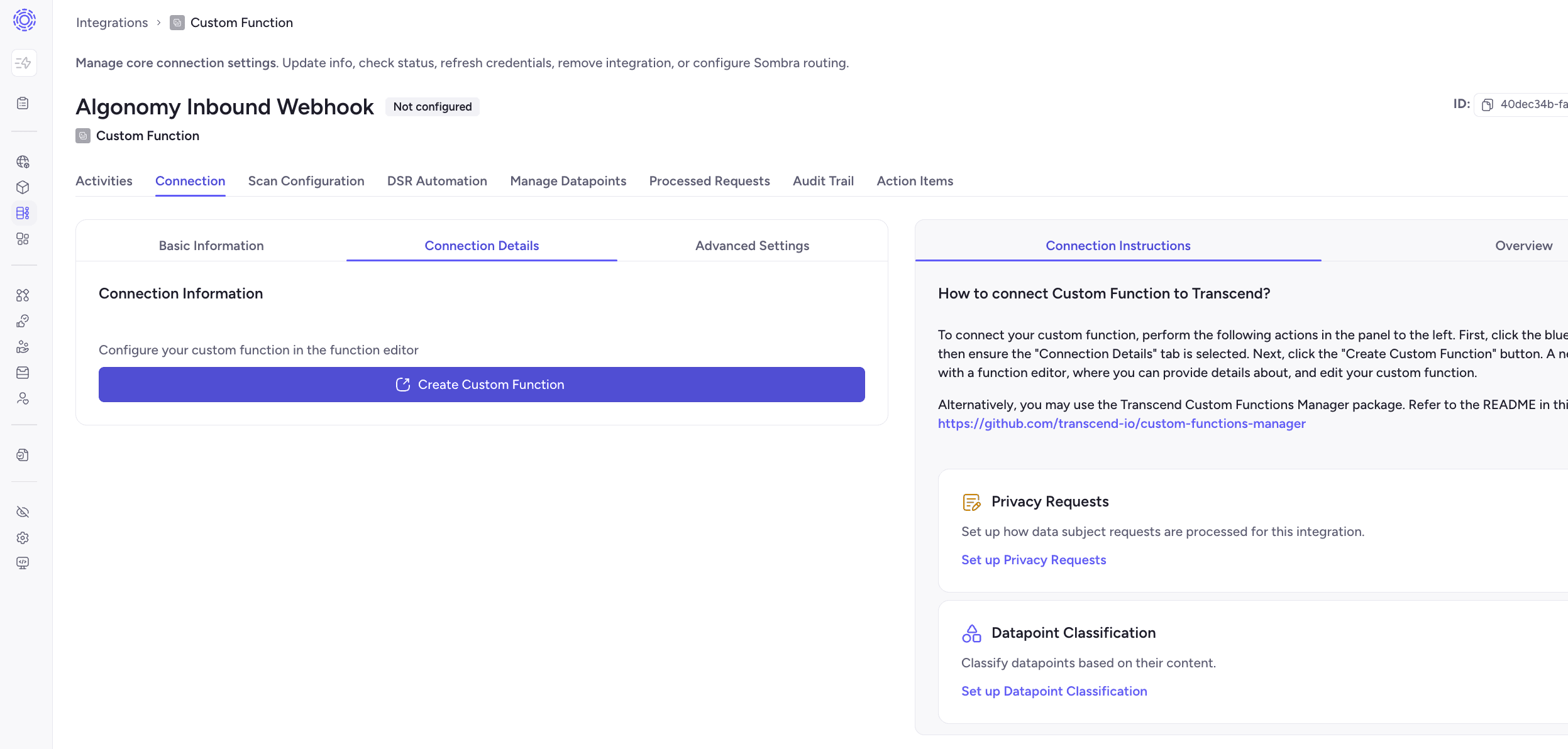
- On the Integration you have created, click "Create custom function". This will open the Custom Function Editor.
- Write your function, including a name and description, test it, then select Publish to make the version active. To keep working without going live, select Save draft.
- In the Admin Dashboard, go to Custom Functions and select New function.
- In Create a custom function, choose General or DSR, then continue. DSR functions have dedicated tests for pre-flight enrichers and processing. General functions can be used for other purposes, such as custom inbound Preference Store syncs.
- For a DSR function, use Connect a system to add the data system in Integrations. The function is saved as a draft first; you can return and link the system from the System field.
- In the editor, fill in Details (name, description, owners) and write your code. Environment variables and secrets are set in Environment Variables. Run a successful test, then select Publish to make the version active. To keep working without going live, select Save draft.
Write Custom Functions in your own repository when you want git review and CI deploys. Transcend never reads your repo.
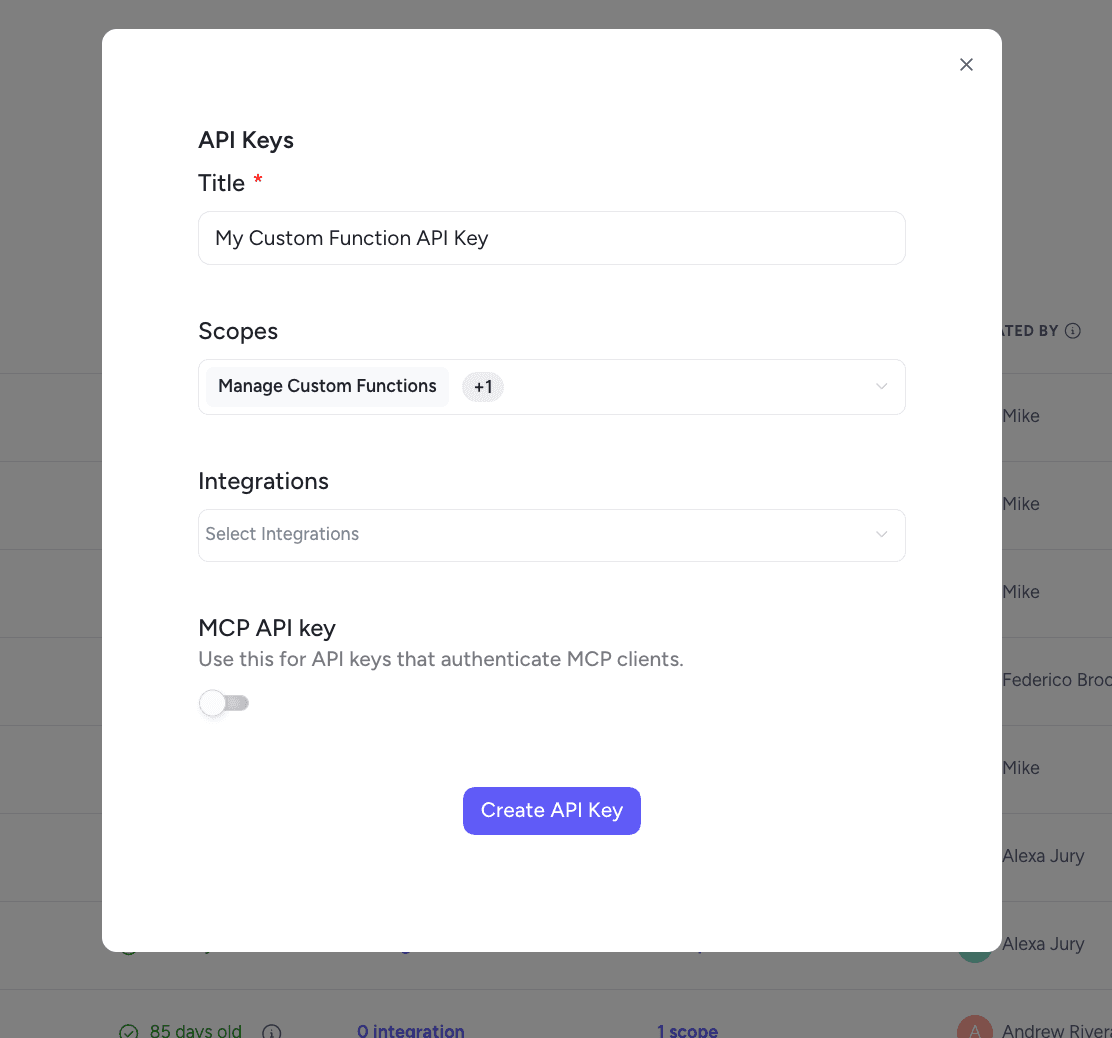
- Under Developer Tools → API Keys, create a key with View Custom Functions and Manage Custom Functions. Store your Sombra internal key alongside it.
- Add
@transcend-io/cliand atranscend-functions.ymlmanifest to the repository. - Push with
transcend custom-functions push, or add the custom-functions-manager GitHub Action to CI.