End-User Identity Verification
Verify the identity of the end user who makes a privacy request in the Privacy Center with email verification, JWT, or OAuth 2.
Before a user can submit DSRs (see DSR Automation) or change their preferences (see Preference Management), the user must authenticate. This page explains each verification method and how it works. To configure one, see Set Up Privacy Center Login.
Verification Methods
The following identity verification methods are available through the Privacy Center:
- Email verification (magic link)
- Account login via JSON Web Tokens (JWT)
- Account login via OAuth 2
Email verification comes pre-configured with Transcend. If you maintain your own authentication code for account login, we recommend the JWT strategy. If you use a third-party CIAM provider like Auth0 or Amazon Cognito, we recommend account login via OAuth 2.
An authorized agent can also submit a request on behalf of a data subject. See Authorized Agent Requests.
Each of these identification strategies returns a unique and verified "Core Identifier". In addition to these verification methods, Transcend supports additional preflight and verification checks that can run in a workflow. Read more about configuring these preflight checks. These additional preflight checks allow for multi-factor authentication, such as with Twilio Text Code Verification or Stripe Government ID Verification.
Email verification
Transcend comes pre-configured with email verification. Before a user can submit a request, they must input their email address.
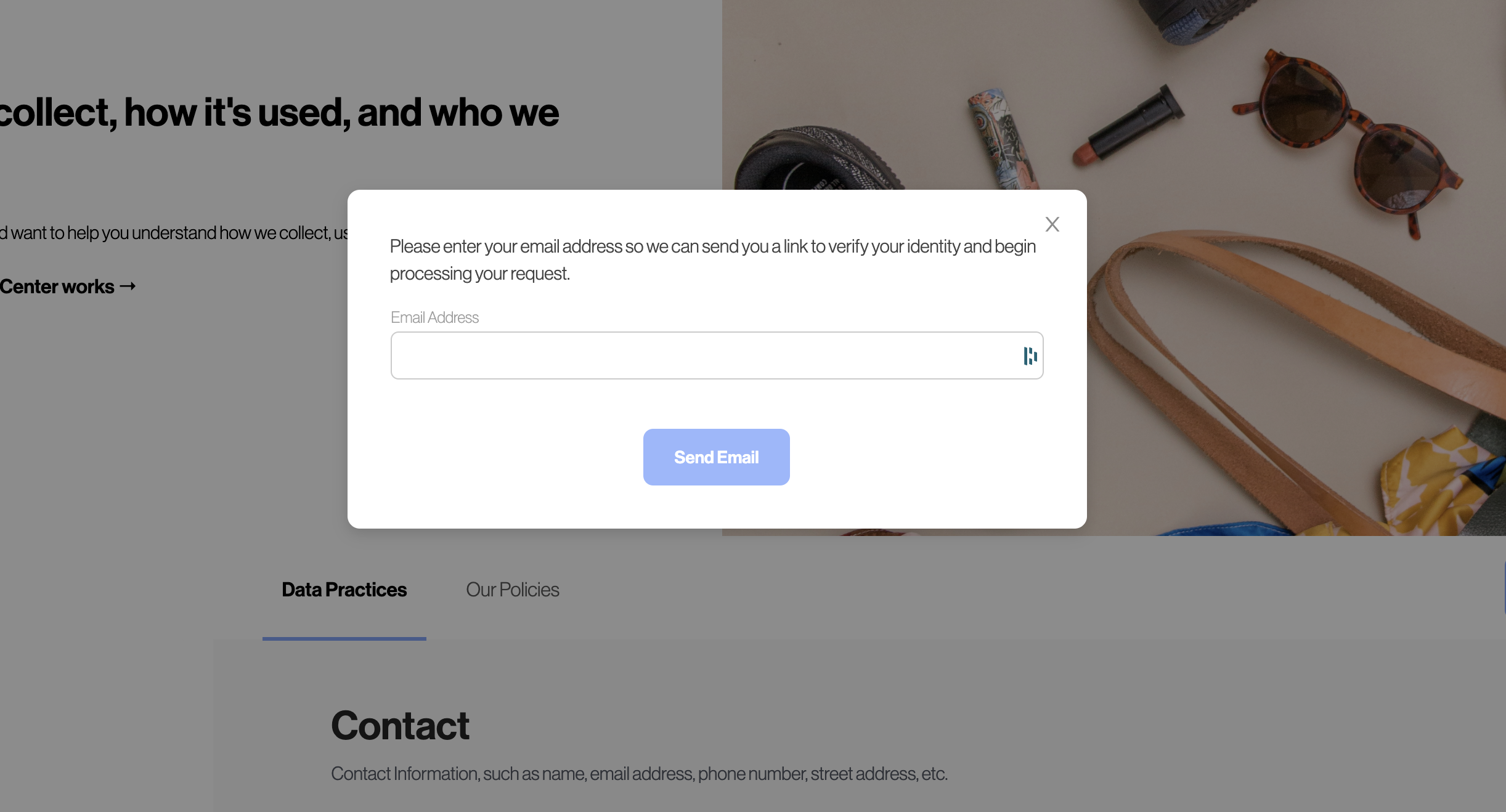
The data subject is sent an email where they are asked to click a magic link to verify their identity.
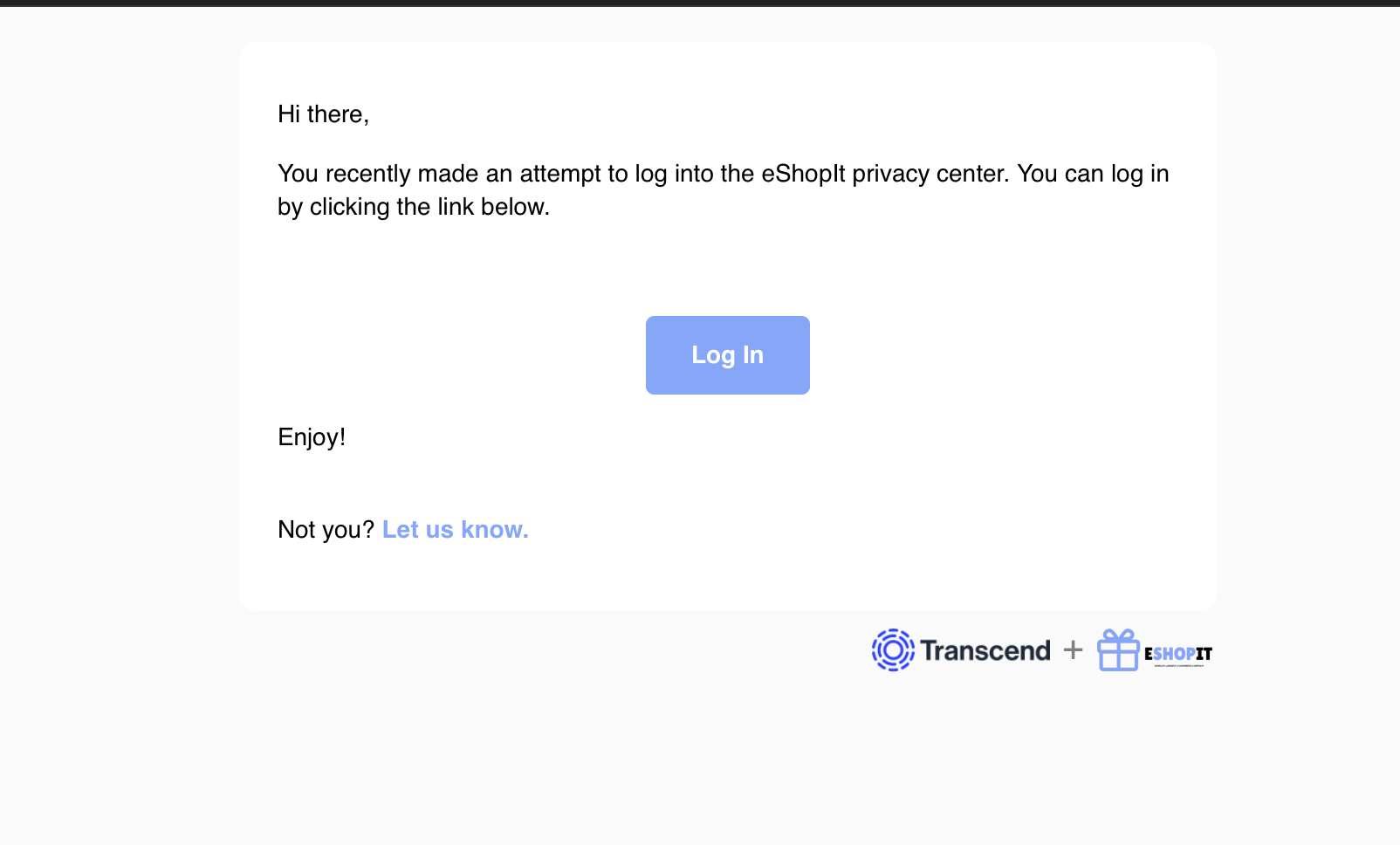
The magic link is automatically injected into the email in a button below the email template. When the data subject clicks the link, they are redirected to the Privacy Center with the "Core Identifier" verified as the verified email address.
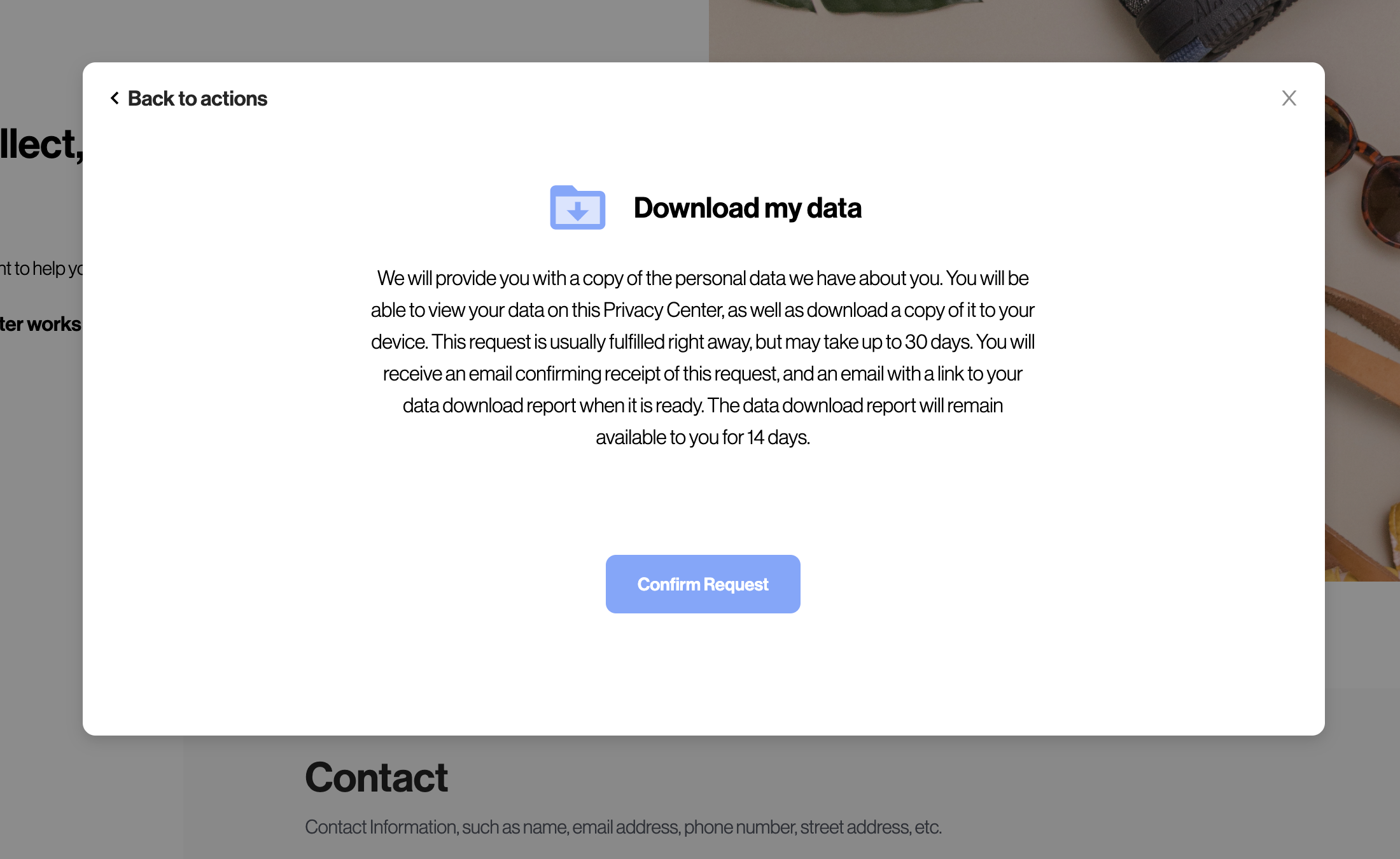
For DSR Automation: Email Verification for DSRs submitted through the Admin Dashboard or API
Note that this email verification step on the Privacy Center happens before a DSR shows up in the DSR Automation → Incoming Requests feed. This means all data subject workflows that use the Email Verification sign-in method have their emails pre-verified. When using Transcend's DSR API or when Manually submitting a Data Subject Request through the Admin Dashboard, there is a separate Email Verification Preflight Check that can be configured.
Account Login via JWT
If you have end-users with accounts, it's best to have them prove they can sign in to their account. Transcend supports asymmetrically-signed JSON Web Tokens as a form of authentication to the Privacy Center. To support this form of authentication, you will need to host an endpoint on your authentication service that can check a user's session and redirect back to your Privacy Center.
- Data subject is redirected from your Privacy Center to your backend API.
- If the data subject has an active valid session, your backend API redirects the user back to the Privacy Center with a JSON Web Token (signed with your private key) containing the core identifier for that user.
- If the data subject has no active session, redirect them through their account login and then back to the JSON Web Token endpoint.
- Sombra will validate the JSON Web Token using the public key associated with the private key used to sign the JWT.
Read more on how to write the endpoint on your backend.
Account Login via OAuth 2
If you have the ability to create OAuth 2 applications, such as with a CIAM provider like Auth0 or Amazon Cognito, you can create an application for your Privacy Center to allow data subjects to log in with their account. The application needs permission to return the user's email address. Optionally, Sombra can call an endpoint that returns additional attested identifiers (name and value pairs). Sombra can then look up preference records or DSRs by an identifier other than email.
OAuth 2 verification is performed with Sombra (End-to-End Encryption) meaning you don't have to trust Transcend to authenticate the user.
Next steps
- Set Up Privacy Center Login: configure a method and turn it on for a data subject.