MCP: Claude Desktop Setup
How to setup Claude Desktop with Transcend's MCP.
Claude Desktop Setup
Node Download
Before getting started, ensure you have the following:
- Node ≥ 22.12 must be installed to use Transcend's MCP.
- Claude Desktop.
- OAuth Client configured here.
- The redirect URI must be http://127.0.0.1:{port}/callback.
Claude Desktop reads from:
- macOS:
~/Library/Application Support/Claude/claude_desktop_config.json - Windows:
%APPDATA%\\Claude\\claude_desktop_config.json
Open or create the config file
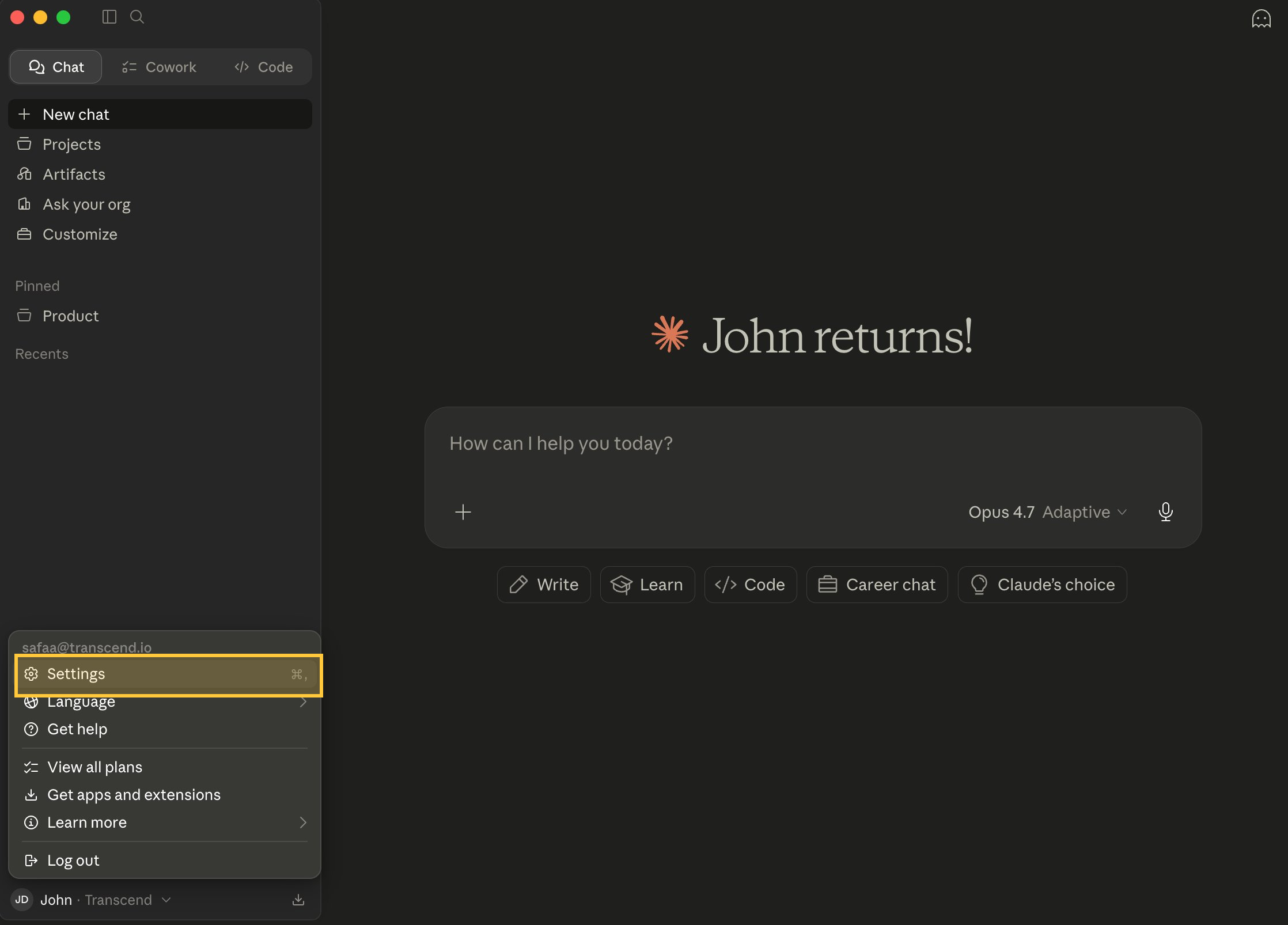
Open via Settings → Developer → Edit Config
In Claude Desktop, select Settings
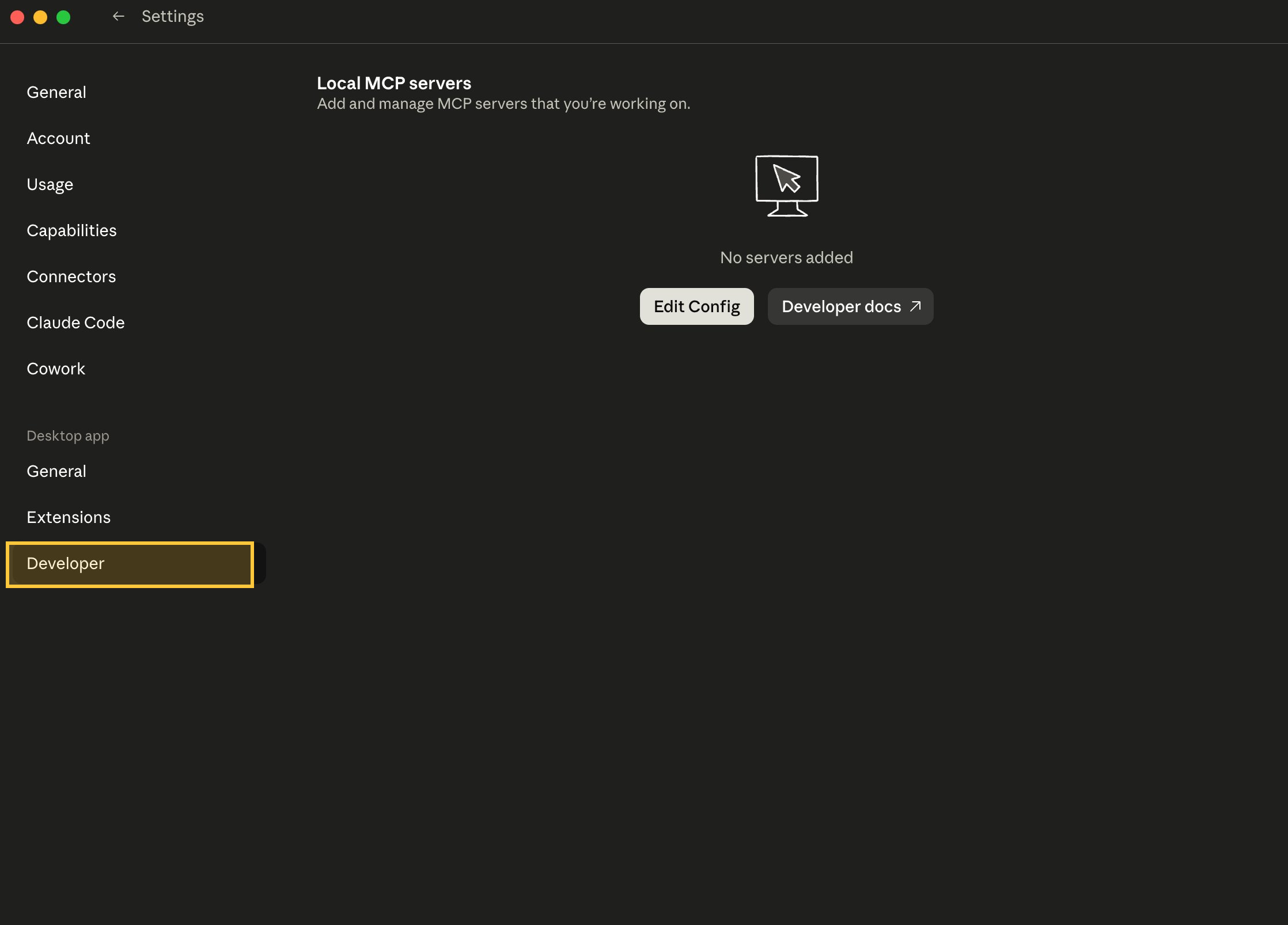
Select Developer
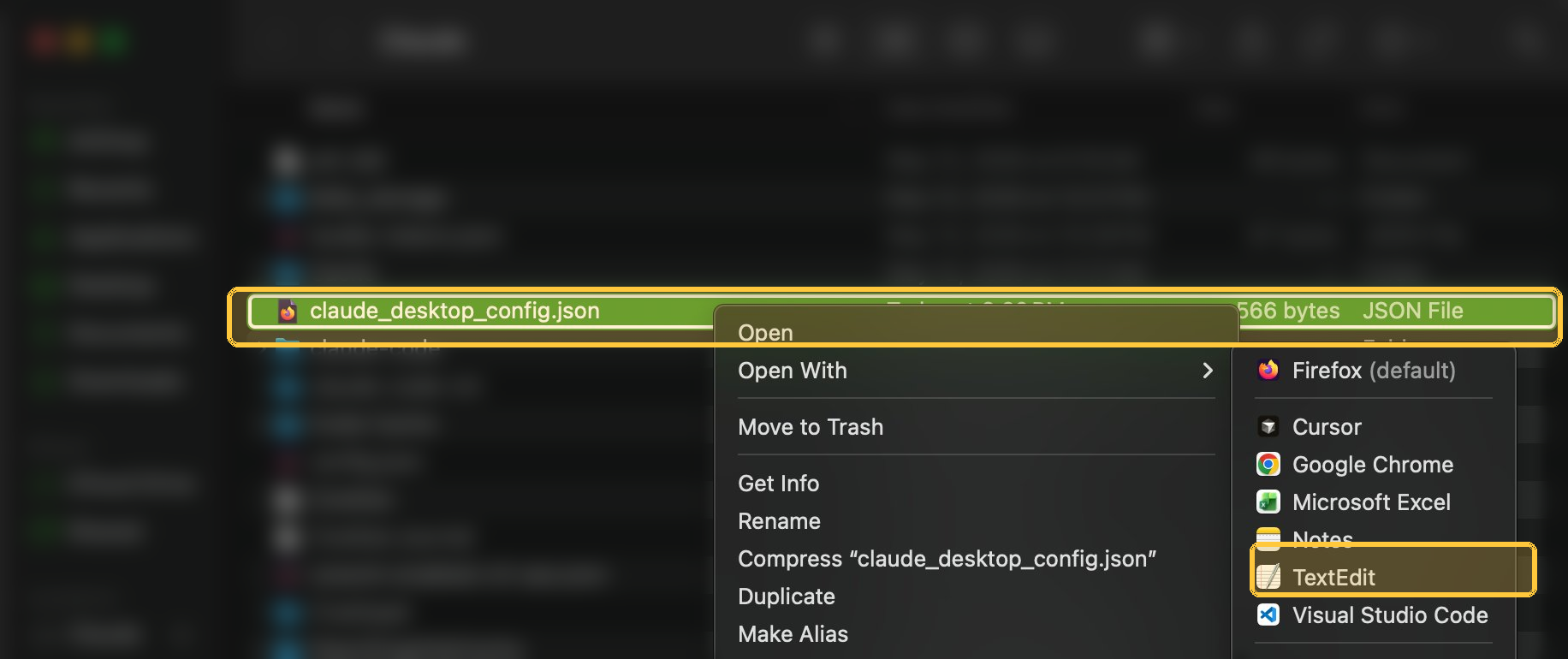
Right click claude_desktop_config.JSON and select a text editor (in the case of Mac, select TextEdit).
In the text editor, paste the definition from the package’s readme to the JSON found here (or copy the below snippet)
{
  "mcpServers": {
    "transcend": {
      "command": "npx",
      "args": ["-y", "@transcend-io/mcp"],
      "env": {
        "TRANSCEND_OAUTH_CLIENT_ID": "your-client-id",
        "TRANSCEND_OAUTH_CLIENT_SECRET": "your-client-secret",
        "TRANSCEND_OAUTH_REDIRECT_PORT": "your-client-redirect-port"
      }
    }
  }
}
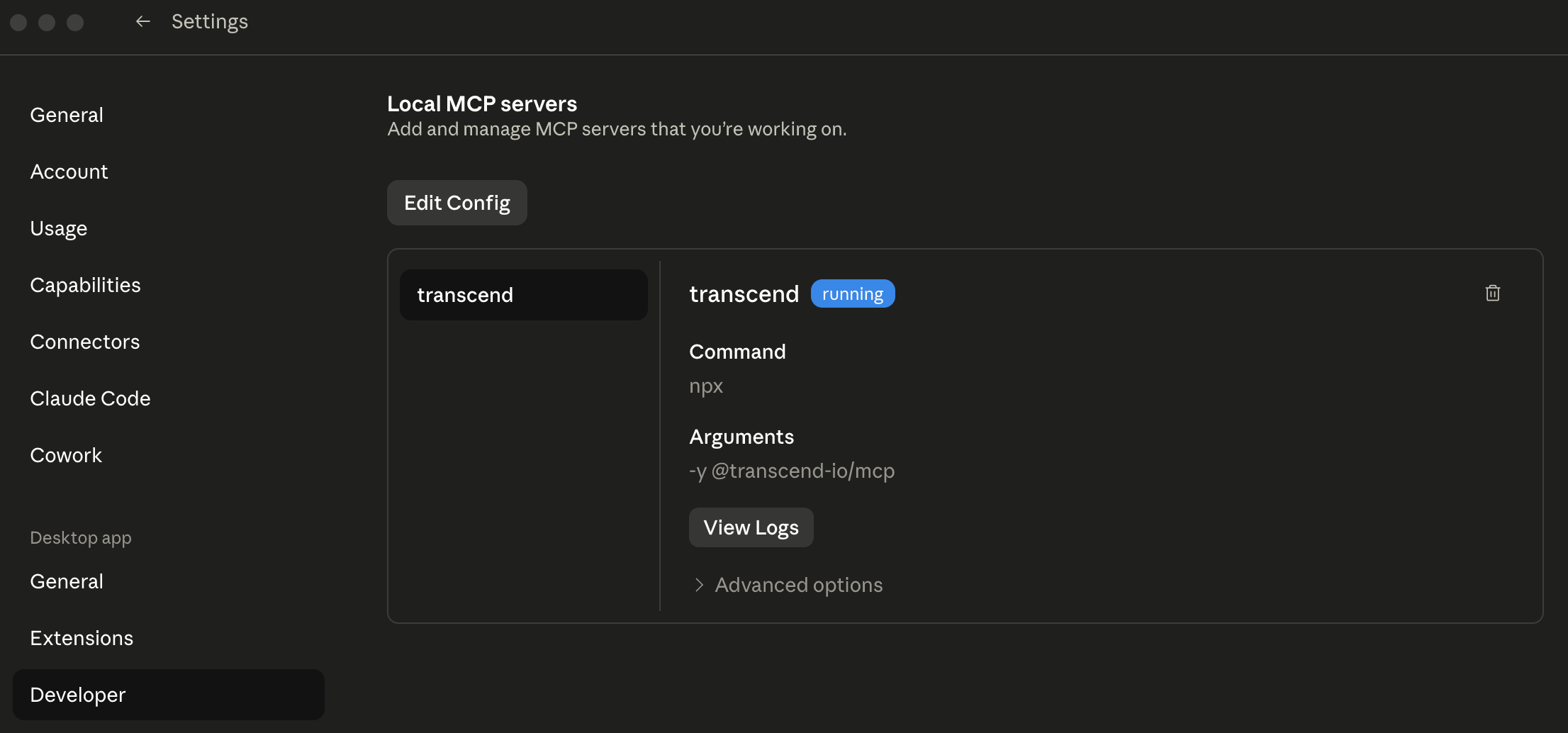
Your config should show a successful run when ready. You must fully quit Claud Desktop and re-open in order to use the Transcend MCP.
Or using your favorite editor:
# macOS
open -a "TextEdit" ~/Library/Application\ Support/Claude/claude_desktop_config.json
If the file doesn't exist, create it with the contents below.
{
  "mcpServers": {
    "transcend": {
      "command": "npx",
      "args": ["-y", "@transcend-io/mcp"],
      "env": {
        "TRANSCEND_OAUTH_CLIENT_ID": "your-client-id",
        "TRANSCEND_OAUTH_CLIENT_SECRET": "your-client-secret",
        "TRANSCEND_OAUTH_REDIRECT_PORT": "your-client-redirect-port"
      }
    }
  }
}
Restart Claude Desktop
Fully quit (cmd+Q on Mac) and reopen. Confirm the connection in Settings → Developer — transcend should appear with 81 tools.