Customize Privacy Center Colors and Themes
Set brand colors and custom CSS styles for your Privacy Center on the Appearance page, then save and publish them.
Set your brand colors and custom CSS styles on the Privacy Center → Appearance page of the Admin Dashboard. Colors, fonts, and custom CSS styles make up the theme of your Privacy Center.
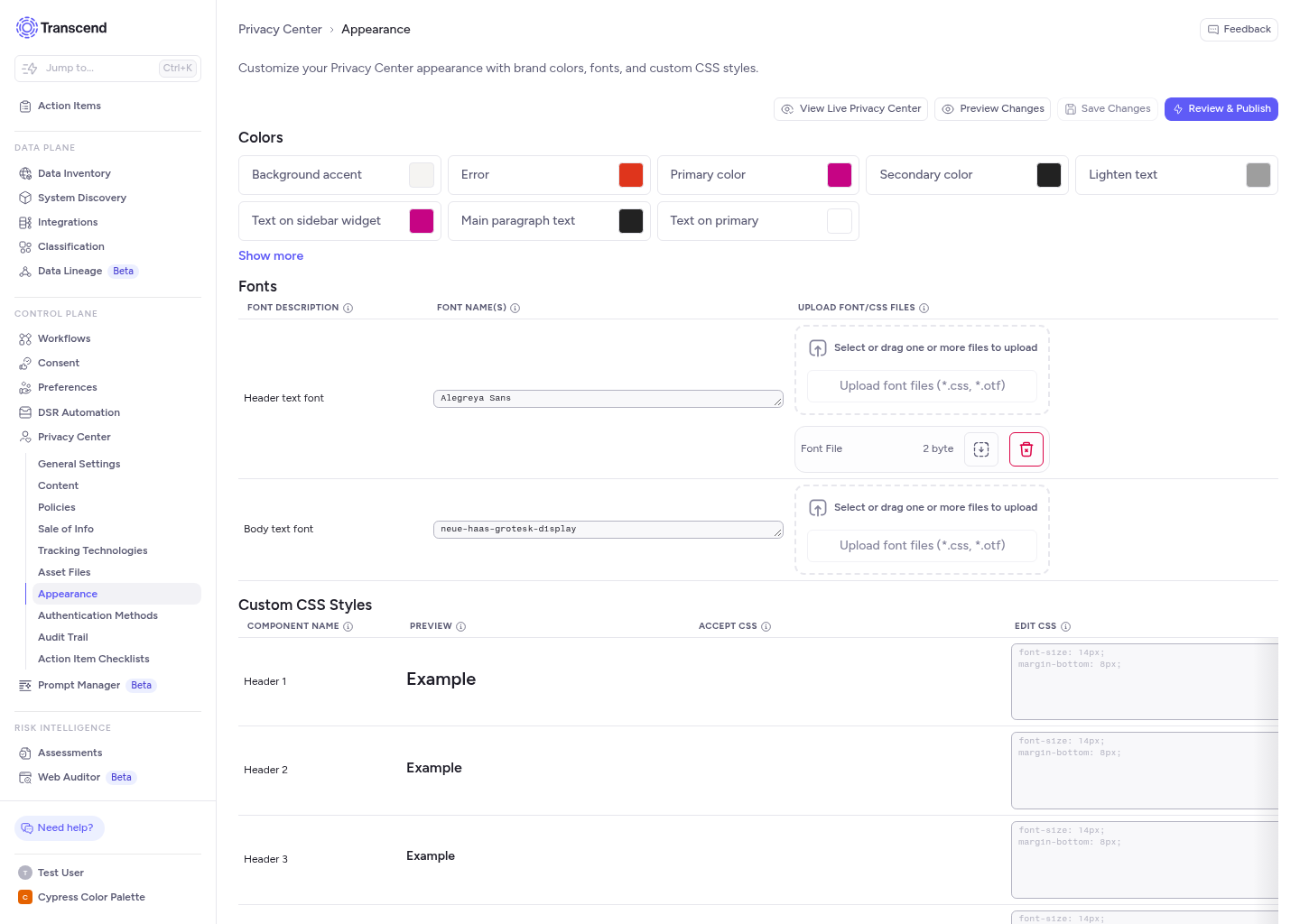
Step 1: Open the Appearance page
Go to Privacy Center → Appearance. The page has three sections: Colors, Fonts, and Custom CSS Styles.
Step 2: Set your colors
- In the Colors section, select the color to change, for example Primary color. A color picker opens.
- Pick the new color. Colors are solid. The picker has no transparency setting.
- Repeat for each color.
The Colors section shows the colors that are already set. Select Show more to see every color, and Show less to return to the short list.
A color that you have not set uses a default. Some defaults follow another color. For example, Hero color and Sidebar color follow Primary color. For what each color controls, see the Colors table.
When the About Transcend page is turned off for your organization, Text on sidebar widget and Widget color do not appear.
Check the contrast between each text color and its background. See Make Your Privacy Center Accessible.
Step 3: Add custom CSS styles
This step is optional. The Custom CSS Styles table has one row for each component that you can style, such as Header 1, Body text, Primary button, and Footer styling.
- In the Edit CSS column, enter CSS declarations for the component. For example, enter
border-radius: 10px;for Primary button. Each empty field shows an example. - Check the Preview column. It shows the component with your styles.
- Check the Accept CSS column. It lists the styles that Transcend parsed correctly and will apply to the Privacy Center.
Step 4: Set your fonts
To change the header and body fonts, see Uploading Custom Fonts to the Privacy Center.
Step 5: Save and publish
- Select Save Changes to store your edits in the draft. To remove edits that you have not saved, select Discard.
- Select Review & Publish to review your changes and publish them. See Saving and Publishing to the Privacy Center.
Related guides
- Configuring the Privacy Center: logos, images, and the table of colors.
- How Privacy Center Publishing Works