Make Your Privacy Center Accessible
Set color contrast, image alt text, and heading levels so your Privacy Center meets accessibility requirements.
Set colors, image alt text, and headings so your Privacy Center meets accessibility requirements. For the standards behind these settings, see Privacy Center Accessibility (WCAG).
Customization
The Privacy Center is accessible by default, but your organization must configure the following settings to meet full accessibility requirements. These settings are customizable because each organization has its own setup.
Colors
The visuals of text, specifically its color against the background, are required to have a minimum contrast ratio to meet the WCAG Level AA criterion. Large text also has to have a minimum contrast ratio, albeit a lower one because of its increased size. When customizing your brand colors, be mindful of where they are used with respect to one another so that your resulting Privacy Center stays compliant.
Use the WebAIM contrast checker to check the contrast ratio between two colors and whether the WCAG Level AA requirement is met. Set colors in the Admin Dashboard under Privacy Center → Appearance. For the steps, see Customize Privacy Center Colors and Themes.
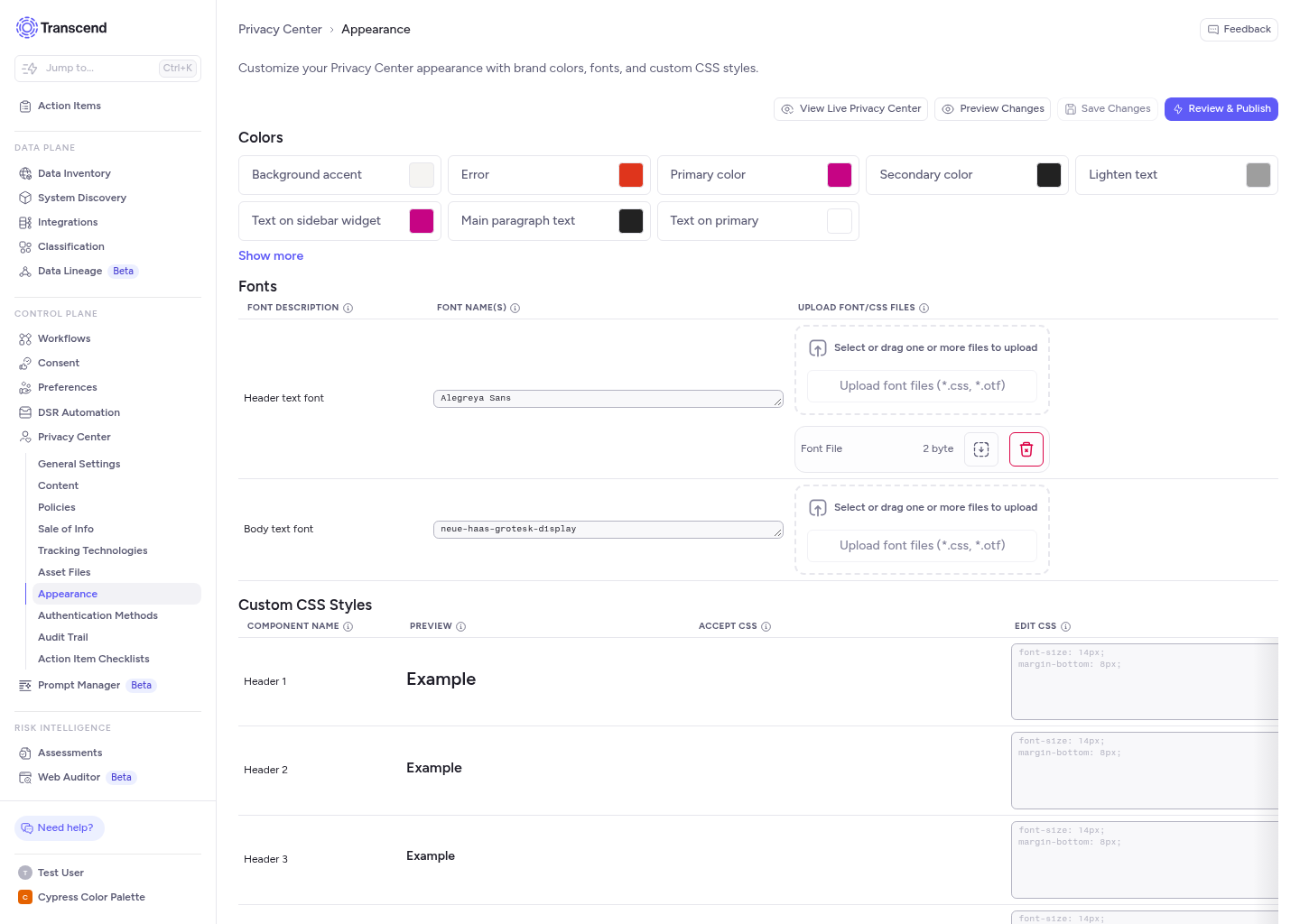
Image Alt Texts
The alt text attribute of an image is the alternative text description of that image. This is important in scenarios such as non-visual browsers (used by those with visual impairments), or whenever an image fails to load. When an image fails to render, the browser displays a broken image icon and the alt text. Screen reader software also reads the alt text aloud, so write a meaningful caption that accurately describes each image. Omit the alt text only if the media is purely decorative and not a key part of the content.
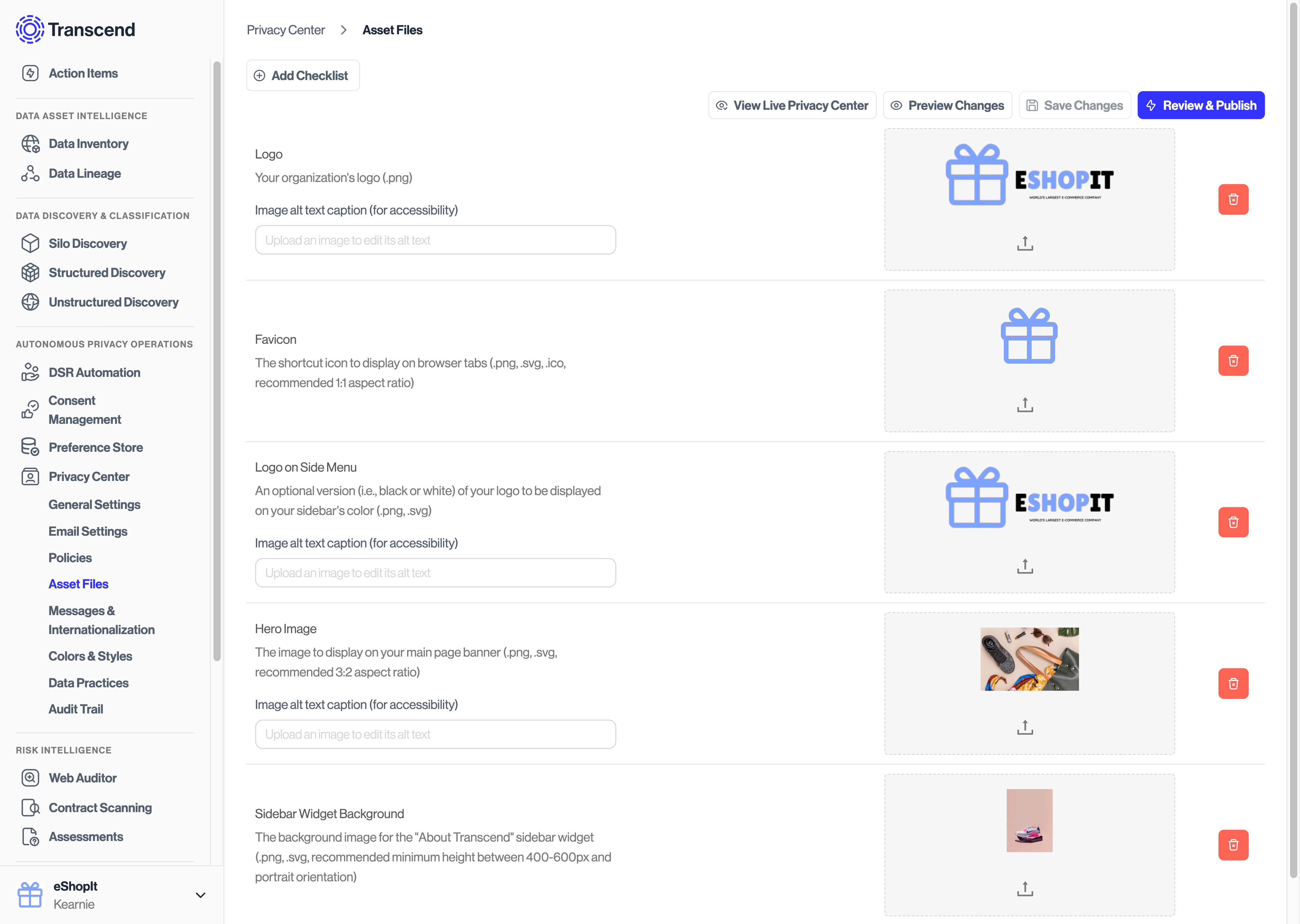
Customize the alt texts of your images in the Admin Dashboard under Privacy Center → Asset Files. An Image alt text caption (for accessibility) input is available for each media asset that requires one.
HTML Section Headings
The section heading elements of the text on your webpage should follow proper hierarchical order, with <h1> being the highest section level and <h6> the lowest. Assistive technologies use heading information to describe the structure of displayed contents, so follow these rules:
- Avoid skipping header levels: start from
<h1>, followed by<h2>, and so on - Use only one
<h1>per page or view
These practices support screen reader users, who often jump through headings to determine the contents of a page. For more information about heading usage, see the MDN heading accessibility guidance.
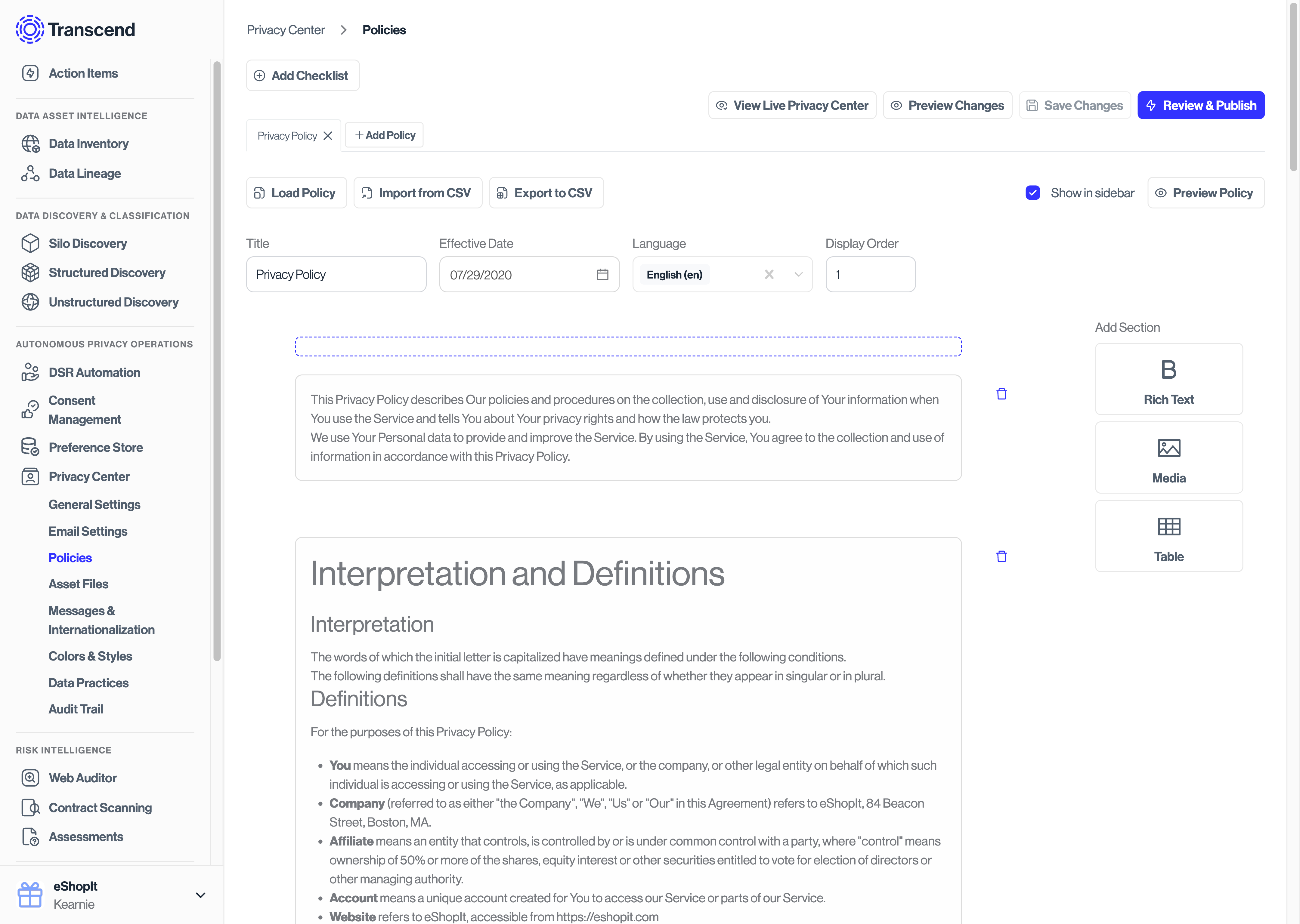
Enter your organization’s privacy policy in the Admin Dashboard under Privacy Center → Policies. Type or paste directly in the editor. To change text to a heading, select the text and click Heading 1, Heading 2, or Heading 3 in the editor toolbar.