Translate Your Privacy Center
Choose the languages for your Privacy Center, then translate its messages, email templates, and privacy policies.
Choose the languages for your Privacy Center, then translate its messages and privacy policies. For how content and translations work, and for the list of supported languages, see Privacy Center Internationalization.
Step 1: Set up multiple locales
First, decide which locales the Privacy Center should be available in and set this configuration in Transcend.
Select the locales to support under Privacy Center → General Settings, in the Supported Languages input. Select the Default Language from its dropdown.
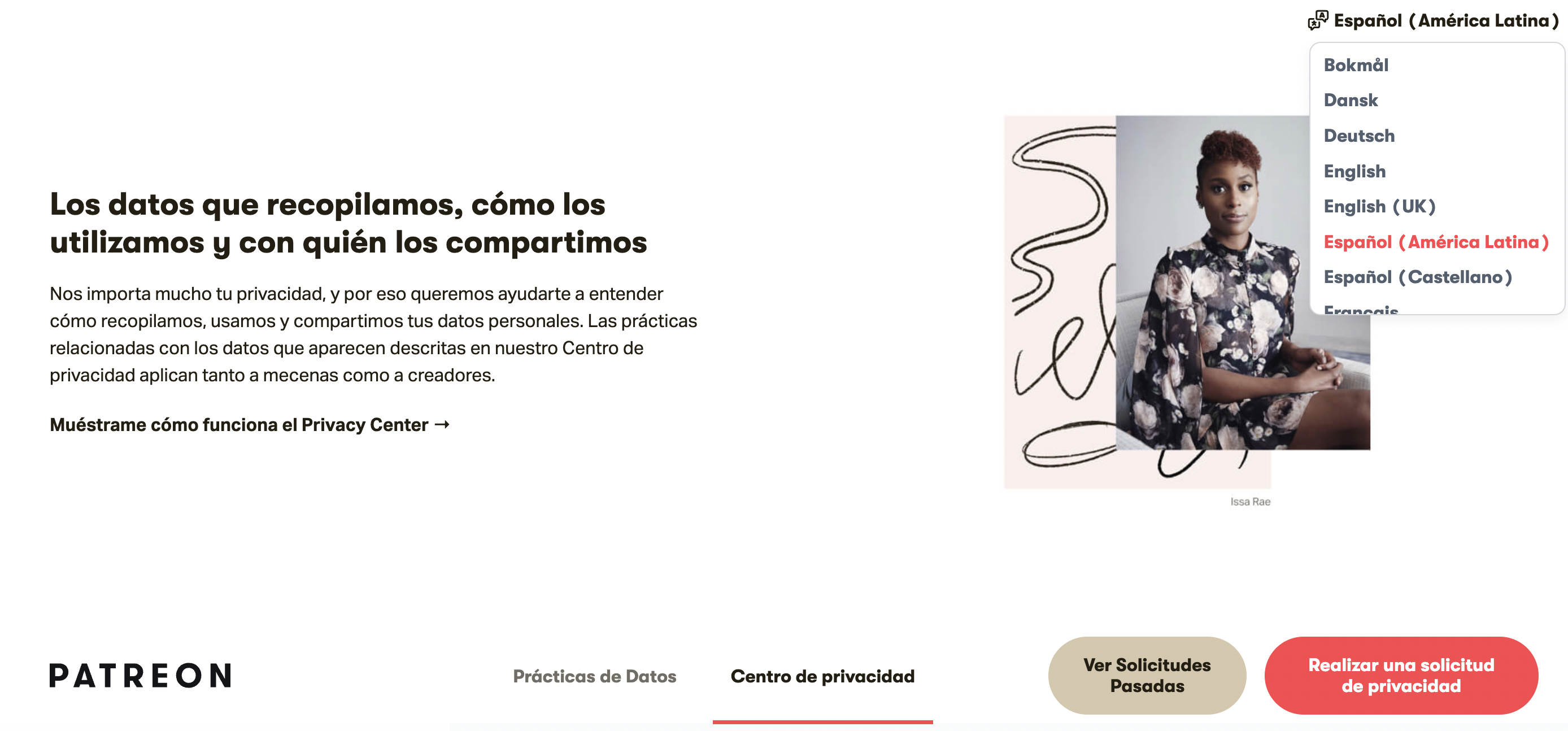
When multiple locales are available, the Privacy Center displays a language dropdown in the footer, where the user can select their language.
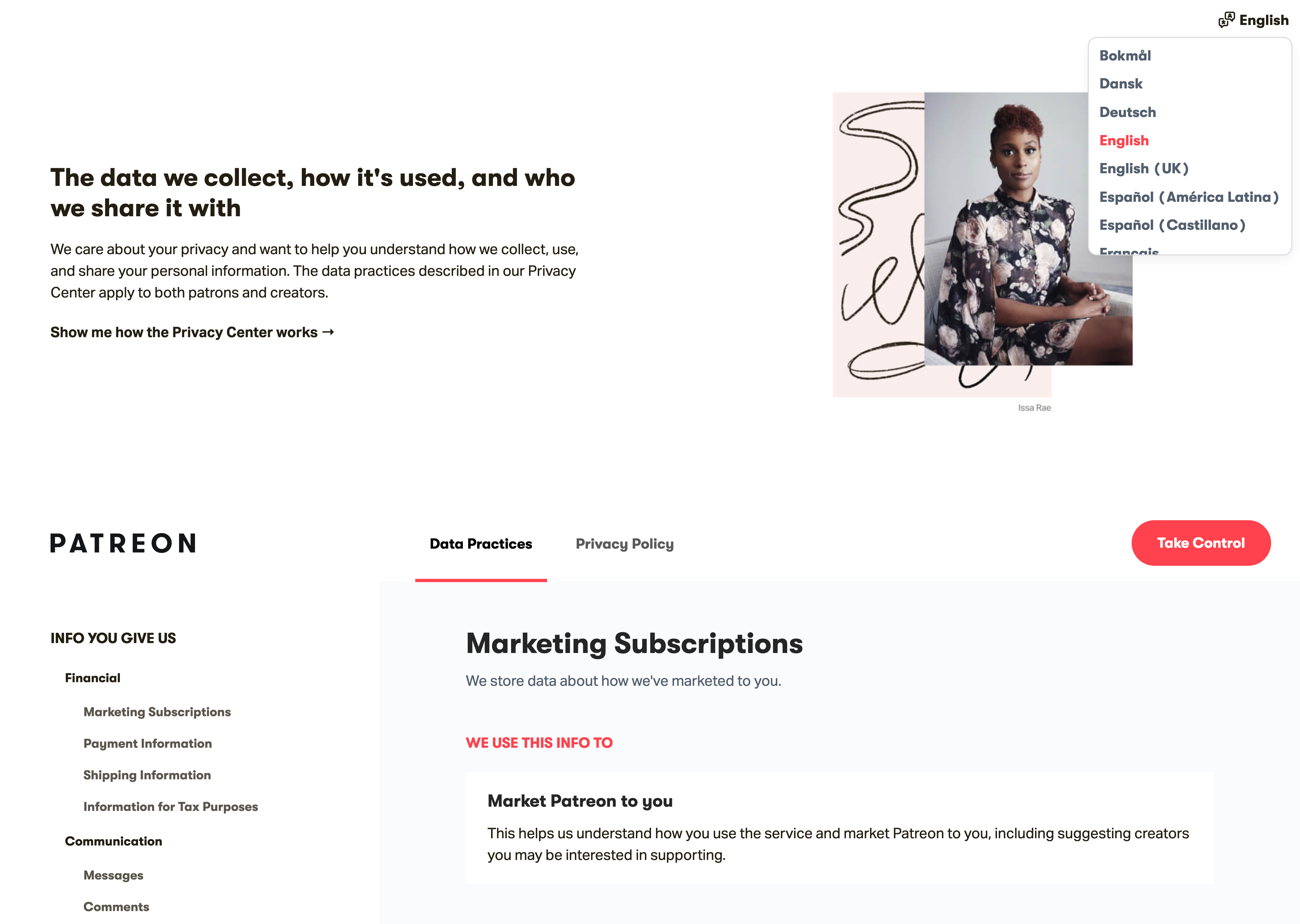
To automatically display the Privacy Center in a user's browser language, enable the Prefer Browser Default Language? setting in General Settings. When enabled, the Privacy Center loads in the language set by the user's browser. It falls back to your configured default language if the browser language cannot be determined. The user's browser language must also be one of the Supported Languages, as defined above. When disabled, the Privacy Center always loads in your configured default language regardless of the user's browser settings.
Step 2: Translate messages and other text
Transcend provides translations for the text content in the Privacy Center and email templates. When a user views the Privacy Center in one of your supported languages, Transcend automatically translates text to that language without any additional configuration.
Transcend automatically provides translations for default system messages and email templates. You can override any of them with your own translations. Transcend does not automatically translate custom or legal content you create (policies, disclosures, etc.). You must provide those translations.
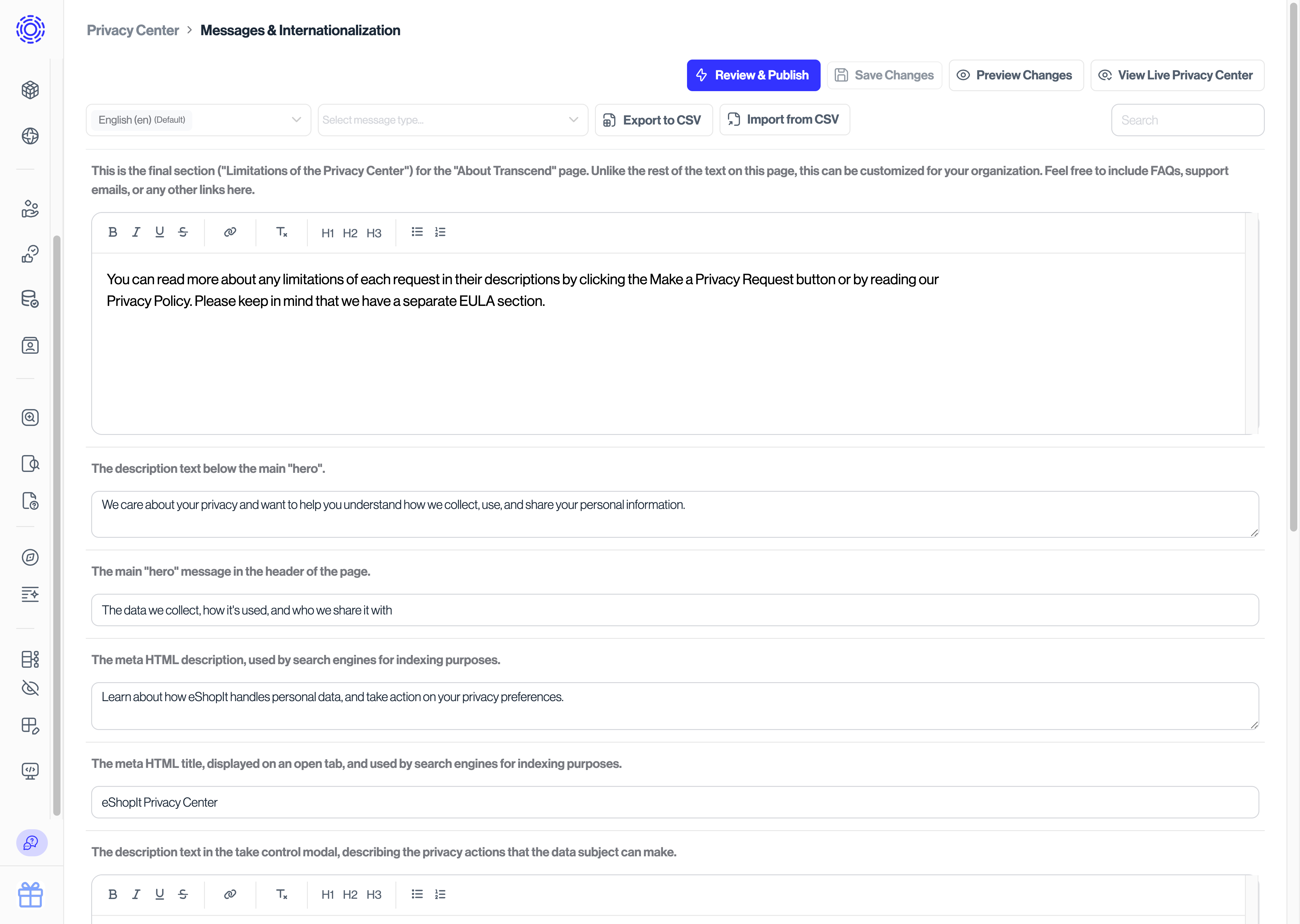
Edit these messages under Privacy Center → Content. Type each translation into the input for its caption. You can also import and export all the messages that appear on the Privacy Center or on email templates.
Step 3: Translate privacy policies
Transcend does not auto-translate privacy policies, because they are legal documents and exact wording is important. Your organization is responsible for providing each translation of the documents in the languages for the selected locales.
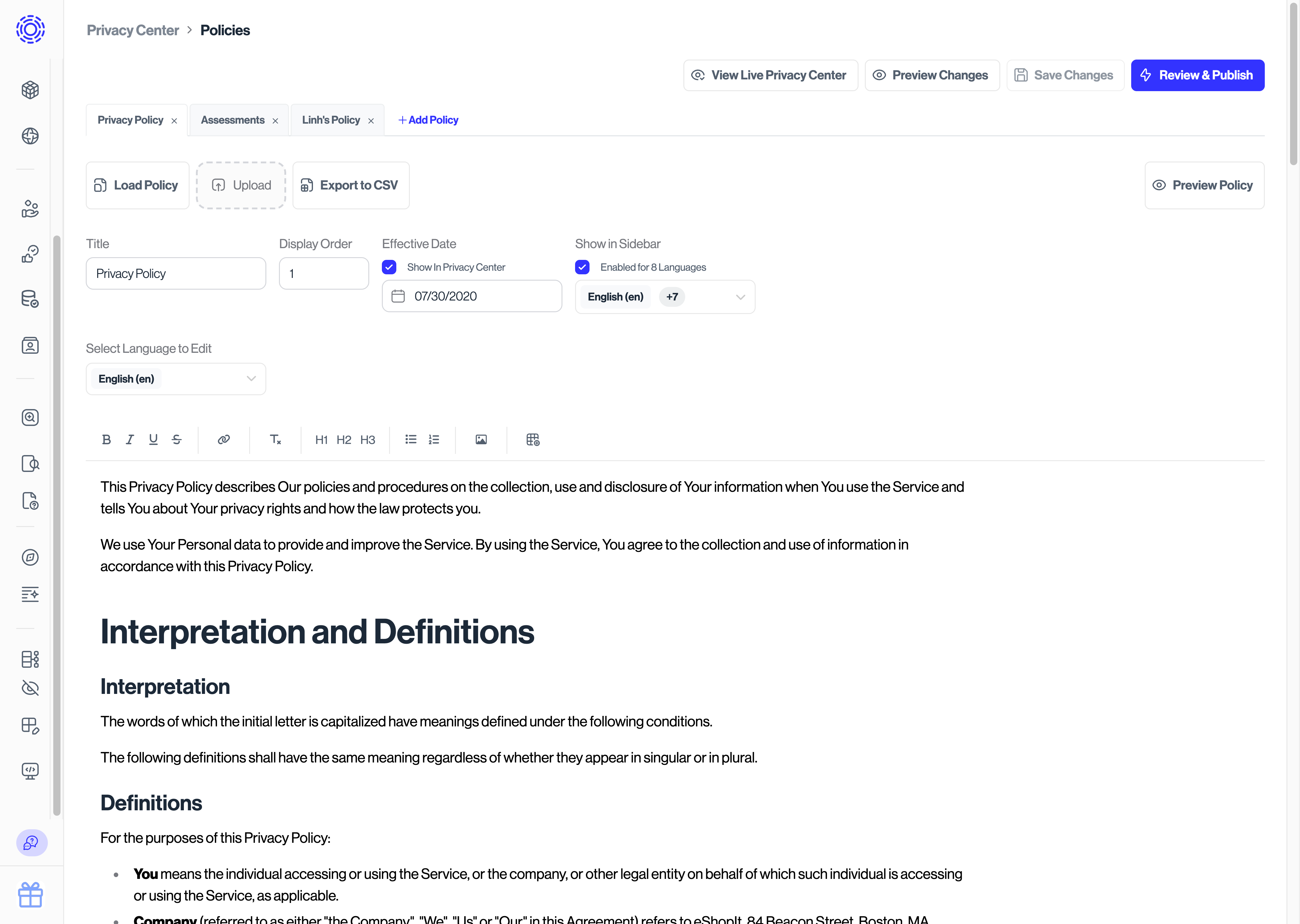
To add a translation for your privacy and legal policies, go to Privacy Center → Policies and open the Select Language to Edit dropdown. Any Supported Languages set in General Settings are available in this dropdown. Select a language from the dropdown to add a translated version of your policy.
Step 4: Publish your changes
Languages, messages, and policies go live after you publish. See Saving and Publishing to the Privacy Center.