Microsoft Entra ID SSO Configuration Guide
Ensure you have read the SSO Setup Overview article to ensure you have configured the baseline and prepared for your IDP SSO connection.
- Navigate to Microsoft Entra ID (formerly Azure Active Directory) and select Enterprise Applications from the menu.
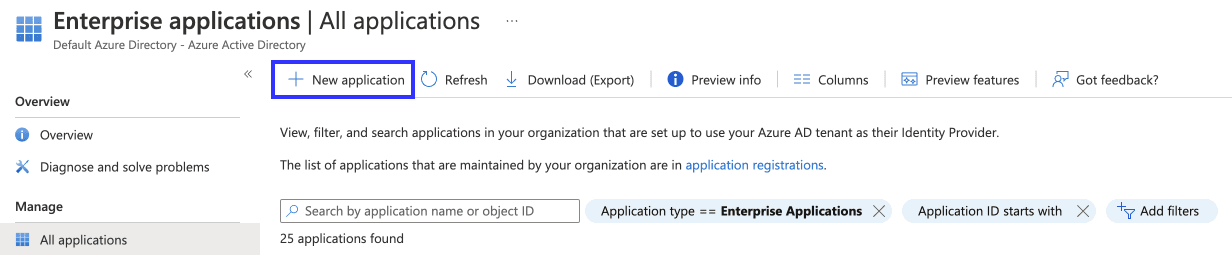
- Select the option to Add a New Application
- Choose Create your own application.
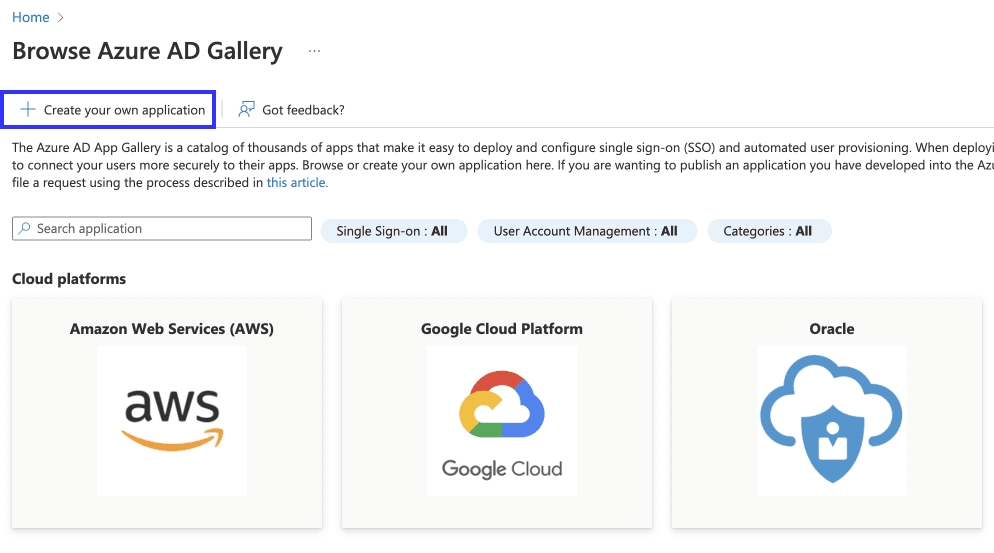
- Add a name to help you remember the application (ex:
transcend-sso). - Select Set up Single sign-on and choose
SAMLas the SSO mode.

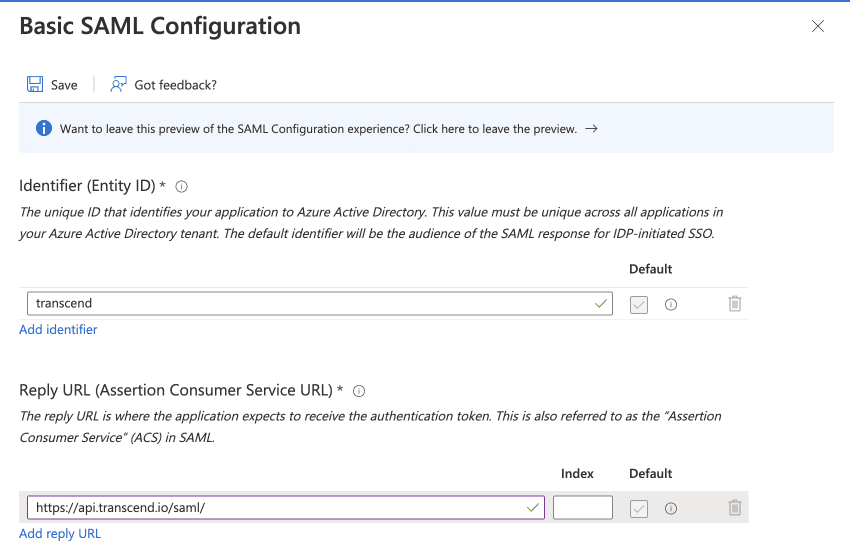
- In the Basic SAML Configuration Settings, enter the following information:
- Identifier (Entity ID):
transcend. Note - this must be an exact match, Transcend is looking for this string. - Reply URL (Assertion Consumer Service URL):
https://api.transcend.io/samlfor the EU backend, orhttps://api.us.transcend.io/samlfor the US backend - Sign on URL :
https://app.transcend.io/login - Relay State (Optional): leave empty
- Logout URL (Optional): leave empty
- Identifier (Entity ID):
- In the Attributes & Claims, create the following claims:
- firstName:
user.givenname - lastName:
user.surname - title
(optional):For job-title–based team mapping, add a claim whose outgoing name istitlewith sourceuser.jobtitle. Microsoft’s defaultjobtitleattribute name alone does not populate Transcend’s title field unless the SAML attribute name is exactlytitle. Similarly usedepartmentwith sourceuser.departmentif you map by department.
- firstName:
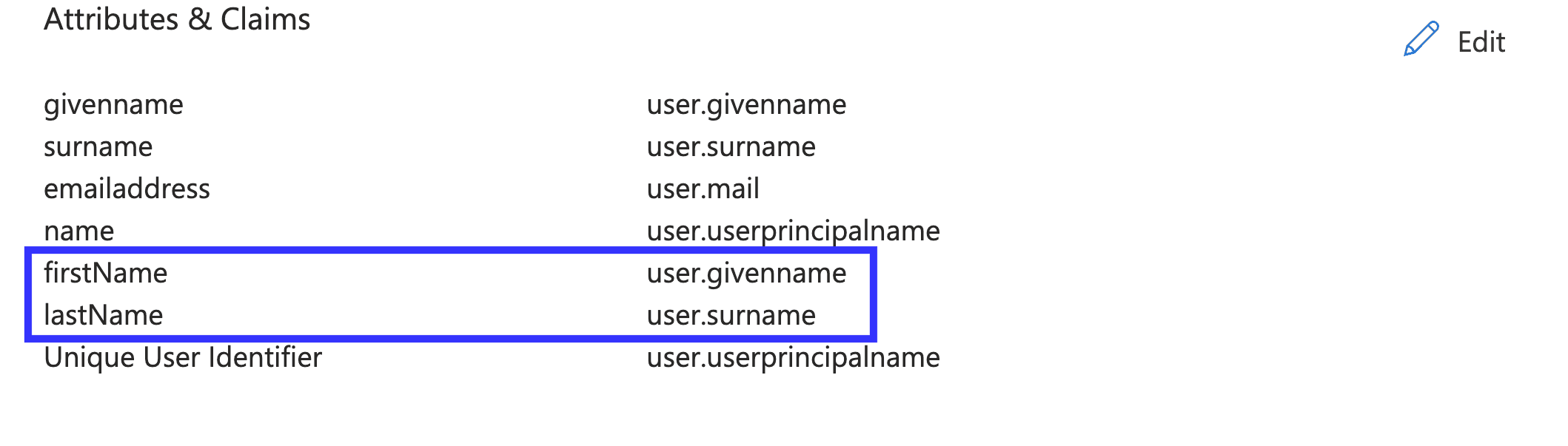
Transcend uses these claims to set names for users. Without them, users will be created with blank names.
Once the Transcend application is set up in Entra ID, obtain the credentials and certificate to enter in the Transcend Admin Dashboard SSO settings.
- In Transcend SSO Settings, enter
transcendfor Identity Provider Issuer. The value entered here must matchtranscendexactly. - Under the SAML Certificates section, download the X.509 Certificate by selecting the download option for Certificate (Base64). Copy this value to Transcend.
- Copy the login URL from Entra ID into Transcend. It should look similar to
https://login.microsoftonline.com/{{uuid}}/saml2.
Configure the groups and users who should have access to Transcend in Entra ID by navigating to the newly created Transcend app and selecting Users & Groups. Note that it may be worth creating a new group of users who should have access to Transcend. To configure SSO-based team assignment using groups, titles, or departments, see Adding, Revoking, & Auto-Provisioning Access.
Customers often expect to type the Entra ID group’s friendly display name into Transcend. With Source attribute set to Group ID, Microsoft sends each group’s immutable object ID in the SAML assertion. Paste that object ID into Transcend Group names so the strings match exactly. Assigning groups to the enterprise application for the “groups assigned to the application” scope requires Microsoft Entra ID P1 or P2; other scopes (such as security groups) work on lower SKUs but can produce larger tokens—use a dedicated test group or filters when possible.
When Microsoft rotates the SAML token signing certificate in Entra ID, download the new Certificate (Base64) and update the IdP certificate in Transcend SSO settings; an expired or mismatched certificate surfaces as a generic error at the SAML callback.
groups(optional): For Entra ID Group claims, add a group claim. Choose which groups to include (for example Security groups). Set Source attribute toGroup IDso each membership is emitted as that group's Microsoft Entra ID object ID (a GUID). Turn on Customize the name of the group claim and set the claim Name togroups(namespace empty unless your tenant requires it). In Transcend, open Administration → Teams and set Group names to that same GUID (copy it from Entra ID → Groups → your group → Object ID). It will not match the group's display name in the Entra ID portal unless you choose a different source format and align the string exactly.