Assessment Actions
Recurring compliance reviews are date-bound obligations, and most teams still track them in a calendar or a spreadsheet. Rules Automation lets you set the cadence once and have Transcend send the assessment for you.
There are two action types available for Assessments in Rules Automation:
| Action | What it does | Use case examples |
|---|---|---|
| Send re-assessment | Resends an assessment that already exists, to the same reviewers, with previous answers pre-filled | The same vendor, supplier, processing activity, etc. is reviewed on a repeating cycle and last cycle's answers are the starting point |
| Send new assessment | Creates a fresh assessment from a Published template and sends it to respondents you choose | Each cycle should start clean, or the recipients change from run to run |
Both actions may be triggered by either trigger type, schedule (Cron) or inbound webhook. A rule has one action, so one rule sends one assessment.
Rules Automation and Assessment Triggers are distinct tools.
- Assessment Triggers: Built directly into an assessment template. Use these when a specific response to an assessment question should automatically launch a new assessment.
- Rules Automation: A standalone tool for broader workflows. Use this when cross-platform or external events need to trigger an action (which includes, but is not limited to, sending an assessment).
| Send Assessment (Rules Automation) | Assessment Triggers | |
|---|---|---|
| Fires on | A schedule, or an inbound webhook | How a respondent Answers a question in a another assessment |
| Configured in | Developer Tools → Rules Automation | Assessment Template Builder |
| Example use cases | Annual vendor review, 45-day supplier cycle, quarterly RoPA refresh | Risk escalation, conditional vendor onboarding, internal routing |
- Rules Automation: Use for actions driven by time or external events.
- Assessment Triggers: Use for actions driven by specific responses in an assessment.
Note: These features work together. An assessment launched by a rule will still honor its template triggers.
Trigger an already assigned or approved assessment.
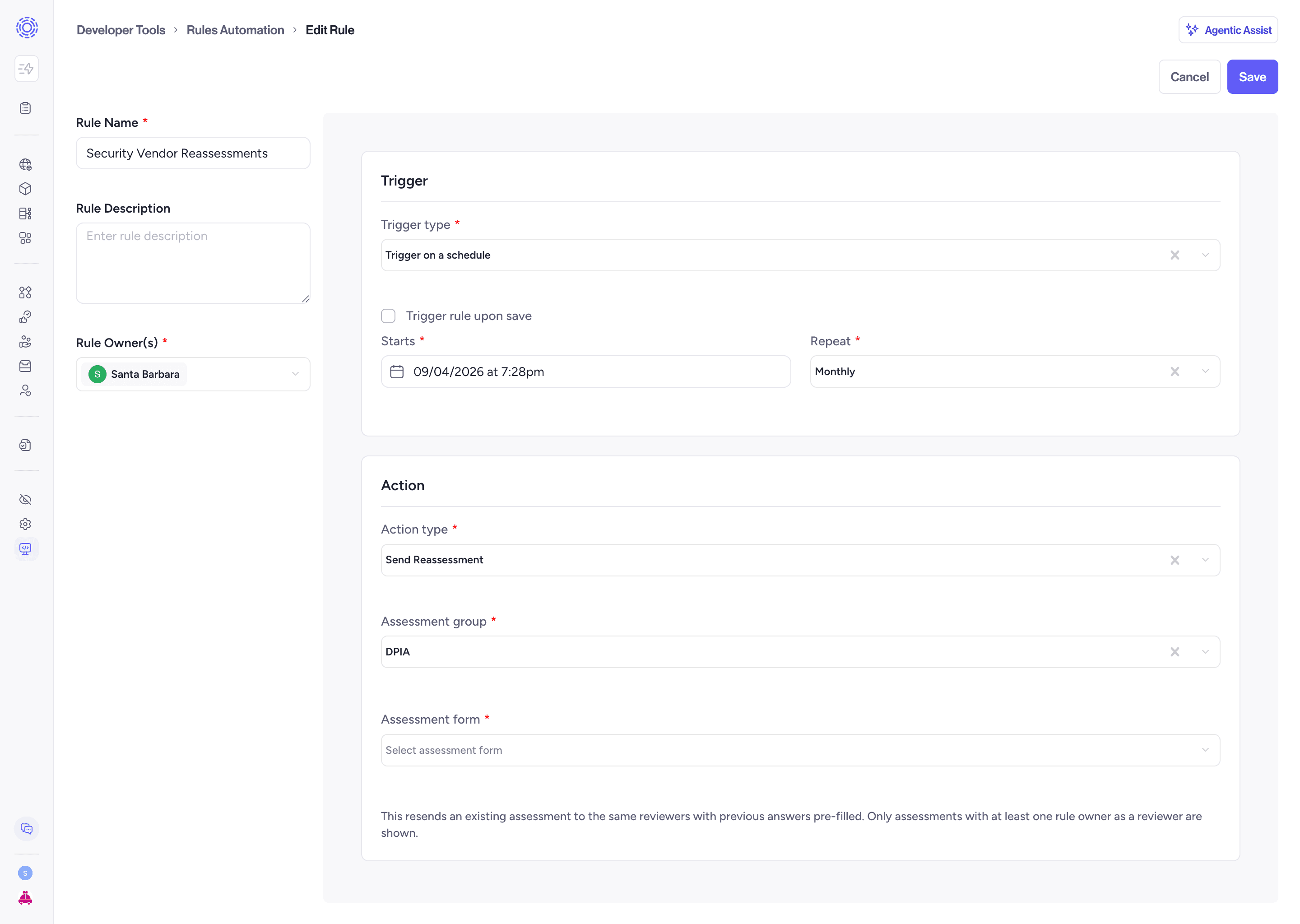
| Status when the rule fires | What happens | Outcome shown in History |
|---|---|---|
| Pending, In Progress | Resends the invite to eligible assignees. Nothing is reset. | Invite resent |
| In Review, Changes Requested, Approved, Rejected | Reopens the existing assessment, the same behavior as Request re-assessment in the Assessments UI. Previous answers are pre-filled. No new assessment record is created. | Reassessment requested |
The assessment has to have been sent at least once before a rule can act on it. If you want a clean instance from a template every cycle, use Send new assessment below.
- The assessment must already exist.
- At least one rule owner must be a Reviewer of that assessment. The picker only lists assessments that pass this check, so if an assessment is missing from the dropdown, this is almost always why.
- Go to Developer Tools → Rules Automation → Rules and click + New Rule.
- Fill in Rule details: name, optional description, and one or more owners. Owners matter here, they determine which assessments you can select.
- Under Trigger, choose Trigger on a schedule (Cron), then set Starts and Repeat.
- Under Action, choose Send re-assessment.
- Select the Assessment.
- Save, then Activate.
| Field | Required | Notes |
|---|---|---|
| Assessment | Yes | The existing assessment to resend. It goes to the same reviewers with previous answers pre-filled. Only assessments where at least one rule owner is a Reviewer are shown. |
There is no respondent or reviewer field in this mode. That is deliberate, see below.
- The rule cannot override reviewers or respondents. Whoever is assigned on the assessment receives it. If you need different people, change the assignment on the assessment itself.
- Ownership is re-checked on every run, not just when you save. If reviewer membership changes and no rule owner is a Reviewer any more, the run fails rather than sending.
- To fix that, either add a current reviewer as an owner of the rule, or add an existing rule owner as a reviewer on the assessment.
Creates a new assessment from a Published template each time the rule fires and sends it to the respondents you specify. Every run produces a separate assessment, so you get a distinct record per cycle rather than one form that keeps reopening.
- The template must be Published. Draft templates do not appear in the picker.
- Decide who the respondents are. They can be Transcend users or external people invited by email.
- Go to Developer Tools → Rules Automation → Rules and click + New Rule.
- Fill in Rule details: name, optional description, and one or more owners.
- Under Action, choose Send new assessment.
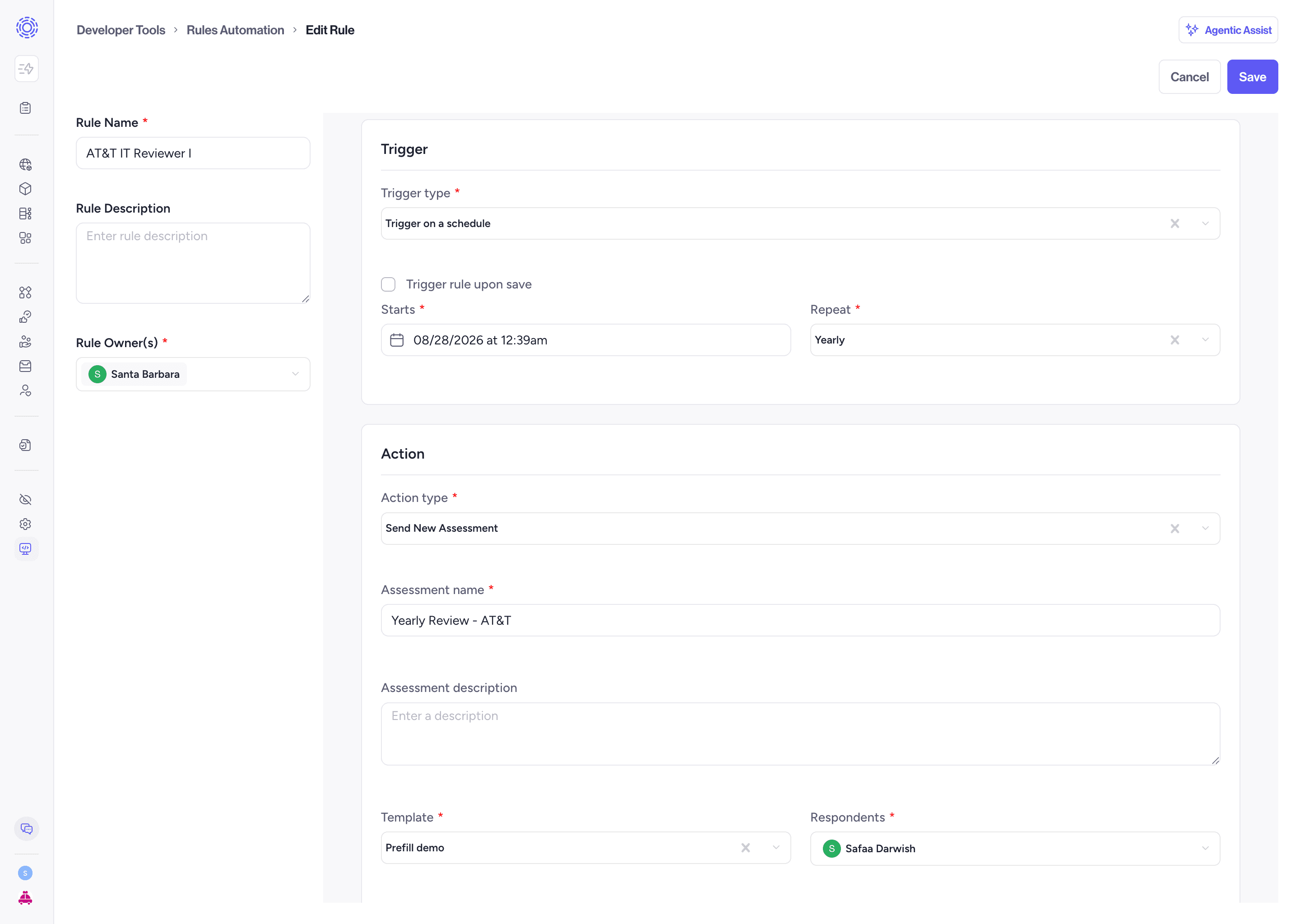
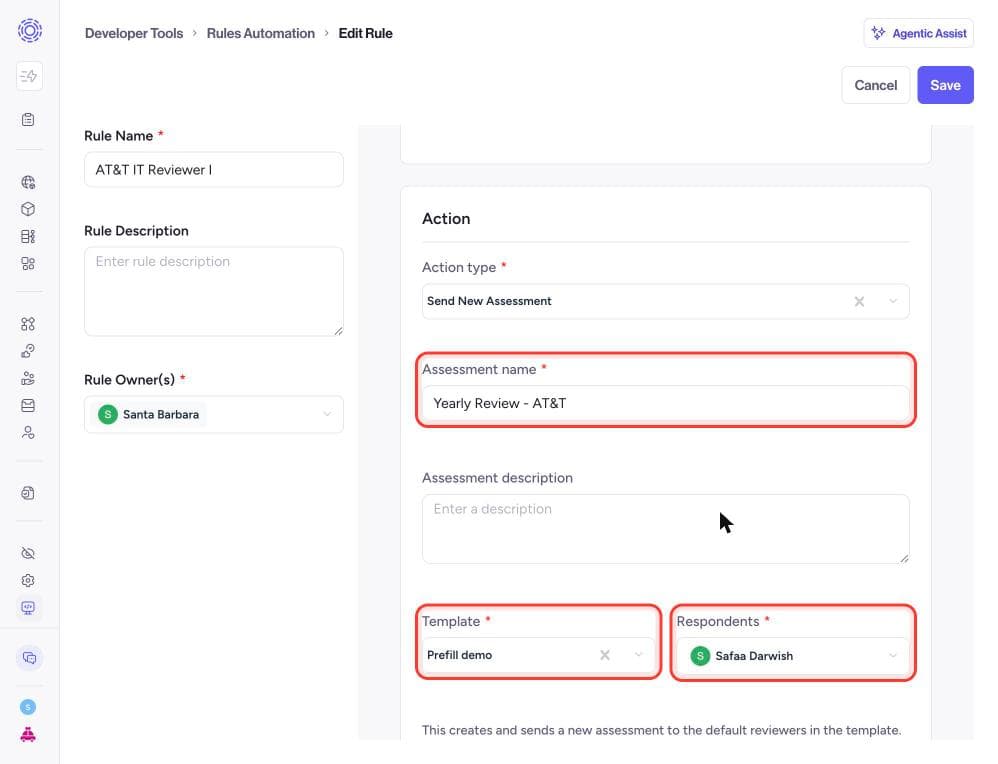
Fill in the fields below, then click save:
| Field | Required | Notes |
|---|---|---|
| Assessment name | Yes | Title for the assessment that gets created |
| Template | Yes | Must be a Published assessment form template |
| Respondents | Yes | One or more users, with or without a seat in Transcend. For someone without a seat, enter their email address |
Activate your rule to kickoff cadence:
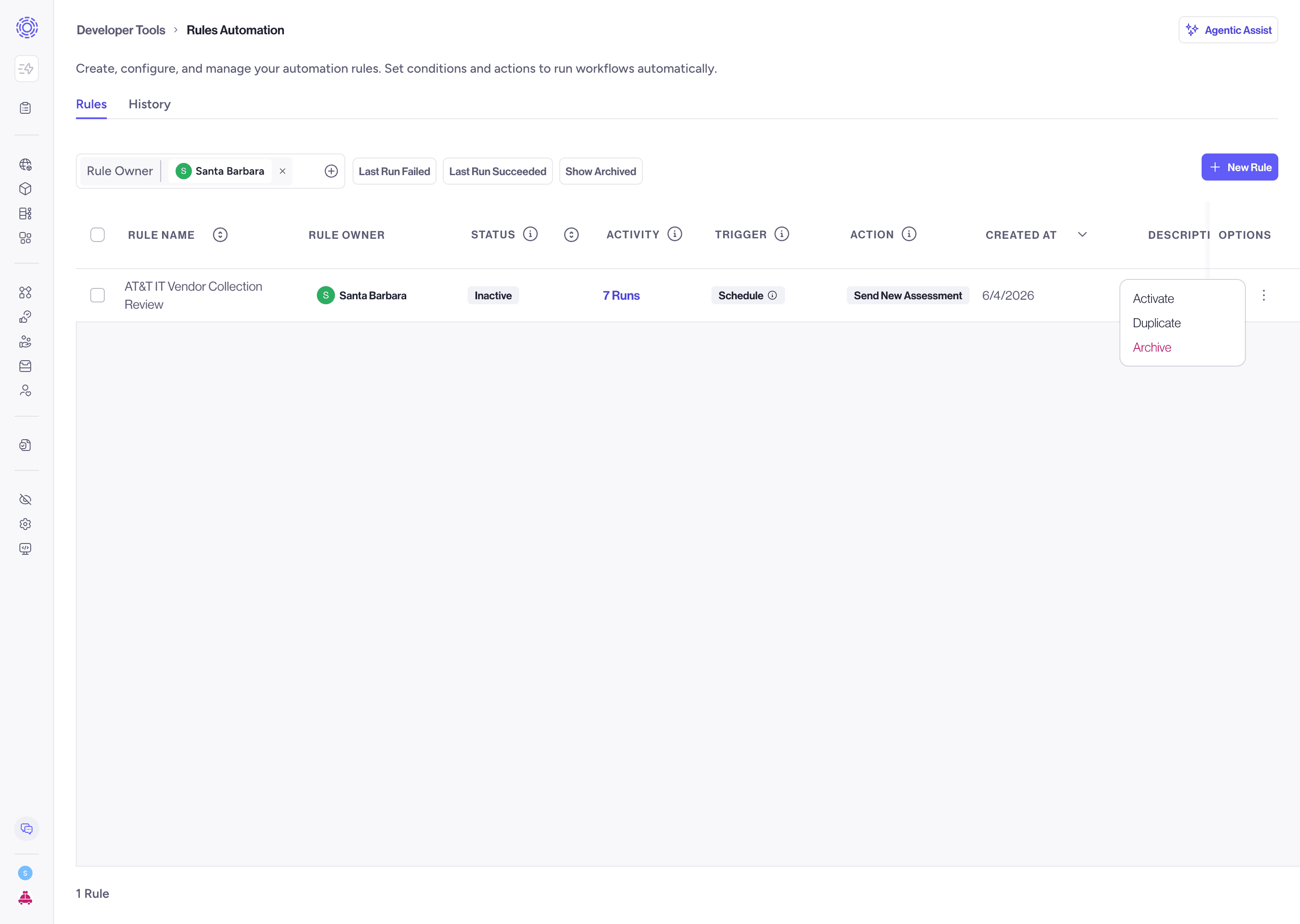
- Section-level respondents. A rule assigns respondents at the form level only. If your template routes sections to different people, assign those inside Assessments.
- Reviewers. The assessment uses the default reviewers configured on the assessment group. See Reviewing Assessments for how to set a default reviewer.
| Obligation | Mode | Repeat setting |
|---|---|---|
| Annual vendor re-assessment | Send re-assessment | Yearly, starting Jan 15 |
| DORA Tier 2 supplier review | Send re-assessment | Custom, every 45 days |
| SOC 2 access recertification | Send new assessment | Custom, every 90 days |
| Processing activity review (RoPA) | Send re-assessment | Yearly |
For obligations with a fixed interval, use Custom with a day count rather than Monthly or Yearly. A quarter ranges from 89 to 92 days, so "every 90 days" and "quarterly" drift apart over time.
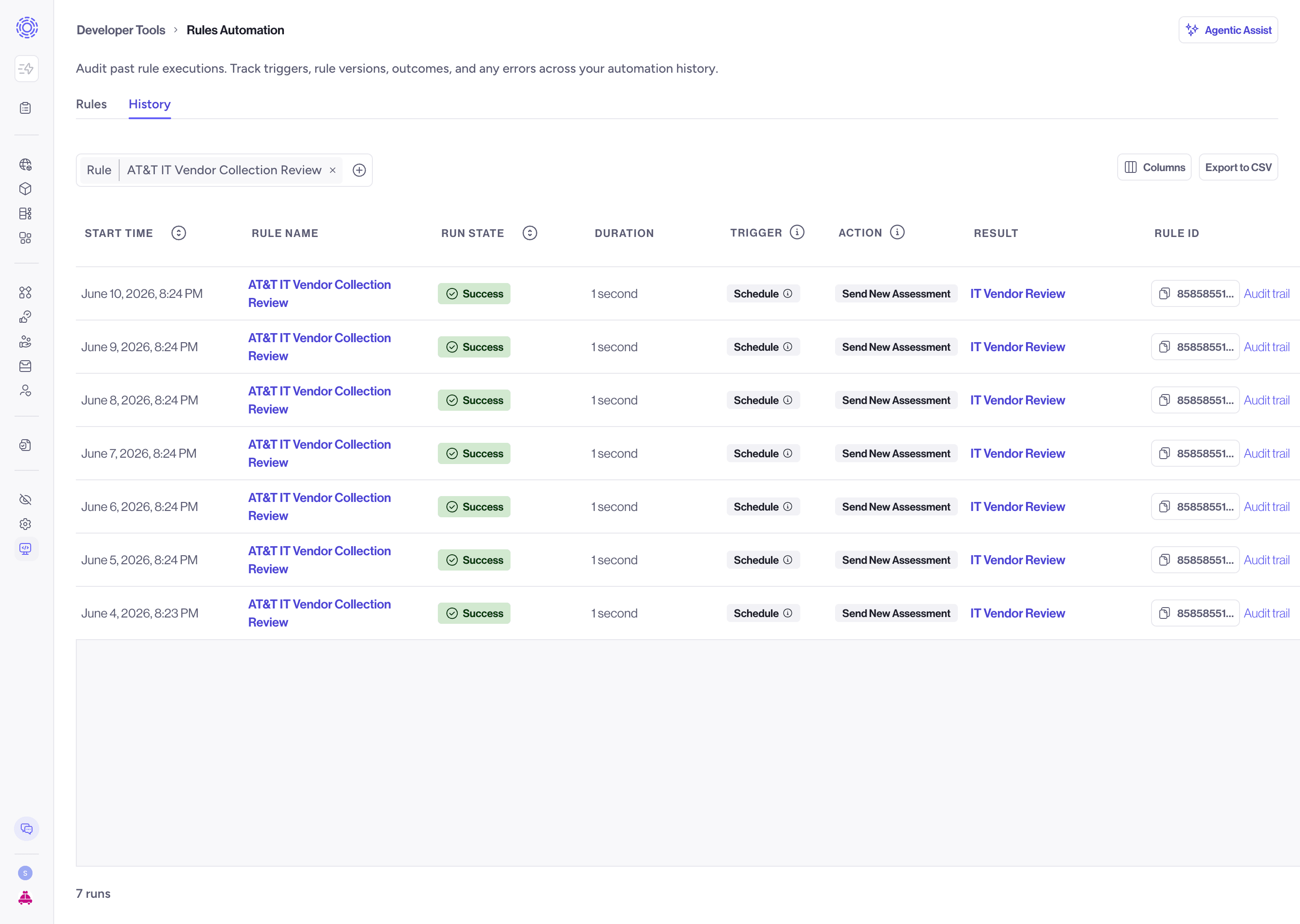
The History tab lists every run of every rule: the rule name, start time, duration, and the outcome (created, invite resent, reassessment requested, or a failure with its error). Each run links to the audit trail for that execution.
| Symptom | Cause | Fix |
|---|---|---|
| The assessment is not in the re-assessment dropdown | No rule owner is a Reviewer of it | Add a reviewer as a rule owner, or add a rule owner as a reviewer on the assessment |
| The template is not in the new-assessment dropdown | The template is not Published | Publish it, or pick a published one |
| Run failed with a reviewer error | Reviewer membership changed after the rule was saved | Same fix as the first row, then re-run |
| Run failed and did not retry | The target assessment was deleted, or its template was unpublished | Point the rule at a valid target. This failure is terminal by design |
| Nothing fired at the scheduled time | The rule is in Draft or Inactive | Activate it. Only Active rules run |
| Respondents got an invite instead of a re-assessment | The assessment was still Pending or In Progress | Expected. Nothing to fix |
A webhook fires when another system tells Transcend something happened e.g. a vendor's risk tier changed, a contract renewed, an employee's access was provisioned. The assessment action configuration is identical either way; only the trigger differs. For a comprehensive guide on configuring a Webhook Trigger, see Webhook User Guide.
- Sombra deployment: Webhook rules require a single-tenant Sombra. Multi-tenant instances do not support this feature.
- Permissions: Configuring these rules requires the Manage Rules scope.
- Sending system: The sending system must be able to store a URL and a signing secret.
- Create a rule as above, but under Trigger, choose Inbound Webhook.
- Set the authentication. HMAC is the only method currently supported. Provide a webhook signing secret, an HMAC algorithm, and the Signature header name your sender uses. Store the secret somewhere safe — Transcend won't show it again unless you explicitly unlock the field when editing.
- Choose your assessment action and fill it in exactly as you would for a scheduled rule.
- Save. The success dialog shows the webhook URL for this rule. Copy it into your sender's configuration.
- Activate the rule.
The request must be a POST with a JSON object or array body and a Content-Type of application/json. Your configured signature header carries the HMAC digest as lowercase hex. Default maximum body size is 1 MB.
A 200 means the request was accepted and queued, not that the assessment has been sent. The action runs asynchronously — check the History tab to confirm it actually completed.
Webhook ingestion only resolves Active rules. If the rule is in Draft, Inactive, or Archived, callers get
404 Webhook not foundrather than an error explaining why. A scheduled rule that isn't Active simply doesn't fire; a webhook rule that isn't Active actively rejects traffic.