Assessment Triggers
Assessment Triggers let you automatically launch follow-up assessments based on how respondents answer specific questions. Instead of manually reviewing every response and kicking off additional questionnaires, you can configure logic so that Transcend creates and assigns secondary assessments when certain conditions are met.
Common Use Cases
- Elevated Risk Escalation: Trigger an assessment, such as a PIA, when a threshold or vendor assessment flags risk factors that require further examination (for example, sensitive data or cross‑border transfers).
- Conditional Vendor Onboarding: Launch follow‑up vendor questionnaires (security review, DPIA, TIA, TIA) only when initial intake answers meet defined risk criteria.
- Internal Escalation: Route follow‑up assessments to internal teams (Procurement, Security, Legal, etc.) when a vendor’s responses require specialist review.
- External Third‑Party Assessments: Automatically send additional assessments directly to external vendors or processors, instead of manually coordinating via email.
This turns assessments into living workflows: initial answers automatically route risk to the right people, and you no longer need to manually track which follow-ups to send.
Assessment Triggers are configured at the template level and execute based on logic defined at the question or section level. Similar to visibility (Show & Hide) logic, triggers respond to specific inputs to automate subsequent actions.
- Automatically create follow-up assessments
When the trigger condition is met, Transcend automatically creates a secondary assessment from the target template and assigns it according to your configuration. - Chained assessments
Triggered assessments can themselves have triggers, allowing “chained” flows where one assessment can lead to a sequence of follow-ups. - Pre-filled follow-up forms
Answers from the triggering assessment can pre-fill matching questions in the triggered assessment, preserving context and reducing duplicate data entry.
- A primary template (for example, a threshold assessment)
- One or more secondary templates (for example, PIA, DPIA, TIA, or internal follow-up forms) to be triggered.
- You can only add or change Trigger logic while a template is in
- If a template is already Published, first unpublish (or save a new draft/duplicate), configure your Show & Hide logic, and then publish it again.
- If a template already has active assessments associated with it, you can’t unpublish or edit that template. Create a new template (or duplicate the existing one), update it there, and use the new version for future assessments.
- Multiple triggers per template
- A single template can have multiple trigger rules, each targeting a different secondary template or set of conditions.
- Target templates in use by triggers
- Templates used as targets for triggers are treated as immutably referenced while in use. You cannot delete a template that is the target of an active trigger configuration; you’ll need to remove or update the trigger first.
Assessment Triggers are defined in the template builder, under Assessment Triggers
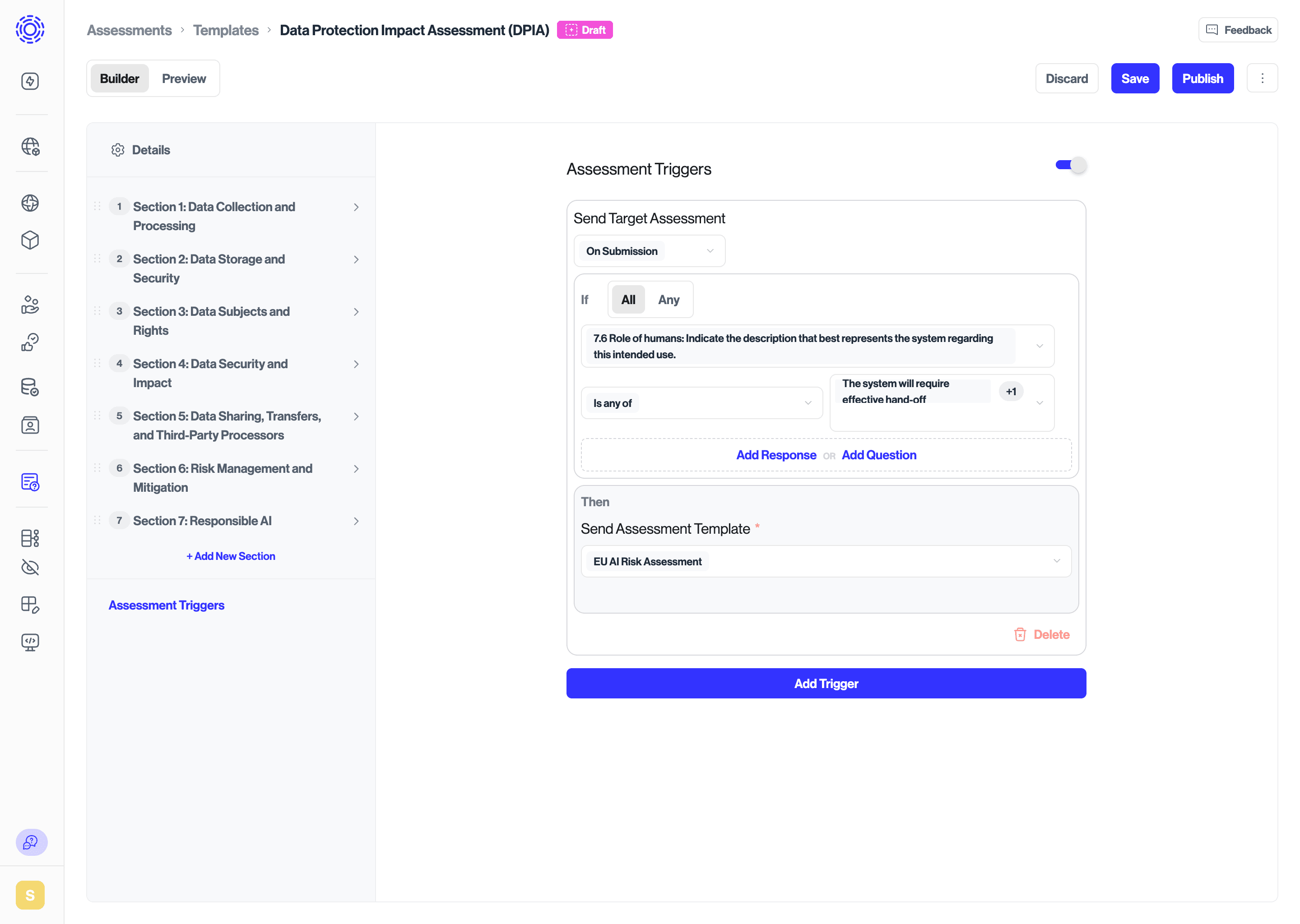
1. Open the primary template
- Go to Assessments → Templates and open the template that should act as the triggering assessment.
2. Open trigger configuration
- Below the assessment's sections, click Assessment Triggers
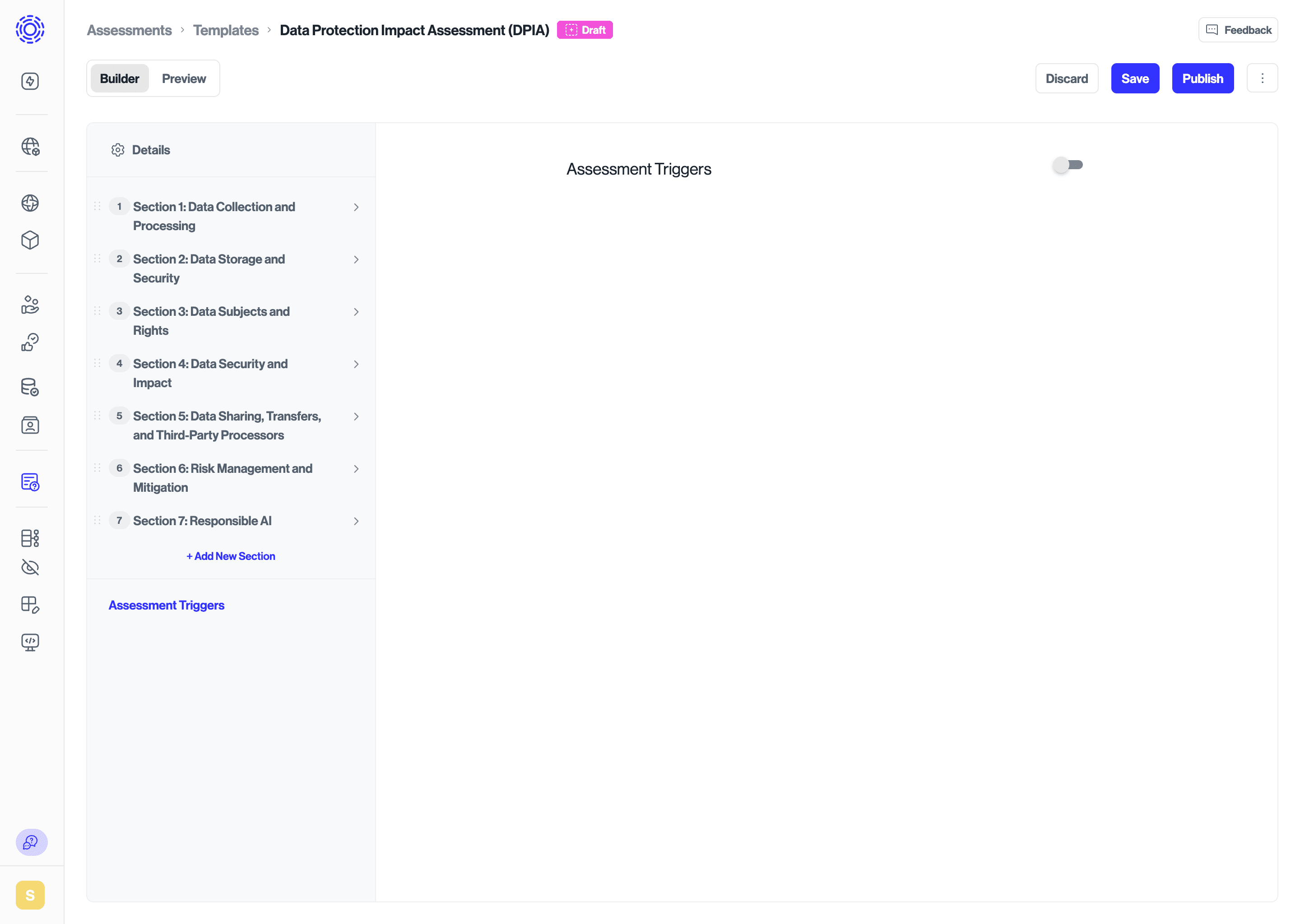
3. Define the trigger condition
Toggle Assessments to ON. Choose the event that should cause the trigger to run:
- On submission – triggers when the respondent submits the assessment, regardless of review decision.
- On approval – triggers only after a reviewer approves the response.
4. Define the logic across one or more questions, for example:
- If “Role of humans: Indicate the description that best represents the system regarding this intended use.?” is
Is any of
“The system will support effective hand-off”, "People will make decisions based on output" then Trigger the EU AI Risk Assessment template.
- You can configure multiple triggers on the same question to kick off different follow-ups based on different combinations of responses. You do this by clicking the
Add Triggerbutton on a single question. For example, add another trigger such as:- “Role of humans: Indicate the description that best represents the system regarding this intended use.?” is
Is any ofthe responses to the question, then Trigger the Records of Processing Activities (RoPa) template.
- “Role of humans: Indicate the description that best represents the system regarding this intended use.?” is
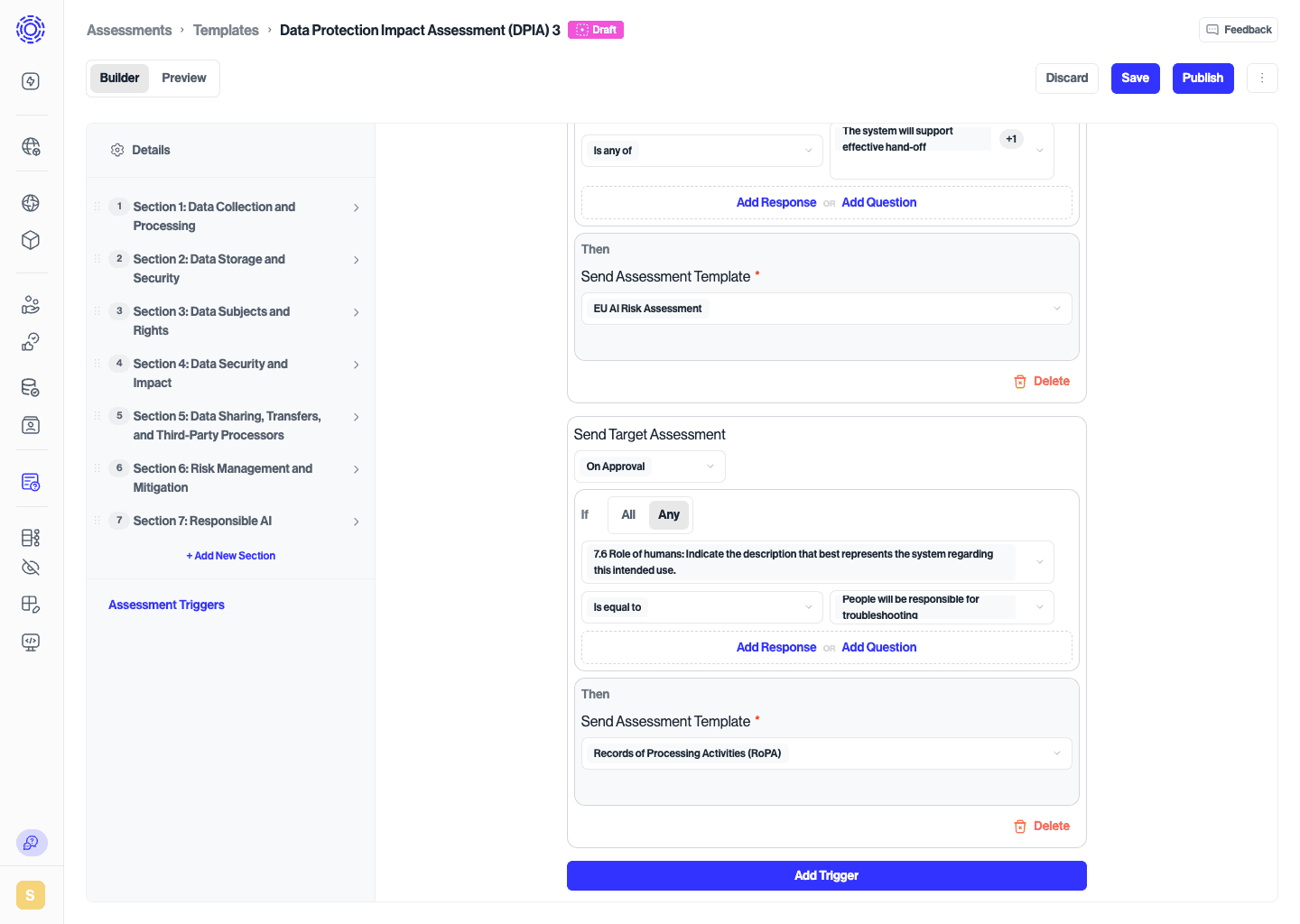
- You can also configure multiple triggers on the same template to kick off different follow-ups based on different combinations of answers by clicking the Add Trigger button on a single question.
When a trigger fires, answers from the source assessment can automatically pre-fill matching questions in the triggered assessment. This reduces duplicate data entry for shared fields like project name, description, and business sponsor.
For an answer to pre-fill from the source to the triggered assessment, the question in both templates must match on all of the following criteria:
- Question title — Must be character-for-character identical in both templates.
- Question type — Must be the same type (e.g., both Short Answer, both Single Select).
- Sync target — If the question syncs to an inventory field, both must sync to the same field.
- Answer options — For single-select and multi-select questions, the available answer options must match.
Even small differences in the question title — an extra space, different capitalization, or a trailing period — will prevent the answer from pre-filling. Copy and paste question titles between templates to avoid mismatches.
- Open your source template (the threshold or intake assessment) in Assessments → Templates.
- Identify questions whose answers should flow into triggered assessments — for example, Project Name, Project Description, and Business Sponsor.
- Open each target template (PIA, VPA, AI Impact Assessment, etc.). For each shared question, create a question with exactly the same title, type, sync configuration, and answer options as the source.
- Return to your source template and configure Assessment Triggers pointing to each target template (see the trigger configuration steps above).
- In the trigger configuration, check the Pre-fill duplicating questions checkbox. This enables answer pre-fill for all triggers in this assessment group.
- When a trigger fires, matching questions in the new assessment arrive pre-filled with the respondent's original answers.