Creating Inventory Rows from Assessments
Transcend’s Assessments–Data Inventory sync supports creating entirely new rows in the Data Inventory directly from assessment responses. Instead of collecting information in an assessment and then manually adding new vendors, systems, purposes of processing or other records to your Data Inventory, you can configure assessments so that approving a response creates a new row with key fields pre-populated from answers.
This capability is especially useful when:
- Onboarding new vendors or third‑party tools
- Discovering new internal systems or processing activities
- Keeping your RoPA and inventory continuously up to date as assessments are completed
Before you begin, we recommend reviewing Adding Assessments to the Data Inventory, which covers how to sync assessment response data to existing rows in the Data Inventory.
To enable this automation, configure specific questions within your assessment template to sync responses to a designated Data Inventory table and column.
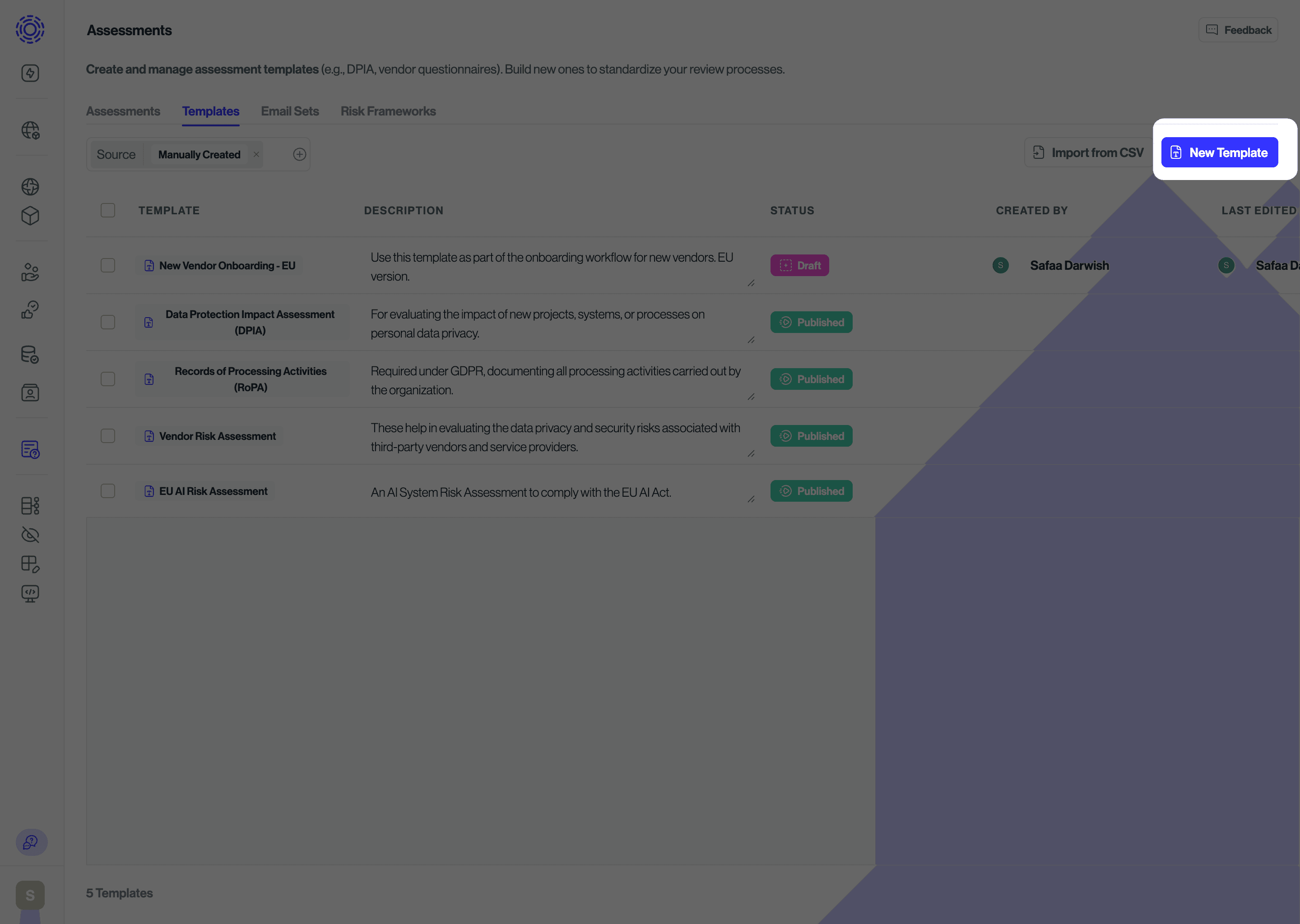
1. Navigate to Assessment Templates
2. Click New Template on the right-hand side of the screen
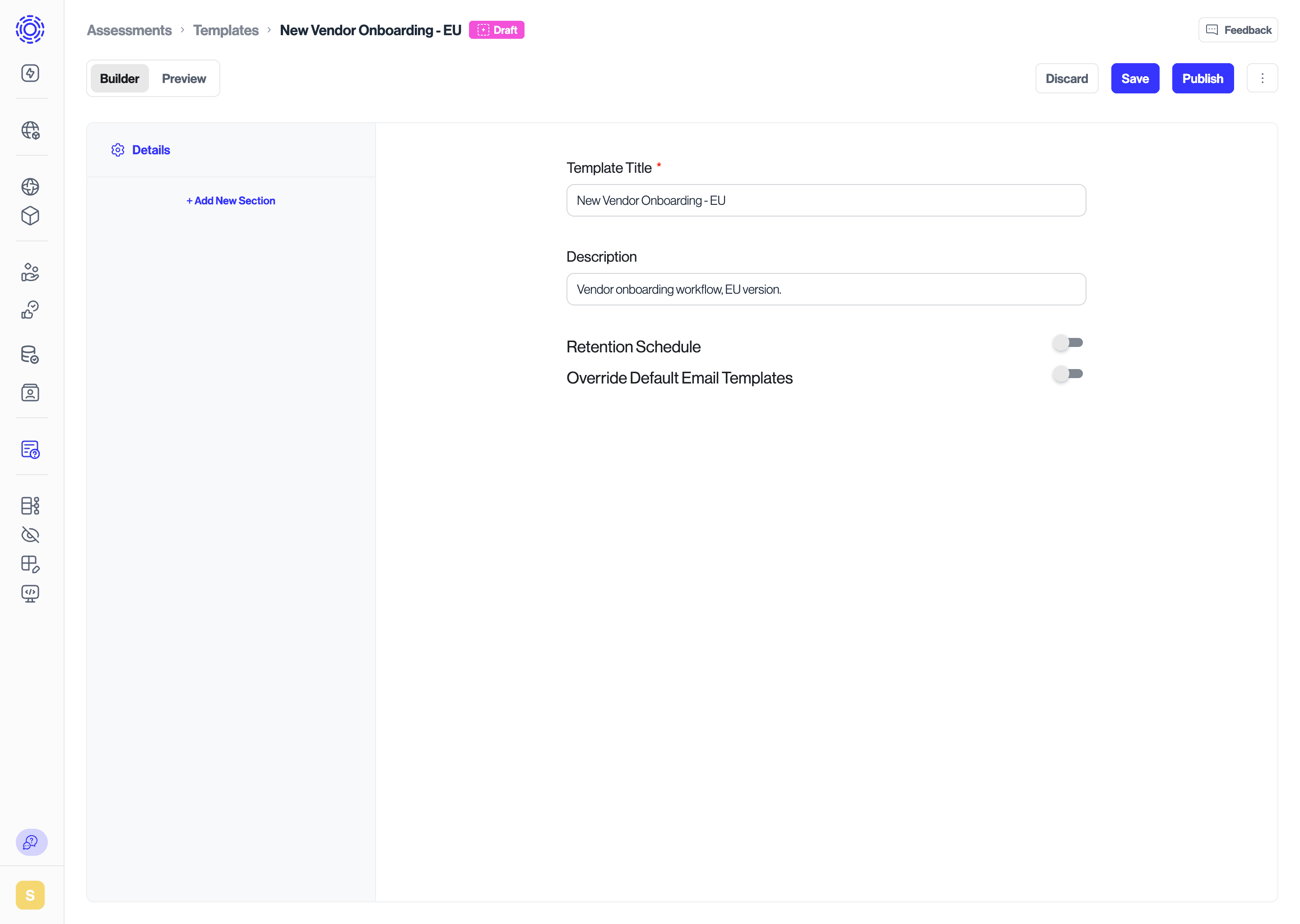
3. Setup an assessment template, inputing the title and description of the template.
4. Click +Add New Question and setup a question
5. Navigate to the question's Advanced Settings and select Sync response to table. Map the question to the corresponding table and field.
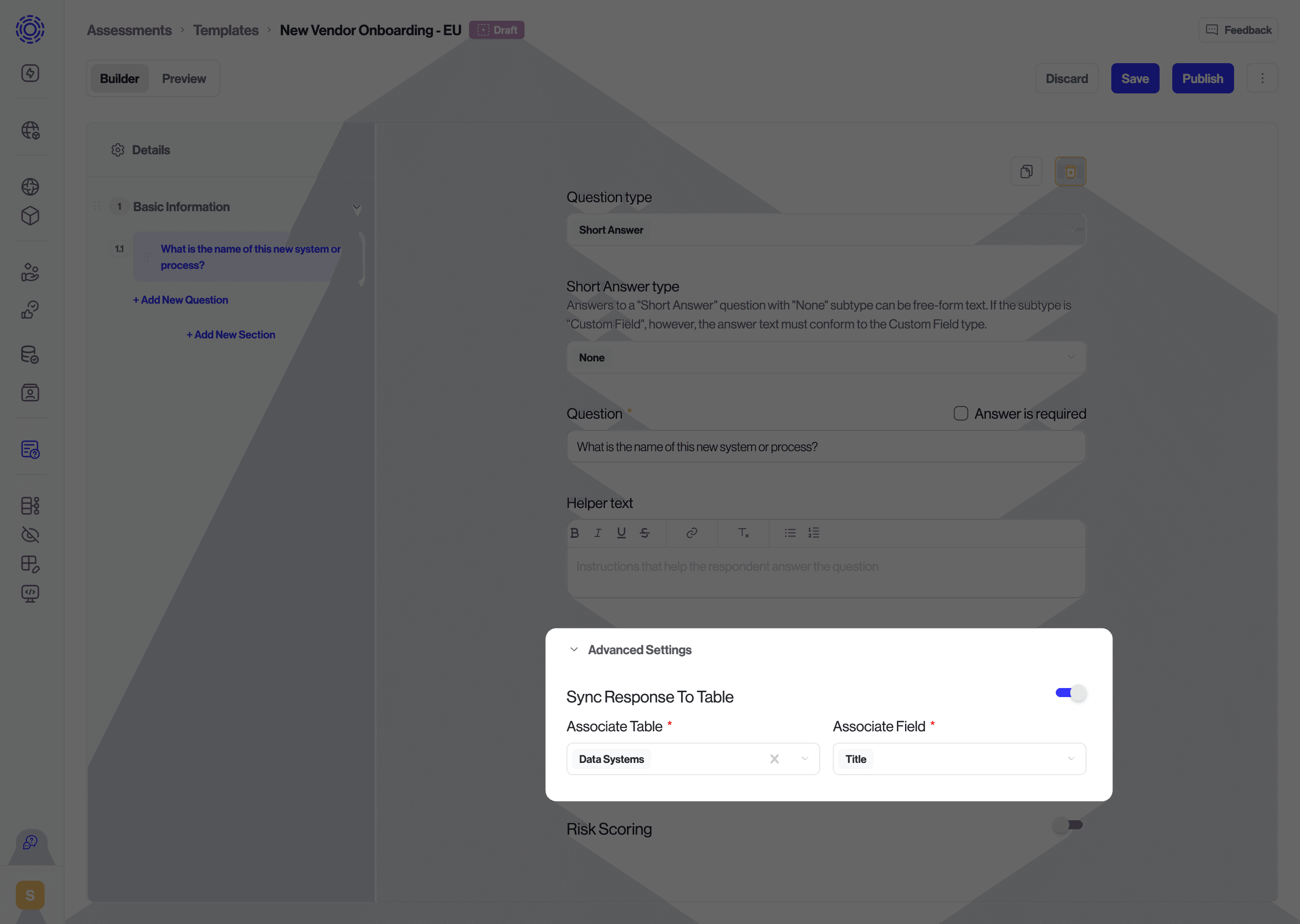
These mappings define how Transcend populates key fields when a new row is generated upon response approval.
In the template builder, you configure Sync response to table on one or more questions so that their answers map to specific tables and fields in the Data Inventory. Any table you reference here (for example, Vendor name, System name, Data Categories, etc.) becomes eligible for new row creation when you review a response.
6. Continue adding as many new questions as needed with Advanced Setting: Sync Response to Table.
7. Save and publish the template
Note: a published assessment that is in-use cannot be updated with the with sync-to-inventory advanced setting in the template.
For assessments configured with Sync Response to Table, reviewers will see the Create new row in Data Inventory option at the top of the 'In Review' response page.
1. Assign the assessment, as usual.
2. Review the assessment after the assignee has submitted their response
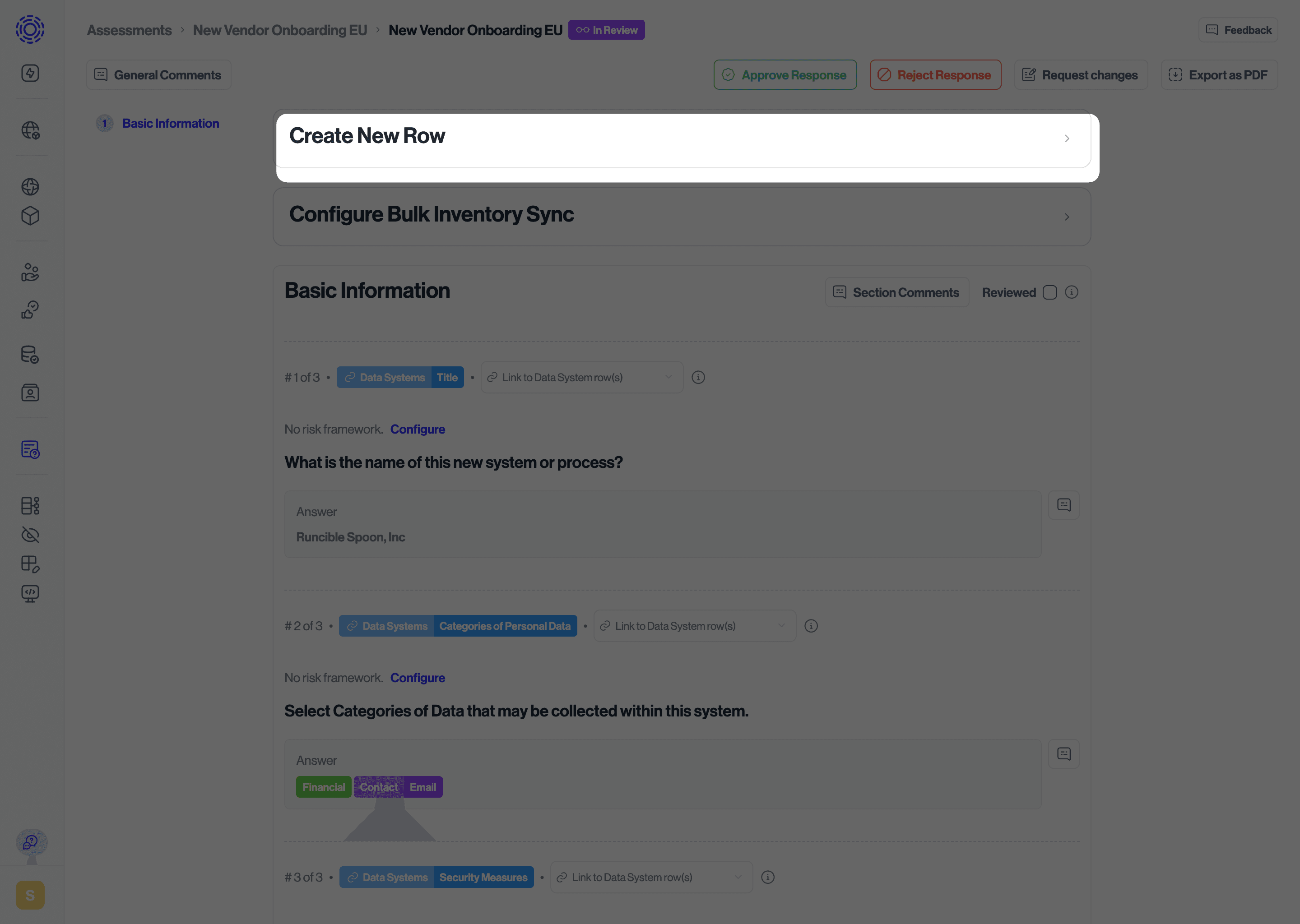
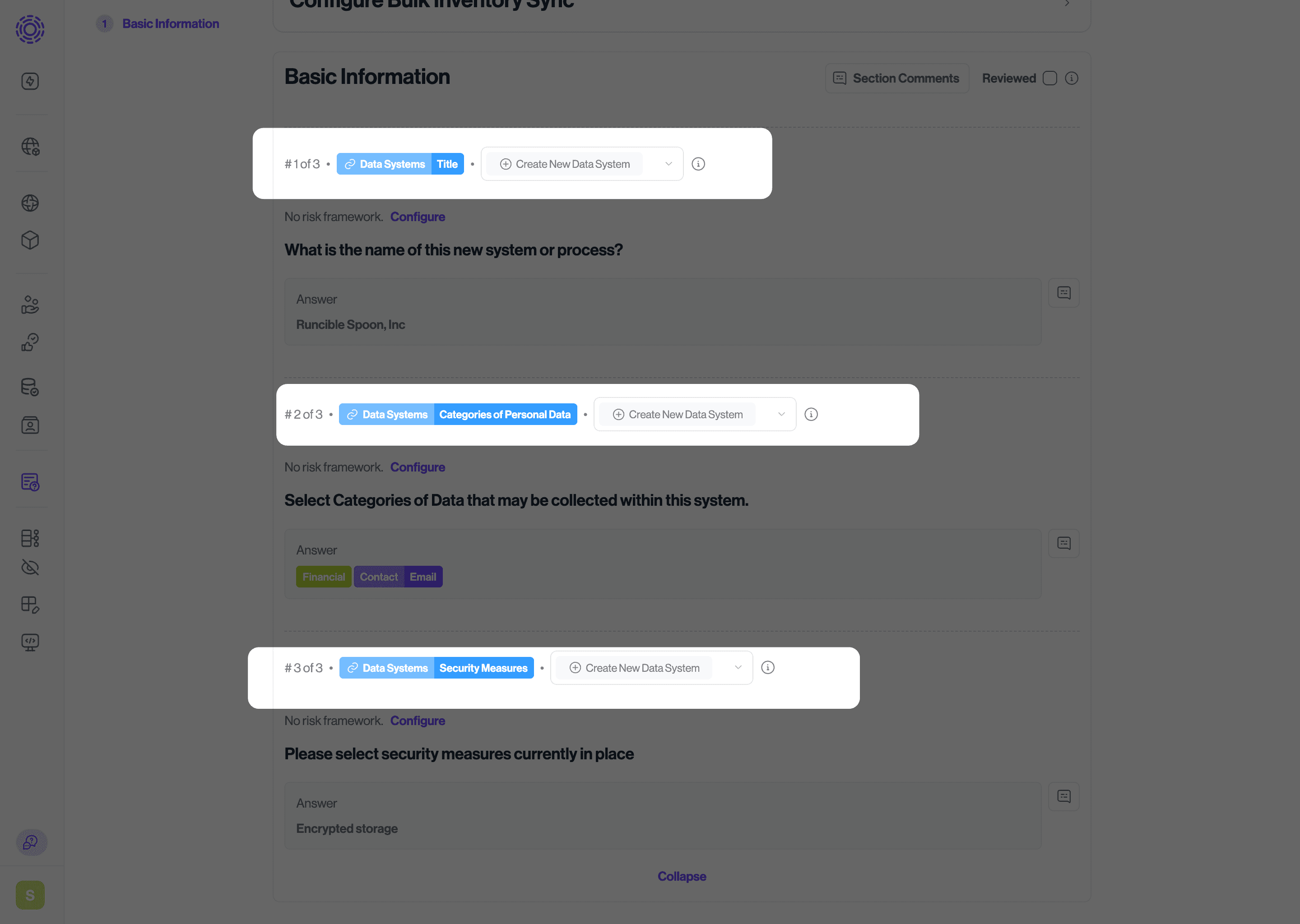
3. Select the table for the new record to be created in.
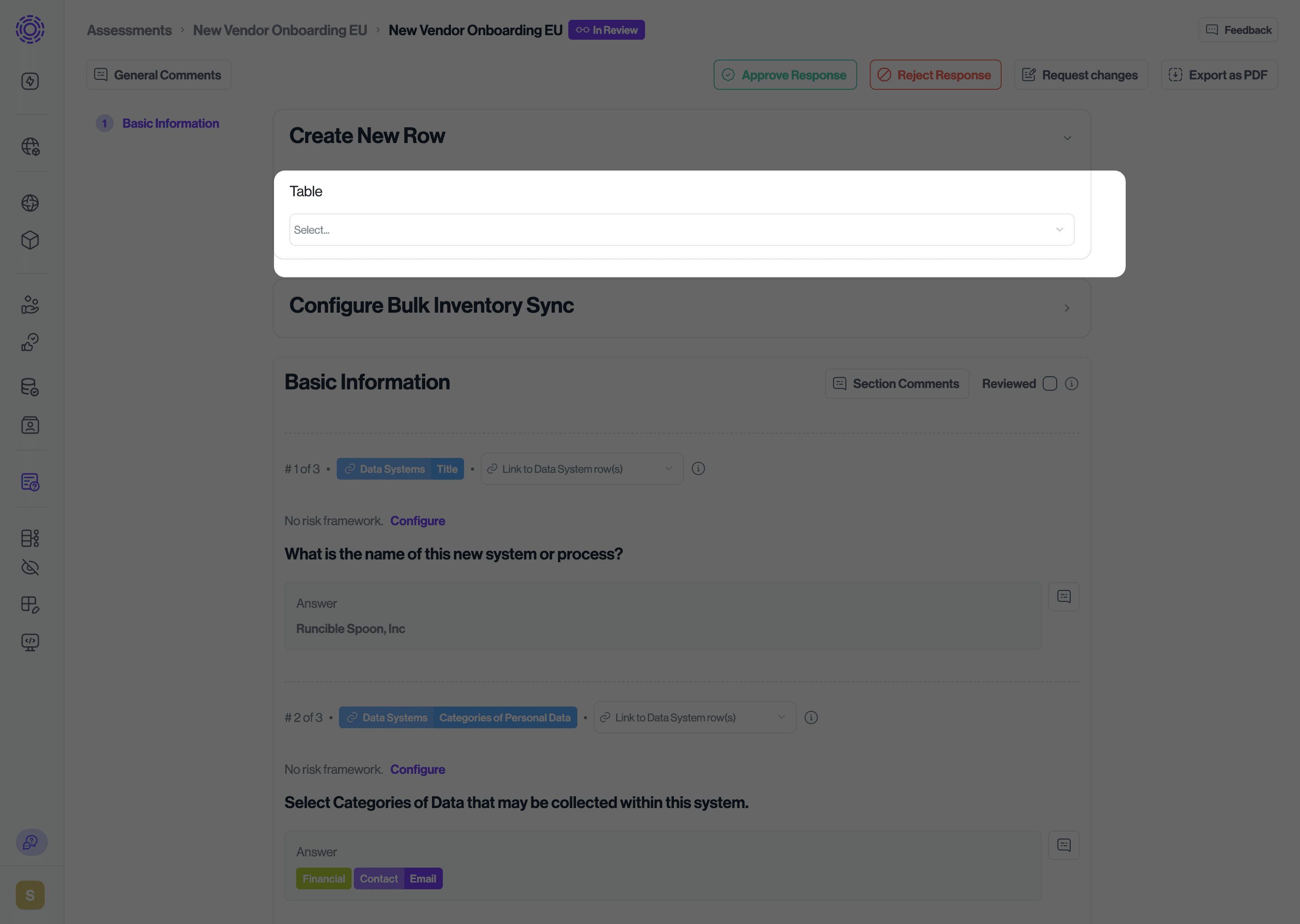
3. Select the required fields for the new record to be created from.
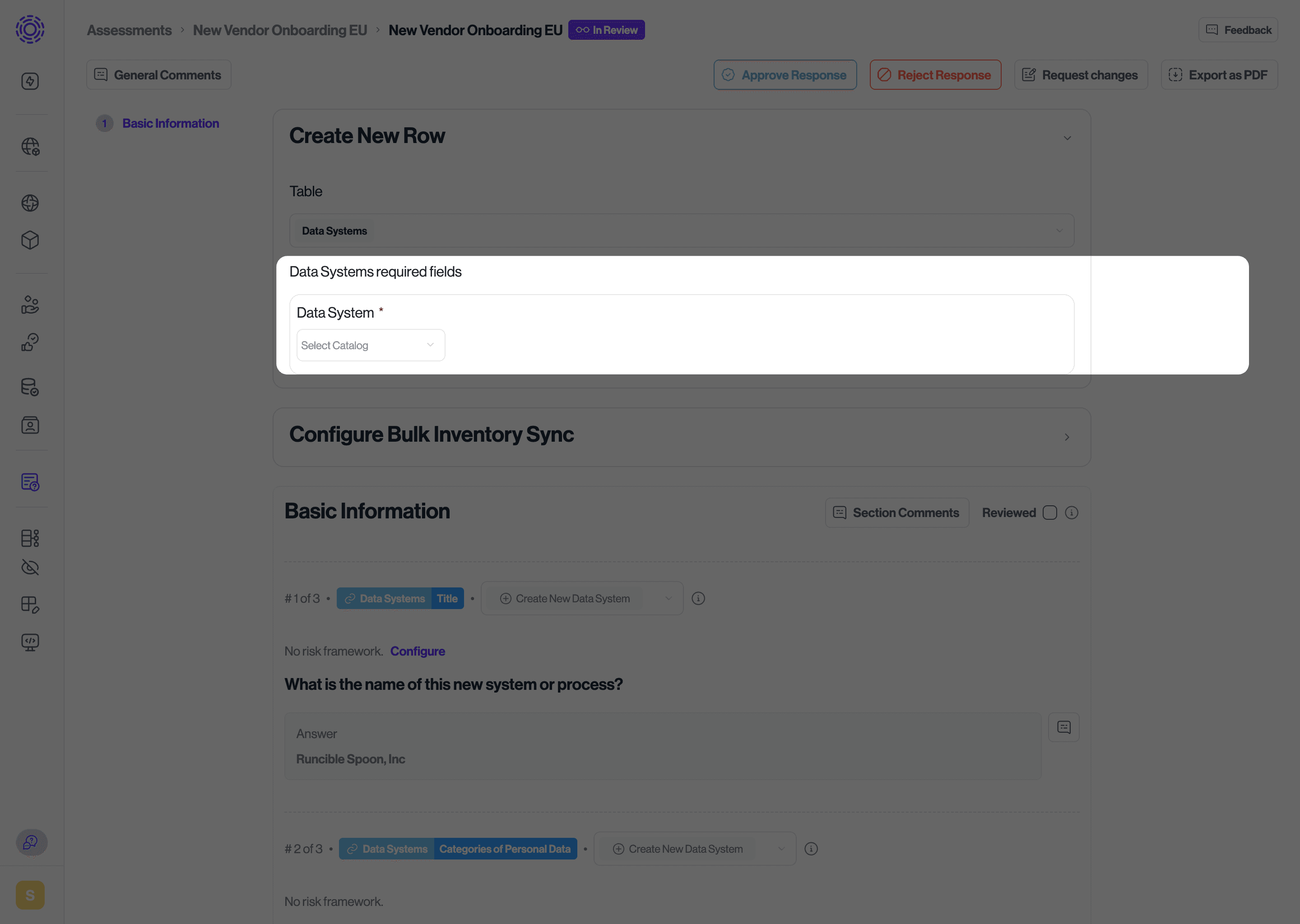
In the case of a Data System row being created, a Data System must be selected. Select either a known system from the dropdown (e.g. Salesforce) or create a custom record selecting Prompt a Person.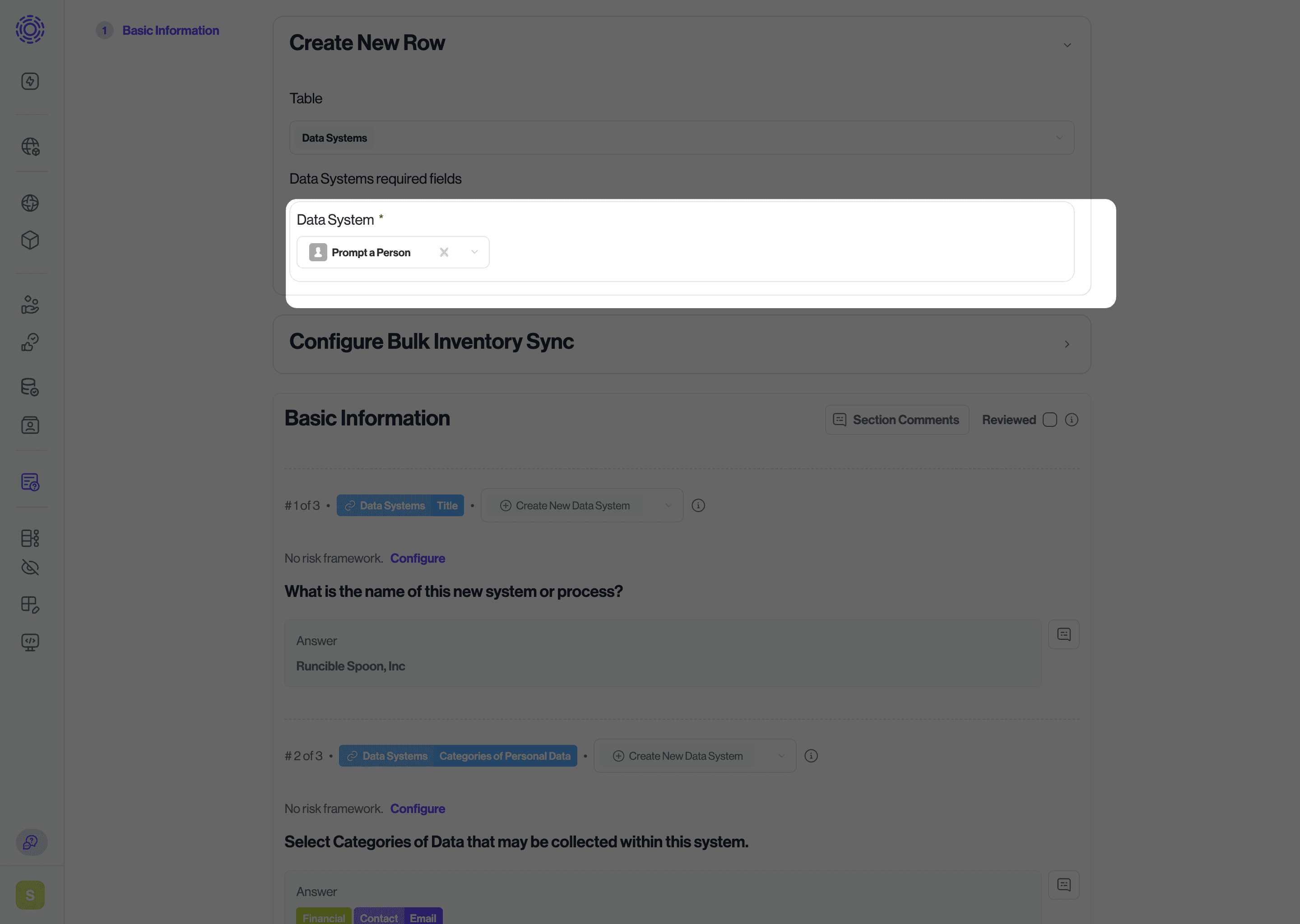
4. Select Create New Data System from the menu to create a new row and sync information from a particular question.
5. Approve the Response
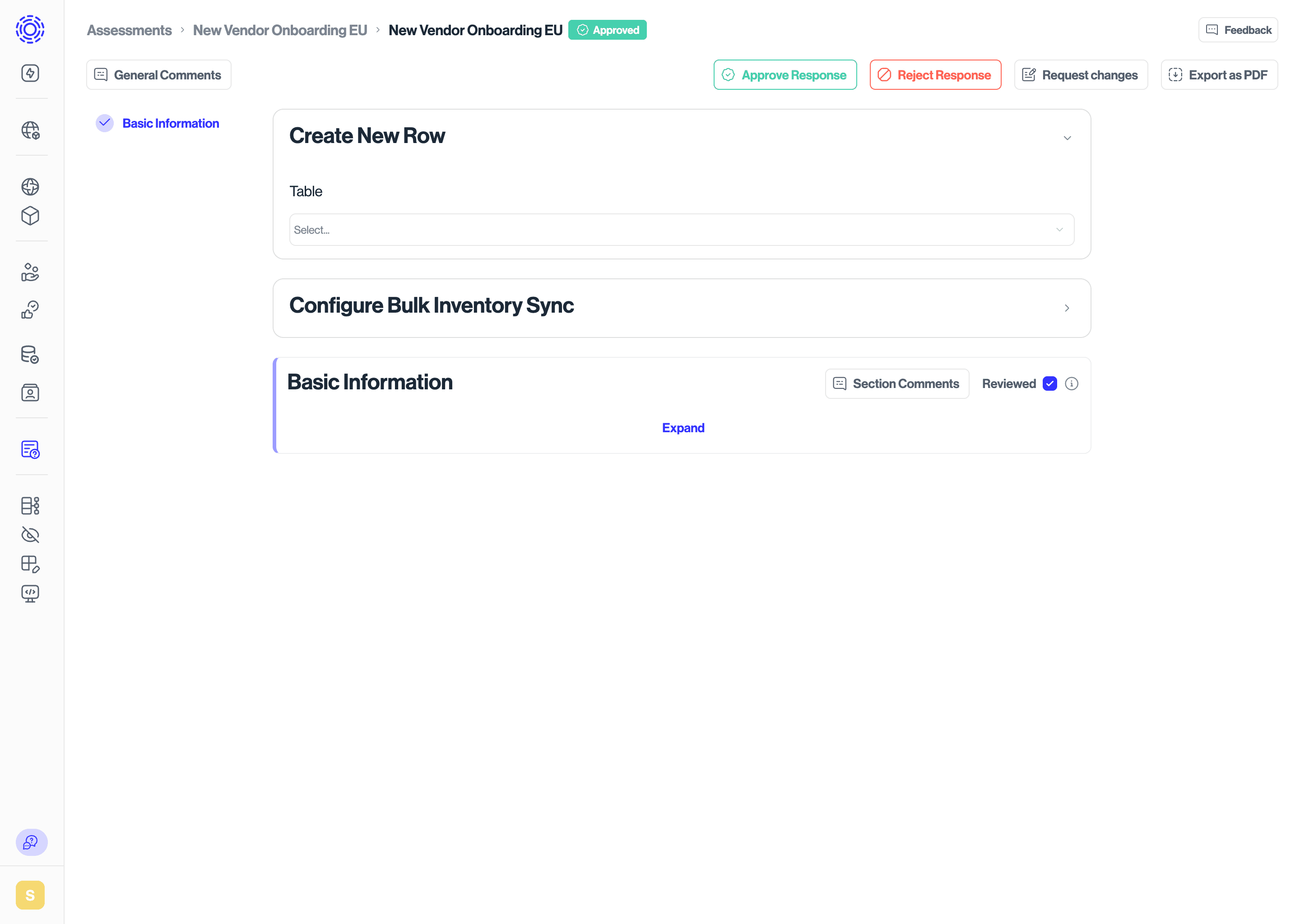
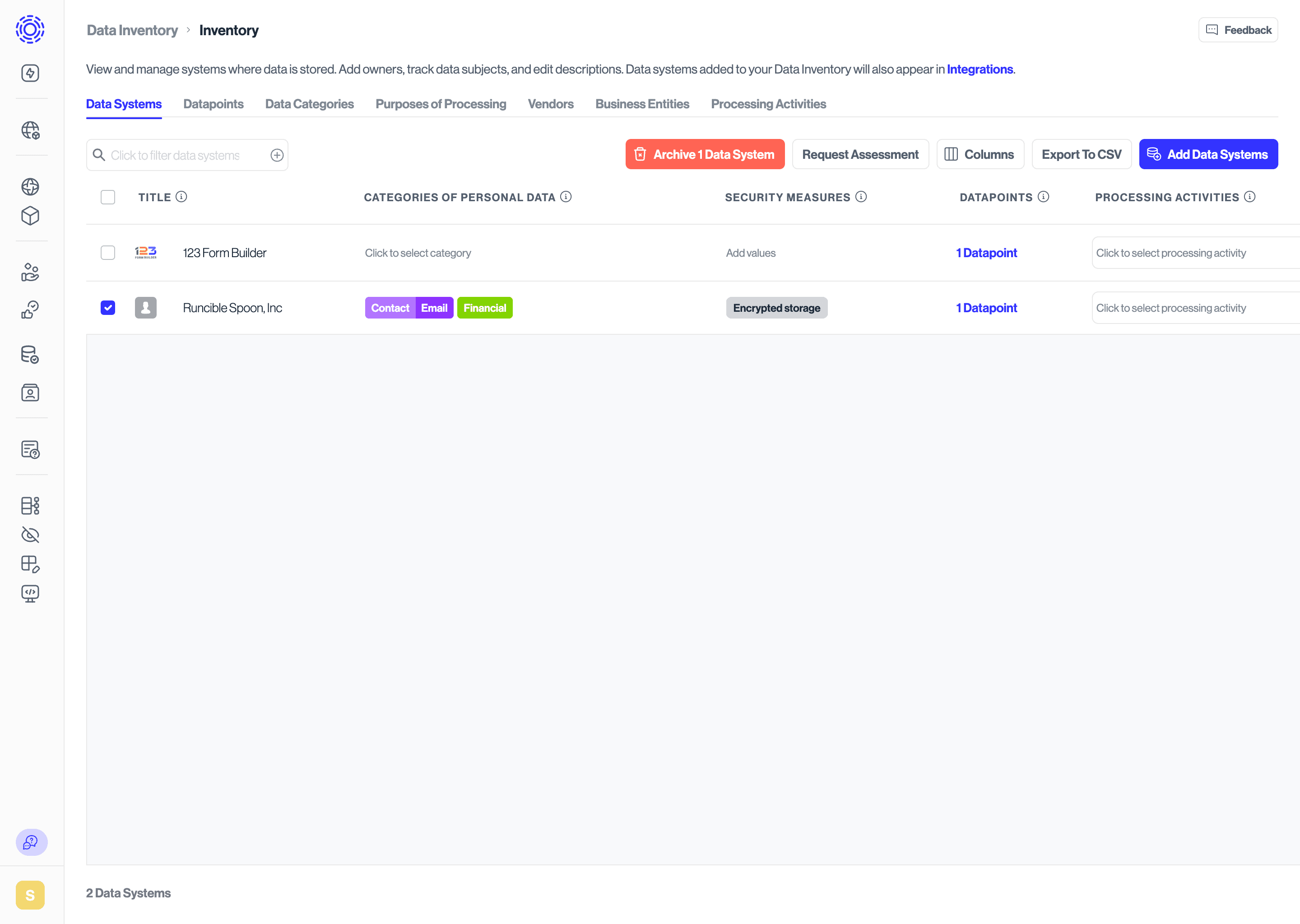
6. In the Data Inventory, open the table where the new row was created. In the example below, the row has been added to the Data Systems table.