Connecting multiple AWS services
This guide explains how to efficiently and automatically connect multiple AWS services in Transcend. Transcend takes advantage of IAM authentication to streamline the connection process as much as possible.
This guide is especially useful for customers managing multiple AWS accounts. We’ll go over:
- How it all works
- Limitations
- How to set it up
We have several AWS integrations:
- AWS Organizations
- Amazon Web Services (AWS)
- S3
- DynamoDB
- Redshift (extends our Database integration)
- RDS (extends our Database integration)
- Aurora (extends our Database integration)
Each of these are interconnected via System Discovery. Here’s an example of how connecting AWS services could look like with these integrations:
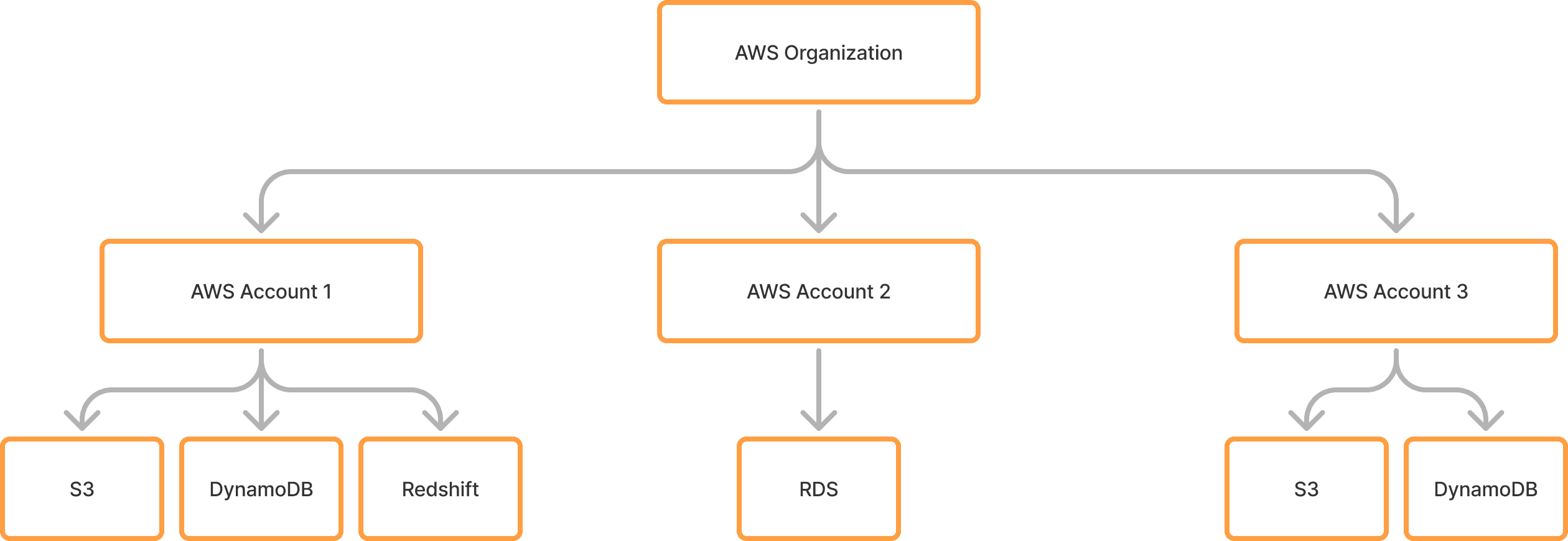
- Connect AWS Organizations integration.
- AWS Organizations integration automatically runs System Discovery to discover AWS Accounts as Amazon Web Services (AWS) Data Systems.
- Add AWS Data Systems to Data Inventory. This converts them into AWS integrations that are automatically connected. The AWS Organization integration’s IAM credentials are passed along to the new AWS integrations.
- AWS integrations automatically run System Discovery to discover all the services that reside under the account, such as S3 buckets, DynamoDB databases, Redshift databases, RDS databases, and Aurora databases. These discovered services are added as Data Systems.
- Add these Data Systems to Data Inventory. This converts them into integrations that are automatically connected, depending on the integration (we’ll go deeper into this later). The AWS integration’s IAM credentials are passed along to these new integrations.
- These integrations automatically run Schema Discovery on its data.
All these automated connections are possible due to IAM authentication. However, while DynamoDB and S3 can be fully automated solely with IAM authentication, RDS, Aurora, and other database integrations like Redshift require extra set up and have some limitations.
IAM authentication with RDS & Aurora requires extra steps.
One of these key steps is ensuring a database user exists in the database such that they have the AwsAuthenticationPlugin permission if using MariaDB / MySQL or the rds_iam permission if using Postgres, as per Amazon’s documentation. Otherwise, the connection will fail.
Another key step is enabling IAM database authentication for each RDS or Aurora instance, as per Amazon’s documentation. This can done in the AWS console, CLI, API, SDK, Terraform, etc.
In addition, IAM authentication with RDS is only available for MySQL, Postgres, and MariaDB, as per Amazon’s documentation. Aurora Postgres and MySQL are available to connect via IAM authentication.
On top of IAM authentication, network access is required to connect to your database. Below are our recommendations for enabling Sombra™ to securely access your database, depending on your setup.
- Self-hosted Sombra in same VPC as database — This is the simplest and more secure setup. No network connectivity setup should be needed.
- Multi-tenant Sombra — This requires enabling public accessibility and setting inbound rules for the database's security groups to allowlist the Sombra's IP address. We don't recommend this due to the security risks that comes with making your database publicly accessible, and therefore recommend self-hosting Sombra when connecting AWS databases with Transcend.
- Self-hosted Sombra in different VPC as database — This requires either 1) enabling public accessibility and setting inbound rules, or more securely 2) setting up cross-VPC connectivity. Common solutions to set this up include PrivateLink, Peering Connections, and Transit Gateway. Review the Amazon documentation to set this up.
Transcend’s AWS Organizations is designed to auto-connect multiple AWS Accounts, and pass along the IAM credentials needed to perform AWS integration’s System Discovery to discovery S3, RDS, Redshift, DynamoDB, and Aurora resources. View the full guide here on setting up the connection for AWS Organizations integration.
Here is a brief explanation of the IAM scopes and how Transcend uses them:
- Required for AWS Organizations to discover AWS accounts
organizations:ListAccounts
- Required for AWS System Discovery to discover AWS services
rds:DescribeDBInstancesredshift:DescribeClustersredshift-data:ListDatabasesdynamodb:ListTablesdynamodb:DescribeTables3:ListAllMyBucketss3:GetBucketLocations3:ListBucket
- Required for S3 discovery plugins
s3:GetBucketLocations3:ListBuckets3:GetObjectKMS:Decrypt
- Required for DynamoDB discovery plugins
dynamodb:DescribeTabledynamodb:Scan
- Required for RDS & Aurora discovery plugins (if IAM authentication applies)
rds-db:connect
- Required for Redshift discovery plugins
redshift:GetClusterCredentialsWithIAM
Because the necessary IAM credentials and permissions are already handled via IAM policies and StackSets as described in the guide, DynamoDB, S3, and Redshift plugins should be able to automatically run its Schema Discovery plugins. If you’re encountering permission errors, ensure the IAM role contains the necessary scopes, which are outlined in the integration’s connection form.
For users whose Sombra cluster are not part of the same VPC as the Redshift clusters, extra setup steps may be required. Please refer to the “Limitations” section above for more details.
Transcend’s RDS & Aurora integrations are designed to maximize automation as much as possible. To do so, Transcend requires 2 things:
- Enabling IAM database authentication across all RDS & Aurora instances. Follow Amazon’s guide here to enable IAM database authentication for all RDS & Aurora instances.
- A user with the same username and the
AwsAuthenticationPluginpermission to be created across all RDS & Aurora instances. Follow Amazon’s guide here to create such user for each RDS & Aurora instance. Alternatively, it is possible to write a Terraform or JavaScript script and take advantage of AWS Secrets Manager or a local store of username & passwords to execute this. Here are the following steps that the script will need to do:- List all RDS & Aurora Postgres, MariaDB, and MySQL instances.
- Retrieve username & passwords for each instance, whether via AWS Secrets Manager or local store.
- Connect to each instance using the username & password.
- Create users with
AwsAuthenticationPluginpermission for each instance.
Below are rough templates you can use as starting points for creating the user across database instances:
- Example Terraform template
  provider "aws" {
    region = "us-east-1"  # Change to your region
  }

  # Fetch all RDS instances
  data "aws_db_instances" "all_rds" {}

  # Iterate over each instance and get details
  data "aws_db_instance" "dbs" {
    for_each = toset(data.aws_db_instances.all_rds.db_instance_identifiers)
    db_instance_identifier = each.value
  }

  # Fetch credentials from AWS Secrets Manager
  data "aws_secretsmanager_secret" "db_secrets" {
    for_each = data.aws_db_instance.dbs
    name     = each.value.master_user_secret.0.secret_arn
  }

  data "aws_secretsmanager_secret_version" "db_secrets_values" {
    for_each  = data.aws_secretsmanager_secret.db_secrets
    secret_id = each.value.id
  }

  # Convert JSON secret value to variables
  locals {
    db_credentials = {
      for k, v in data.aws_secretsmanager_secret_version.db_secrets_values :
      k => jsondecode(v.secret_string)
    }
  }

  # MySQL/MariaDB Provider
  provider "mysql" {
    for_each = { for k, v in data.aws_db_instance.dbs : k => v if contains(["mysql", "mariadb"], v.engine) }

    endpoint = "${each.value.address}:3306"
    username = local.db_credentials[each.key]["username"]
    password = local.db_credentials[each.key]["password"]
  }

  # PostgreSQL Provider
  provider "postgresql" {
    for_each = { for k, v in data.aws_db_instance.dbs : k => v if v.engine == "postgres" }

    host            = each.value.address
    port            = 5432
    database        = "postgres"
    username        = local.db_credentials[each.key]["username"]
    password        = local.db_credentials[each.key]["password"]
    sslmode         = "require"
  }

  # Create IAM-authenticated users in MySQL & MariaDB
  resource "mysql_user" "iam_user" {
    for_each = { for k, v in data.aws_db_instance.dbs : k => v if contains(["mysql", "mariadb"], v.engine) }

    user        = "iam_user"
    host        = "%"
    plugin      = "AWSAuthenticationPlugin"
  }

  # Create IAM-authenticated users in PostgreSQL
  resource "postgresql_role" "iam_user" {
    for_each = { for k, v in data.aws_db_instance.dbs : k => v if v.engine == "postgres" }

    name     = "iam_user"
    login    = true
}- Example JavaScript template
  import { DescribeDBInstancesCommand, RDSClient } from '@aws-sdk/client-rds';
  import {
    GetSecretValueCommand,
    SecretsManagerClient,
  } from '@aws-sdk/client-secrets-manager';
  import mysql from 'mysql2/promise';
  import { Client as PostgresClient } from 'pg';

  // AWS Clients
  const rdsClient = new RDSClient({ region: 'us-east-1' });
  const secretsManagerClient = new SecretsManagerClient({
    region: 'us-east-1',
  });

  async function getRDSInstances() {
    const command = new DescribeDBInstancesCommand({});
    const response = await rdsClient.send(command);

    // Filter instances with supported engines
    return response.DBInstances.filter((db) =>
      ['mysql', 'mariadb', 'postgres'].includes(db.Engine),
    );
  }

  async function getDBCredentials(secretArn) {
    const command = new GetSecretValueCommand({ SecretId: secretArn });
    const response = await secretsManagerClient.send(command);
    return JSON.parse(response.SecretString);
  }

  async function createIAMUserMySQL(dbInstance, username, password) {
    const connection = await mysql.createConnection({
      host: dbInstance.Endpoint.Address,
      port: 3306,
      user: username,
      password: password,
    });

    try {
      await connection.query(
        "CREATE USER IF NOT EXISTS 'iam_user'@'%' IDENTIFIED WITH AWSAuthenticationPlugin",
      );
      await connection.query("GRANT SELECT, INSERT ON *.* TO 'iam_user'@'%'");
      console.log(
        `IAM user created on MySQL/MariaDB: ${dbInstance.DBInstanceIdentifier}`,
      );
    } catch (error) {
      console.error(
        `Error creating IAM user on ${dbInstance.DBInstanceIdentifier}:`,
        error,
      );
    } finally {
      await connection.end();
    }
  }

  async function createIAMUserPostgres(dbInstance, username, password) {
    const client = new PostgresClient({
      host: dbInstance.Endpoint.Address,
      port: 5432,
      user: username,
      password: password,
      database: 'postgres',
      ssl: { rejectUnauthorized: false },
    });

    try {
      await client.connect();
      await client.query('CREATE ROLE iam_user WITH LOGIN;');
      console.log(
        `IAM user created on PostgreSQL: ${dbInstance.DBInstanceIdentifier}`,
      );
    } catch (error) {
      console.error(
        `Error creating IAM user on ${dbInstance.DBInstanceIdentifier}:`,
        error,
      );
    } finally {
      await client.end();
    }
  }

  async function main() {
    const rdsInstances = await getRDSInstances();

    for (const instance of rdsInstances) {
      if (instance.MasterUserSecret?.SecretArn) {
        const credentials = await getDBCredentials(
          instance.MasterUserSecret.SecretArn,
        );
        const { username, password } = credentials;

        if (['mysql', 'mariadb'].includes(instance.Engine)) {
          await createIAMUserMySQL(instance, username, password);
        } else if (instance.Engine === 'postgres') {
          await createIAMUserPostgres(instance, username, password);
        }
      } else {
        console.log(
          `Skipping ${instance.DBInstanceIdentifier}: No Secrets Manager entry found.`,
        );
      }
    }
  }

  main().catch(console.error);
When connecting an AWS Organizations or AWS integration, you can populate the Username field with the user. This will be used to authenticate into a discovered RDS / Aurora instance via IAM authentication. Not executing the 2 steps above will likely result in failed connection.
For users whose Sombra cluster are not part of the same VPC as the Redshift clusters, extra setup steps may be required. Please refer to the “Limitations” section above for more details.
If you already have AWS-discovered Data Systems like RDS and Aurora instances, you can simply re-connect the corresponding AWS integration’s connection and re-run its System Discovery plugin. This should re-discover the same Data Systems while updating their connection info.