Enabling Consent Experiences
Before you can use Consent Experiences, you need to activate it in your Developer Settings. This is a one-time setup step.
- Log in to your Transcend Admin Dashboard.
- In the left navigation, go to Consent Management → Developer Settings.
- Click the Visual Editor tab.
- Toggle on Use New Consent Experience.
- Click Review Changes & Publish and select your bundle type to deploy the change.
Switching is non-destructive and reversible. If you switch back to the old UI, your legacy settings remain intact. If you return to the New Consent Experience later, your new configuration will still be there. Neither set of settings is lost when switching between the two.
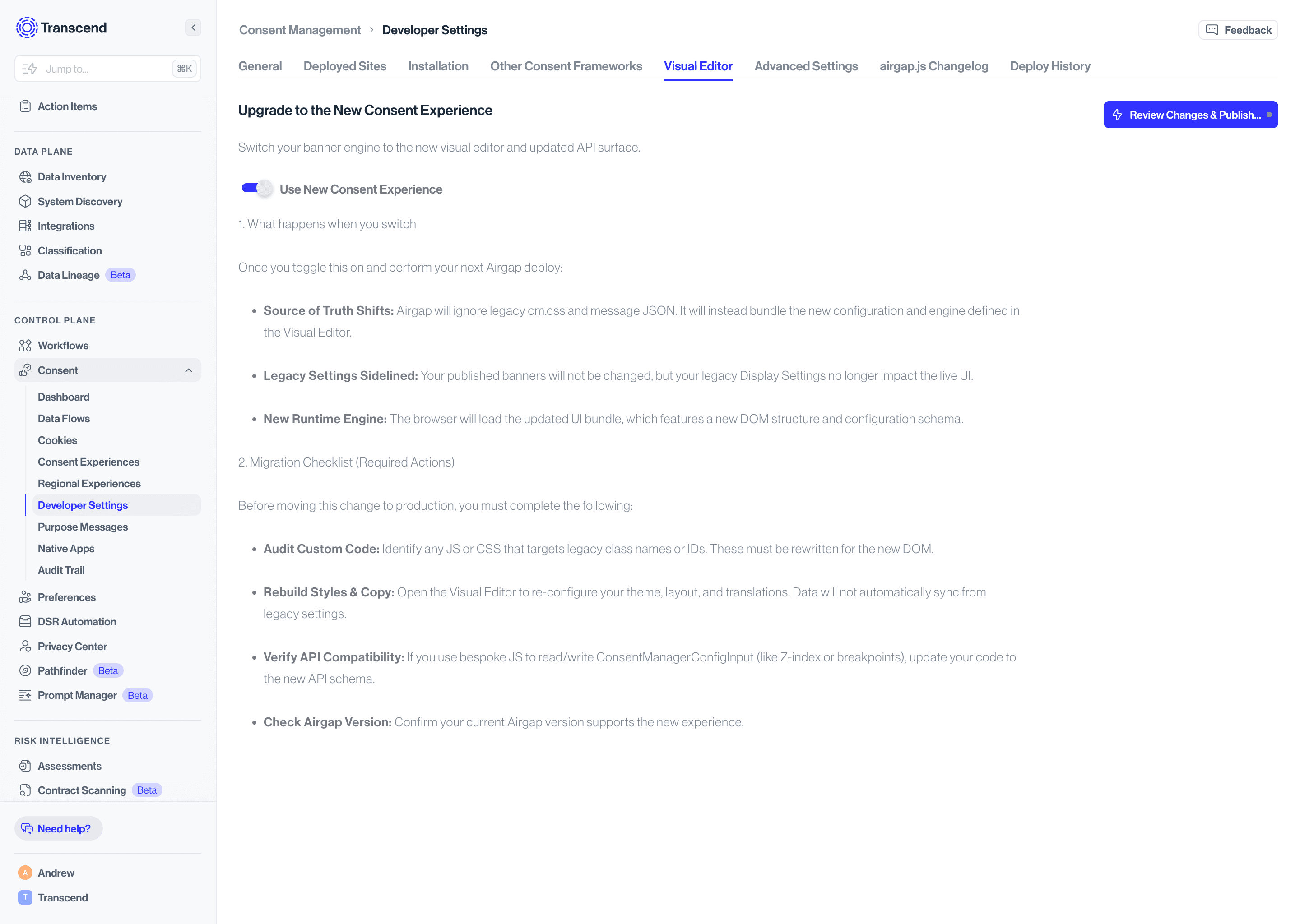
Enabling this setting changes how Airgap bundles your consent UI. Three things happen on your next deploy:
- Source of Truth Shifts - Airgap will ignore your legacy cm.css and message JSON. Your new configuration from the Visual Editor becomes the source of truth.
- Legacy Settings Sidelined - Your published banners won't break immediately, but your legacy Display Settings will no longer affect the live UI.
- New Runtime Engine - The browser loads an updated UI bundle with a new DOM structure and configuration schema.