Preflight Check: Post to a Server (Webhook)
If you need to contact a web service in order to resolve an identifier (username, internal ID, etc.), Transcend supports Webhooks in order to collect that additional information.
Webhooks can also be used to automatically cancel incoming DSR Automation based on your business or legal needs, or simply put them on hold until further resolution.
Under the DSR Automation section, Identifiers, make sure each of the identifiers you plan to return is listed. If not, use the + button to define new identifiers.
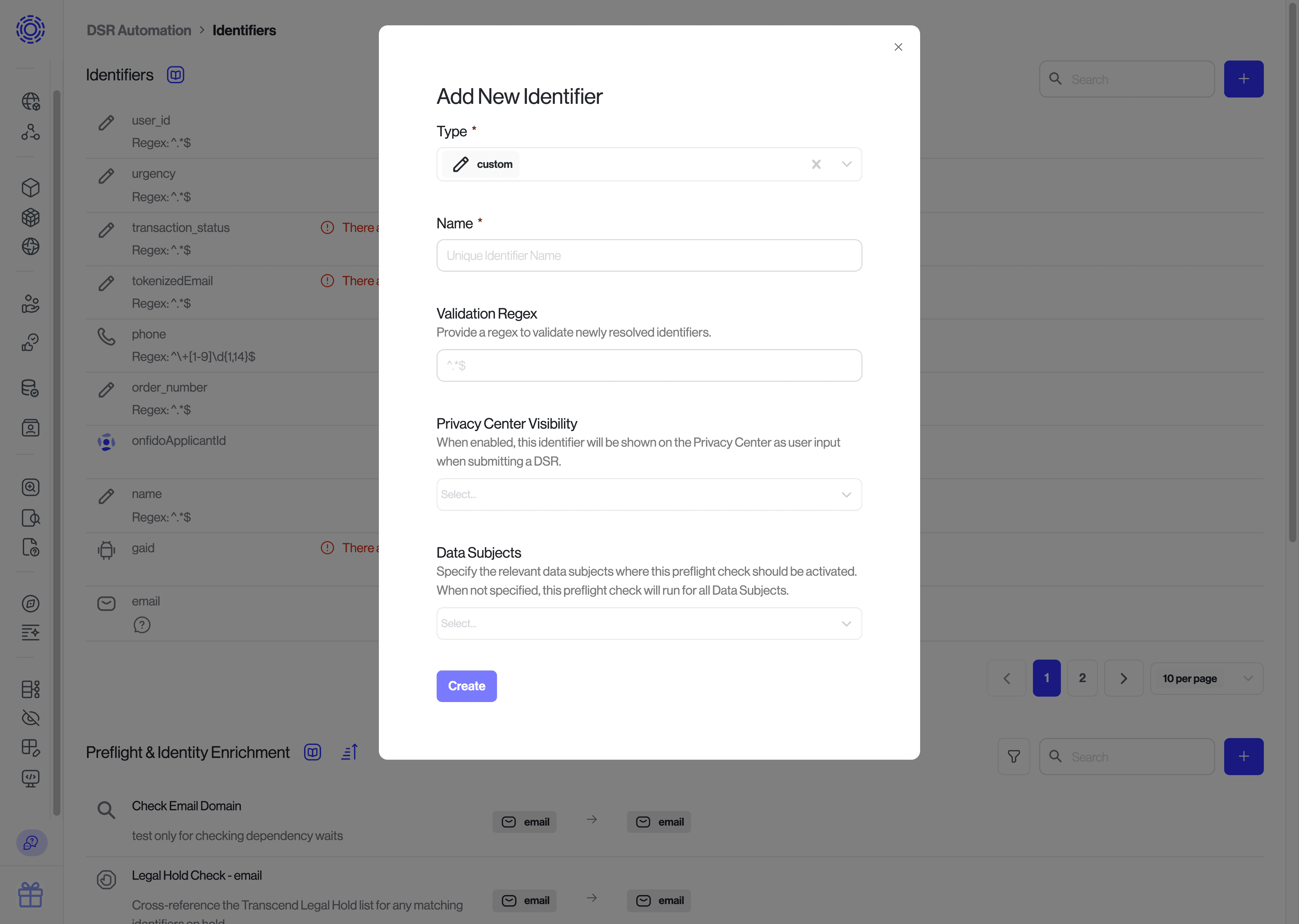
Note that the identifier's
namethat you configure here has to match with the "name" of the identifier used in your payload.
Go to the Identifiers section under DSR Automation. Add a new preflight check by clicking the blue + button in the top-right-hand corner of the "Preflight & Identity Enrichment" section.
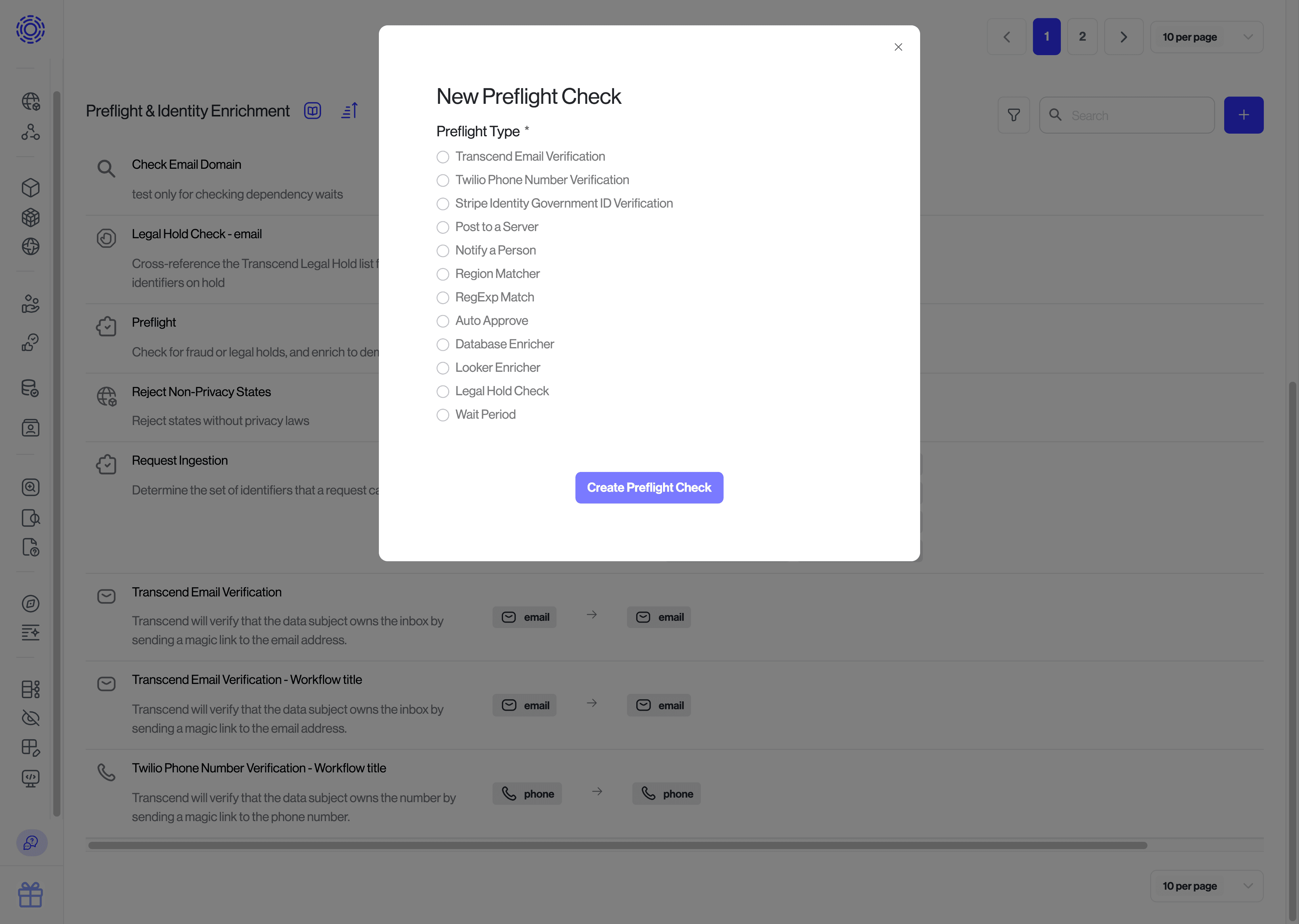
Preflight checks always take in a single identifier (e.g. an email) and can return many identifiers (e.g. emails, advertising IDs, phone numbers, and custom identifiers such as user IDs).
Enter the URL Transcend should send a POST request to, and which type of identifier it should include in the payload (e.g., an email address). We will send you a webhook whenever we receive a request containing that type of identifier.
Select the identifiers you plan to return from your preflight check & hit save!
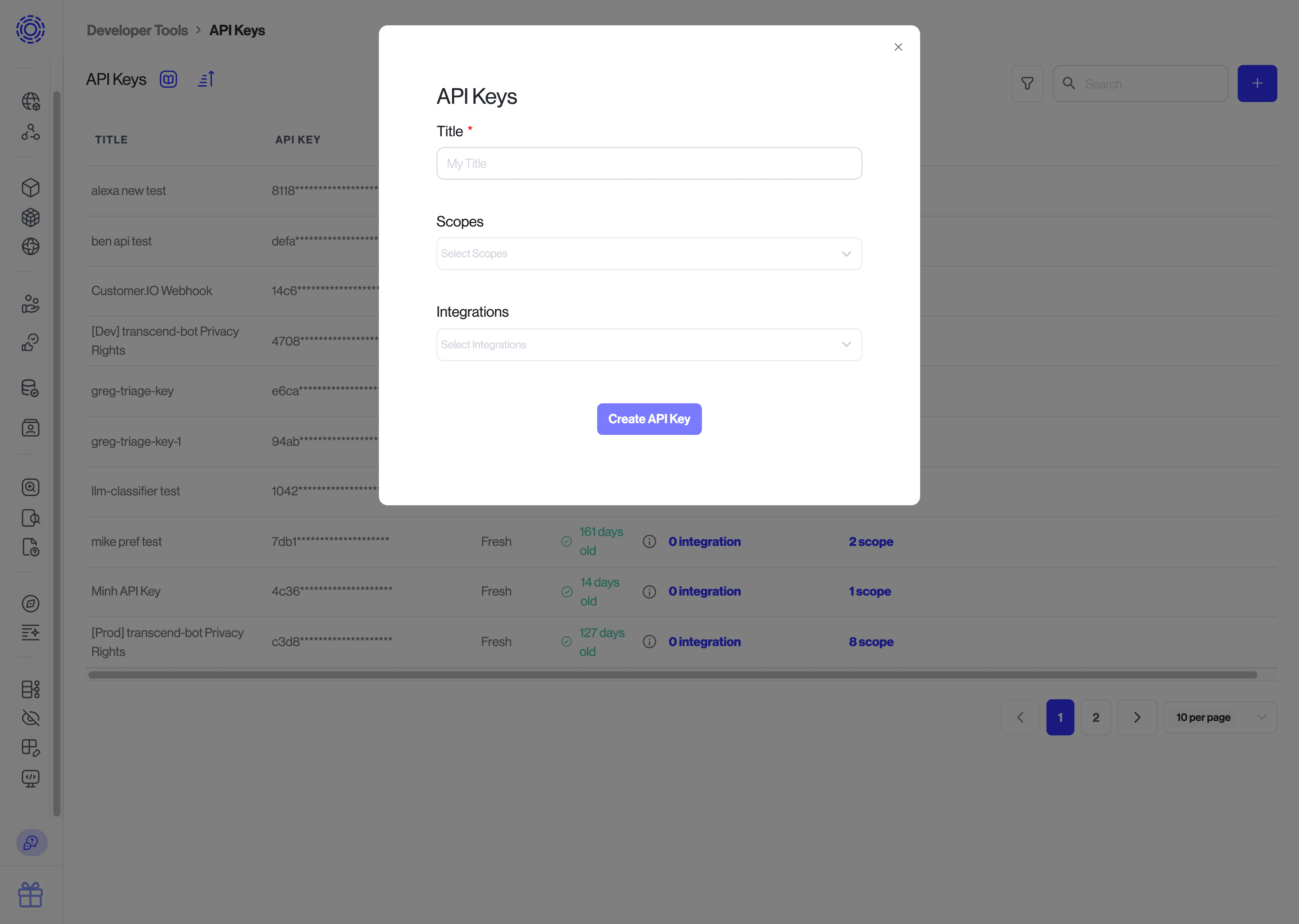
In order to upload the identifier back to Transcend, you will need to create an API key with the Manage Request Identity Verification scope on the Infrastructure > Developer Tools > API Keys page. Please refer to the creating an API key guide for more information.
Note: if the same server is also used for the Server Webhook Integration, you can use a single API key with scopes for both the integration and identity enrichment.
We have examples on GitHub. The JavaScript example is deployed live at our demo Privacy Center.
Transcend will send a POST request to the URL that you input into the preflight check form above. The route should first validate that the webhook is in fact coming from your Sombra™ gateway by validating the incoming x-sombra-token header. Please refer to this guide for information on verifying the webhook signature.
See the webhook reference.
Request headers:
{
  "x-transcend-nonce": "<A_VALUE_TO_RETURN>",
  "x-sombra-token": "<A_JSON_WEB_TOKEN_TO_VERIFY>",
  "accept": "application/json",
  "content-type": "application/json",
  "via": "HTTPS/1.1 {{yourOrganizationName}}.sombra.transcend.io:5041 (Sombra)"
}
Request body:
{
  "type": "ACCESS", // Could be ERASURE, ...
  "requestIdentifier": {
    "value": "mikebrook@transcend.io"
  },
  "coreIdentifier": {
    "value": "some.user.id" // The globally unique user ID for the user
  },
  "dataSubject": {
    "type": "customer"
  },
  "isTest": false,
  "extras": {
    "request": {
      "details": "",
      "id": "2cde58cd-5405-434e-8c6a-dd71a726d5b3",
      "link": "https://app.transcend.io/privacy-requests/incoming-requests/2cde58cd-5405-434e-8c6a-...",
      "verifiedAt": "2019-04-26T17:55:22.773Z",
      "createdAt": "2019-04-26T17:55:21.723Z",
      "locale": "en",
      "origin": "PRIVACY_CENTER"
    },
    "enricher": {
      "id": "2716d635-f132-45a1-95ae-44a36eae653d"
    },
    "identifier": {
      "id": "63289ec9-113a-4559-a3e5-0b2de30a2743",
      "name": "email",
      "type": "email"
    },
    "requestEnricherId": "6a3cdc8d-581f-43e3-aa7e-a3edc07109d0",
    "organization": {
      "id": "aaba371a-1ca0-4c55-9231-a1d8088a0e7d",
      "name": "{{yourOrganizationName}}",
      "uri": "{{yourOrganizationName}}"
    }
  }
}
You can grab the identifier to enrich from the webhook body at requestIdentifier.value. If your route expects multiple types of identifier inputs, you can determine which identifier needs to be notified by pulling out the field extras.identifier.name.
Additionally, you will want to save the x-transcend-nonce from the headers. You will need it to upload the enriched identifiers later.
Once you have all of the information you need to perform the enrichment, you can queue a job to asynchronously process this enrichment request and respond to the webhook with status code 200 to indicate that the webhook was received successfully.
If your server finds no data and wants to avoid scheduling a job, you can instead return status code 204 to the webhook, and the request will continue.
- Look up the additional identifiers that you wish to return. These identifiers must be predefined on the Admin Dashboard under Identifier settings.
- Upload these identifiers to your internal Sombra application at
POST /v1/enrich-identifiers, with the headerx-transcend-noncefrom earlier, and a request body containing the enriched identifiers like so:
{
  "enrichedIdentifiers": {
    "googleAnalyticsInternalId": [
      {
        "value": "SOME-GOOGLE-ANALYTICS-ID"
      }
    ],
    "gpadvid": [
      {
        "value": "b20f48d8-9f50-447a-a446-1d398a9f9b1b"
      }
    ]
  }
}
The enrichedIdentifiers object has a nested object for each identifier. The key of each nested object should match the identifier name specified in the Identifiers settings.
The identifier value has a maximum length of 16,384 characters.
You can check out the code example below of this process:
// external modules
import * as jwt from 'jsonwebtoken';
import rp from 'request-promise';

const MOCK_DB = {
  1234: {
    phone: '+18001234567', // required format
    username: 'mfred',
    email: 'mikebrook@transcend.io',
  },
  5678: {
    phone: '+18002143567',
    username: 'fredm',
    email: 'fredM@transcend.io',
  },
};

/**
 * Async process to enrich identities + upload to Transcend through Sombra
 */
async function scheduleEnricher(identifier, nonce) {
  // Look up the additional identifiers that you wish to return
  const extraIdentifiers = MOCK_DB[identifier];
  return rp({
    url: `${SOMBRA_URL}/v1/enrich-identifiers`,
    method: 'POST',
    headers: {
      authorization: `Bearer ${transcendApiKey}`,
      'x-transcend-nonce': nonce,
      'x-sombra-authorization': `Bearer ${sombraApiKey}`,
    },
    json: true,
    body: {
      enrichedIdentifiers: extraIdentifiers
        ? {
            phone: [{ value: extraIdentifiers.phone }],
            username: [{ value: extraIdentifiers.username }],
            email: [{ value: extraIdentifiers.email }],
          }
        : // specify empty object for enricher to
          // continue without uploading new identifiers
          {},
    },
  });
}

/**
 * Enricher resolver
 */
async function enricherController(req, res, next) {
  try {
    // 1. Authenticate the incoming webhook and get the verified JWT
    let signedBody;
    try {
      signedBody = await verifyAndExtractWebhook(req.headers['x-sombra-token']);
    } catch (error) {
      // If the webhook doesn't pass verification, reject it.
      return res.status(401).send('You are not Transcend!');
    }
    const nonce = req.headers['x-transcend-nonce'];
    // 2. Grab the identifier from the verified JWT
    //    This body looks different depending on what type of identifier it is.
    const requestIdentifier = signedBody.value;
    // 3. Schedule the enricher
    scheduleEnricher(requestIdentifier, nonce);
    // 4. Respond with a 200 to acknowledge that you've received the request
    res.status(200);
  } catch (err) {
    next(err);
  }
}When you expose your route to the internet, you must be certain that only Sombra can send authenticated requests.
Endpoint reference: Add info to a DSR before processing
There may be cases where you need to cancel a DSR, or place it on hold for human review. For example, the data subject may be on some special list (anti-fraud, legal hold, do not delete), or their account is in a state where it cannot be deleted at this time.
Using a preflight check, you can automatically cancel the request before it begins processing. Instead of returning a list of identifiers, you can instead specify the request status to transition the DSR to that status. You may optionally include an email template ID in the response, such as an email that explains why the request is canceled. If you include an email template ID, Transcend will send that email to the user.
POST /v1/enrich-identifiers| Value of status | Use to... |
|---|---|
ON_HOLD | Place the request on hold for review (e.g., the user is suspected of fraud) |
CANCELED | Cancel the request altogether (e.g., the user failed the anti-fraud check) |
To respond with a status, simple response with status: <STATUS> in the request body with status code 200.
{
  "status": "CANCELED" // or "ON_HOLD"
}
You can also specify the email template to use when canceling the request
{
  "status": "CANCELED",
  "templateId": "93d31e79-04c4-493d-8f16-38a9d9da5053"
}
OR by title:
{
  "status": "CANCELED",
  "templateTitle": "My Custom Template"
}
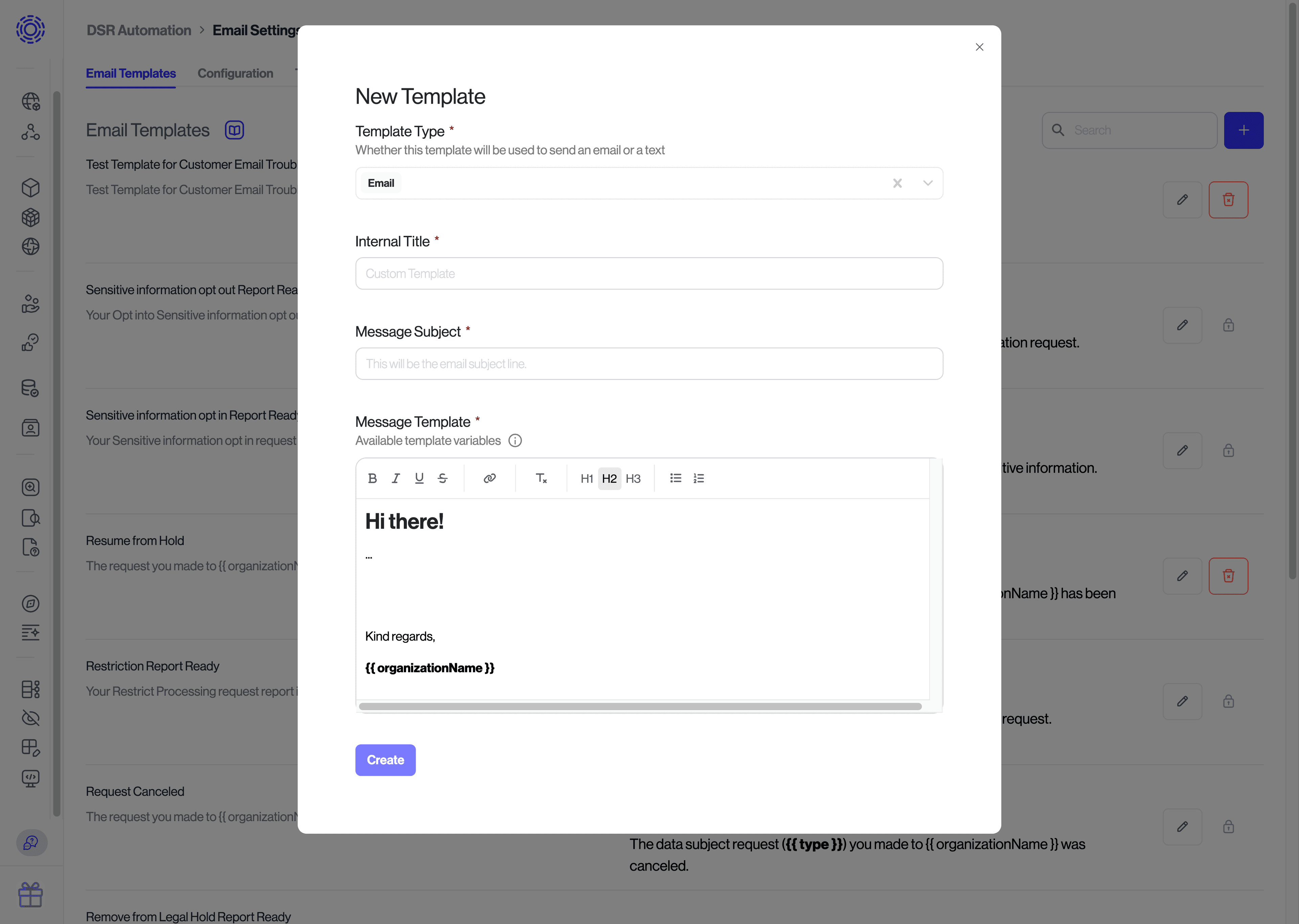
To find the ID of the template you would like to specify, navigate to the template settings page, click the pencil icon for the template you wish to use, and copy the ID.
Note: the default template will be used if none is provided.
In some situations, you may want to use a preflight check to conditionally skip integration jobs. Some common examples where this may be necessary:
1. Integration A, an integration that requires manual intervention, should only be processed if Integration B has data on a user. In this situation, the preflight webhook may check integration B and skip integration A if no data is found.
2. You may have a shared database that is represented with multiple integrations in Transcend. The preflight job may check which share to be process and skip processing for the remainder of database shards.
In order to conditionally skip integration jobs, you would:
1. Receive the webhook, grabbing the request ID from extras.request.id in the incoming request body, responding back 200 to indicate that the webhook has been received and is in process.
2. Write some code to determine the set of integration/data system IDs to be skipped based on the request ID.
3. Call Transcend GraphQL API changeRequestDataSiloStatuses to skip the integration/data system IDs. This requires the scope Manage Request Compilation
mutation SkipIntegrationJobs($requestId: ID!, $dataSiloIds: [ID!]!) {
  changeRequestDataSiloStatuses(input:{ requestId: $requestId, dataSiloIds, status: "SKIPPED" }) {
    count
  }
}
4. Respond to /v1/enrich-identifiers indicating the preflight check is completed. This requires scope Manage Request Identity Verification.
{
  "enrichedIdentifiers": {}
}
When determining the integration/data system IDs - this can be done in 1 or 2 ways:
1. This can be pulled from the URL of the integration e.g. for https://app.transcend.io/infrastructure/integrations/f956ccce-5534-4328-a78d-3a924b1fe429/activities, the dataSiloId is f956ccce-5534-4328-a78d-3a924b1fe429
2. You can query the GraphQL API to grab the data system IDs
query {
  dataSilos(first: 100) {
    nodes {
      id
      title
    }
  }
}Your webhook only needs to return the identifiers it can confirm. If a configured output identifier is unavailable, whether because the lookup found no value or because your legal policy restricts returning certain PII you can simply omit that identifier from the response payload entirely. Do not include it with a blank value (e.g., "name": ""), as empty strings can cause unexpected behavior in downstream systems.
Any identifier listed on the request that your webhook does not return will remain in an Unverified state. A request cannot move to processing while unverified identifiers are present. To resolve this, you have a number of options:
- Only configure identifiers your webhook can guarantee. The simplest approach is to only list output identifiers that your webhook will reliably return. If an identifier is only sometimes available, remove it from the configured output list.
- Chain an Auto Approve (https://docs.transcend.io/docs/articles/dsr-automation/preflight-and-enrichment/preflight-checks/preflight-check-auto-approve) preflight check for optional identifiers. This automatically verifies identifiers that don't require active validation — the recommended pattern when you trust the data subject's self-reported value.
- Remove identifiers programmatically via the API. If you need to dynamically drop identifiers as part of your webhook flow, you can query and delete them using the Sombra API and Transcend GraphQL API:
# Step 1: Look up identifier IDs on the request
curl --location 'https://multi-tenant.sombra.transcend.io/v1/request-identifiers' \
--header 'Authorization: Bearer <your-api-key>' \
--data '{"requestId": "<request-id>", "identifierNames": ["<identifier-name>"], "first": 50, "offset": 0}'

# Step 2: Remove the identifier from the request
curl --location 'https://api.transcend.io/graphql' \
--header 'Authorization: Bearer <your-api-key>' \
--data '{"query": "mutation RemoveRequestIdentifiers($input: RemoveRequestIdentifiersInput!) { removeRequestIdentifiers(input: $input) { count } }", "variables": {"input": {"requestId": "<request-id>", "requestIdentifierIds": ["<identifier-id>"]}}}'